Student Office Visits is used to maintain records of student visits to the school health office or nurse’s office. Summary data for each visit is listed on the main screen and sorted in reverse chronological order. Other student office visit screens will display more detailed information for each student record, including doctor referral information.
Student Office Visits is located under the Health menu in Q.
The Student Office Visit application is a Q banner application. For more detailed information regarding the configuration and search functions for Student Banner applications, please refer to the Student Banner Documentation.
- Locate the desired student using the arrow keys or the Find feature.

2. Click Add to begin adding a new Office Visit record.
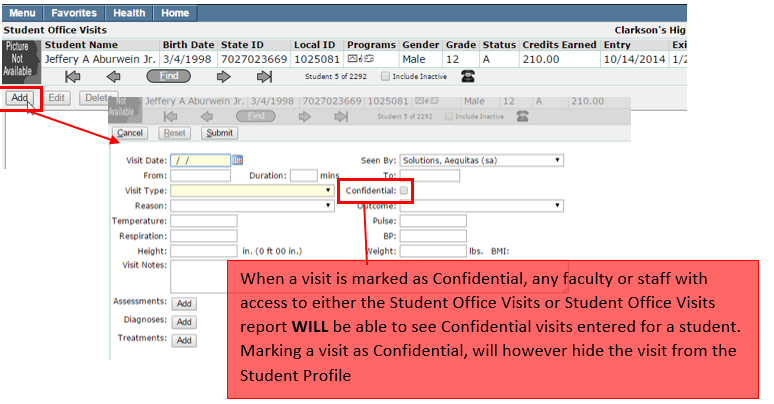
3. Input all relevant information regarding the office visit. Click Submit to save your changes.
To edit a student office visit, select the desired visit by clicking on it in the Office Visit list, then click Edit.
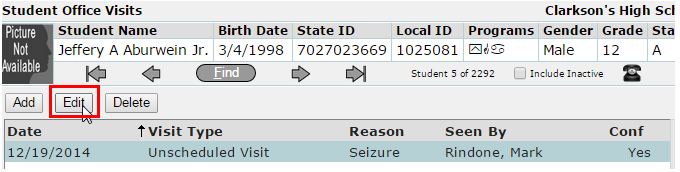
Make the desired changes and click Submit.
To delete a student office visit:
- Highlight the record you would like to delete from the office visit list.
- Click Delete

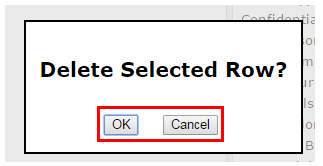
3. A confirmation window will appear. Select ‘OK’ to confirm the deletion or ‘Cancel’ to return to the previous screen.