
To make navigation easy many short-cuts are available throughout Q to make access applications quick. Let’s look at all the options available in the Navigation Bar across the top of the screen.

Menu: Access all applications
Favorites: Customize your favorite or most used applications all in one place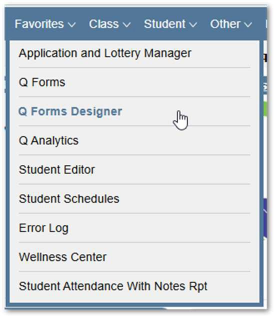
Favorites are added by clicking on the Star icon  located in the bottom left corner of the page. Open the application first and then click the star.
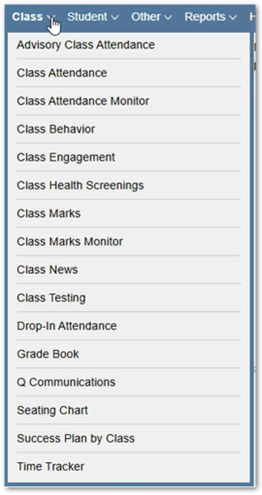
Class: All applications that apply to a class (section)
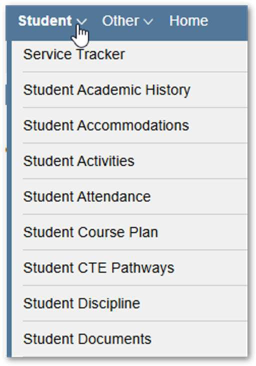
Student: All applications that apply to students
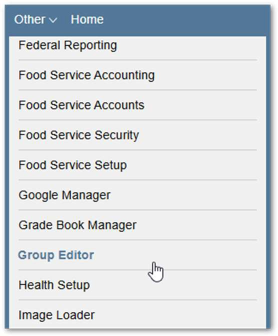
Other: Other applications that are not specific to Class or Student
Reports: Only displays when in an application and lists the reports available within that application.
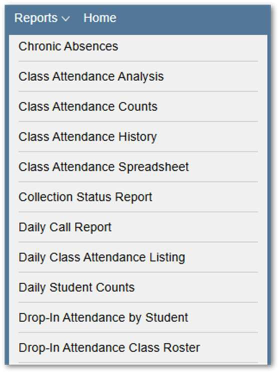
Home: Returns to the Q Home Screen
Date: Defaults to the current date for current tracks and the first day of school for future tracks. Date can be adjusted using the calendar tool.
File: This has several different options available under it.
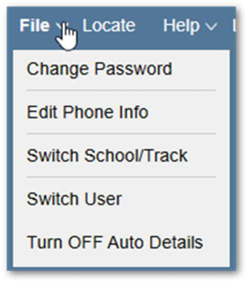
- Change Password
- Edit Phone Number
- Switch School/Track
- Switch User
- Turn OFF Auto Details: NEW in 4.3.0 – This will display detail view when selecting an item from a list view. Users can toggle that option ON or OFF here from any application.
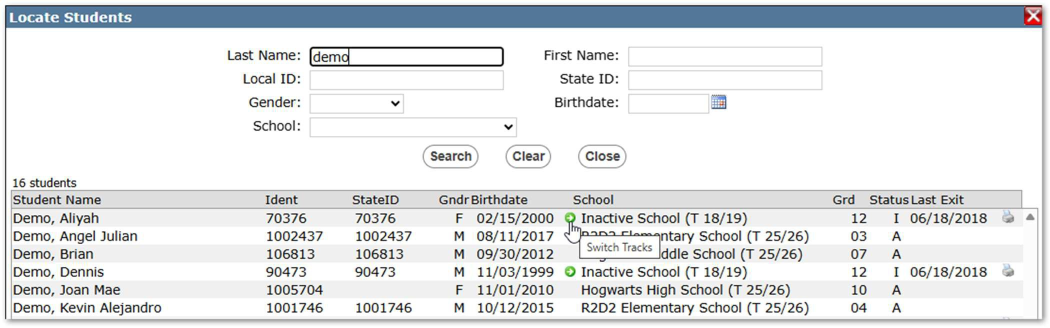
Locate: With appropriate access and permissions users can access exited students in a previous year database.
Search for students. List displays all students with basic information and the current school/track or if exited, the last school/track attended. Students from previous years will have a green arrow icon next to the school name. Clicking the green arrow will leave the current database and open the school/track/year listed.
Help: HELP – HELP This will take users to the documentation where they can access training and resources for all applications within Q. If in an application when Help is selected it opens to the area within the HELP menu.