
The Faculty Directory Report lists staff with key demographic information and includes the faculty member’s current tracks. Address and Phone information may optionally be included, as may be a set of additional fields including: email, notes and ethnicity. The set of staff may be filtered, enabling the user to create a very specific list of staff including by faculty group, status, department, and type.
Faculty Directory Report is located within Reports in the Staff menu in Q.
The report offers the following options: 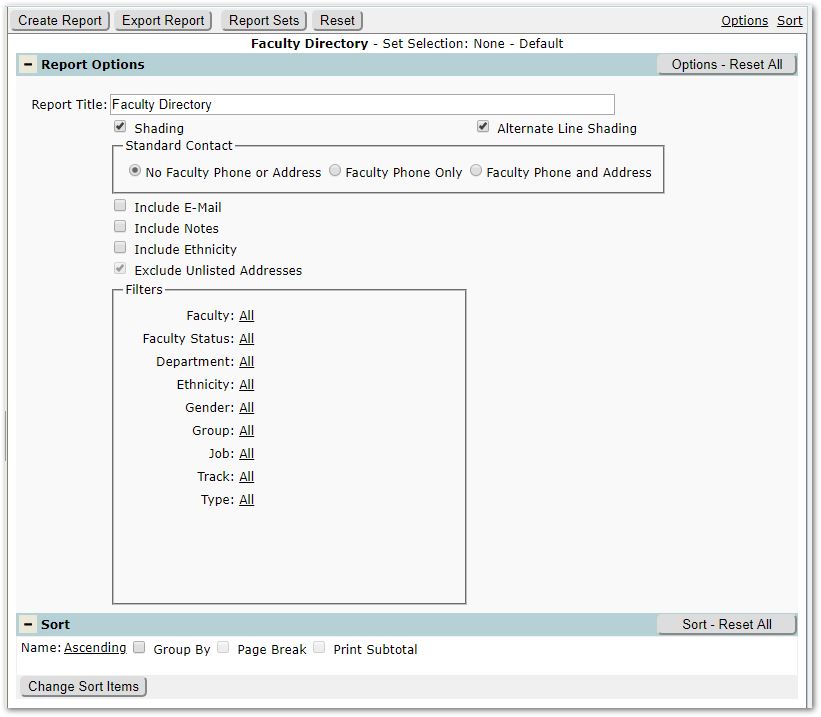
Report Title – The report title will default to ‘Faculty Directory’ but may be changed.
Shading - Shading will default on, and refers to shading of the column headers.
Alternate Shading - Alternate shading defaults on and refers to shading each alternate line.
Standard Contact – Choose whether you would like to see standard staff information without address and phone information; or whether you would like to include phone only; or whether you would like both address and phone.
Include Email – Check to include the staff member’s email address.
Include Notes – Check to include any existing notes.
Include Ethnicity – Check to include the staff member’s ethnicity.
Exclude Unlisted Addresses – This setting is defaulted on, and is only editable when Standard Contact is set to include Addresses on the report.
Filters:
Faculty – To narrow the set of staff reported from the default ‘All’, click and select the from the set of staff available in the logged in track.
Faculty Status – Status defaults to ‘All’, but if you wish to specify statuses, click the link and select the desired status.
Faculty Department – Click to select from among the set of departments.
Ethnicity – Select from available staff ethnicities if desired.
Gender- To narrow staff by gender, select the gender.
Group – Optionally select from any Faculty Groups.
Job – Select from among the job types listed.
Track – Tracks available will be those associated with the logged in school.
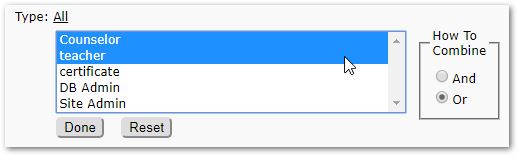
Type – Faculty types are flags in the staff status records to designate staff as Teacher, Counselor, Certificated, DB Admin, or Site Admin. The report will default to report all faculty types. To filter faculty based on types, click and select from the set of available types. When two or more types are selected a ‘How to Combine’ dialog will appear. The report will default to combine faculty associated with each of the types selected, i.e. Teachers or Counselors. If you want to report faculty that are both Teachers and Counselors, then select ‘And’ from the ‘How to Combine’ dialog. Click Done to save the change before running the report.
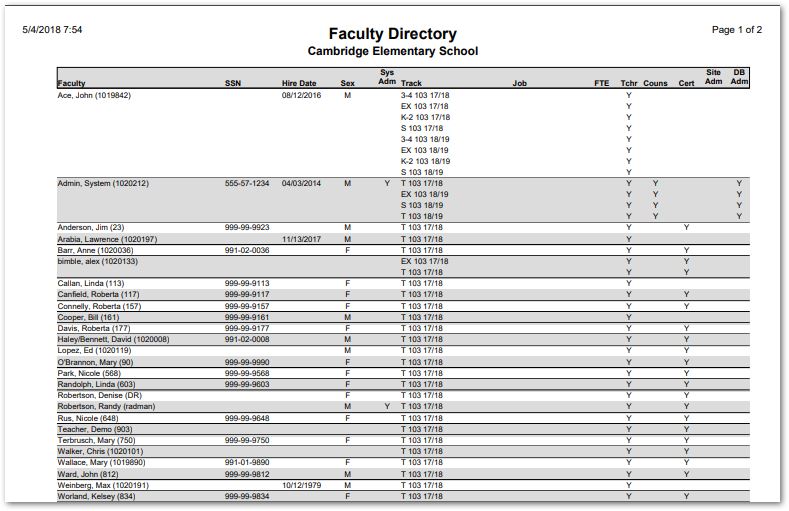
Faculty Directory Sample – Shading and Alternate Shading On.
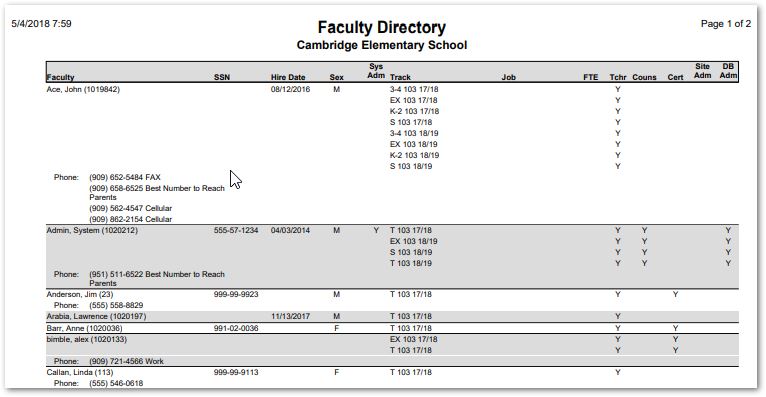
Faculty Directory Sample including Phone Information.
