
Districts have the ability to save student Report Cards to Student Documents. Report Cards can be saved to documents in both English as well as the student’s home language as well as the selected contact’s primary language (if configured to print to contacts, the report looks at the contact’s primary language. If configured to print to parent/guardian, it looks at the student’s home language).
Saving report cards to documents is a great way for districts to be able to save resources with sending out hard copies of report cards to parents at the end of each term. Parents also have the ability within Parent Portal to state if they wish to waive receiving a hard copy of a report card and opt in to receiving the digital versions uploaded to Parent Portal
Note
This is a configurable feature within ParentConnect Manager.<
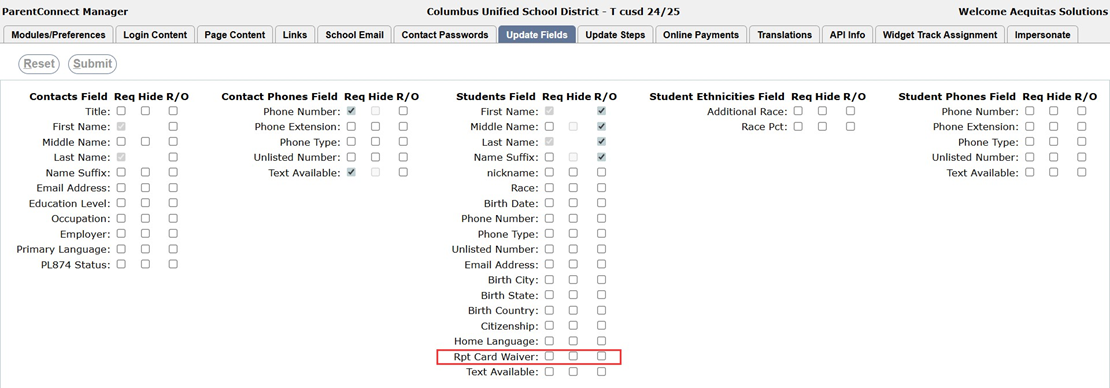 When parents edit Student Demographics within Info Update or Re-Enrollment, they will see the option (if configured) to waive a hard copy of the report card:
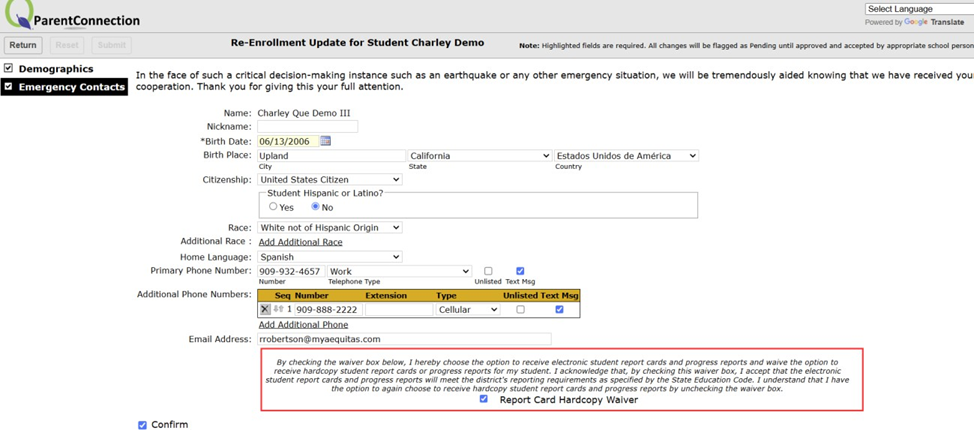
Note
Verbiage of this message is also configurable within ParentConnect Manager > Page Content tab > Content Area: ParentPortal No Report Card Message.
To save a Report Card to Student Documents:
- Launch the Report Card Report and make desired report selections.
NOTE
You must turn off the 'Print Address' option. If this is turned on, the option to save to Student Documents will not become enabled.
- Under Archive Options, select 'Save to Student Documents'. Set effective term; Document Date and Viewable On default to current system date, but these can be changed if need be, and enter a report card title.
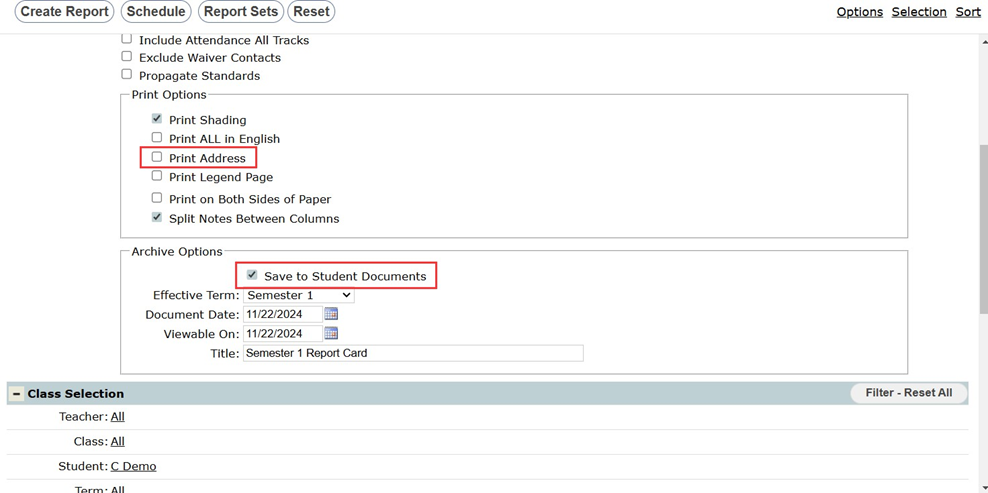
Once desired selections are made, generate the report card. Notice the report card will generate with a copy in either the contact’s language or student’s home language (based off report card setup settings), and a copy will also be generated in English that will be saved to documents by default as well.
The report cards will appear within Parent and Student Portal as of the Viewable On date. Parents and students can view these report cards within the Documents area, as well as within the Marks area for the associated term.
Note
In the screenshot below, the documents area shows two versions of the report card – one copy in English, as well as a copy in Spanish. Since the logged in contact’s primary language is Spanish, if we click the ‘View In Spanish’ button, the report card within the Marks area will present the Spanish version.
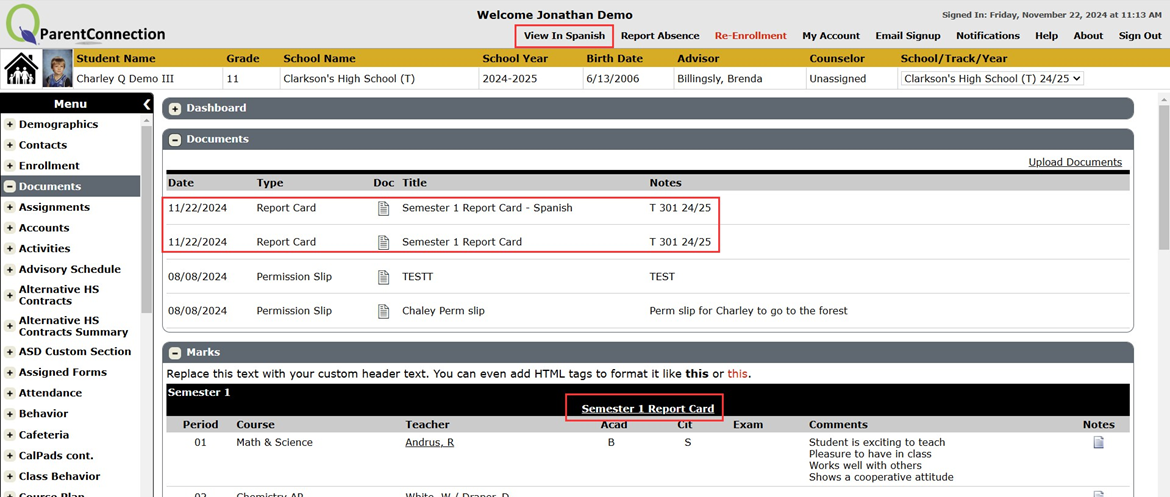
(before clicking View In Spanish – English version is showing)
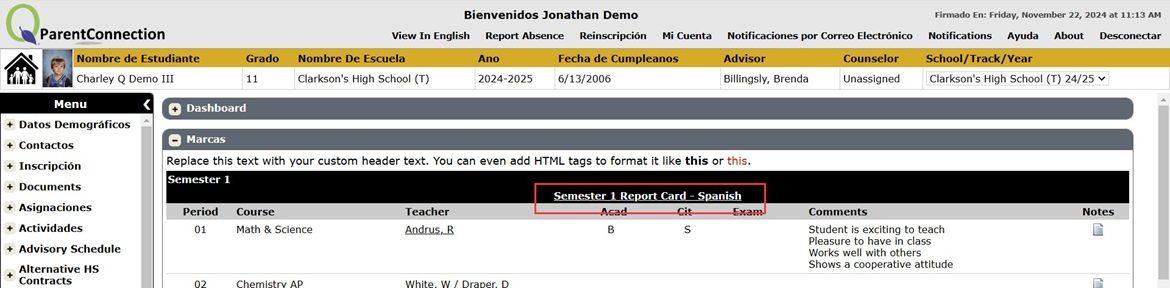
(after clicking View In Spanish – Spanish version is showing)