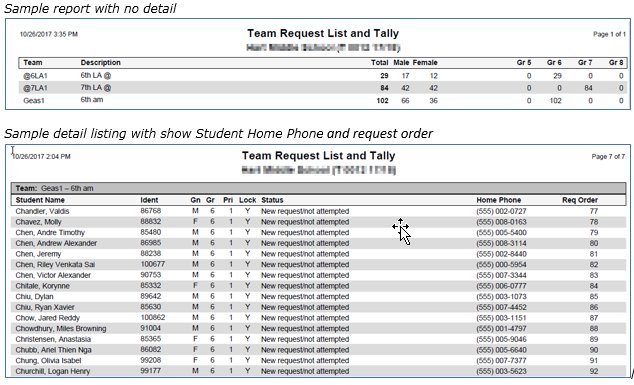
The Team Request List & Tally Report is similar to the Course Request List & Tally Report. The report lists the existing teams in the selected track and shows the numbers of request for each team broken down by gender and grade level. The Detail listing shows a list of the names of the requesting students under each team heading.
While details specific to this report will follow, users can find general information about reports within the Reports documentation.
Team Request List and Tally Report is located within Reports in the Schedule menu in Q.
Report Options
The Q Team Request List and Tally Report offers the following options:
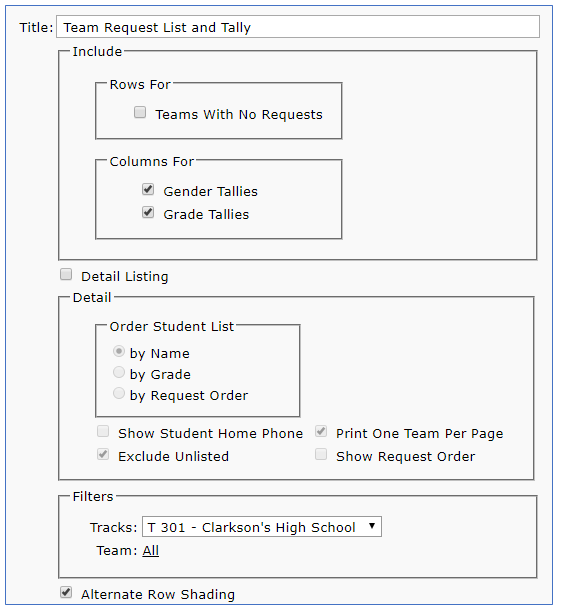
- Title - The default title is Team Request List and Tally but may be changed by the user
- Rows for Teams with no requests—The default for the report displays headings only for teams that have requests. Checking this option will include headings for teams that have no requests
- Columns For—Select to include as columns:
- Gender Tallies
- Grade Tallies
- Detail Listing—Check this option to enable the detail options below. If left unchecked only summary data will be produced by the report
- Order Student List—Select choice for display order of team members
- By Name—Order the detail list of students for each team in ascending alphabetical order by their Last Name
- By Grade—Order the detail list of students for each team in ascending numerical order by their grade level
- By Request Order—Order the detail list of students by order of when request was added to student
- Show Student Home Phone—Select to include student phone numbers on the report
- Exclude Unlisted—Select to hide student phone numbers that have been flagged as ‘Unlisted’ in the Student Editor
- Print One Team Per Page—Select to insert a page break between each team
- Show Request Order—Select to print the order in which the student received the request
- Filters—Select from
- Track—Select desired Track from drop down list
- Team—Select desired Team from drop down list
- Alternate Row Shading—Select this option to include shading on alternate student names
Example Reports