The Success Plan by Class application allows teachers to view their students' status for plans and indicators.
Success Plans are district-defined based on Indicators for specific areas such as attendance, behavior, academics, etc. Indicators use district-defined Rubrics to calculate points for the plan. Rubrics also set thresholds of minimum points needed to include students on watchlists.
Plans and indicators are defined by the district and may be different from the screenshots below. Success Plan by Class is a view-only application which means that teachers are unable to modify any student data.
The Success Plan data is not live data. It is calculated at a frequency determined by the district (typically once per night).
Success Plan by Class is located under the Analysis menu in Q.
Indicators and plans may be added by clicking the blue plus sign.
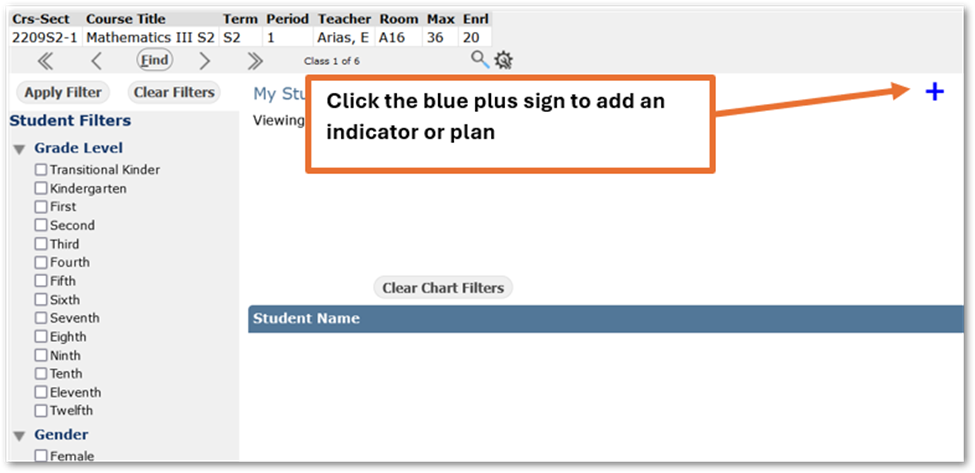
Clicking the blue plus sign displays the Add Indicator/Plan window:
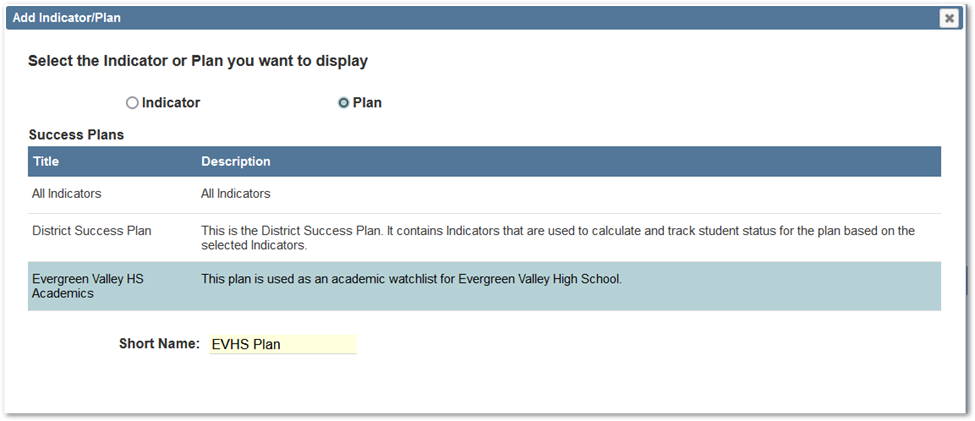
- Use the radio button to select either Indicator or Plan
- Select an indicator or plan by clicking it. The selected row will become highlighted.
- Enter a Short Name. If the district has configured a Short Name for the indicator/plan this field will be pre-populated and may be edited if desired. If the district has not configured a Short Name the field will be blank and a Short Name must be entered.
- Click Save to add the selected indicator/plan.
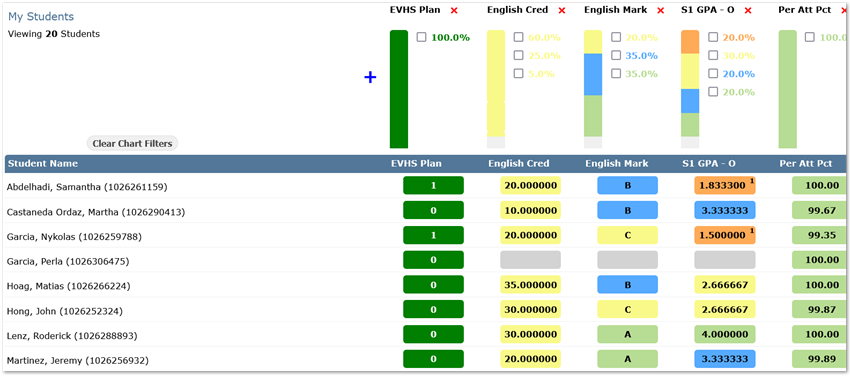
A maximum of 8 items may be added to the Overview. Once 8 items have been added the blue plus sign will disappear.
Plans/Indicators may be removed by clicking the red X to the right of their title.
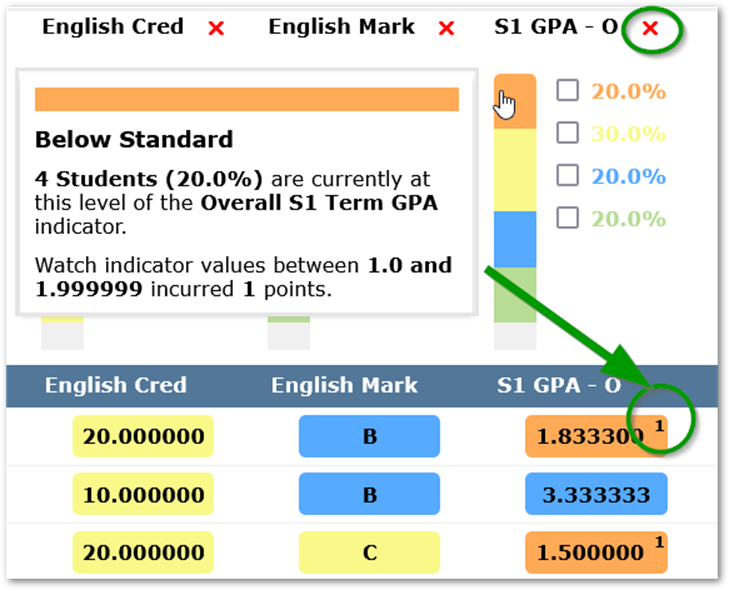
Once an item has been added to the Overview, the student levels will be represented below the title in a stacked column. The height of each column section corresponds to the proportion of students in that level for the class. In the above screenshot, the S1 GPA - O indicator has a stacked column with 5 sections. The orange, yellow, blue and green sections represent the 4 levels that students are in for this indicator. The fifth section is gray (and difficult to see in the screenshot).
Gray sections represent students that are not in any level for the indicator. In the above GPA indicator, two students do not have a GPA record. Thus, the Success Plan calculation cannot place them in any level and they are represented in the stacked column by the gray section.
Placing the cursor over any section in the column will display a pop-up box with additional information about that level. In the above screenshot, the cursor has been placed over the orange section. The pop-up box shows that the orange level is named "Below Standard". It also shows the number and percentage of students in that level for the class as well as the values and points associated to the level.
Below the stacked column is the student grid. The student values for the indicator are displayed here. The box color corresponds to the level the student is in. If any points have been incurred they will be represented in the top-right of the box for the student. In the above screenshot, one student with a GPA of 1.8333 has incurred 1 point for the S1 GPA - O indicator.
The student list may be filtered by indicator level by clicking a section in the stacked column or by checking one of the Chart Filter boxes next to an indicator in the Overview:
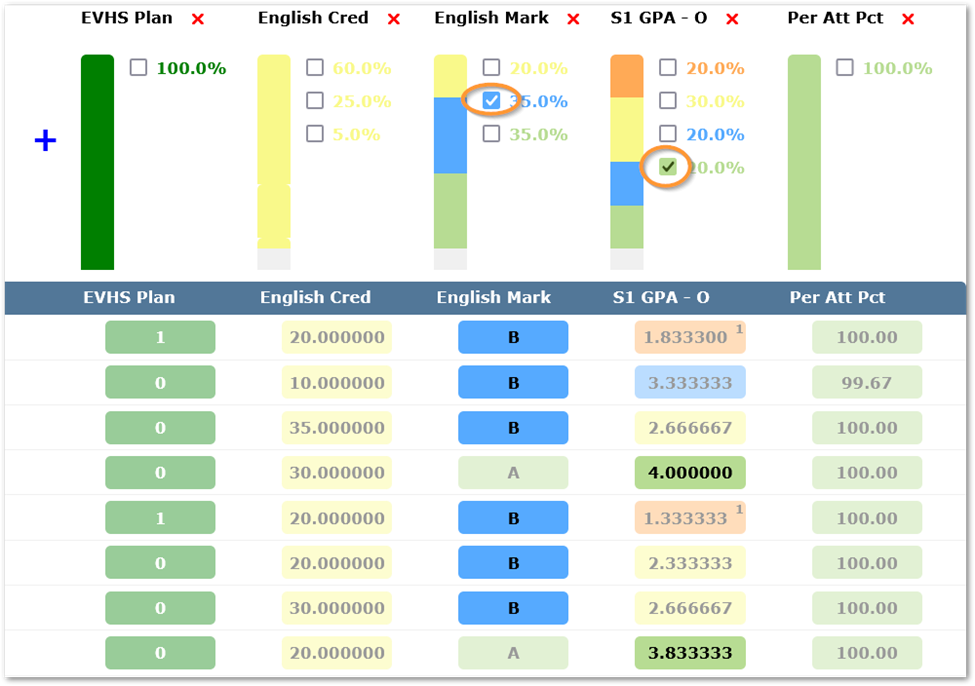
Multiple Chart Filters can be selected at the same time. Students not in a selected indicator level will be removed from the list and the values included in the filter will be highlighted while all other values will be dulled.
Chart Filters may be deselected by unchecking the boxes or by clicking the Clear Chart Filters button.
In addition to the Chart Filters the student list may also be filtered by gender, grade level, race/ethnicity, or program enrollment using the Student Filters on the left:
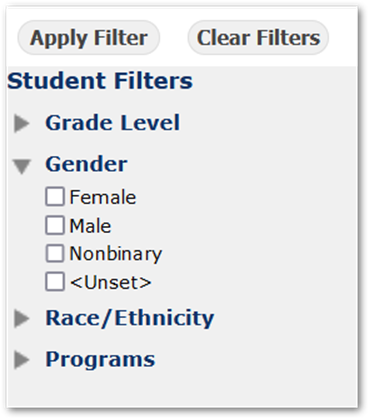
The Student Filters may be expanded/collapsed by clicking the arrows at the left. Once Student Filters have been selected click the Apply Filter button to filter the student list. To clear the Student Filters, click the Clear Filters button.
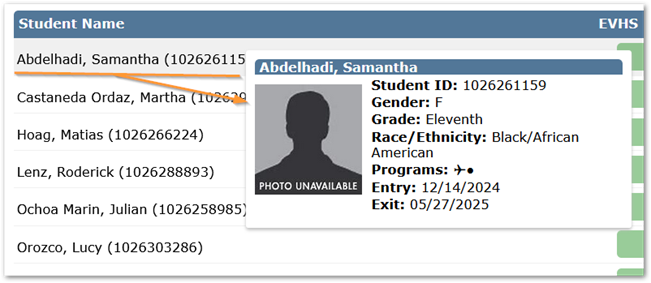
Clicking on a student in the list will open a pop-up window with their information. Clicking away will close the window.