The Pre-Enrollment Manager application allows administrators to view, edit, or delete Pre-Enrollment records that have been created by parents/guardians. The app also shows enrolled students if they have documents that were uploaded by parents/guardians during pre-enrollment that did not get saved to the student record.
This application is not to be confused with the Pre-Enrollment Setup application, which is where the configuration settings for Pre-Enrollment are defined.
Pre-Enrollment Manager is located under the Enrollment menu in Q.
The Pre-Enrolled Students tab lists students in households where the pre-enrollment has been submitted and the students are awaiting review/enrollment. (Students in households that have started pre-enrollment, but not submitted it, are displayed on the Cleanup tab.) 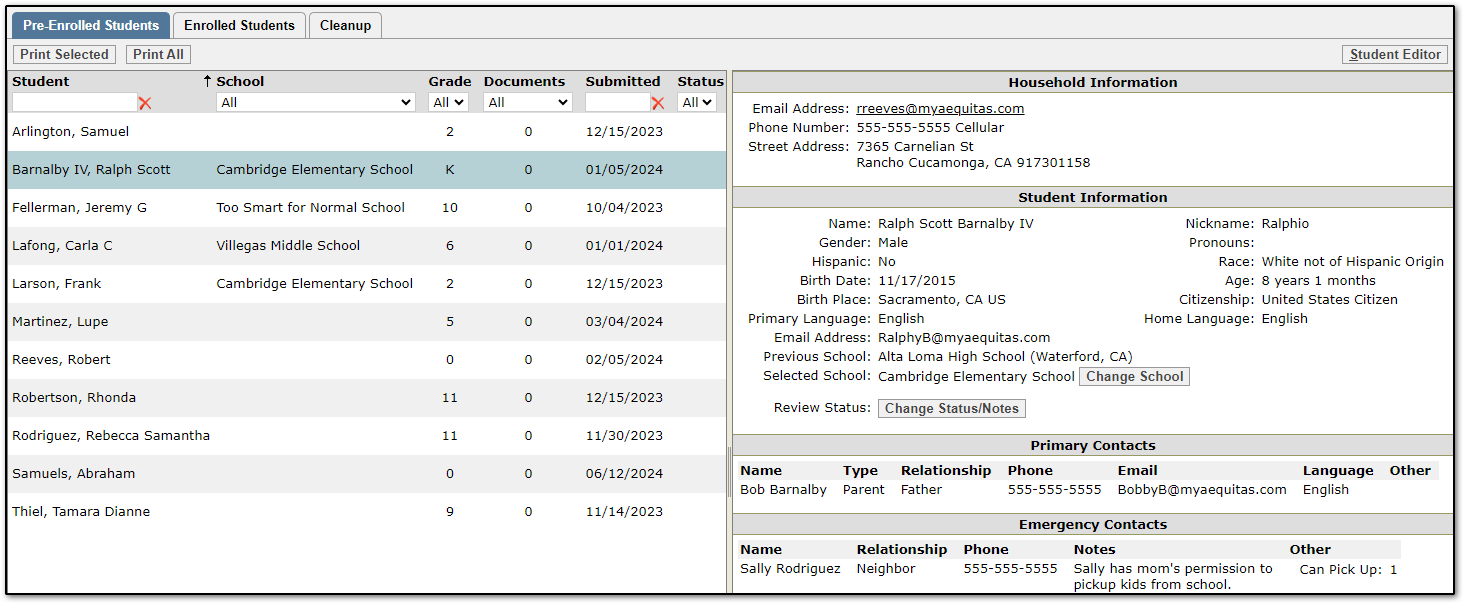
Print Selected - Prints the Pre-Enrollment Information report for the selected student.
Print All - Prints the Pre-Enrollment Information report for all pre-enrolled students.
Student Editor - Opens the Student Editor application.
Change School - The Selected School is meant to provide information that may help guide the enrollment process and does not enforce any student-school ownership rules. For example, if the Selected School is set to Cambridge Elementary School, a staff member logged-in to Blair Elementary School would still be able to find the student when searching in Student Editor > New Student.
Change Status/Notes - Launches a window to edit the review status and notes.
The Enrolled Students tab lists students that have been enrolled but still have remaining documents that were uploaded by the parent/guardian during Pre-Enrollment (the documents were not deleted nor saved to the student record during enrollment).
This tab allows a user to download, review, delete, or save the documents to the student record. Once all remaining documents for the student have been deleted or saved the enrolled student will no longer appear on the tab.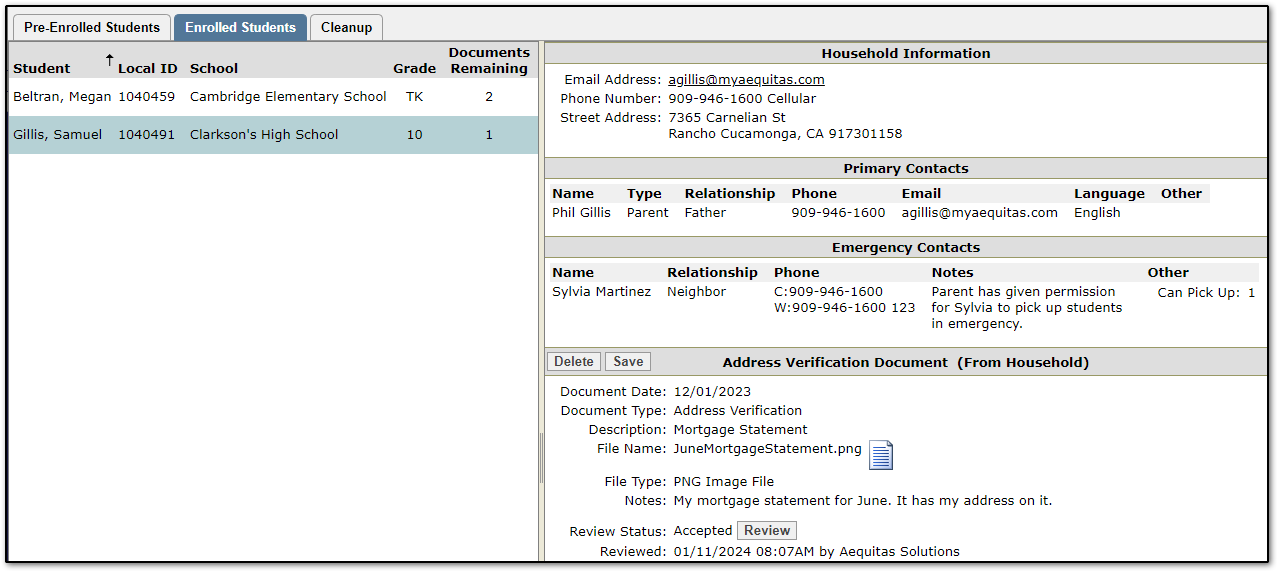
Delete - Click to delete the document. A window displays before the document is deleted in case the user accidentally clicked Delete.
Save - Click to save the document. It will disappear from this app and be saved to the student record. The document may now be viewed in the Student Documents application and other applications where documents are displayed.
Review - Displays the Review Document window. Users can update the Review Status, Review Notes, and the Document Expiration Date.
File Name - Click the document icon to download the document.
The Cleanup tab allows users to delete pre-enrollment records, print the pre-enrollment form, and mark pre-enrollment records as Submitted. The tab is only available while logged in to a district track. The tab is not available while logged in to a school track because pre-enrollment records can have multiple students associated to multiple schools and the student-school ownership rules don't apply to students that aren't enrolled.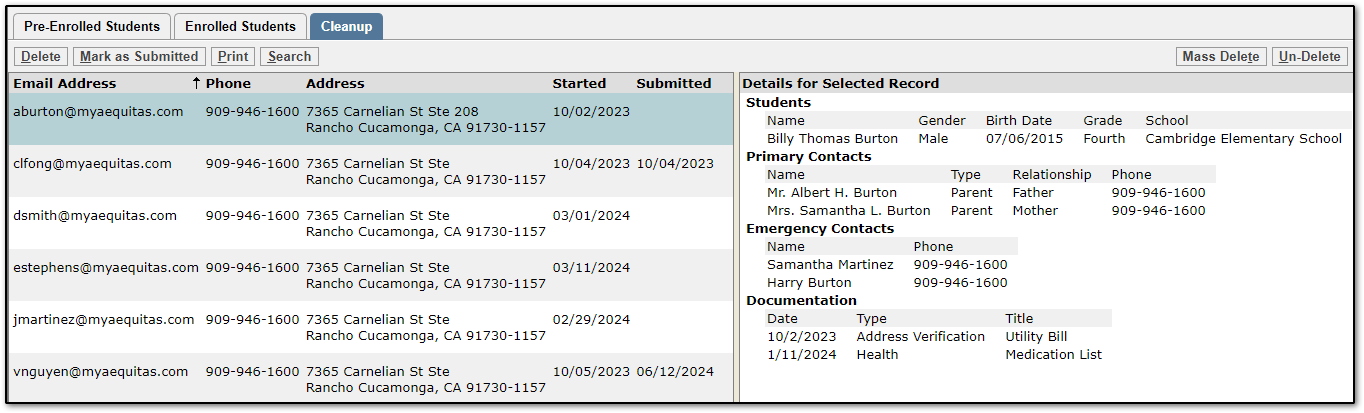 Delete - Click to delete the pre-enrollment record. A window displays before the record is deleted in case the user accidentally clicked Delete. Deleted pre-enrollment records can be restored using the Un-Delete button.
Mark as Submitted - Pre-enrollment records are considered Submitted if the parent/guardian has completed all steps in Pre-Enrollment. Records that have been started but not completed are not considered Submitted and will not be available for use in the Student Editor. The 'Mark as Submitted' button will mark a pre-enrollment record as Submitted so the students can be enrolled.
Print - During the pre-enrollment process the parent/guardian has the option to print out a pre-enrollment form. Many districts require the parent/guardian to bring this form to a district site to complete their student’s enrollment. The Print button allows district staff to print the same form, should it be necessary.
Search - Search pre-enrollment records by contact or student name. If a match is found the associated pre-enrollment record will be automatically selected.
Mass Delete - Click to display the Mass Delete window where users can select multiple pre-enrollment records at a time to delete en masse. Deleted pre-enrollment records can be restored using the Un-Delete button.
Un-Delete - Click to display the 'Un-Delete Deleted PreEnroll Records' window. Check a box next to any deleted pre-enrollment records that should be restored and click Submit.