
Class Engagement is a class banner application that allows teachers to record engagements for any classes they have access to. Multiple engagements may be entered for each class session. Teachers will, by default, be limited to the set of students they have been given access to in the banner.
Class Engagement is located under the Enrollment menu in Q.
Select the desired class from the list. The logged in teacher name displays in the Engagement Staff drop list. If the class has an alternate teacher assigned, both teacher names will appear. If a user other than a teacher logs in their name will also display.
The default display order for students in the class is alpha by last name, however, student display order may be changed by clicking on any column header. This can be very helpful if using Attendance Groups. Clicking the “Att Group” column header will sort all students in the class by Attendance Group. 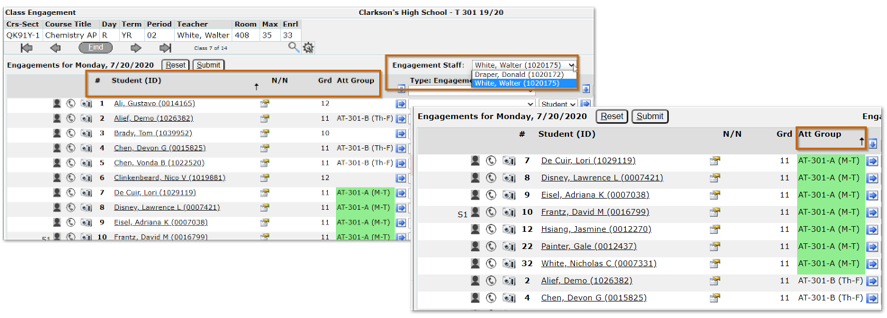
Class Engagement offers several fill options for users. An Engagement Type must be selected before Method and Outcome may be chosen.

Engagement Staff – When a teacher is logged in their name displays by default. If there is alternate staff the alternate staff name may be selected from the dropdown. If Class Engagement is accessed by a user other that a teacher with permissions their name may also appear in the dropdown.
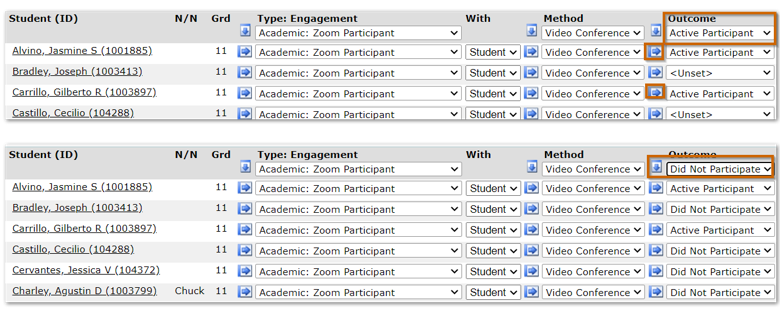
Type: Engagement – Select an Engagement Type, i.e. ‘Academic: Zoom Participant”. Once selected, the Engagement type may be added to all students by clicking the downward blue arrow or may be applied to individual students by clicking the sideways blue arrow for each student. 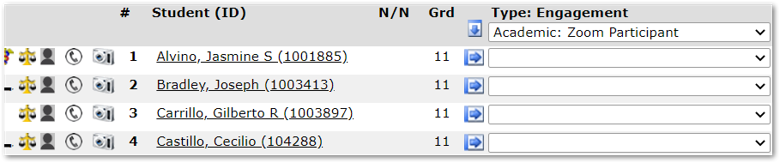
With – With will default to ‘Student’, but this may be changed to another value, i.e. ‘Contact’ or ‘Other’, etc. When Contact is selected, select the contact with whom the communication occurred from the list of the student’s primary contacts.

When ‘Other’ is selected, a text box will appear at right to enter information.
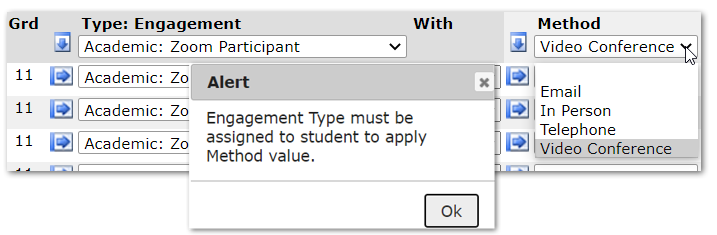
Method – Select the method of the engagement, i.e. ‘Email’, ‘In person’, ‘Telephone’, ‘Video Conference’. An Engagement Type must be selected before a Method may be applied. An error displays when attempting to add a method with no engagement type.
Outcome – Select the appropriate Outcome for the Engagement.
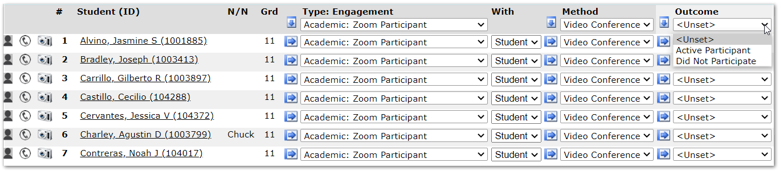
In the example below we have added an Engagement Type of “Zoom Participant “with a Method of “Video Conference”. The two available Outcomes are “Active Participant” and “Did Not Participate”. We used the down arrow autofill to populate the Engagement Type and Method. Active Participant was then selected as the Outcome and applied to students who were Active Participants by clicking the blue sideways arrow for selected students. Once all active participants have been indicated, we changed the outcome to “Did Not Participate” and clicked the downward blue arrow to autofill for the remaining students in the class.
Notes – Add any notes, as desired. Notes may also be auto filled for all students or applied to individual students.
Once all selections have been made, click Submit to save the records or Reset to continue without saving.

The Engagement records appear under each student name. Additional engagements may be added for the same date for the entire class and/or for selected students.
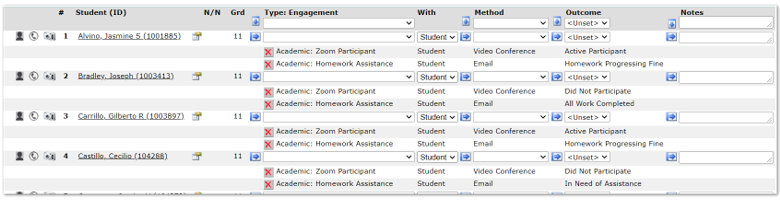
Engagement records may not be edited within Class Engagement, they may only be deleted. Teachers may edit records for individual students in the Student Engagement application which may be accessed by clicking the Student Engagement icon to the left of the student’s name.

Users with Administrative access may add, edit, and delete records for all students. Teachers will only be able edit or delete records that they have entered. If a record is associated with a course, both the teacher who entered the record and any alternate faculty for that class will be able to edit or delete records entered by either one.
From within Class Engagement, click the Class Attendance button in the top right-hand corner, to access the Class Attendance application for the same class.

Class Attendance has a button to return to Class Engagement.

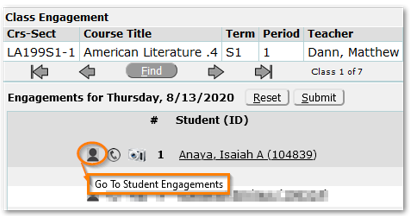
From within Class Engagement, click the Student Engagement icon to the left of the student’s name, to access the application. The Student Engagement icon will appear only for users with permission to the application.
From within Student Engagement, click the Class Engagement button to move to that application. The button will only appear for users with permission to the Class Engagement application.
A Student Engagement Report is available under Enrollment Reports. It may be used to report on selected engagements by Type and by Engagement for a date range. Notes may optionally be printed.
