The Student Office Visits Report allows users to create a report based on Student Office Visit records.
While details specific to this report will follow, users can find general information about reports within the Reports documentation.
Student Office Visits Report is located within Reports in the Health menu in Q.
- Users have the option to change the title of the report.
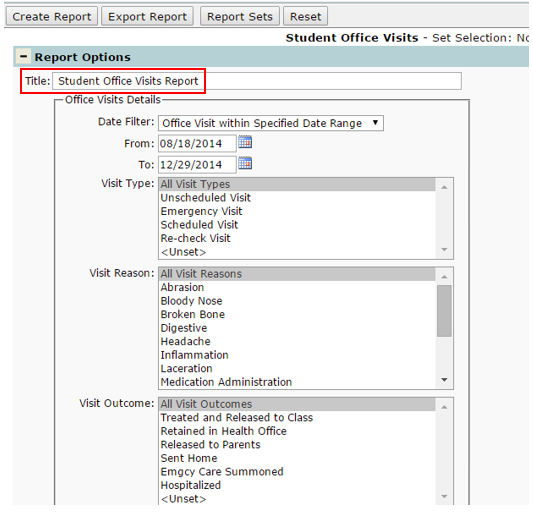
- The first item in the report options is Office Visit Details. Users can pull a report based on Visit Type, Visit Reason, Visit Outcome, or a combination of any of the three available fields.
Note: Multiple visit types, visit reasons, and/or visit outcomes can be selected at once for a report by holding down Ctrl and single clicking each item to be added.
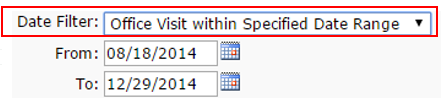
- There is a Date Filter which allows the user to either generate a report for office visits on a specific date

or within a specified date range, which will bring up a “To” Date field.
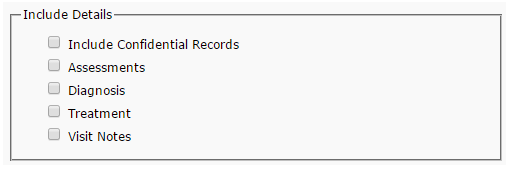
The other report options, ‘Include Details’ and ‘Print Options’ allow users to filter down options to be more specific in information that is being returned.
Include Details allows the option to Include Confidential Records, Assessments, Diagnosis, Treatment, and Visit Notes from visits.
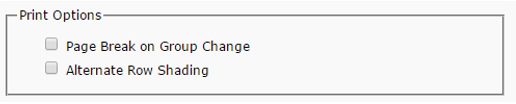
Print Options allows the user to select if they want to enter a Page Break on Group Change as well as printing with Alternate Row Shading.