
In Q / MISTAR we have (2) types of GPA’s that can be calculated. This Tip will try to share the differences and power of both.
- Current Term GPA / Honor Role
- This type of calculation is set up within Marks Processing and can be run against any term for a school including Progress Terms. This is great for athletic eligibility, honor rolls or an actual current term gpa.
- GPA/Rank
- This calculation is based off courses that are in a student Transcript, so progress terms will not be used.
SETUP
For either Current Term GPA/Honor Roll or GPA/Rank there are key areas that must be set up in District Courses to calculate either of these GPA’s correctly.
District Courses
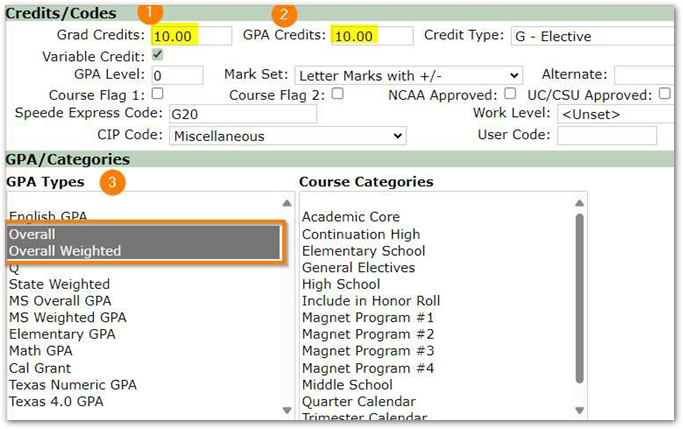
- Grad Credits DO NOT need to populated unless the course awards graduation credit. NOTE: Middle schools might have Grad Credits = 0.00, but 99% of High School courses should have this field populated correctly.
- GPA Credits must have a value greater than 0.00 to calculate a GPA.
- Select each GPA Type a course can be calculated against. NOTE: Any course associated with some kind of unweighted GPA, should also include Weighted GPA type. Example of why: Student A takes 6 classes and receives a letter grade of ‘A’ in every class and each of the classes are “weighted” gpa classes. Student B also receives a grade of ‘A’ in all their 6 classes. When an unweighted GPA is run, both Student A & B should have a 4.00 GPA. When the weighted gpa is calculated Student A will now have a 5.00 GPA while Student B who took only unweighted gpa’s will have a weighted GPA = 4.00.
GPA Setup
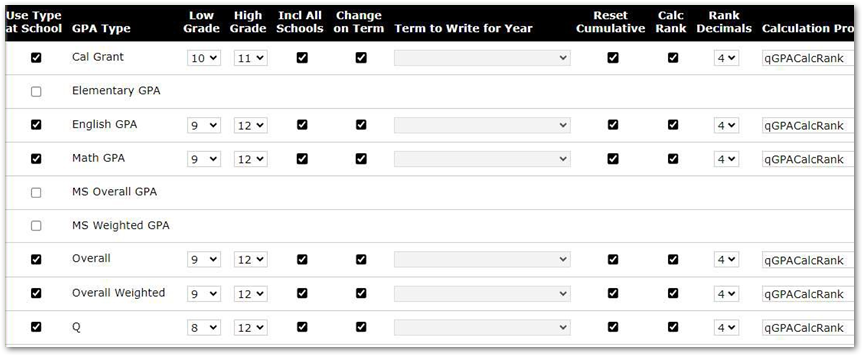
For GPA & Ranks, there is a Setup that is by school that needs to reflect which GPA Types can be calculated along with other options. There are two places in Q that this can be setup at each school.
- Calculate GPA – Setup Tab or Student Academic History Setup Tab (GPA calc Paramters).
- Each GPA Type shown are “district” gpa types, and each school selects which GPA type they want to calculate along with other attributes. NOTE: If there are detailed questions about each of the items in the above screenshot, please submit a helpdesk ticket
Requirements
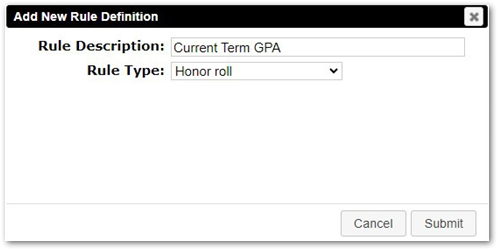
To create descriptions that will be used as current term gpa / honor roll in Marks Processing, one must go to Requirements application and under the Define Rules click Add and create the Rule Description and select the Rule Type = Honor Roll and click Submit.
Marks Processing
Each term in schools that have students who receive marks in their class may require the marks to be processed. During each term different processes will be run and for this example we will cover a progress term and Transcript term.
Progress term example below
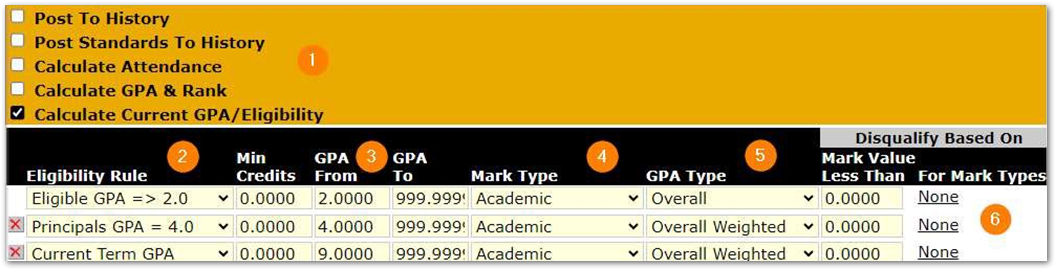
- Select Calculate Current GPA/Eligibility.
- Select the Eligibility Rule from the dropdown. This is what comes from the Requirements that are associated with Honor Roll Rule
- Set the From and To GPA range for the selected rule. NOTE: The To defaults to 999.999 GPA value and can be left alone for most calculations. Exceptions might be an honor roll that should be between 3.00 to 3.99.
- Select the main Mark Type that is being used and the majority of the time this will be something like Academic. The only time you might select something different is when you have a Citizenship mark type, and a GPA should be calculated off citizenship marks.
- This is where you should select the desired GPA Type that should be used when calculating the eligibility rule.
- This is used to disqualify students from meeting a specific honor roll calculation (i.e. student must have 3.00 to meet Standard Honor Roll but can be disqualified if student receives a low citizenship mark).
- Processing marks that get posted in history
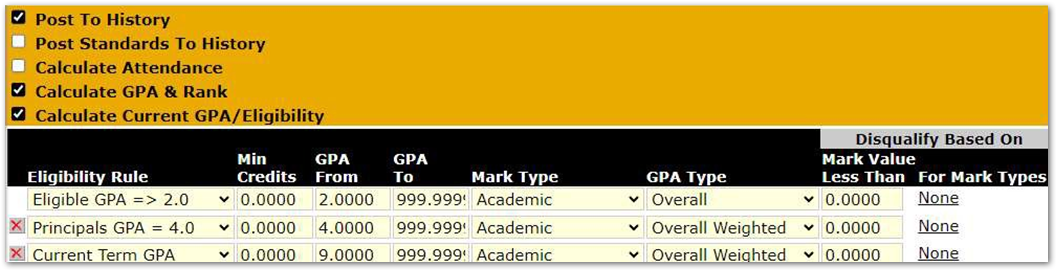
The above example reflects when a term like Semester 1 is selected to process and at Semester 1, marks get Posted to History, so this is checked on as well as Calculate GPA & Rank which will look at the GPA Setup to determine what GPA Types to be calculated based on the marks posted to the student transcripts.
Lastly, the Calculate Current GPA/Eligibility will again be used so students can have a current term gpa for every term including progress terms.
Explanation: Some might wonder if in both examples above a rule is called Current Term GPA and the From GPA reflects 9.00 to 999.999. The reason is some clients want a current term gpa, but they don’t want to reflect any students meeting the rule like an Honor Roll rule might reflect students who meet the rule and others who do not. No student should ever get a GPA above 9.00.
Reports for Current Term GPA / Honor Roll
For any students who have had a Current GPA/Honor Roll calculated, there are two reports dedicated to reporting this data.
Current Term GPA/Honor Roll and Honor Roll Eligibility List – Both reports bring back what was calculated from Marks processing and the main difference is the Eligibility List will allow the user to select more than one Honor Roll Rule while the Current Term will only return data calculated for one term at a time.
Reports for GPA History and Ranks
For any students who have had a Current GPA/Honor Roll calculated, there are two reports dedicated to reporting this data.
Historical GPA / Rank will bring back students who have transcript records and the GPA/Ranks have been calculated. This report looks at the cumulative GPA to determine Rank.
Current/Active GPA/Rank is another report that will re-rank students on the fly based on who is active on the date that is selected when running this report.
Please review the documentation for more details on District Courses, GPA Setup, Marks Processing or reports mentioned above.