Class Attendance Monitor provides an at-a-glance view of class attendance status. By default, the application displays classes where attendance has not been taken, but users can also view all sections or only those with attendance recorded.
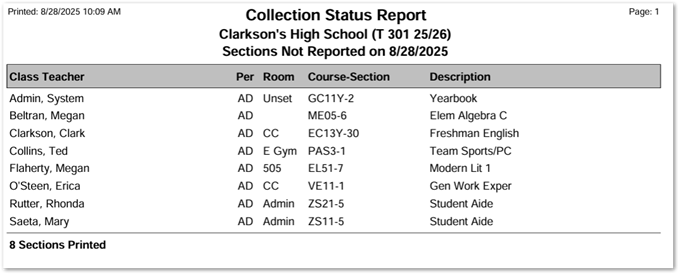
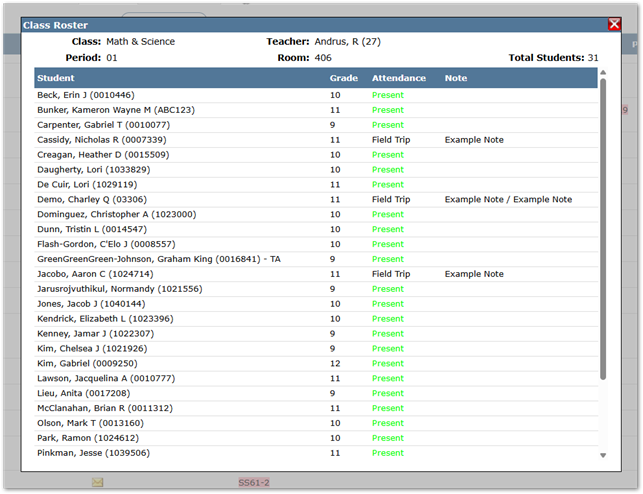
Users may drill down on each section to view the class roster and associated attendance for the day. The application also allows quick notification of teachers who have not taken attendance, either via email or Q Notifications. The Collection Status Report can be printed directly from the application.
Class Attendance Monitor is located under the Attendance menu in Q.
When launched, the Class Attendance Monitor defaults to the current date, displaying all sections with non-reported attendance, the logged-in track, and all periods defined for that track.
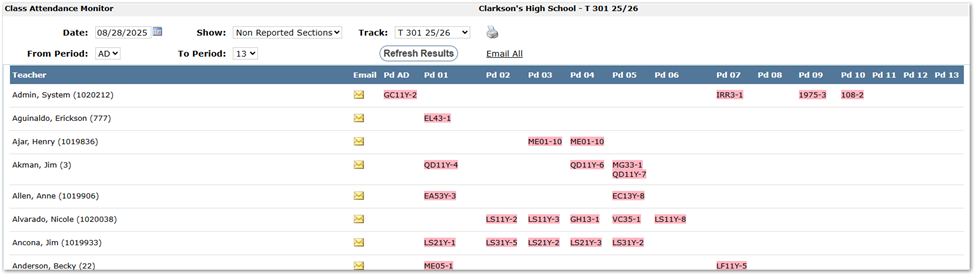 Users may adjust the display by changing the date or using the drop-down filters. After making selections, click Refresh Results to update the view.
Class sections are color-coded to indicate attendance status:
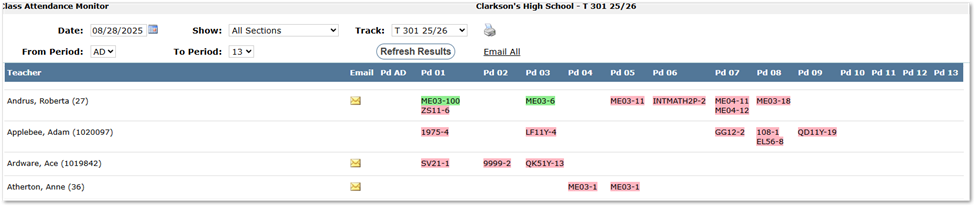
- Red – Attendance has not been taken
- Green – Attendance has been taken
Clicking a section opens the class roster with associated attendance for that day.
Preferences: Email or Notifications
A preference in the Q Preference Editor controls whether teachers receive notifications via Email or Q Notifications.

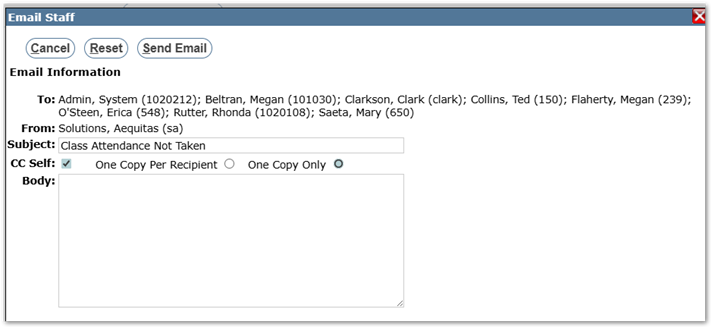
When set to Email, users may send messages to individual teachers by clicking the envelope icon next to their name. To contact all teachers, click Email All. Clicking Email All opens a message editor where the user can compose the message and optionally CC themselves.

Note
Service provider accounts must impersonate a user to access the email links.
Notifications
When set to Notification, users may send messages to individual teachers by clicking the envelope icon next to their name. To notify all teachers, click Notify All. Clicking Notify All opens a Notification Editor to compose the message.
Click the printer icon to generate the Collection Status Report.