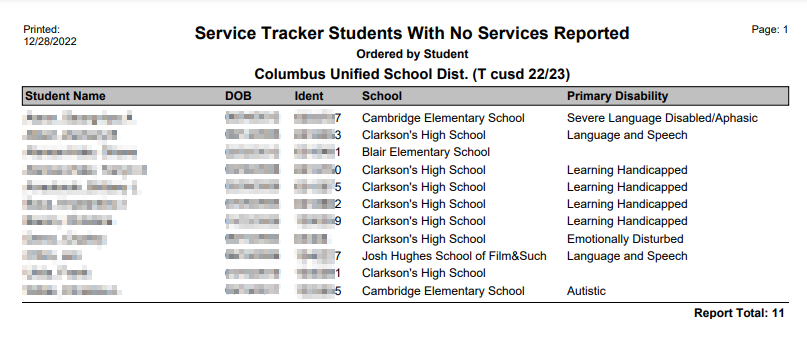
This report looks for students who were assigned to receive services for a particular month but did not receive any services for that month. It checks only those students who were assigned to a practitioner through the Special Education and/or Program History applications.
Users with Administrator permissions will be able to report on students for any practitioner, while practitioners will only be able to report on their caseload.
Last Name, First Name, Student ID#, Date of Birth, and Primary Disability are shown with each record retrieved. Total record count is reported.
The report may be filtered by School, if run from the district and by service month / year or date range. It may also be filtered by Eligible students only.
The District Service Tracker preference to ‘Include Students from All Schools’ is honored by the report.
While details specific to this report will follow, users can find general information about reports within the Reports documentation.
Service Tracker Students with No Services Reported Report is located within Reports in the Programs menu in Q.
The ST Students With No Services Reported offers the following options: 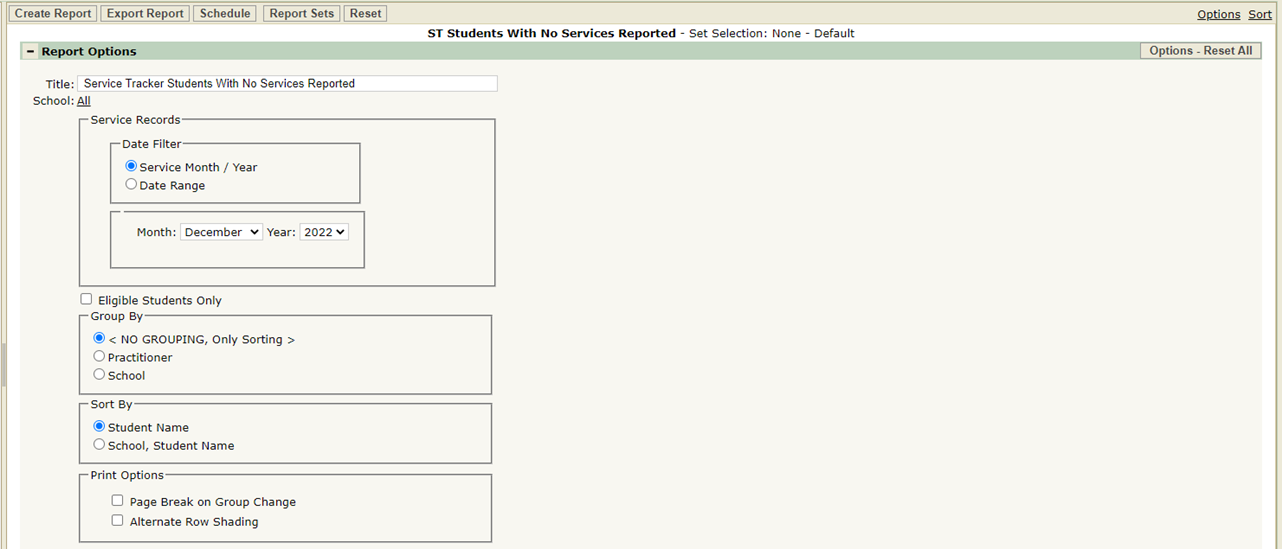
- Title – A default title is provided but may be changed as desired.
- School – Only selectable when logged into the District Track and/or when the District Preference to ‘Include Students from All Schools’ is ON. If the preference is OFF and the user is logged into a school, only the logged in school will appear in the School selection field.
- Service Records: Date Filters:
- Service Month/Year
- Defaults to current month/year.
- Date Range
- Select to review records for a more specific date range and enter the desired date range.
- Service Month/Year
- Eligible Students Only – to check for ‘no services’ only for Eligible students, check this flag on, otherwise the report will review all possible students.
- Group By - The report may be grouped by Practitioner or School, or simply sorted using the group by selections:
- No Grouping, Only Sorting
- Practitioner
- School
- Sort By – The report may be sorted by selecting from these options:
- Student Name
- School, Student Name
- Print Options – If you are grouping on Practitioner or School, you may wish to choose to page break on group change by selecting this option:
- Page Break on Group Change
- Alternate Row Shading
ST Student With No Services Reported Sample Report