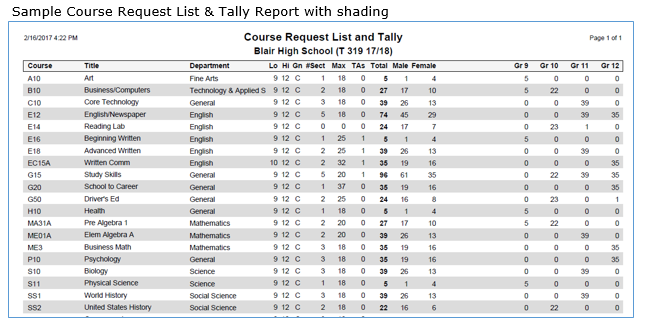
The Course Request List & Tally Report prints a list of the requests per course within a track. The total number of requests per course can be optionally subdivided into the number of requests per gender and per grade. Course attributes from District Courses (Department, Grade/Gender Restrictions, and Maximum Seats [Regular & TA Capacity]) and Track Course Selection (Number of Sections) can be optionally listed for each course reported, as well as Alternate and TA requests, if desired.
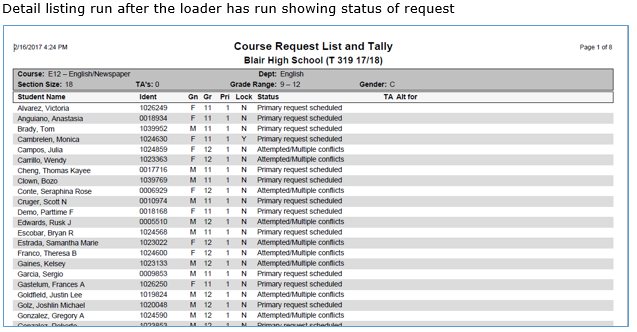
The names of all students requesting each course can be listed as an option. Within a student listing, Faculty Requests, Priority Values, Lock Status, TA requests, and Alternate For course ID numbers can be displayed. An internal Course Request Status field will show if the original Course Request was modified in any way. Student's phone numbers can be added.
While details specific to this report will follow, users can find general information about reports within the Reports documentation.
Course Request List & Tally Report is located within Reports in the Schedule menu in Q.
The Q Course Request List & Tally Report offers the following options:
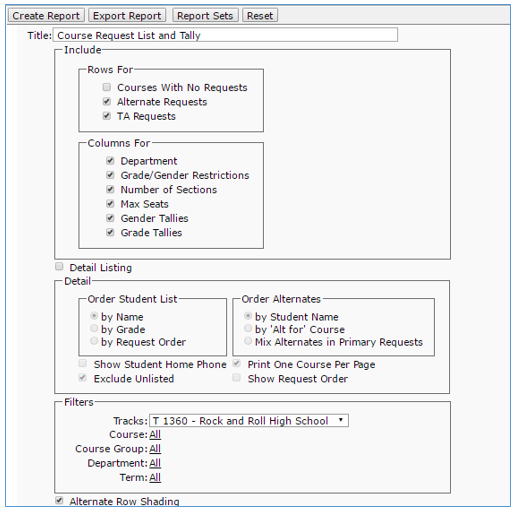
- Report Title—the default title of the report is Course Request List & Tally but may be edited by the user
- Include Rows For:
- Courses with no Requests—Courses in Track Course Selection but with no student requests
- Alternate Requests—Requests entered as an alternate to another course
- TA Requests—Requests flagged as Teacher’s Assistant
- Include Columns For:
- Department—The department for each course
- Grade/Gender Restrictions—Low grade, high grade and gender restrictions
- Number of Sections—Number of sections specified in Track Course Seetup
- Max Seats—Maximum regular and TA seats in each section of each course as defined in Track Course Setup
- Gender Tallies—Request tally breakdown by gender
- Grade Tallies—Request tally breakdown by grade
- Detail Listing—Include the list of students requesting each course.
- Order Student List by Name—Order the detail list of students for each course by their name
- Order Student List by Grade—Order the detail list of students for each course by their grade level
- Order Student List by Request Order—Order the detail list of students according to when the request was entered relative to other students’ requests
- Order Alternates by Student Name—Order the list of students with Alternate Requests for the printed course by their names, at the bottom of the listing
- Order Alternates by ‘Alt For’ Course—Order the list of students with Alternate Requests for the printed course by the course that this is an Alternate Request for, at the bottom of the listing
- Order Alternates by Mix Alternates in Primary Requests—Include the Alternate Requests in the listing, mixing them with the other requests, based on your order selection of Name or Grade
- Show Student Home Phone—Include the students’ phone numbers on the report
- Exclude Unlisted—Select this if you want to hide student phone numbers that have been flagged as ‘Unlisted’ in the Student Editor
- Print One Course per Page—Break the report pages for each new course printed. If this is OFF, the report will print continuously. If it is ON, a new page will start for each course
- Track—Select the Track for which to print the Course Request data
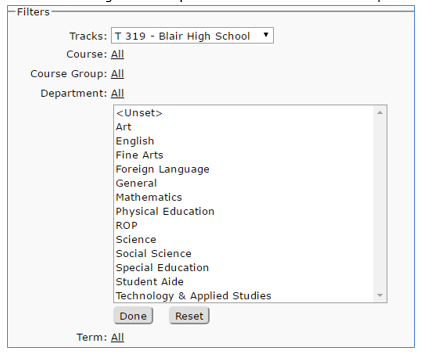
- Filters—The report defaults to print all Courses, Course Groups and Departments, however, it may be filtered to individual selections by clicking the All link and selecting desired options. When selections are complete click Done