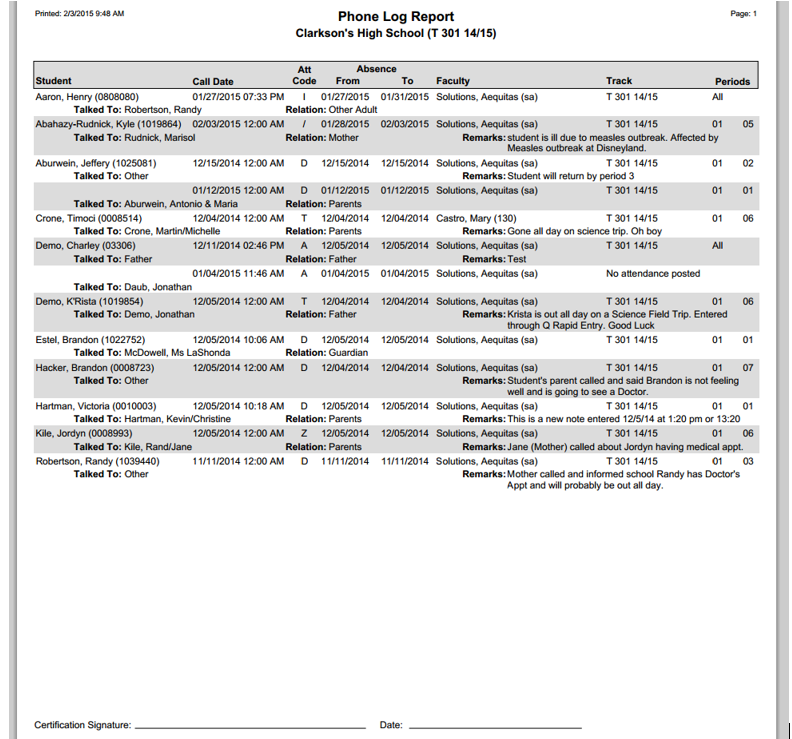
The Q Phone Log Report lists student attendance information entered using the Q Mass Attendance application as reported to the school office by incoming telephone calls from parents or guardians. The report includes options to include the name of the person who called, their relation to the student, the absence reason and any remarks.
While details specific to this report will follow, users can find general information about reports within the Reports documentation.
Phone Log Report is located within Reports in the Attendance menu in Q.
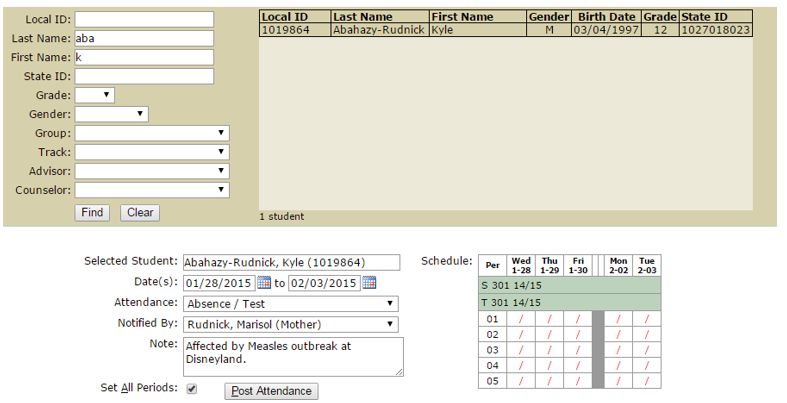
Attendance and notes that are entered through the Mass Attendance application appear in the Phone Log report. In the Mass Attendance application, Attendance clerks can select a specific student, select a date/date range for which the student will be absent, select the attendance code, note who verified the absence and their relation to the student, as well as input notes on the reason for the absence. Attendance can be posted to one or all periods, depending on each situation.
Mass Attendance Application
The Phone Log Report offers the following options:
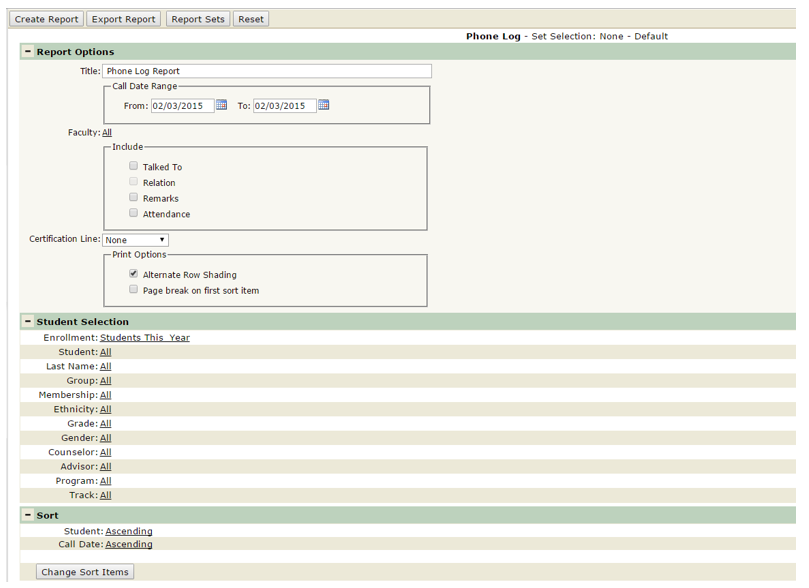
- Title – the report title defaults to Phone Log Report, but this can be edited and a user-defined title can be entered.
- Call Date Range – select a date range for which the report is to be run.
- Faculty – the report can be run for either a single teacher/selected group of teachers (select multiple teachers by holding the CTRL key while clicking on selected teachers), or it can be run for all faculty (which is the default.)
- Include: Talked To, Relation, Remarks, and Attendance – these are all defaulted OFF, but for a more detailed report, users can turn these options on to include who verified the absence as well as their relation to the student, any remarks entered about the attendance, as well as the attendance code entered for that student.
- Certification Line – this is defaulted to None, but users can select to add a Certification Line on every page, on just the last page, or at the page break (if the user chooses to add a page break).
- Print Options: Alternate Row Shading is defaulted ON, but can be turned off if users do not want alternate rows to be shaded. Print Options also includes Page Break on First Sort Item. Depending on sorting options, users can insert page
Sample Phone Log with all “Include” Options turned ON