
The Q Class Standards Listing Report prints class rosters of students with the standards scores earned from assignments in the class.
While details specific to this report will follow, users can find general information about reports within the Reports documentation.
Class Standards Listing Report is located within Reports in the Marks menu in Q.
Report Options
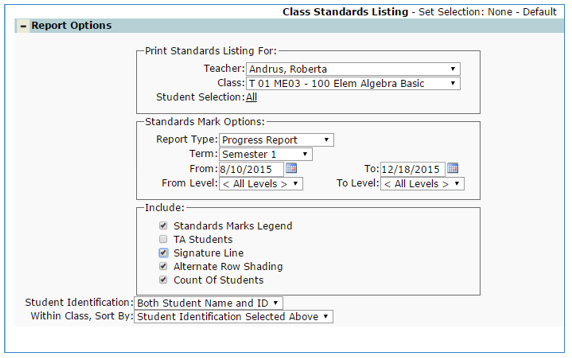
The Q Class Standards Listing Report offers the following report options:
- Print Standards Listing For:
- Teacher—select teacher from drop down list.
- Class—only those classes that have standards scores will appear in the drop down list, select the class.
- Student Selection—Defaults to All students. Individual students may be selected. Control-click to select multiple students
- Standards Mark Options:
- Report Type—select report type from drop down list; progress report, term ending report, blank report.
- Term—select term from drop down list of available terms.
- From & To Dates—Date fields are only available when the Progress report type is selected. The dates default to the begin and end dates defined for the selected term in Marks Setup, term dates, but may be changed by the user.
- From Level and To Level—The report defaults to include all standard levels but may be filtered to include only selected types of standards by defined Level, select From and To levels from drop down list.
- Include
- Standards Marks Legend—Check this box to print the marks legend on the report.
- TA Students—Place a check to include students marked as TA.
- Signature Line—Check to include a signature line on the report.
- Alternate Row Shading—Check to include shading for alternate rows.
- Count of Students—Check to include total number of students listed.
- Student Identification—Select how students should display on report from drop down list.
- Select Both Student Name and ID.
- Student Name Only.
- Student ID Only.
- Row Number.
- Within Class, Sort By—Select desired sort order from drop down list.
- Student Identification Selected Above.
- Grade.
- Gender.
Example Reports
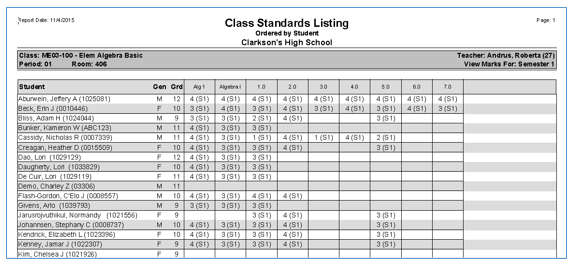
Shading option selected
Videos
