
The Extra Curricular Setup application is used to configure Extra Curricular programs.
For each program, one or more Program Schedules may be created. For each Program Schedule, one or more Classes are created. Classes can be used to group students by location, grade level, or other criteria.
Fee Templates are created in the Setup application to describe the various billing patterns used by the district. Billing rate information is defined for each program, as is the billing interval. Both a rate and a unit of time are specified for each template. The unit of time is the minimum unit for which students can be scheduled. Templates may also be set up to bill incremental elements, such as late pickup charges, etc.
Extra Curricular Setup is located under the School menu in Q..
The application is organized by Program, with the program selection at the top, and tabs for each of Program Schedule, Fee Templates, Contact Flags, Event Types and Billing information. Each tab may be controlled by permissions. 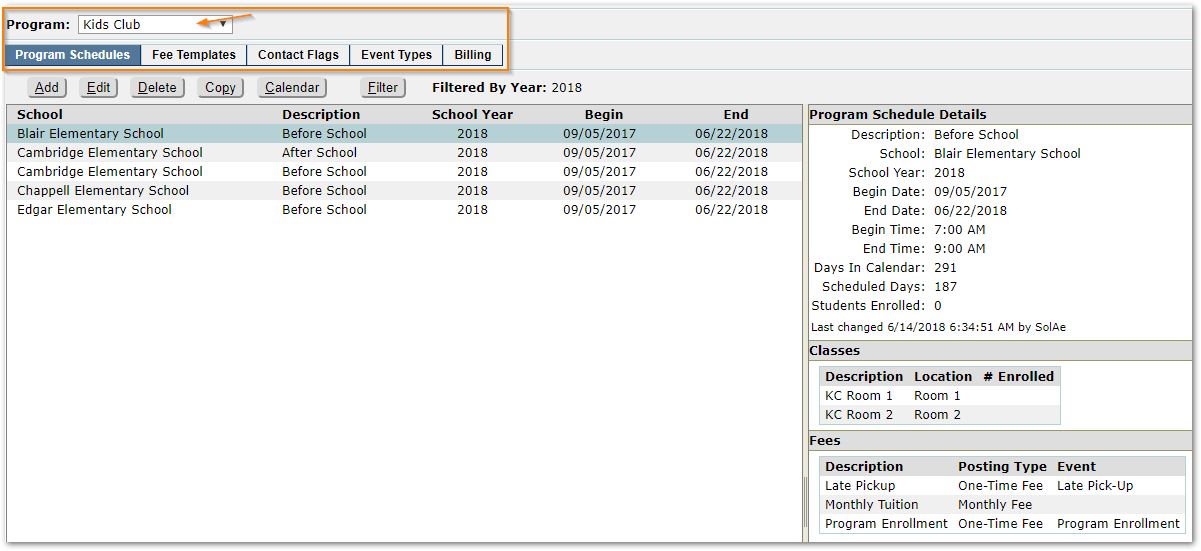
From the Program drop-list, select the Program to configure. In the example shown, Kids Club is selected.
For each program, the tabs reflect the areas that need to be configured:
Program Schedules –One or more Program Schedules may be created e.g. Before School, After School, etc. by school for each Program. The schedule includes a calendar that defines the dates and times the program meets.
Fee Templates – A Fee Template will need to be defined for each fee that will be associated with a program.
Contact Flags - Designates the various roles that must be fulfilled by a student’s contacts during their Extra Curricular enrollment, e.g. Pickup Contact.
Event Types - Events are billable items that may occur in a program. Whenever a student encounters one of these events during their period of Extra Curricular enrollment their account will be automatically billed, e.g. Program Enrollment, Late Pickup, Unscheduled Attendance, etc.
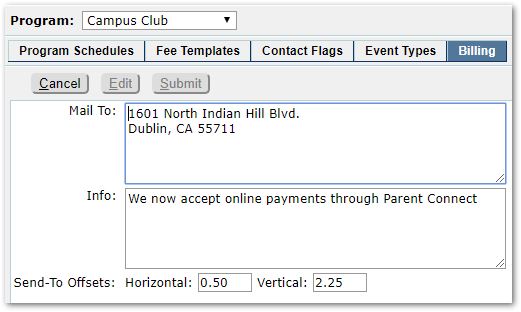
Billing – Mailing address for the program’s accounts receivable office and information for generic message to be included on invoices.
We will configure the areas in reverse order of the tabs to account for dependencies and ensure all aspects of the configuration are in place when needed.
To add Billing Information:
- Select the desired Program at the top of the screen.
- Click
- Enter the appropriate ‘Mail To:’ address for the selected program. This address will be used for the ‘Mail To’ information when printing bills.
- Enter any generic message you would like to be included on the invoices that are sent out to clients in the Info
- Configure Send-To Offsets. The Offsets affect the placement of the recipient information on the printed invoice and provide default settings when printing bills through the Extra Curricular application which may be changed when printing. You may need to play with the settings before printing the first set of bills.
- Click Submit to save your changes.
- If defining more than one program, select the next program and repeat, entering appropriate information for each program.
Events are billable items that may occur in a program. There are four pre-defined possible Event types that may be applied to a program by selecting and setting them here.
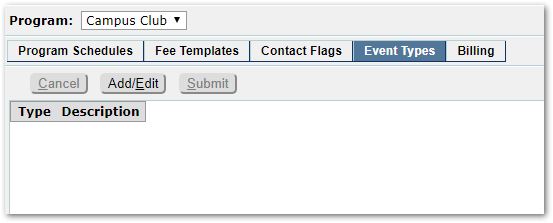
To add an Event Type:
- Select the desired Program at the top of the screen.
- Click the Add/Edit
- Click the Add
- Select one of the pre-defined types:
Late Pickup - When student’s parents are late to pick up the student from the EC class, their account can be automatically billed.
Program Enrollment - A fee for program enrollment can be assessed.
Program Schedule Enrollment - A fee for program schedule enrollment can be assessed.
Unscheduled Attendance - Fees can be assessed for a student attending an EC class on a day they were not originally scheduled.
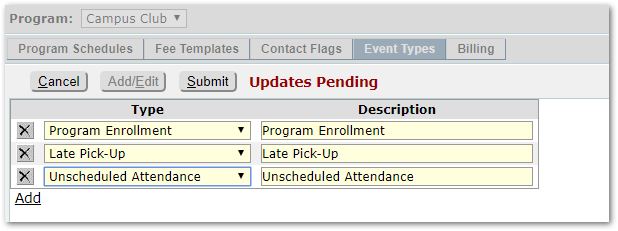
- When a Type is selected, the Description automatically populates with the same information, but the Description may be edited, if needed.
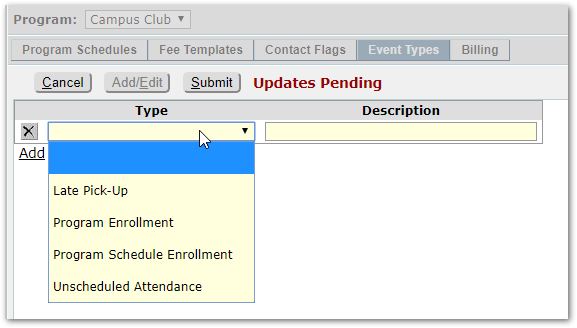
- Click Add to select additional event types and repeat the process.
Sample of events:
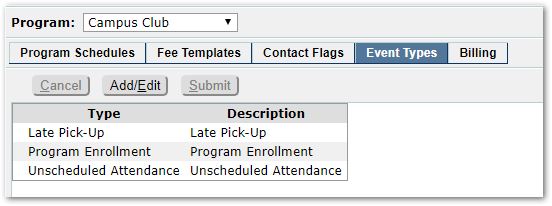
- If defining more than one program, select the next program and repeat, setting appropriate information for each program.
Contact flags designate the role fulfilled by a student’s contacts during their Extra Curricular enrollment such as ‘First Call’, ‘Pickup Contact’, ‘Drop-Off Contact’, etc.
To add a Contact Flag:
- Select the desired Program at the top of the screen.
- Click Add/Edit.
- Click the Add
- Enter a description, such as Parent/Guardian, Pickup etc.
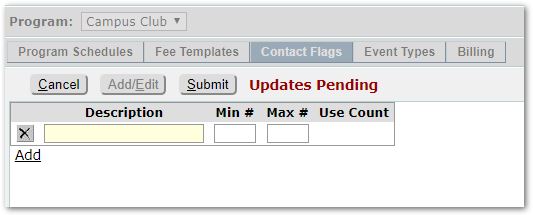
- If desired, you may set the optional minimum and maximum numbers of each contact type required to be on record per student. The rules set here, if any, will be used later to validate a student’s enrollment in the program.
- Click Submit to save the Contact Flag.
- Click Add link to repeat for each additional Contact Flag.
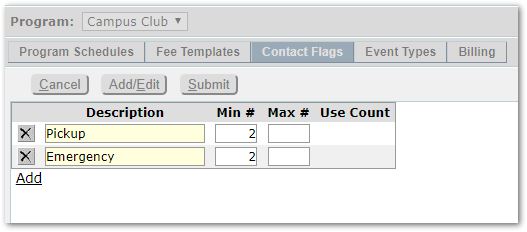
Sample Contact Flags
- If defining more than one program, select the next program and repeat, setting appropriate information for each program.
To Edit a Contact Flag:
- Click the Add/Edit
- Modify as needed.
- Click Submit to save your changes.
To Delete a Contact Flag:
- Click the Add/Edit
- Click the small X to the left of the Contact Flag you wish to remove.
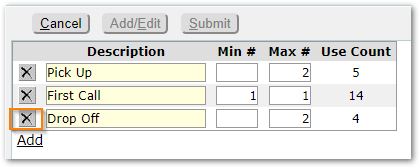
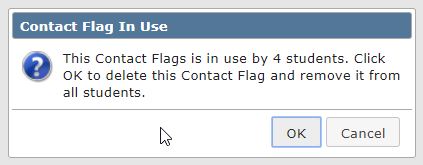
Note the Use Count column indicates the number of students using the Contact Flag. When you click the X to remove the Flag, a message will appear indicating the Contact Flag is in use by a specified number of students. You will need to click OK to delete the Contact Flag which will remove it from the students. Or, given that it is in use, you may choose to Cancel.
A Fee Template will need to be defined for each fee to be charged for a program.
To add a Fee Template:
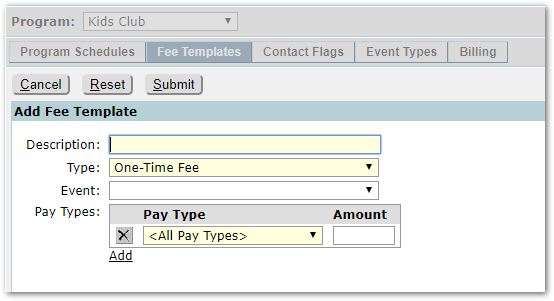
- Select the desired Program at the top of the screen.
- Click
- Enter a
- Choose a Type:
- One-Time Fee – These fees may be stand-alone for manual billing or they can be associated with system-defined events for automatic billing.
- Recurring Fee – A Recurring Fee Template is typically used to set up a billing template for installment fees, such as monthly tuition, etc. Each template will define the billing cycle and the calculation of the fee. There is no association between system-defined events and recurring fees.
- Select an Event, if the fee is to be associated with a system-defined event such as Late Pickup, Program Enrollment, etc. for automated billing purposes, otherwise leave Event blank. Only events associated with the program will appear in the drop-list.
- Select a Pay Type and set the Amount of the Fee:
Pay Types refer to the type of client that the current fee will apply to, such as private, subsidized, etc. This field is used to create different fee structures for different categories of clients. For example, perhaps your EC program will apply standard fees to a particular type of client and discounted fees to another type of client, or perhaps all types will get the same fee structure. (EC Pay Types are defined in Lookup Codes.)
-If there will be one fee for all individuals, leave the Pay Type set to ‘All Pay Types’ and set the Amount to be charged.
-If there will be a different fee per pay type, select the Pay Type and then set the corresponding Amount.
-Click the Add link to add additional Pay Types with their Fee Amounts.
One Time Fees
When defining Fee Templates for One-Time Fees additional payment options apply for these events:
- Late Pickup
- Unscheduled Attendance
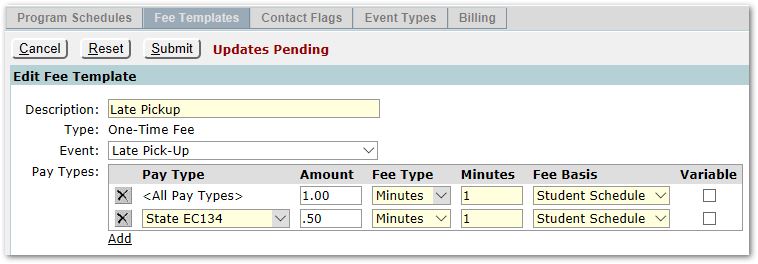
- Fee Types– Select from the options:
- Fixed
- Per Hour
- Per Day
- Minutes
- When the Fee Type selected is Per Hour or Per Minute, then Fee Basiswill become available. Select from:
- Program Schedule or
- Student Schedule.
- Variable – For all Fee Types, the Variable box may be checked so that you can adjust the amount charged to an individual student if you want it to be other than the default amount.
In the example shown above, a fee of $1.00 will be charged for each minute over the student’s scheduled time in the program when a parent picks a child up late and their checkout time in Extra Curricular Attendance application reflects a time greater than the scheduled end time.
Recurring Fees
When defining templates for fees billed at regular intervals such as monthly tuition etc., set the Fee Type to Recurring Fees.
When Recurring Fees is selected, the next field becomes Post Period. Select ‘Monthly’, ‘Weekly’ or ‘Daily’ as the Post Period.
If Monthly or Weekly is selected, then set:
- Period Begins On – Select from among the 1st through 31st of the month.
- Post Charges – Set the number of days ‘before’ or ‘after’ the ‘beginning’ or ‘end’ of the period.
If Daily is selected the Period begins and Posting settings do not appear.
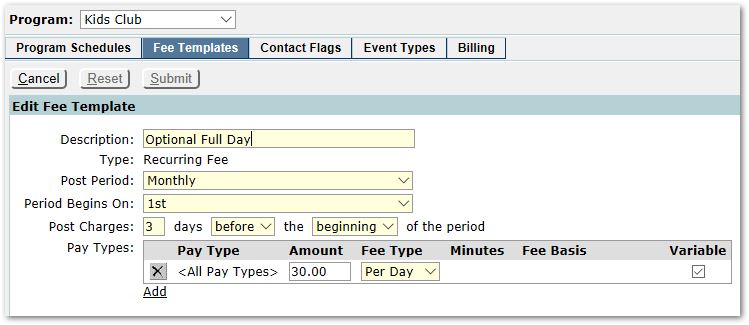
- Set the amount per pay type, as you would for other fees.
- When the Fee Type selected is Per Hour or Per Minute, then Fee Basiswill become available. Select from:
- Program Schedule or
- Student Schedule.
- Variable – For all Fee Types, the Variable box may be checked so that you can adjust the amount charged to an individual student if you want it to be other than the default amount.
For each Program, one or more Program Schedules can be created, such as ‘morning’ and ‘afternoon’. A Program Schedule is similar to a track in that it is associated with a school and it has a date range and a calendar that specify the days and times on which the Program Schedule meets.
For each Program Schedule, one or more Classes are created. A Class specifies a physical location. Classes can be used to group students by location, grade level, or other criteria.

To add a schedule:
- Select the Program from the drop-list.
- From the Program Schedules tab, click Add.
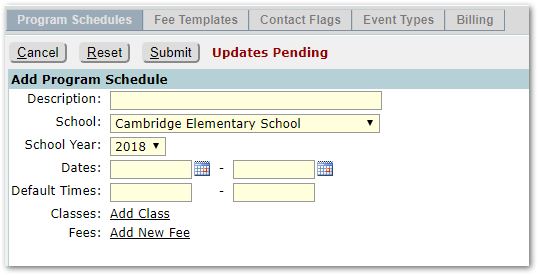
- Enter the name of the schedule in the Description
- Set the School if you are logged into the District Office, otherwise it will be set to the logged in school.
- The School Year will default to the current school year. If you are setting up a program for a future year, you will need to set the School Year appropriately.
- Enter the Date range for the beginning and end of the program schedule.
- Enter Default Times for the program, e.g. 7:00 AM – 9:00 AM.

- To add a class, click the Add Classlink:
- Enter a Class Description and Location.
- To remove a class, click the X at left.
- To add another, click the Add Class link again.
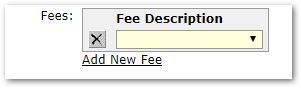
- To add a fee, click the Add Feelink:
- Select a Fee from the drop-list.
- To remove a fee, click the X at left.
- To add another, click the Add Fee link again.
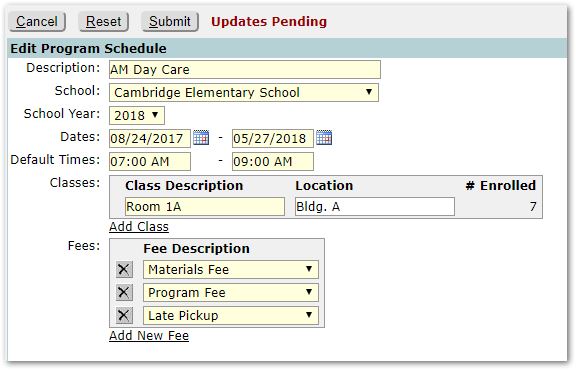
Example of a completed program
- When finished defining the program, click Submit.
Editing or Deleting a Schedule
To make changes to an existing schedule, click Edit.
- Make changes just like in Add Schedule section.
To remove a schedule, click Delete.
Calendars
A calendar needs to be defined for each program schedule. When you established the Program Schedule, you set the first and last calendar days of the schedule and the default daily begin and end times. In defining the Calendar, you will define the days of the week that the program will meet and the Begin/End Times of those days. You will be able to remove holidays or other non-meeting days, and adjust the Begin/End Times of specific scheduled dates in the calendar.
On the Program Schedules tab,
- Select the Program
- Click the Calendar button
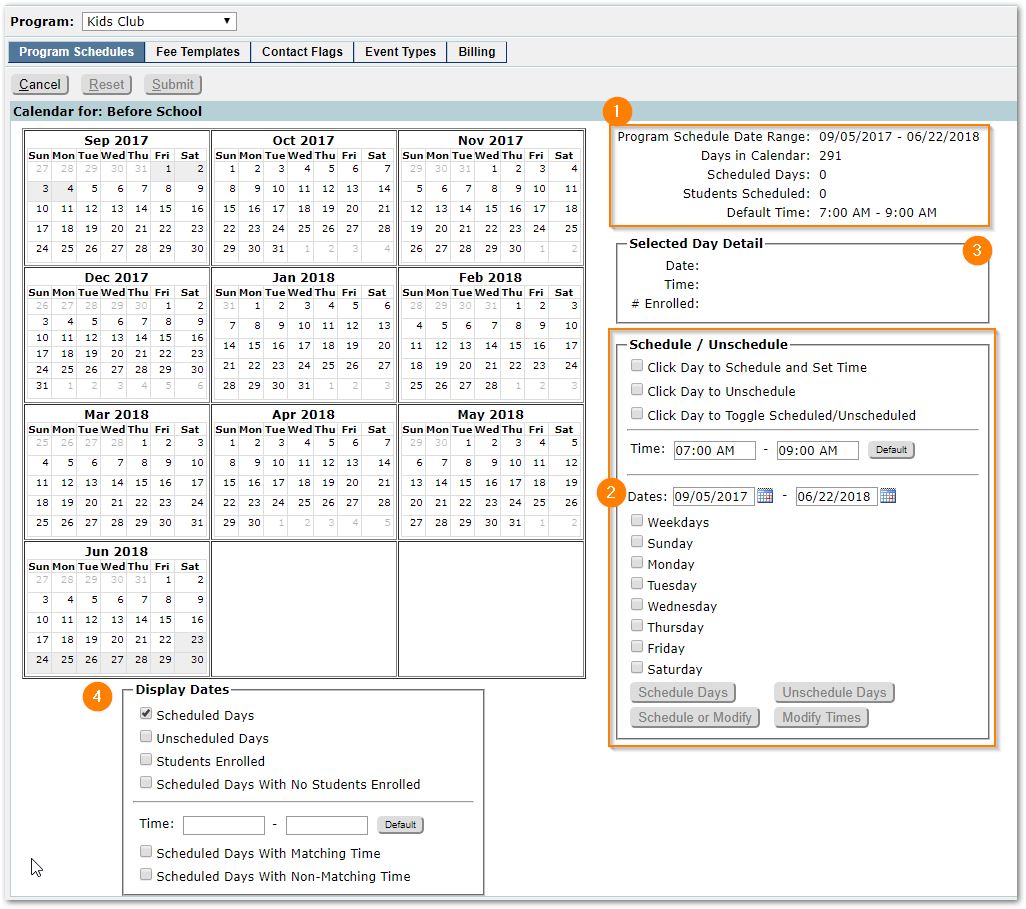
A blank calendar will appear for you to configure. The following is a general description of the layout and purpose or use of the different aspects of the settings shown:
- Information about the Program Schedule calendar appears at upper right including the date range and default time set earlier.
- Use the Schedule/Unschedule section to either schedule or unschedule in bulk, i.e. all weekdays, or by clicking on specific days in the calendar. Times may also be modified.
- When a particular date is selected in the Calendar itself, the Calendar details for that date will appear in the Selected Day Detail
- Use the Display Dates section to change the display in the calendar itself, to identify easily unscheduled days, days with students enrolled, without students enrolled etc.
To begin to define the calendar:
- Click either ‘Weekdays’ or select the specific days the program meets, i.e. Monday, Tuesday, Wednesday, Thursday etc.
- Double check the date range. It defaults to the start and end date of the program. Ensure it corresponds to what is needed and adjust if needed.
- Double check the times. The default times for the program are shown. Adjust if needed.
- Click the Schedule Days
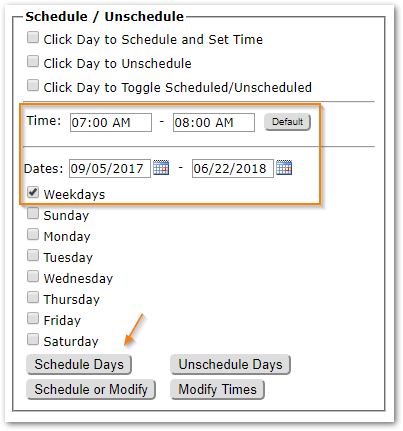
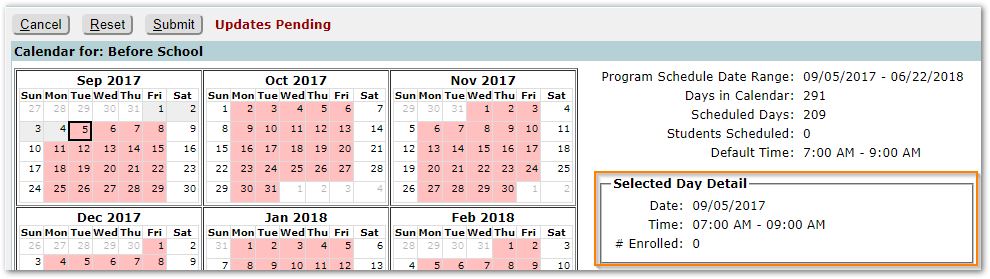
Once you click the Schedule Days button, the scheduled days will appear in pink on the calendar. For the specific date selected, the calendar detail will appear in ‘Selected Day Detail’ area.
- To unschedule specific dates, such as holidays when the program does not meet, check the Schedule/Unschedule box ‘Click Day to Unschedule’, and then click on each holiday or non-meeting date. In the example shown, Thanksgiving Holiday has been unscheduled.
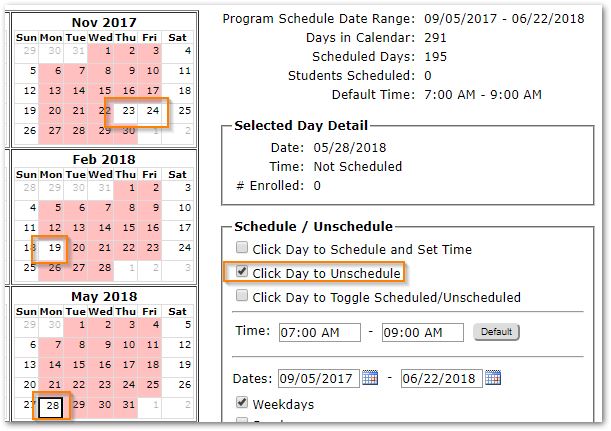
- To adjust time for specific dates, change the time setting shown, check ‘Click Day to Schedule and Set Time’ and then click on the date in the calendar to adjust the time. Note: In our example, we have changed the time for November 22nd from 7-9am to 8-9am.
Other options:
- To unscheduled all days and begin again, select ‘Weekdays’ (Saturday and Sunday if needed), and click Unschedule Days button.
- To toggle in the calendar itself between scheduling and unscheduling specific dates, check the ‘Click Day to Toggle Scheduled/Unscheduled’ box and then proceed in the calendar to make adjustments.
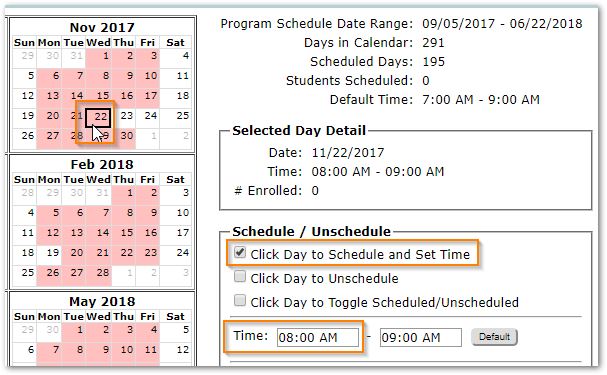
- To modify time for all weekdays, or all Fridays as example, you could adjust the time setting, and then click ‘Weekdays’, ‘Fridays’ etc. and then click the Modify Time
To review the calendar settings:
- Use the Display Dates area below the calendar to show scheduled days, the default, or you may click Unscheduled Days to focus on scheduling those days.
- You may also display days that may have standard or non-standard times. To display days where the time scheduled does not match the default time:
- Select the default time
- Click ‘Select Days with Non-Matching Time.’
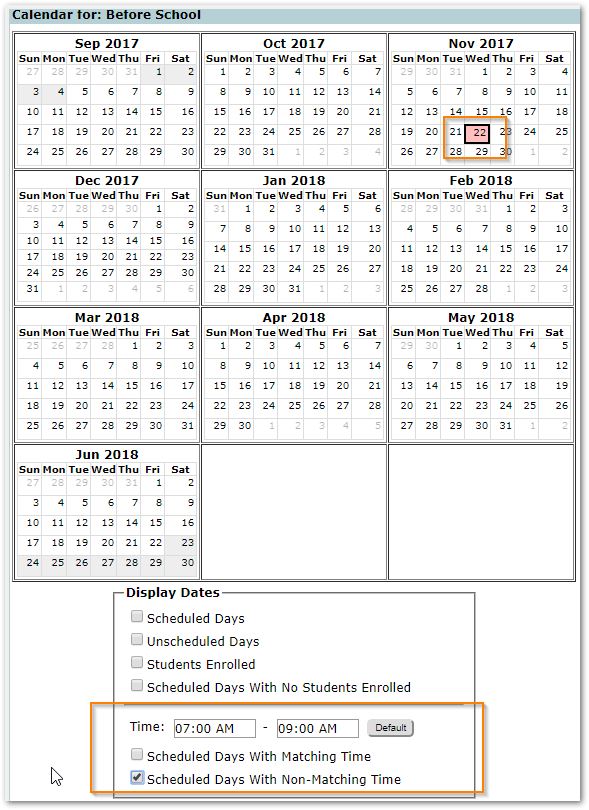
- Once students have been enrolled in the program, which is a later step, you may use the options to display dates when students are enrolled and / or scheduled days with no students enrolled.
- When the Calendar is complete, or at any point while working on the calendar to save your work, click
Once a Calendar has been created for a program, it may be copied to other Program Schedules.
Copy a calendar:
- From the Program Schedule tab, select the TARGET program/school. Notice the number of Scheduled Days in the detail area at right.
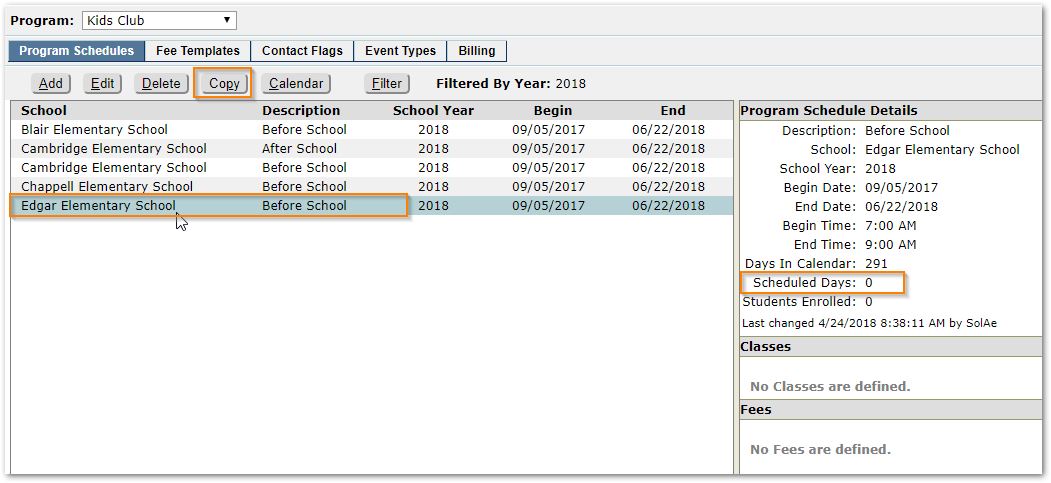
- Click the Copy button.
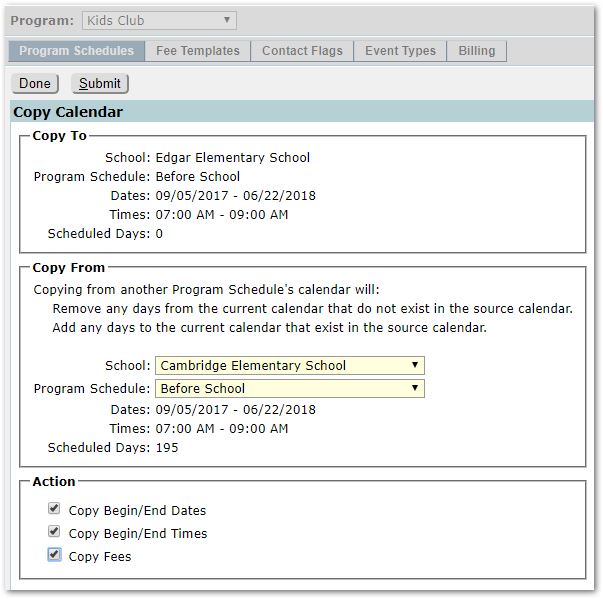
- Select the School to copy from.
- Select the Program to copy from.
- Check to indicate if you want to copy:
- Begin/End Dates
- Begin/End Times
- Copy Fees.
Note as indicated on screen:
Copying from another Program Schedule's calendar will:
- Remove any days from the current calendar that do not exist in the source calendar.
- Add any days to the current calendar that exist in the source calendar.
- Click Submit to proceed with the copy.
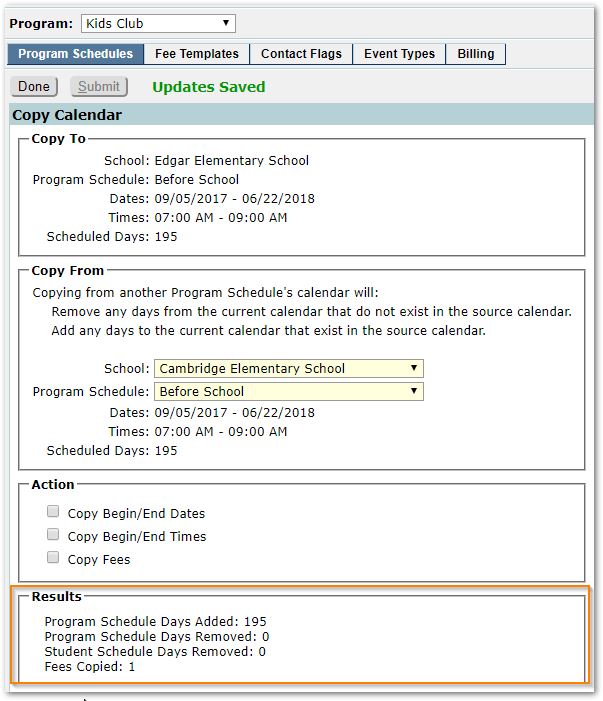
When complete, the Results are presented at the bottom of the screen indicating the Program Schedule days added, removed etc.
- Click Done when complete.
When each program is defined and their calendar complete, you may use the Extra Curricular application to place students in program schedules, classes etc.
