
Translate Notes is a class banner application primarily used by teachers to enter attendance for their assigned classes. Teachers typically are only given access to data for the courses they are assigned to teach, for the logged-in track. Users with roles other than teachers may view all courses, depending on their permissions.
Translate Notes is located under the Marks menu in Q.
- When launching the Translate Notes Application the default view will show students based on Un-Translated Notes for all languages other than English for the first term that has any mark reporting notes.
This is an info callout
he language listed for each student is based off of their 'Home Language,' set in Student Profile: Demographics.
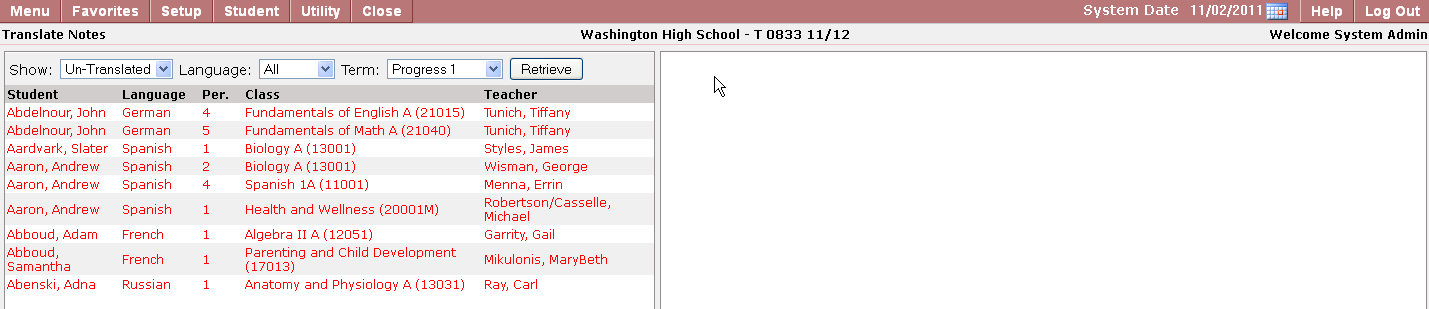
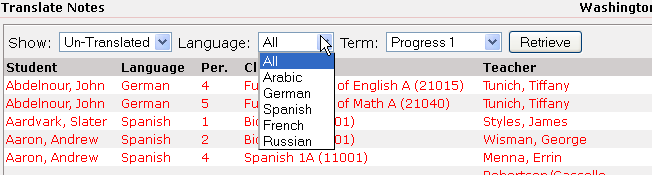
2. To filter the list of students change the Language from All to a specific language and/or change the Term to a desired term and click the Retrieve button to refresh the list of students on the left side of the grid.
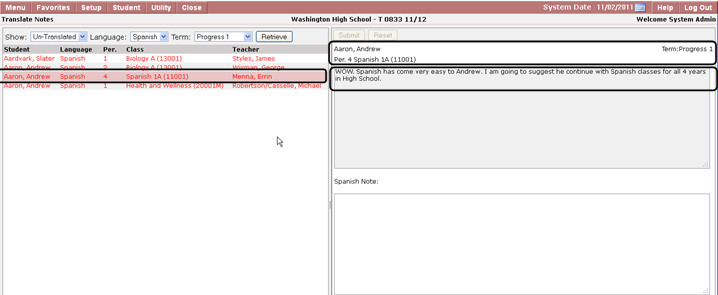
3. When a list of students are shown based on the default or the changed filter choices just click on a student’s name to show the details of the student’s note. This display will include the teacher’s name, term, and class information.
- When adding a translated note for a student the user can either type directly into the empty note box below the student’s current note or the user can use the normal Ctrl C (Copy) from another source and Ctrl V (Paste) into the empty note box.
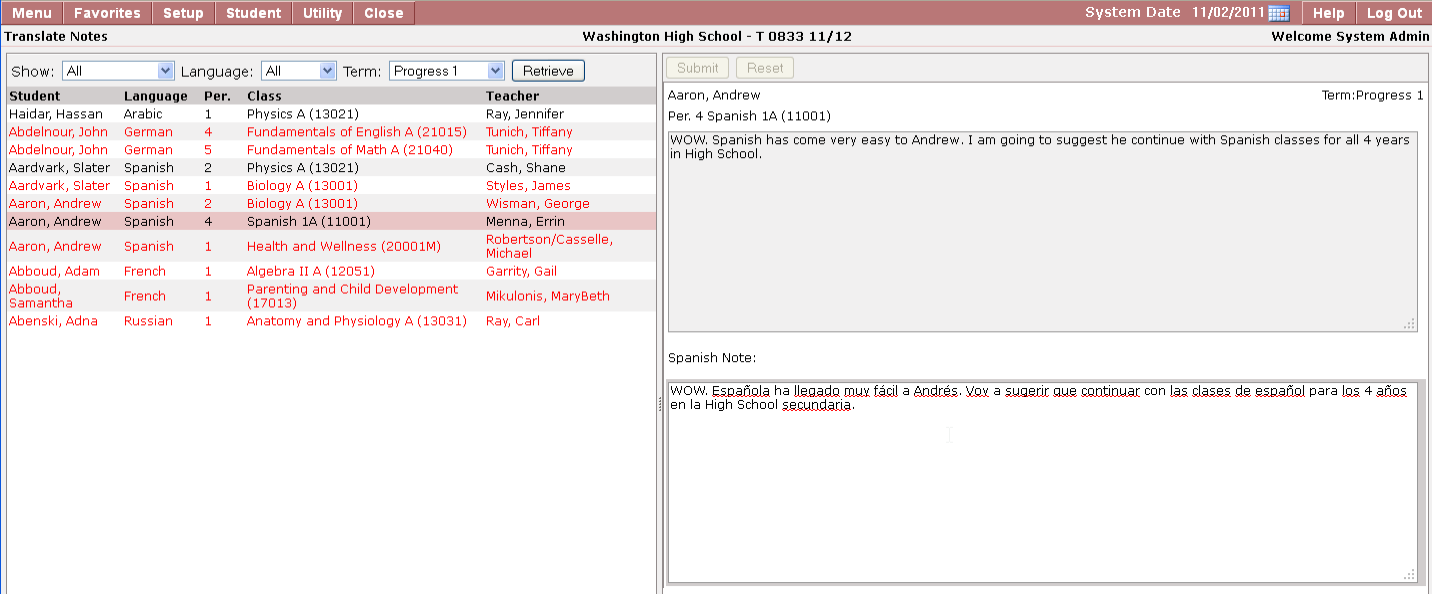
- Students who have a note that has been translated will appear in the list on the left in a black font if Show is set to All or Translated.
- Translated Notes will appear on the Whole Child Report Card if the option to print notes is used in the Report Card Setup.
