The Time Tracker application is designed to enable the collection of student attendance time for a set of specified classes. These time amounts can be stored either as numeric values or as code values representing level or status of attendance.
Time Tracker is located under the Attendance menu in Q.
There are two permission items for Time Tracker – Attendance: Time Tracker [Application] and Attendance: Time Tracker [Administrator].
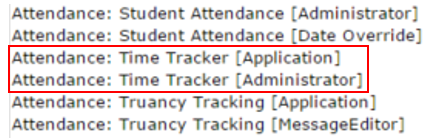
Time Tracker [Application] will give users access to Time Tracker, and users who teach Time Tracker classes will only see the classes they teach when accessing Time Tracker.
Time Tracker [Administrator] will give users access to all classes that are flagged as Time Tracker at the logged in track regardless if they teach the class or not.
Note:
Users who are flagged as System Admin or users who have the Q [Administrator] permission item will also access all classes that are flagged as Time Tracker classes.
To flag a class as a Time Tracker class, hover over the Schedule menu and click Master Schedule Manager. Here, you can search for the class that is to be a Time Tracker class, scroll all the way to the right of the page, and turn on Time Tracker.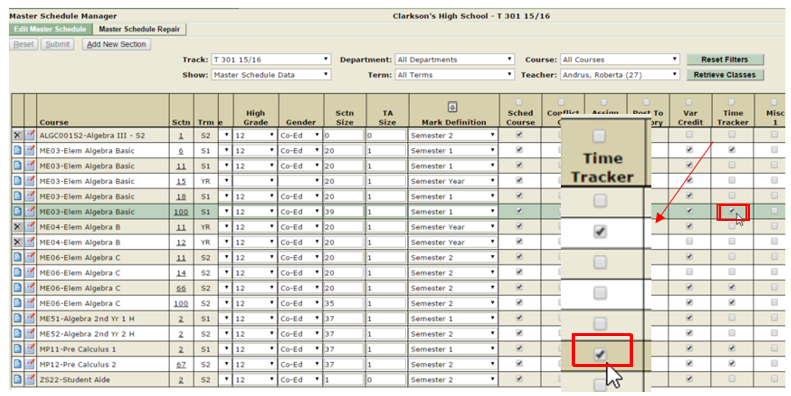
When Time Tracker is first accessed, a Time Type will have to be selected and the date can be changed if desired.
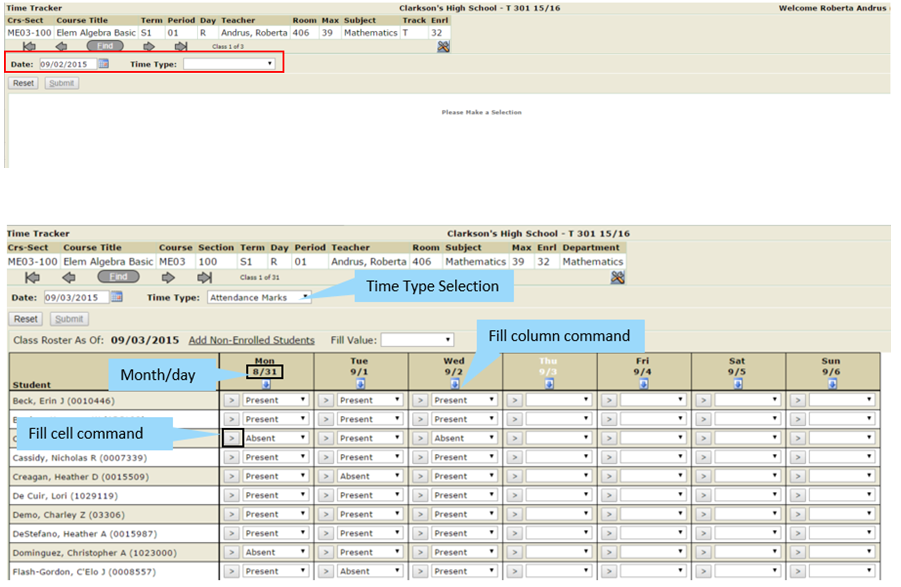
To record new data or view existing data are similar processes, as follows:
Select a Time Tracker Class
If you are logging in as a user who has the Time Tracker [Administrator] permission item or is flagged as System Admin, there will be a list of all classes that are Time Tracker classes to select from.
Set Effective Date (optional)
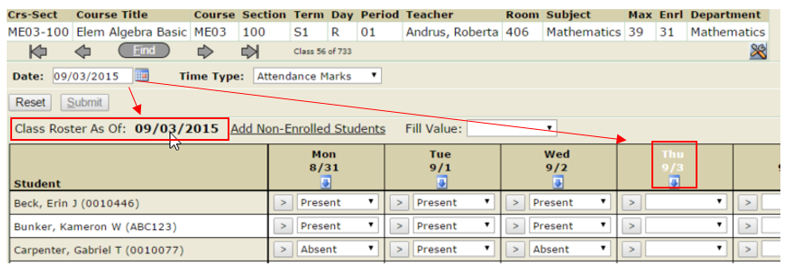
In the Date field in the upper left corner, enter the date for which you wish to record or view data. The date field defaults to today’s date, and the date does not have to be changed.
Select a Time Type
There are four time types to select from: Attendance Marks, Intern Hours, ROP Hours, and Seat Time. If Attendance Marks is selected, users can select from a drop down list an attendance reason to enter. If Intern Hours, ROP Hours, or Seat Time are selected, the fields are free fields and users can enter hours manually.
View Grid
When a Time Type is selected, a class roster will appear for the selected Time Tracker class with a data entry grid. The grid displays Monday through Sunday for the week that contains the effective date (either today’s date by default, or the selected date). The effective date is displayed in the Class Roster As Of: field above the grid area, and the column header with the effective date is highlighted in white.
Note:
A Time Tracker class roster can hold data for multiple Time Types on a single date. You can view all existing Time Type data for the selected class simply by changing the selection in the Time Type field.
Recording Data
Use the tab key or arrow keys to move from field to field. Enter data for the Time Type selected. Some Time Types will allow manual entry by typing in the field, such as ROP Hours, Intern Hours, and Seat Time. The Attendance Marks time type will require you to enter data by choosing a predefined valid value from a drop-down list.
Using Fill commands
To save time, enter a value in the Fill Value field at top center. Then click a Fill Value button to the left of a cell to fill the value into that cell, or click a Fill Column button at the top of any column to fill the value down in all cells in the column.
Click the Submit button in the upper left to save new data (or Reset to clear the entered data). Data must be saved or cleared before you can switch Time Types.
Students who are not enrolled in the currently selected class may be attending the current class to get time-related credit for another class. In these cases the user can add the students to a current class roster temporarily, for the purpose of time tracking. The data recorded for such student will be posted to another time tracker-enabled class in which they are officially enrolled.
Note:
Only students who are enrolled in at least one other course section flagged for time tracking can be added to the current class roster on a ‘non-enrolled’ basis.
To add a non-enrolled student to the class roster:
Click on the ‘Add Non-Enrolled Students’ link
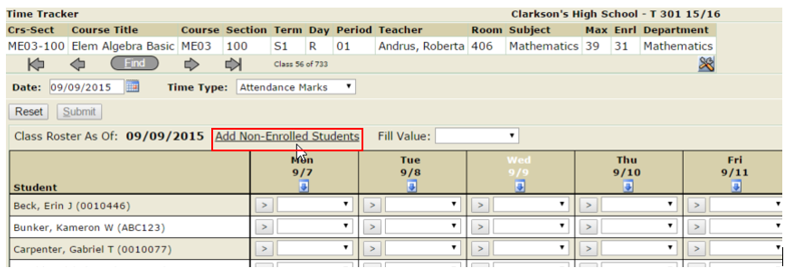
A list of available students that are enrolled in other Time Tracker classes will appear.
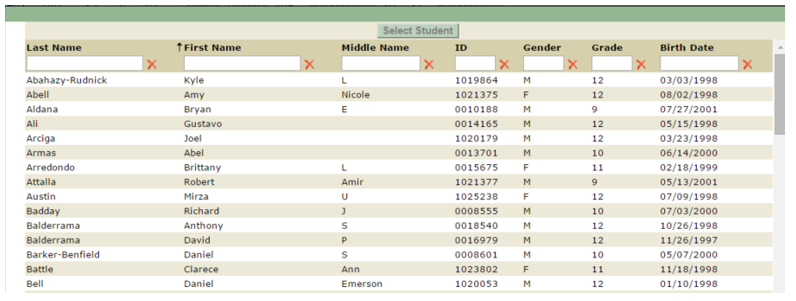
Once a student’s name is highlighted, the Select Student button at the top will become active.

Once the Select Student button is clicked, another window will appear that will prompt the user to select which other Time Tracker class the attendance will be applied to.
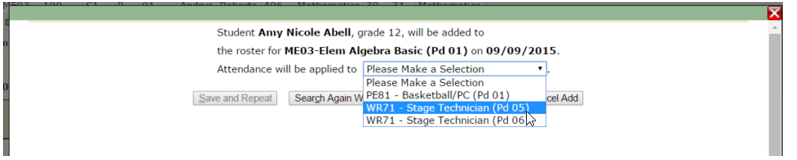
There are also four other options that appear in that same window:
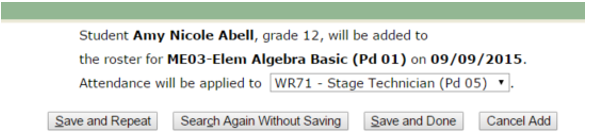
- Save and Repeat: saves the selected entry and will return you to the list of available non-enrolled students to be added to the roster.
- Search Again Without Saving: returns you to the list of available non-enrolled students to be added to the roster without saving the current selection.
- Save and Done: saves the selected entry and returns you to the main Time Tracker page with the class roster.
- Cancel Add: returns you to the main Time Tracker page with the class roster without saving any selections of non-enrolled students.
You will see all non-students that have been added to the roster at the bottom of the roster list. The course section to where the data will be applied is displayed in italics under each student entry. A data entry box will only appear when the student has been added to the roster for the date entered in the date field.
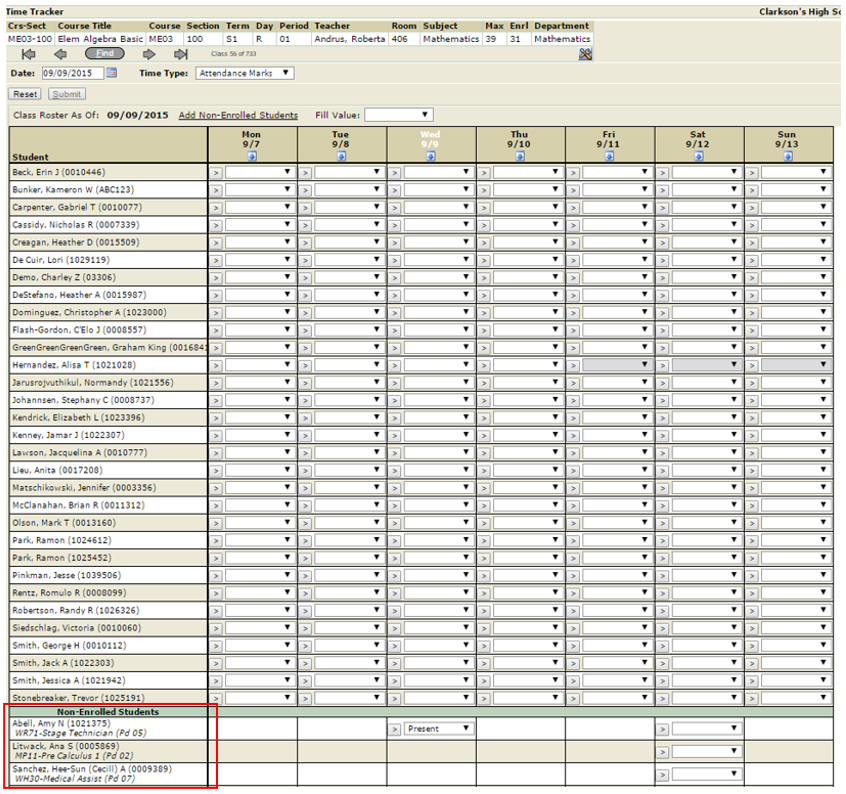

(Amy Abell has only been added to the roster for Tuesday, Wednesday, and Saturday in this example)