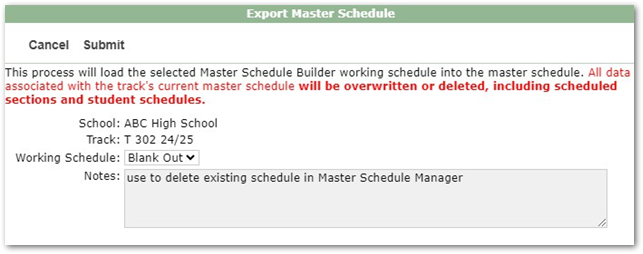
If you’d like to start with a clean slate and build a new Master Schedule using either the Master
Schedule Manager or the Builder but don’t want to go through and tediously delete every section from
the Master Schedule Manager, the Builder can do it for you by following these steps:
- Open the Master Builder
- There must be at least one course request assigned to a student in that track
- Builder Setup tab.
- Add a new working schedule in the Master Schedule Builder, naming it anything you’d like, for example ‘Blank Out.’
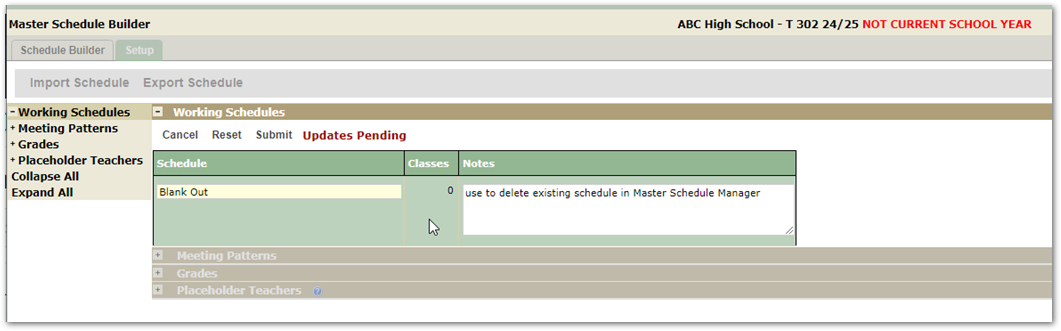
- Add Meeting Patterns
- Identify Grades
- Return to the Schedule Builder tab,
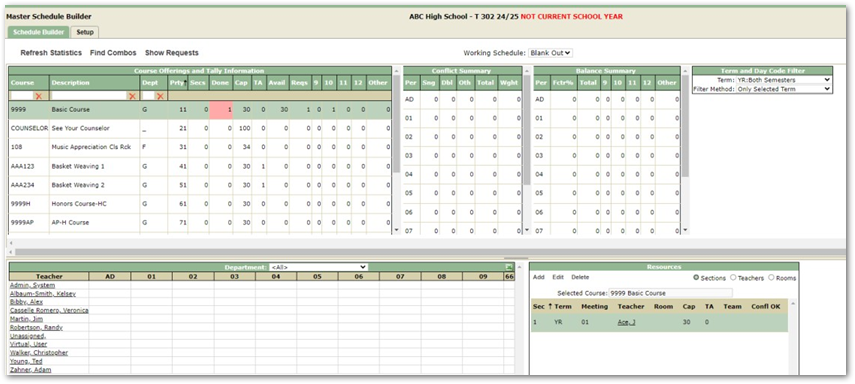
- When the Builder opens, you’ll see a Refresh Statistics message. Select the Include all track courses option and Process.
- Select ‘Blank Out’ from the Working Schedule dropdown and build one section in the ‘Blank Out’ Working schedule in the Builder.
Return to the Setup Tab and Import the ‘Blank Out’ Schedule to the Master Schedule Manager. This process will clear the current schedule and replace with the Blank copy.