
The Q Mass Communications application is used to mass record communication records for a user defined set of students.
Mass Communications is located under the Communications menu in Q.
Below is Mass Communications in Q when first launching the app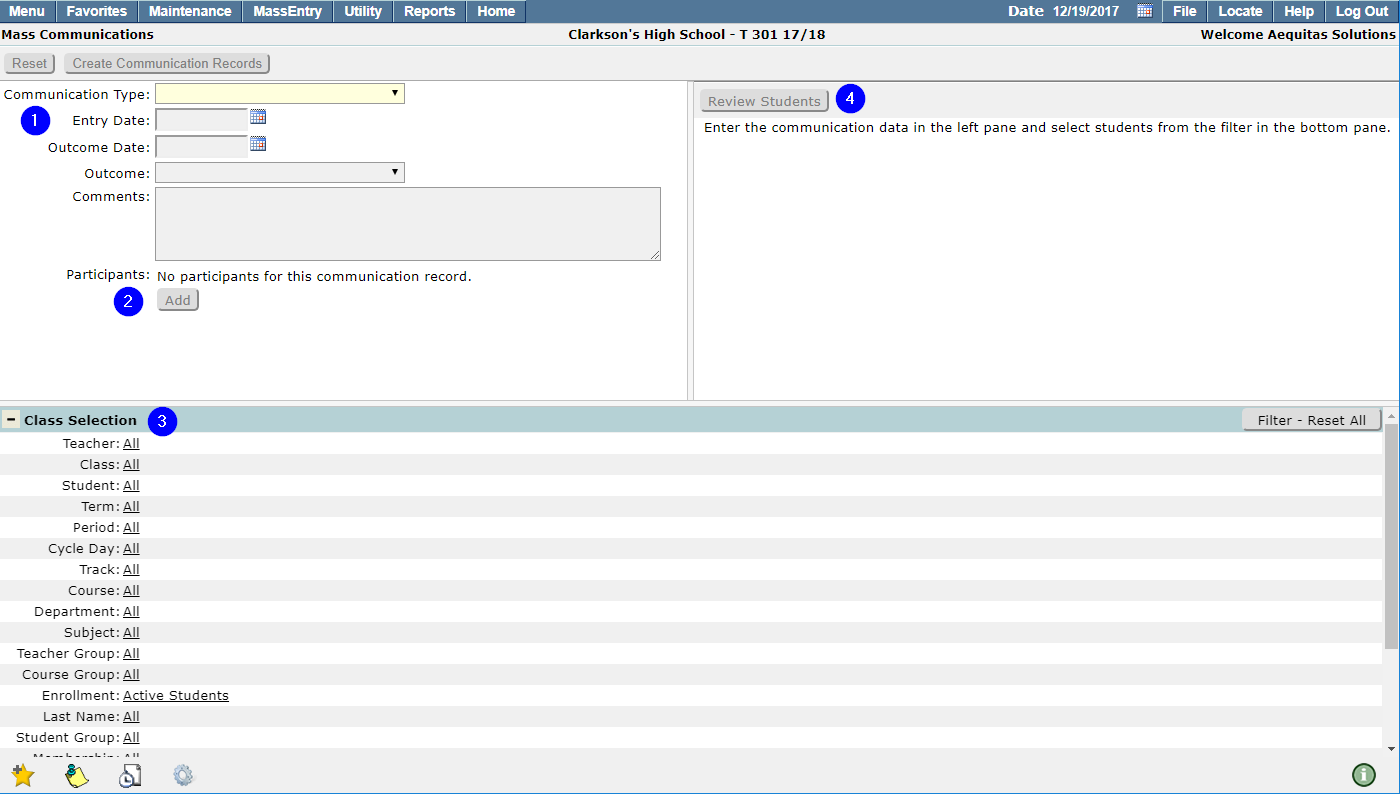
- Communication Type, Dates, and Comments. Here you define what the communication type you are recording is, and any associated data.
- Participants. Click Add to add any participants associated with the communication record. Choose from Students, Contacts, and Faculty. (see screenshot and instructions below)
- Selection Filter. Select a group of students that you wish to log the communication record for. This is the same filter used in the Reporting menu.
Note:
You have the option to change the filter between a Class Selection Filter and a Student Selection Filter, using the Gear icon in the lower left corner of the page.
- Review Students. Press this button to build the list of students that will receive this communication record. (see screenshot and instructions below)
From the Communications Type drop-down list, select the Communication Type you wish to record.
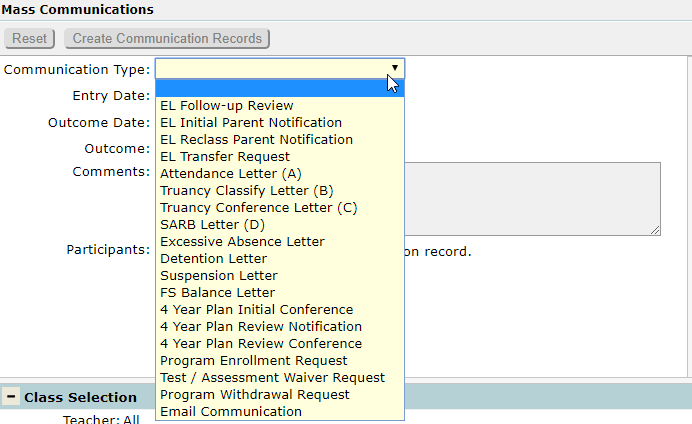
Upon selecting a Communication Type, some fields may be pre-populated. These can be defined in the Communications Setup application.
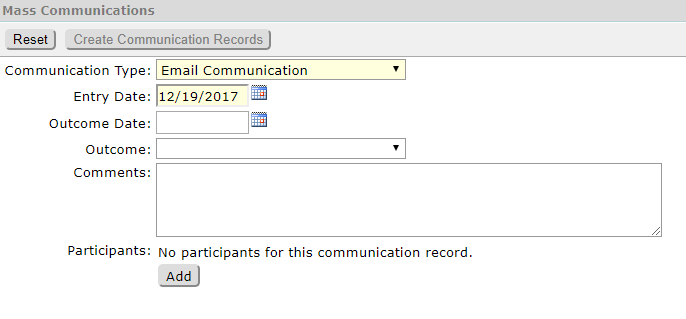
The only required fields are the Communication Type and Entry Date. If you wish, you may enter an Outcome Date, an Outcome, and any additional Comments you'd like in this communication record.
If you'd like to records any participants in this communication record, click the Add button to open up the Add Participants window:
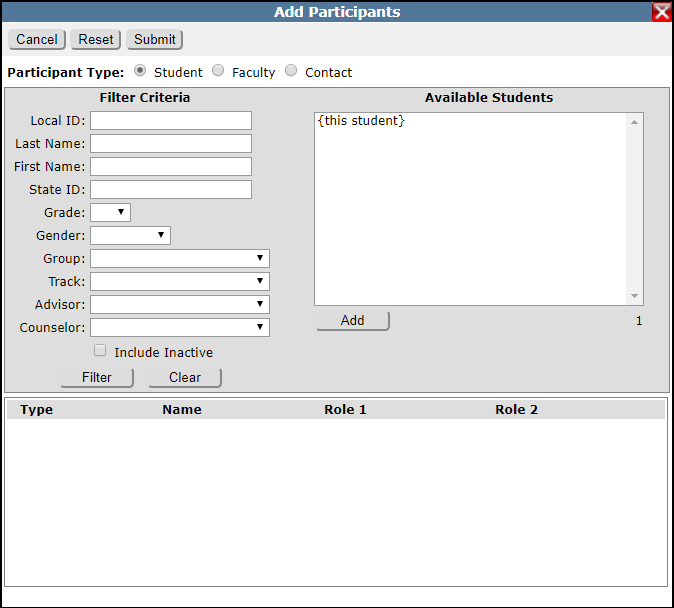
From this window, you may select Students, Faculty, or Contacts to be participants in this communication record. A participant is not necessarily a recipient of this communication record, but rather a person or persons that is associated with this specific communication record. You'll define which students will have this communication record in Step 3.
The default selection for a student participant is {this student}. Selecting {this student} means each student selected in the 'Review Students' window will be the participant in their respective communication records. Select you student(s) from the Available Student's window and click Add to add them as participants.
The default selection for a Faculty member defaults to the logged in staff. You may search and add participants from a list of active staff members.
The default selection for a Contact is {primary contact}. This follows the same rules as {this student}, except it selects the primary contact for that student.
For each participant, one Role is required, though you have the option to add a second role is necessary. These Roles are defined in Communication Setup > Properties.
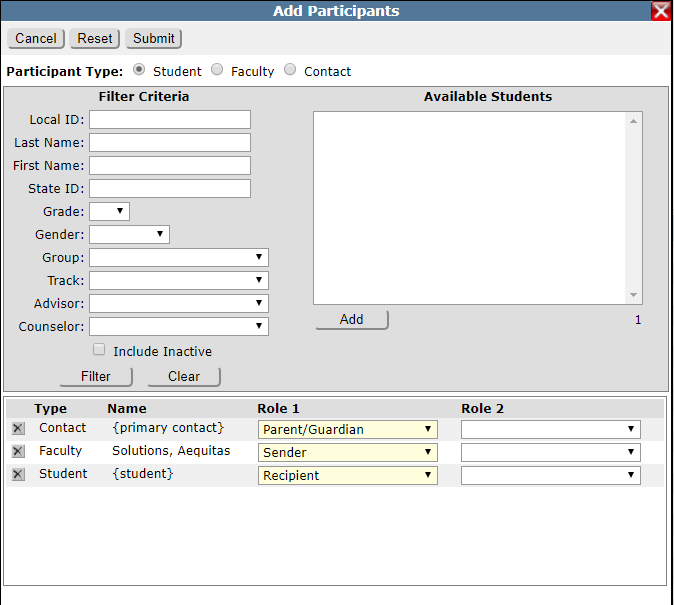
Typically, your list of participants will be short as is it above, though you have the option to add many more participants if needed.
Using the Selection Filter, filter which students you want to log this communication record for, then click Review Students to build the list.
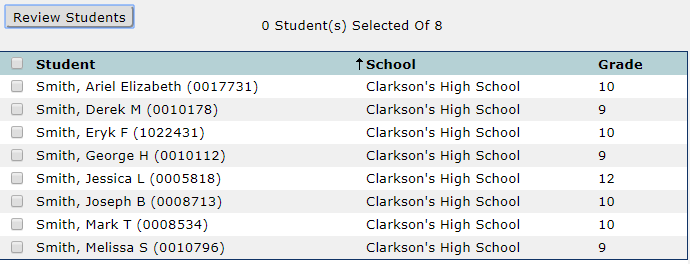
Now you have a list of students that you can log this communication record for, all with check boxes next to their names. To select all students in the list, click the top checkbox next to Student. Alternatively, you may select one student at a time if you wish to exclude any from having this communication record.
Once you have selected your list of students that you'd like to have this communication record, click Create Communication Records. You'll notice that your records have saved if a green Processing Complete message appears at the top of the screen.
If you did not select all students in your Review Students list, you may select the remaining now and click Create Communication Records again to write additional records. This will not write duplicates to those that have already received the communication record from this session. You can see in the Review Students list that those that have already logged this record do not have a check box next to their name. This feature allows you to add additional comments or data to a group of students, without having to reset the application.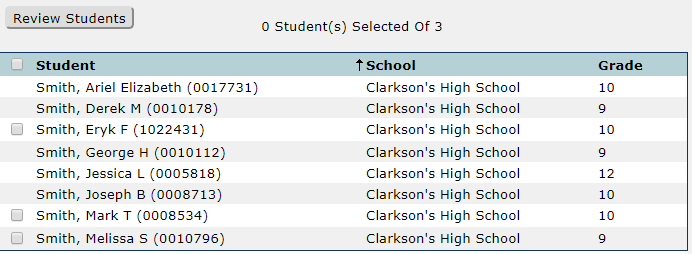
To refresh your list of students, click Review Students.
To refresh the entire screen, click Reset.
