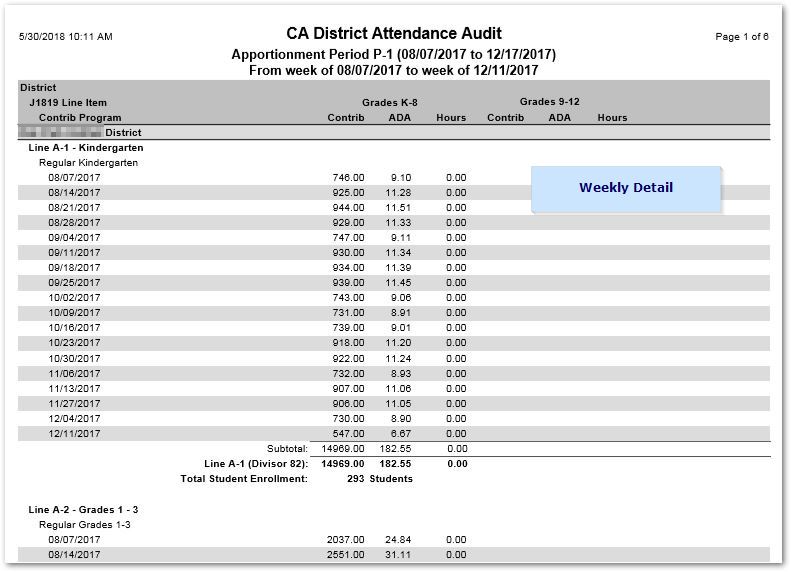
The CA District Attendance Audit report is used to check attendance data for accuracy after the CA Attendance Summary Calculation has been run. The report is based on weekly summary data generated by the CA Attendance Summary Calculation and enables the user to report on Summary, weekly detail or student detail as well as group the reported data by selecting from a number of factors including School Type, School, Grade etc. and for types of tracks including traditional, intervention, extended year, or summer school. The user may opt to report on specific line items and include applied surplus and uncounted attendance data.
Prerequisites:
- CA Attendance Summary Calculation run for the Apportionment period desired for the report. See CA Attendance Summary Calculation for further details.
While details specific to this report will follow, users can find general information about reports within the Reports documentation.
CA District Attendance Audit Report is located within Reports in the Attendance menu in Q.
From Report Options, select:
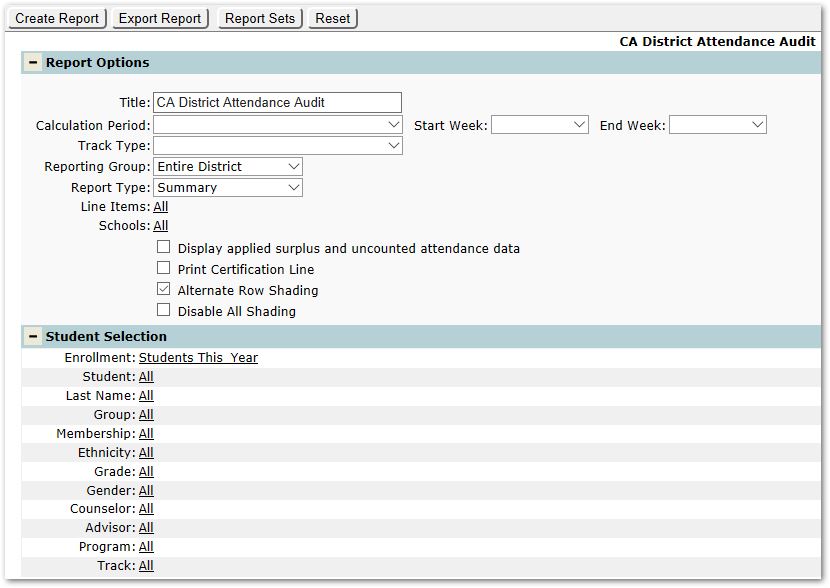
- Title – A default title is provided, but may be changed as desired.
- Calculation Period – Select from the periods in the drop list. The values in the list will be the Apportionment periods for which an Attendance Summary Calculation has been run.
- Start Week / End Week – Select the Start Week and End Week within the Calculation period for reporting.
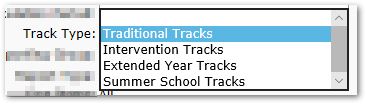
- Track Type – Select the type of track you wish to report.
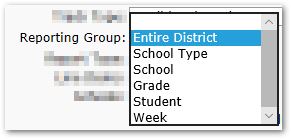
- Reporting Group – ‘Entire District’ is the default Reporting Group. Select from among the other options in this drop list if you would like the report broken out by one of the available factors: School Type, School, Grade etc.
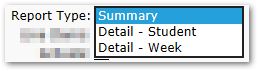
- Report Type – Select from Summary, Detail – Student, or Detail – Week. Report samples of each type are included below.
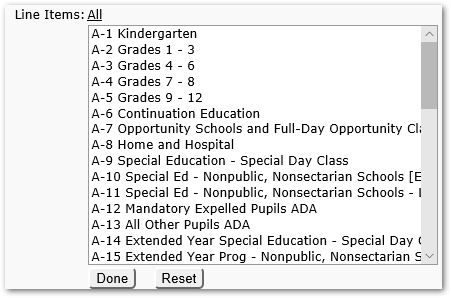
- Line Items – All is the default. If you wish to narrow the report, and filter on specific lines, you may select them here.
- Schools – Select from the set of schools.
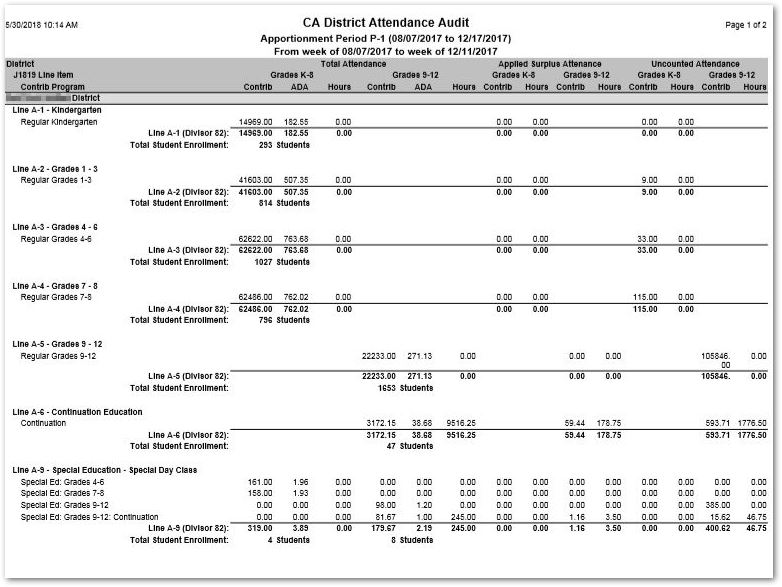
- Display applied surplus and uncounted attendance data – When checked on, Applied Surplus Attendance and Uncounted Attendance become additional columns on the report. In the Summary Sample below this option was checked on and you will see these additional columns on the right.
- Print Certification Line – Check to include a signature certification line at the bottom of the report.

- Alternate Row Shading – This setting defaults on. Uncheck to remove Alternate Row Shading.
- Disable All Shading – Check to render the report without any shading for heading lines etc.
Summary Sample
In this sample, the Applied Surplus and Uncounted Attendance Data was turned on and shows on the right side.
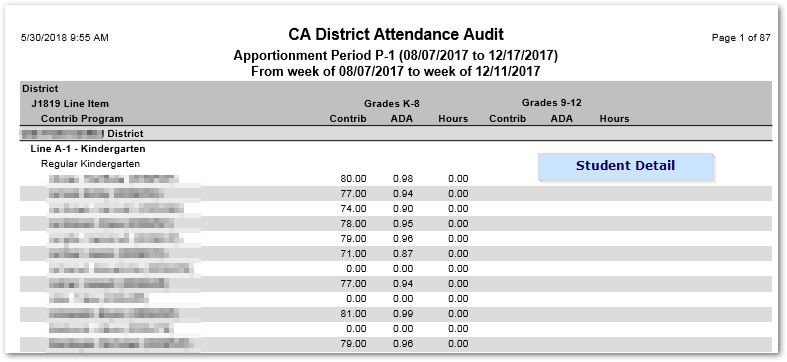
Detail – Student
Detail – Week