
Users may set applications or standard reports they access regularly as Favorites. Once an application has been designated a Favorite, it will appear under the Favorites button on the Main Page, allowing quick access. Favorites will also appear in the My Favorites widget, if that widget has been activated for display on the Home Page.
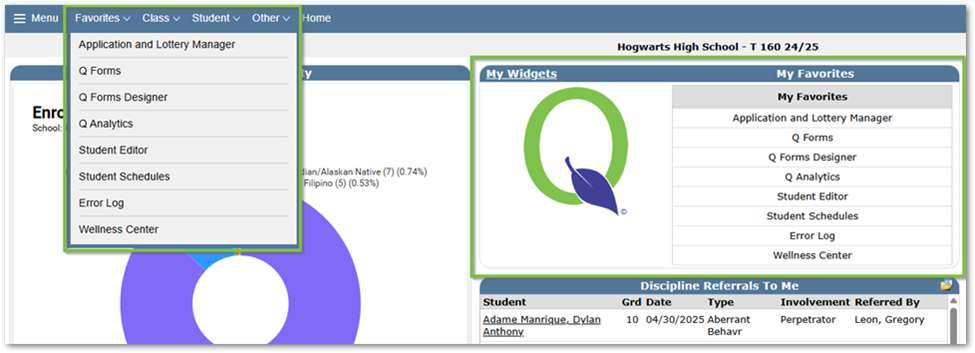
Setting an Application as a Favorite
From the Main Page
- Click Menu
- Open any Application you would like to make a Favorite.
- Once the Application is open, click the Star icon at the lower left portion of the screen
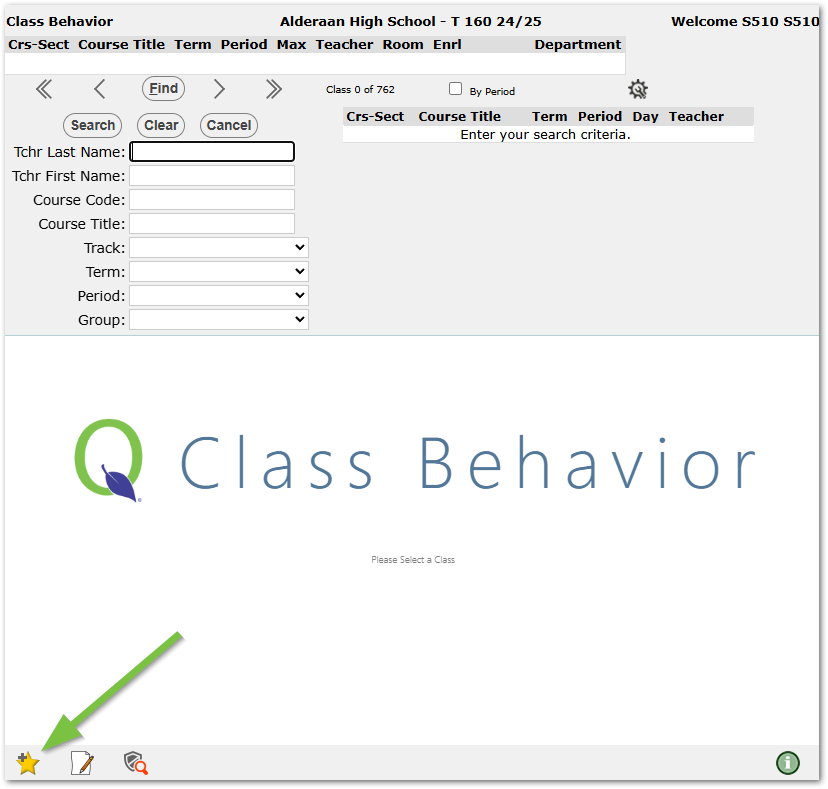
- This will open the Menu Favorites popup.
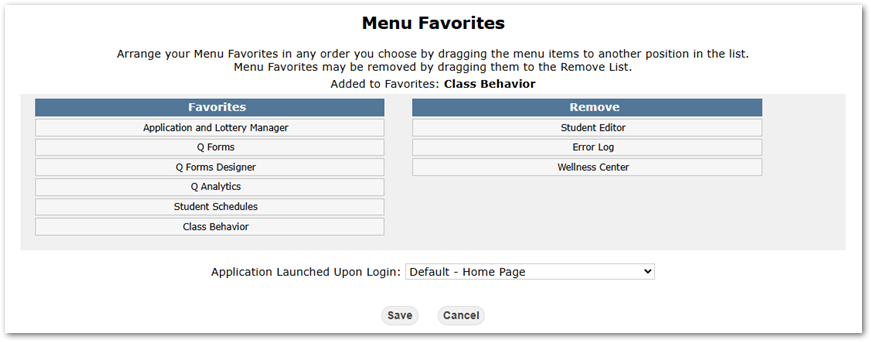
- The newly added Favorite will be located at the bottom of the Favorites column.
- Favorites can be reordered by clicking and dragging Applications within the Favorites column.
- Favorites can be removed by clicking and dragging an application from the Favorites column to the Remove column.
- Users can change the application launched upon logging into Q by utilizing the corresponding drop-down list at the bottom of the Menu Favorites popup.
- Click Save to finalize changes.
Videos
Quick Reference Guide
Q Tips
