
This application houses stored procedures used to extract data from Q for Federal reporting purposes, such as Office of Civil Rights (OCR) or Civil Rights Data Collection (CRDC) which must be submitted every other year. It also includes a convenient place to store links to resources (e.g. Department of Education).
Federal Reporting is located under the System menu in Q.
The first tab in the Federal Reporting application includes the extracts necessary for Federal Reporting.
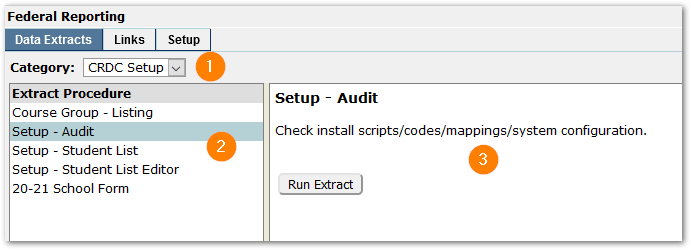
- Category – Data extracts may be organized into categories.
- Extract Procedure – Click to select one of the available procedures.
- Extract Details – Details of the selected extract appear in this pane and includes a “Run Extract” button.
Available Extract Procedures
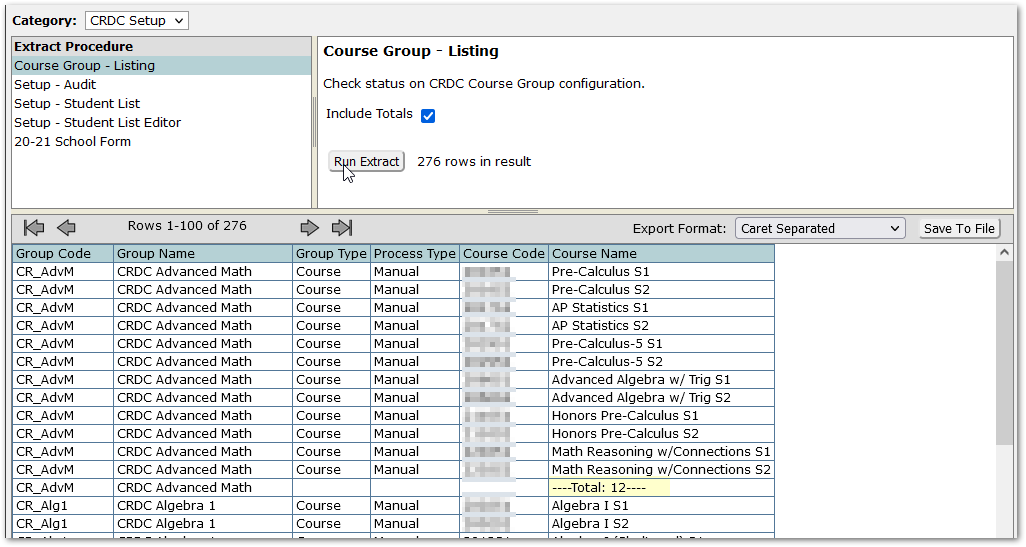
Course Group – Listing – This report includes all courses assigned to CRDC Course categories. Courses are assigned to these categories via Q Group Editor. See Configuration Information for more detail.
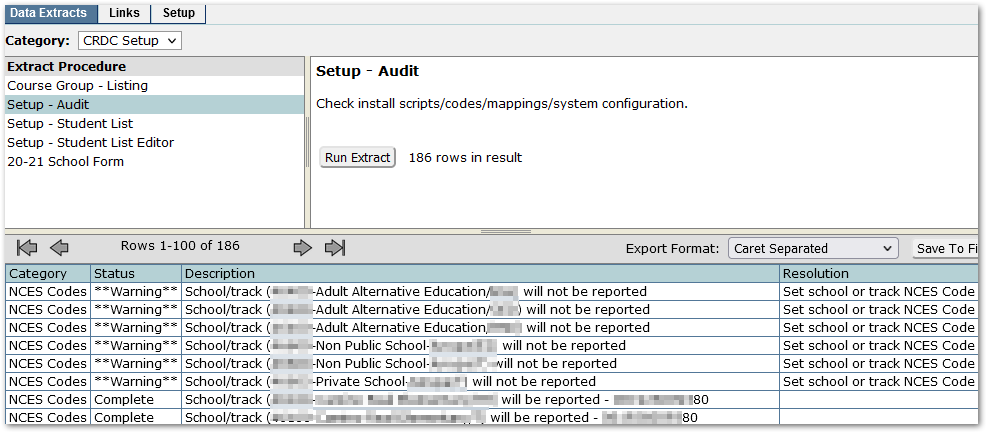
Setup - Audit – This process first checks for critical errors such as incomplete CRDC script processing due to missing extension fields or mapping categories. If no critical errors are found, the process then reviews warnings and errors in the district setup for included schools and mappings (code translations from Q Lookup Code labels with ‘CRDC’).
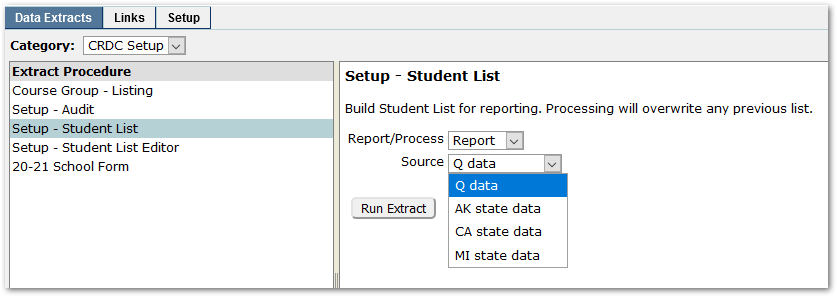
Setup – Student List – Use this option to report or process the set of students reported in the collection. Select Report or Process from the dropdown list. Be sure to select the appropriate source for your district. For districts in California, selecting ‘CA state data’ will use California State Reporting (CALPADS) logic. This is recommended to ensure that the data will align with data reported to CALPADS.
When the option to ‘Process’ the student list is run, the set of students included in the collection will be loaded into a Collection table to be used for the School Form reporting and submission files.
After selecting a source and clicking Run Extract, the students included in the collection appear below. Note the values of last four columns indicate if the student is included in counts for EL, IDEA, Section 504 and/or GATE.
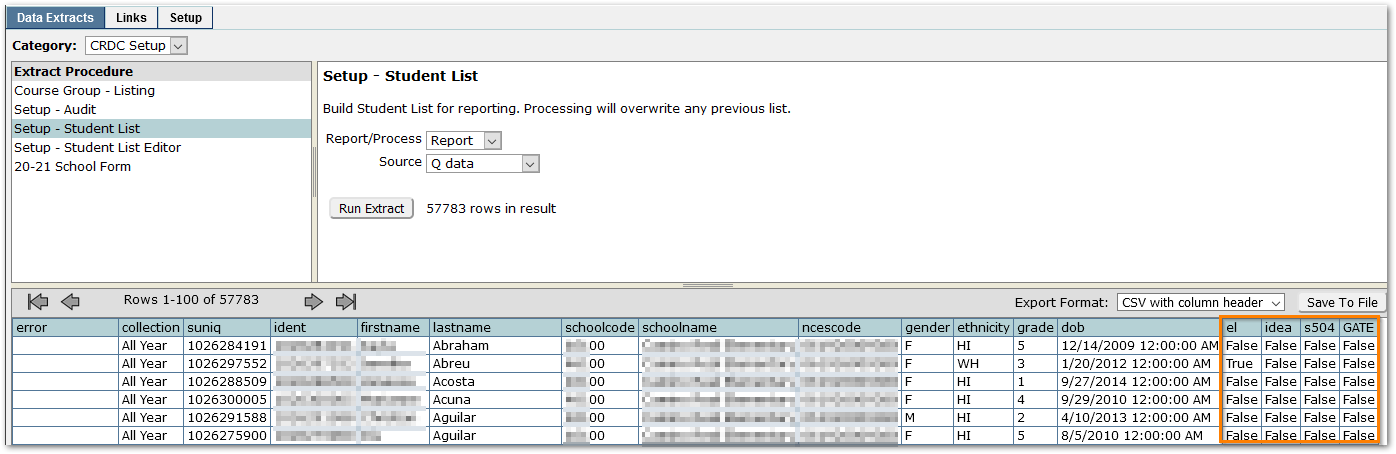
To save the results, click the Save To File button and follow the prompts to open or save the file.
Setup – Student List Editor – This process may be used to Add, Remove, Report, Report Errors, or Update specific student records included in the collection. It is important to understand that any updates are only applied to the data for the student in the collection table created by the ‘Setup-Student List’ process, and will not affect the student’s data in Q.
To see all records with errors, select ‘Report (errors)’. In the example below, the error shows in the first column as ‘Invalid Ethnicity’ and the ethnicity column is blank.
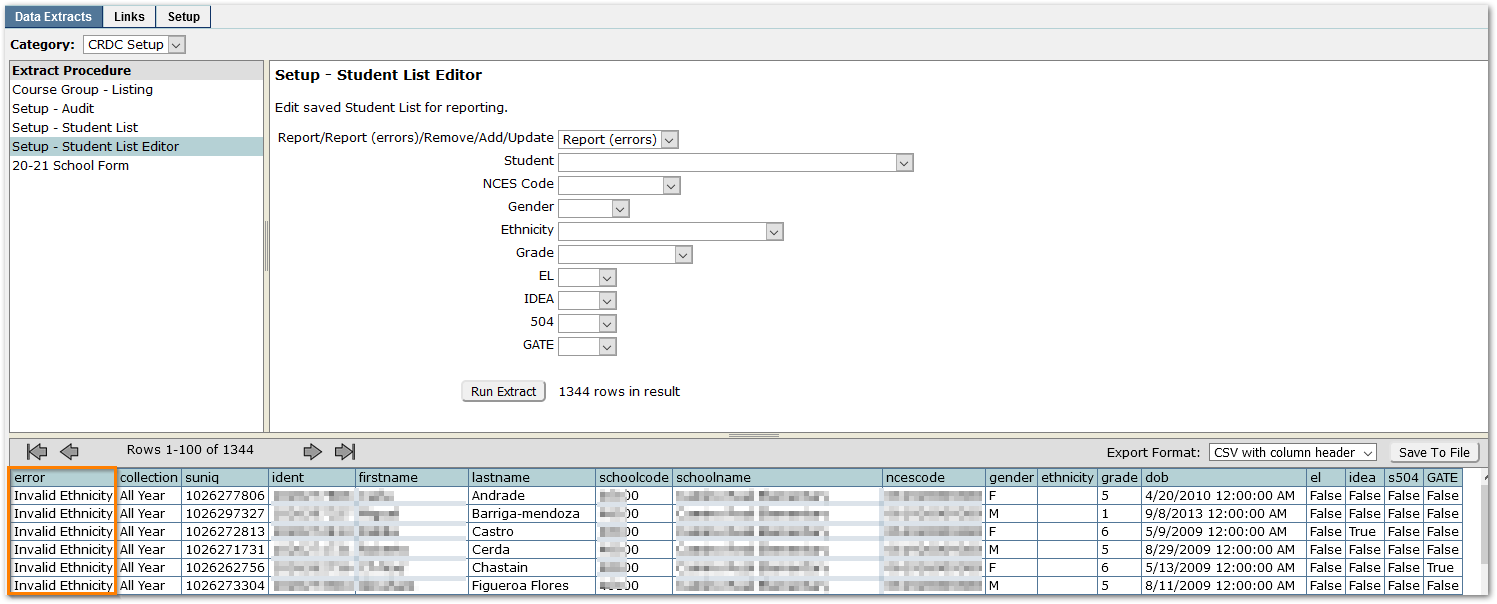
To correct errors updates to a student’s record should be made in Q wherever possible. When data corrections have been made, and the Student List re-processed, if a change needs to be made for a student before uploading etc., it is possible to use the Update feature of the Setup - Student List Editor.
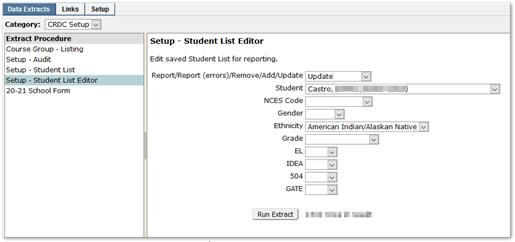
To do so, select Update, select the Student from the Student drop-list, select the field to change and set the new value, as shown below, and ‘Run Extract’. In our example, the student’s ethnicity will be changed in the collection ONLY. If the Student List is re-processed, the updated value will be overwritten.
20-21 School Form – Use this process to produce File Submissions or a file of the raw data used in the submission report for all or specific schools.
Select a report from the list:
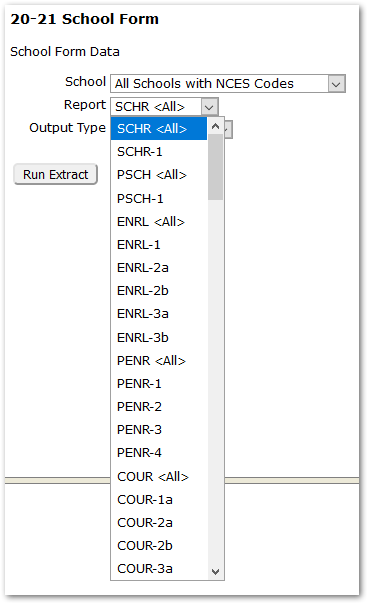
Select an output type: File Submission or Raw Data. File Submission will produce a file that may be saved as a CSV File with Column Headers and uploaded to CRDC.

The Raw Data Format will produce a file of all the students included in the counts or reported values for the File Submission Format, like the detail of a pivot table.

Saving Extracted Data
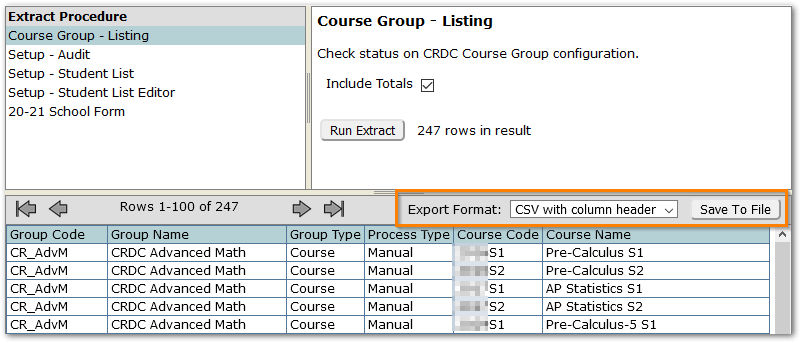
When an extract is run, the results appear in the lower pane for review. To save the extracted data, choose the desired export format from the menu as pictured below, then click the Save To File button.
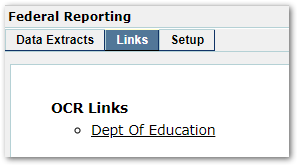
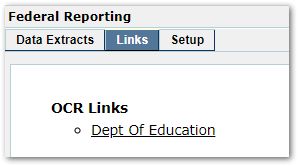
Links created are displayed on this tab of the application. Links may be organized under a parent heading. See the Setup section below for information about how to create these links.
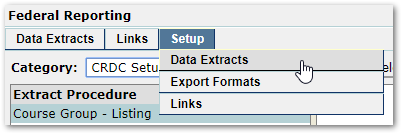
The Setup tab contains 3 menu options. Hover over the Setup tab to view and select an option.
Setup: Data Extracts
Districts may manage the extracts delivered with Q. To manage an extract, first choose from the Category menu, then click to highlight an extract in the left-hand pane. The larger right-hand pane displays the configuration for the selected extract. The buttons above the right-hand pane allow users to add a new procedure, delete the selected procedure, reset the configuration, or submit changes.
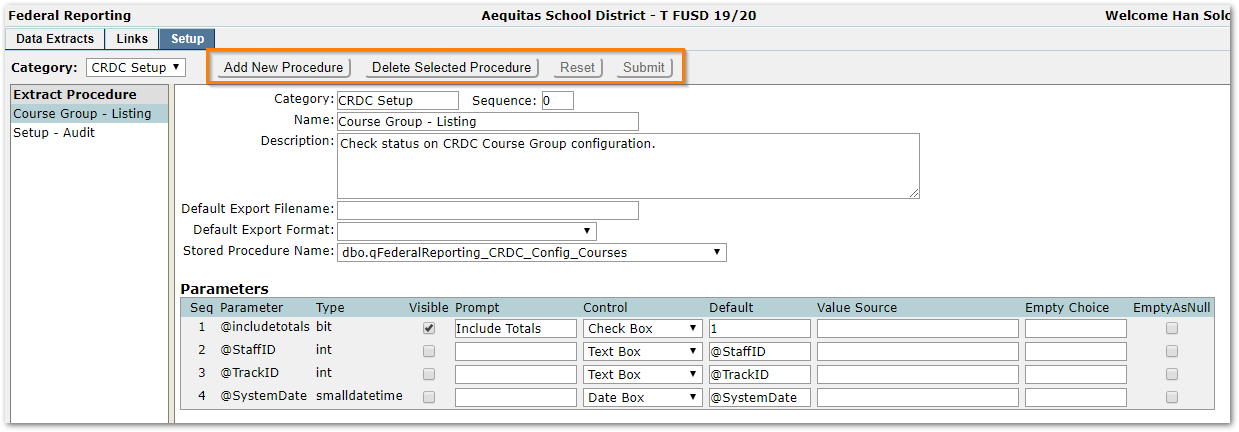
Extract Configuration
The following options are available when editing an existing extract or adding a new procedure:
- Category – Enter an existing category name to group extracts or create a new category.
- Sequence –Optional. Customize the order of the extracts in a category using a sequence number. Otherwise extracts are ordered alphabetically.
- Name – Name of the extract.
- Description – Optional. Details about the extract.
- Default Export Filename – Optional. If blank, export files are named during the run process.
- Default Export Format – Optional. Choose from the list of available export formats. Additional formats may be created following the instructions in the next section below.
- Stored Procedure Name – Choose a stored procedure to be used for the extract.
- Parameters – Not all stored procedures include parameters. When available, information about the data that is passed into the extract procedure is displayed. If necessary, change items like the default value, value source, etc.
Add a New Procedure
Click the Add New Procedure button, then complete the configuration form as pictured above. If parameters are required, those settings will appear after selecting the stored procedure from the drop menu. Click the Submit button to save the new procedure. When creating a custom stored procedure for a new extract, be sure to add that procedure to the database first. Typically, that would be done using SQL Server Management Studio.
Delete an Existing Procedure
Select a procedure from the left pane, then click the Delete Selected Procedure button.
Setup: Export Formats
A variety of export formats are shipped with Q. Select an existing format in the left-hand pane. The configuration for that format is displayed in the larger right-hand pane. The buttons across the top allow users to add a new format, delete the selected format, reset the configuration, or submit changes.
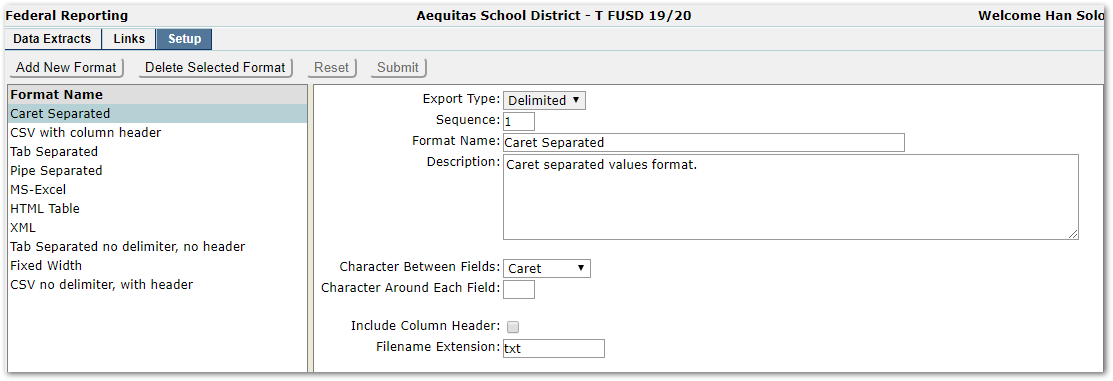
Each format has the following settings in common:
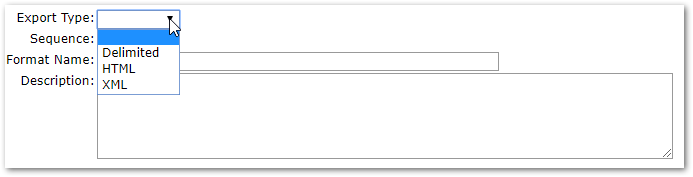
- Export Type – Delimited, HTML, or XML.
- Sequence – Numerical value used to order the list of formats.
- Format Name – User provided descriptive name.
- Description – Details about the format.
Beyond the common settings, each format type will have its own set of configurations. For example, HTML and XML formats have opening and closing tags and the delimited format has a separator character as well as an option to include column headers. Typically, users will find the export format settings self-explanatory.
Add New Format
Click the Add New Format button to create a new export format option. The configuration form that appears will change depending on the Export Type selected (Delimited, HTML, or XML).
Setup: Links
As pictured here, links may be organized into bulleted lists with a bold heading (parent).
Manage Links
Select an option in the left-hand pane and the settings will be displayed in the right-hand pane. Use the Delete Selected Link button to remove the link or make edits to the settings and then click the Submit button to save those changes.

Add and Organize Links
To create a new link heading (parent), click the Add New Link button and enter a Sequence number and Description. Leave the Parent and URL fields empty. In the sample below, the new heading, “District Resources,” will be the second heading on the Links page. Click the Submit button when ready.
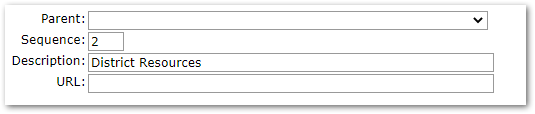
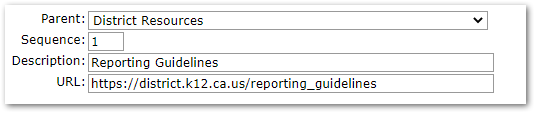
To create a new link under a heading, click the click the Add New Link button, select the Parent (heading), then complete the rest of the form. In the sample below, “Reporting Guidelines” will appear as the first link beneath the heading “District Resources”. Click the Submit button when ready.
2025-2026 Collection
Documents available:
Full documentation covering all aspects of the collection
Spreadsheet of the individual reports making up the School and LEA Forms and their status in Q.
