
Do you notice that a particular role has possibly too much access to areas of Q that you would like to Limit without completely eliminating most of that Role’s permissions? Look to the Role Restrictions Tab for the answer! Q allows users to limit the scope of what individual roles have access to see/edit/delete in different areas of Q using the Role Restrictions Tab. Lets take a look:
Note
Depending on District settings this can be found under Staff or System in the Q Menu
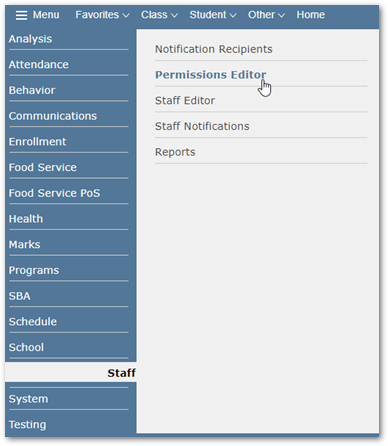
2. In This example we have a Secretary Role that has the ability to delete/withdraw Enrollment records in Q and we want to limit the ability for user’s in this role to do so. Navigate to the Role Restrictions Tab. Find the Role you want to add restrictions to in the ‘Restrictions for Role’ dropdown. Select the Track using the ‘Track’ Dropdown.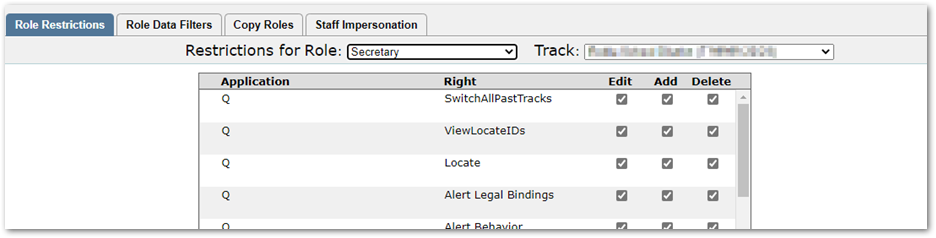
3. The table presented shows all of the areas of Q that this role has access to. For the purpose of this example we will focus on the areas of Enrollment that we want to limit, but this can be catered to any of the areas that the role has been given access to throughout Q.
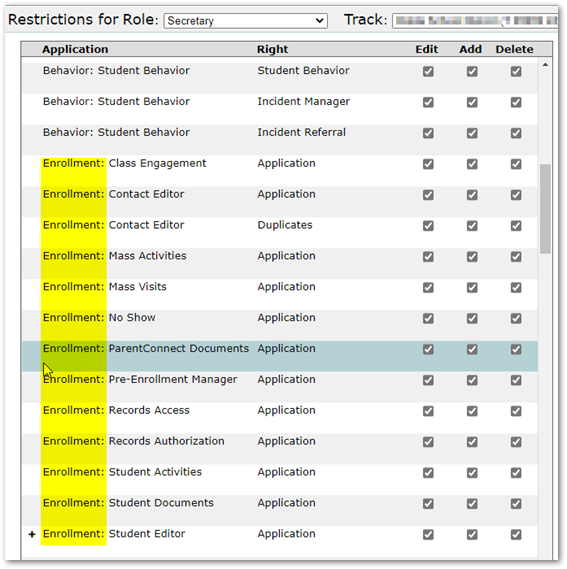
4. Using the checkboxes on the right, we can remove the ability to edit/add/delete information from the various areas of Enrollment that the Secretary role has access to by simply unchecking the boxes.
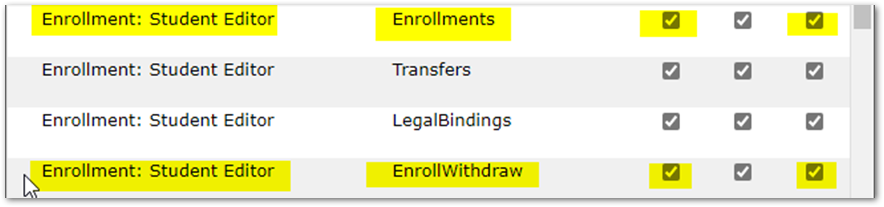
5. Keep in mind some areas of Q are more comprehensive (i.e. Student Editor) and will have an additional area for restrictions to be limited throughout the application. To access the Student Editor role restrictions click the ‘+’ symbol. From here we can Disable or Hide Fields from the role.

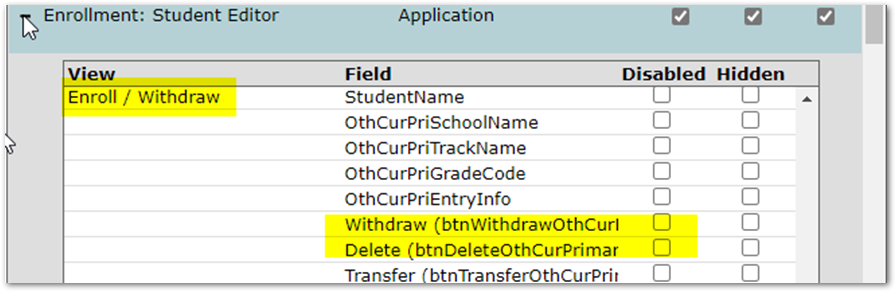
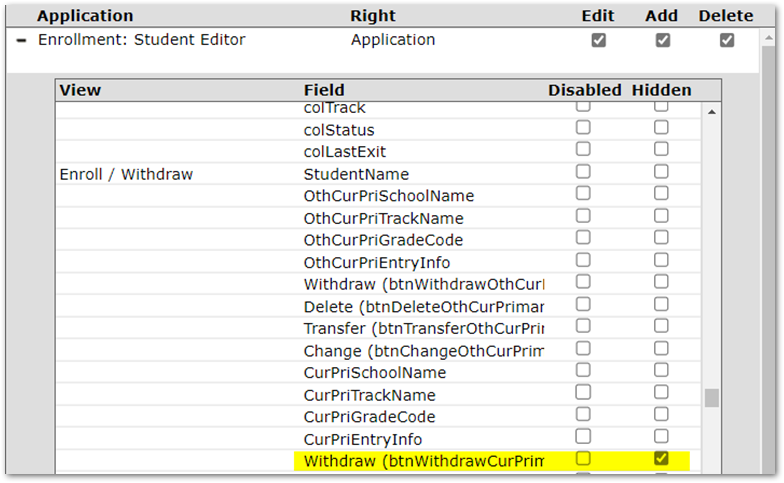
6. To show how specific this tab allows users to get, below is an example of what the ‘Hidden’ Check box can do to the ‘Withdraw’ button should you want to limit the ability of a role to be able to Withdraw enrollments but keep other permissions
BEFORE ‘Withdraw’ was Hidden:

AFTER ‘Withdraw was Hidden:

Restrict Away fellow Qtonians!