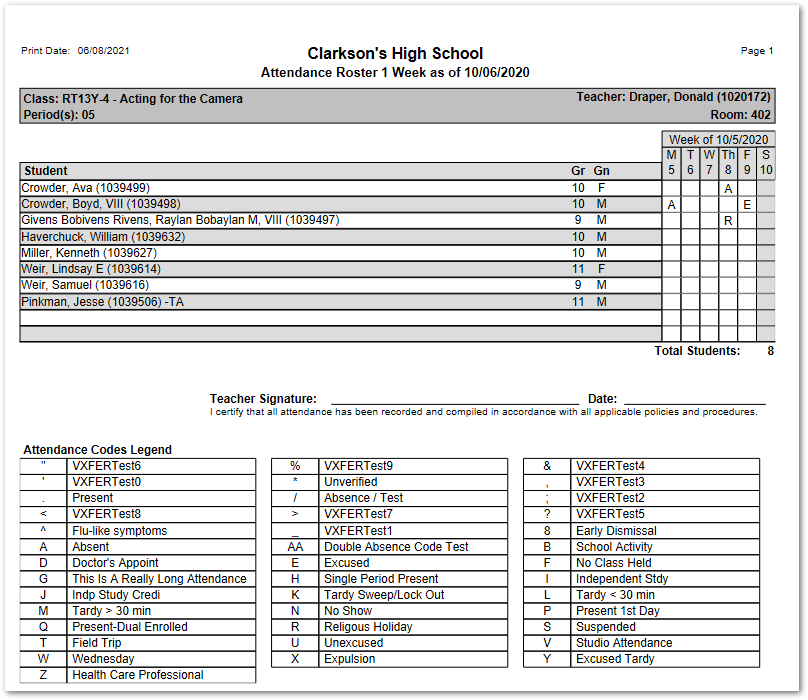
The Attendance Roster 1 Week report produces a one-week class roster starting with the user defined date. The report may be printed to show existing attendance data for students, or as a blank attendance roster.
While details specific to this report will follow, users can find general information about reports within the Reports documentation.
Attend Roster 1 Week is located within Reports in the Attendance menu in Q.
Report Options
The Attendance Roster 1 Week offers the following options: 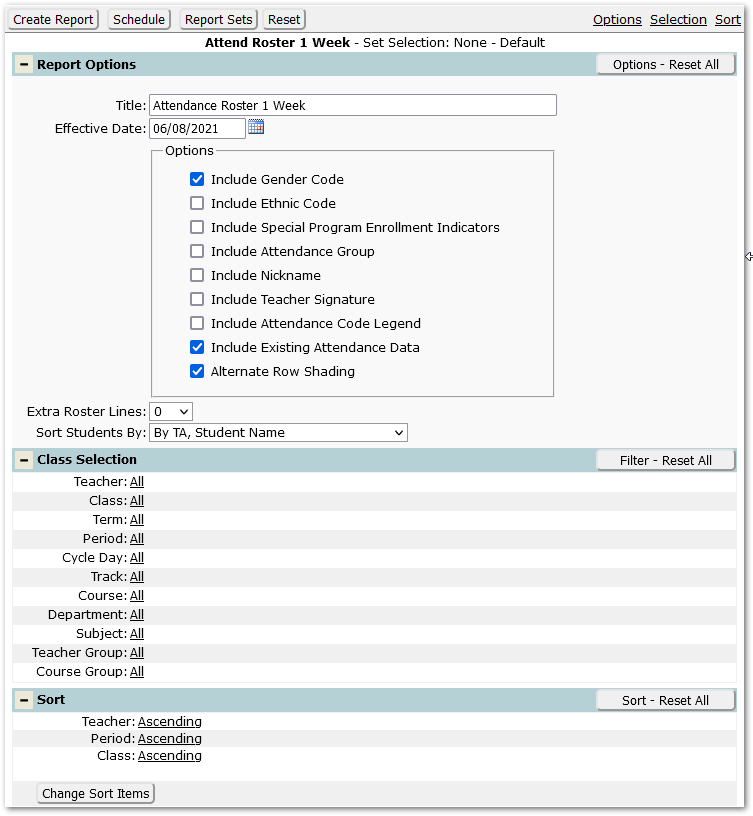
- Title – Defaults to Attendance Roster 1 Week but may be changed by user.
- Effective Date – Defaults to the system date but may be changed by typing in desired date or using the popup calendar to select a date.
- Include Gender Code – Defaults on to include Gender code but may be unchecked.
- Include Ethnic Code – Check this box to include the student’s ethnic code on the report.
- Include Special Program Enrollment Indicators – Check this box to include student Special Program indicators.
- Include Attendance Group – Check this box to include the student’s Attendance Group.
- Include Nickname – Check this box to include the student’s nickname.
- Include Teacher Signature – Check this box to include a line for the teacher’s signature.
- Include Attendance Code Legend – Check this box to print an Attendance Code Legend on the report for each class.
- Include Existing Attendance Data – This is checked by default and will print codes for any existing attendance in the 1-week date range starting with the specified effective date. Uncheck this box to print an attendance class roster with no attendance codes.
- Alternate Row Shading – Click this box for shading on alternate students.
- Extra roster lines – Set the number of additional blank roster lines to print on the report.
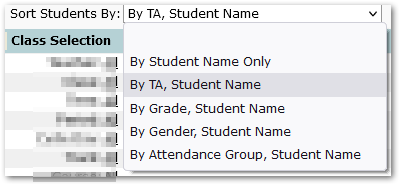
- Sort Students By – select the desired order for the sorting of student names:
- By Student Name Only
- By TA, Student Name
- By Grade, Student Name
- By Gender, Student Name
- By Attendance Group, Student Name
Example Reports