
This application allows users to rearrange, rename, and add new items to the Q menu. Please note that the Menu Editor is not intended as a general end-user application. It should only be used by a district level DBA or developer with intimate knowledge of Q and its menu system. Permissions to the application should be restricted accordingly.
Menu Editor is located under the System menu in Q.
The editor has separate tabs for the application and report menus. When either tab is selected, a list of menu items are displayed in the left pane and the right pane displays the details of the selected menu item. With the application menu, the list of items may be sorted by the Menu or Title column. Click the column header to sort by that column. Click again to reverse the sort. 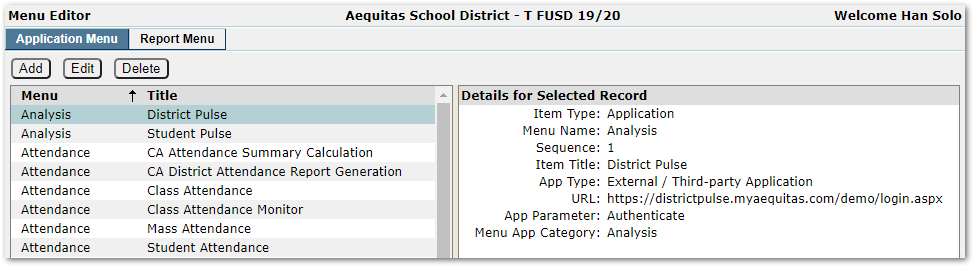
Manage Application Menu Items
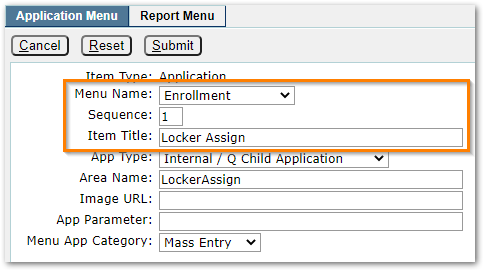
Click to select a menu item from the left pane, then click the Edit button. The following fields may be used to move, order, and rename menu items:
- Menu Name – Edit this field to move the menu item to a new location in the Q menu. Choose from the existing top-level menu categories or choose the “<Add New Menu>” option to create a new top-level menu category.
- Sequence – Items with the same sequence value are ordered alphabetically. Warning: extensive use of sequence values to order menus are prone to issues whenever a new report is released. If having one or two apps at the top of the list is desired, it’s best to give those items a lower sequence value then give all the other items the same larger value.
- Item Title – Rename the menu item by editing this field.
Note: If a menu item name is changed, the QWiki Help menu will not link to the application-specific article but will instead open to the top level of the QWiki menu.
Click the Submit button to save changes. Users will see the modifications after their next login.
To delete a menu item, select a menu item from the left pane, then click the Delete button.
Add Link to a Third-Party Application
It is possible to add links to other applications such as an assessment data management system or learning management system. To start, click the Add button located just below the Application Menu Tab. As pictured below, a form will replace the two panes below the tabs.
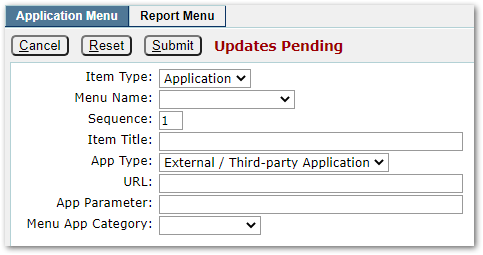
Set the App Type field to “External / Third-party Application”, then complete the form as follows:
- Item Type – Set to ‘Application’.
- Menu Name – Choose from the existing top-level menu categories or choose the “<Add New Menu>” option to create a new top-level menu category.
- Sequence – Use to customize the order of items within a menu. Links with the same sequence number are ordered alphabetically.
- Item Title – The display name for the new menu item.
- URL – Enter the web address for the third-party application.
- App Parameter – Used for external applications written to coordinate with Q for Single Sign On or using Q’s specifications for SSO. In this case, set to “Authenticate”. Otherwise, leave blank.
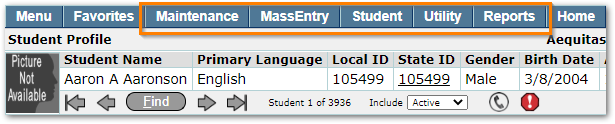
- Menu App Category – To add the new link to one of the menu tabs to the right of “Favorites” (pictured below), enter the category name (e.g. Utility). Otherwise, leave blank.
Caution: Loader Application Link
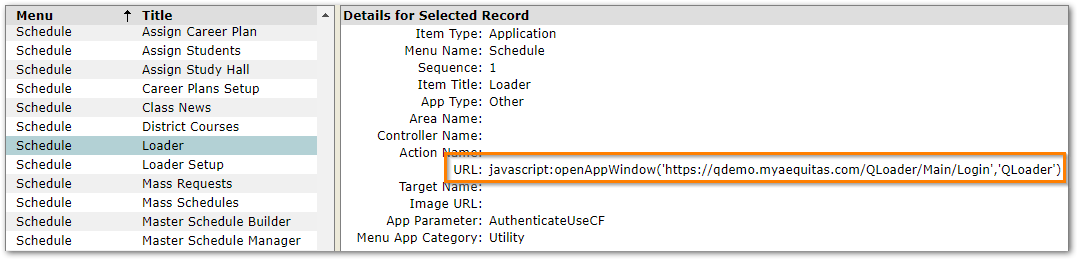
Please note that the menu link for the Loader application includes a URL. It’s important to update the URL field when switching servers or setting up a training or sandbox instance of Q.
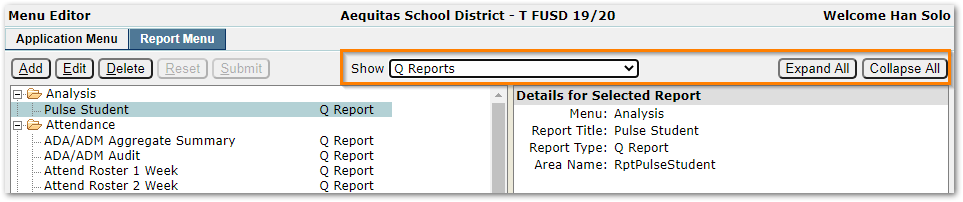
The Report Menu tab displays all reports in a tree format. Click the plus or minus icons next to the folders in the tree to expand or collapse individual folders or use the Expand All / Collapse All buttons near the top right of the screen to open or close all folders with a single click. Additionally, there’s a Show menu to filter report types. The filter options include:
- All Reports
- Q Reports
- Report Writer Reports
- Decision Report Reports
Manage Report Menu Items
Uses may organize, rename and delete reports in the menu as well as create sub folders for added organization.
Organize
Report menu items may be organized using drag and drop. Simply click and hold the report to be moved, drag to the folder icon of the desired location, release the mouse button, then click Submit to save the changes. Reports within a folder are always ordered alphabetically.
Create Sub Folders
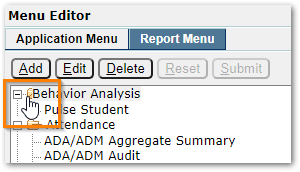
The Report Menu supports child folders to allow greater organization. To create a child folder, click to select the parent folder in the right pane, then click the Add button to open a submenu. Choose “Add Child Folder”, then click the Add button in the submenu.
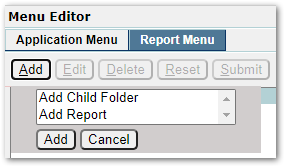
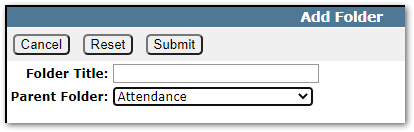
When the popup window appears, enter a title for the child folder. The parent folder option will display the selected folder but may be changed at this point. Click the Submit button when ready.
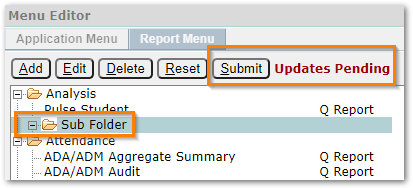
The child folder now appears in the menu tree. Click the Submit button to finalize the updates.
Rename
To rename a report, click to select the report in the left pane, the click the Edit button.
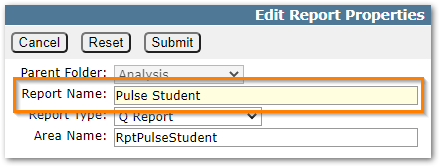
In the popup window, edit the “Report Name” as desired, then click the Submit button to save the new name and close the popup window. Finally, click the Submit button again to finalize the changes.
Delete Reports and Folders
To delete a menu item, select an item from the left pane, then click the Delete button. It is possible to select and delete folders, but only if the folders are empty.
