The Success Plan Indicators report lists Indicators and their configuration details. The Excel version of the report lists more of the configuration details than the PDF.
While details specific to this report will follow, users can find general information about reports within the Reports documentation.
Success Plan Indicators Report is located within Reports in the Analysis menu in Q.
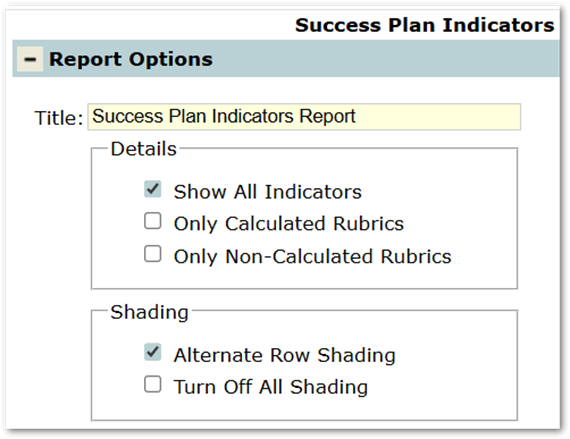
- Title - The report title defaults to ‘Success Plan Indicators Report’, but this can be edited and a user-defined title can be entered.
- Details Section: This report will only return data if one of the options in the Details area is checked. Only one option in the Details area may be selected.
- Show All Indicators - Check this box to include all Indicators.
- Only Calculated Rubrics - Check this box to include only Calculated Rubrics.
- Only Non-Calculated Rubrics - Check this box to include only Non-Calculated Rubrics.
- Shading Section:
- Alternate Row Shading - Check this box to turn on alternate row shading.
- Turn Off All Shading - Check this box to turn off all shading.
Create Report
Clicking the Create Report button produces a PDF of the Success Plan Indicators report in a new window. The PDF version of the report has fewer columns than the Excel version produced by clicking Export Report.
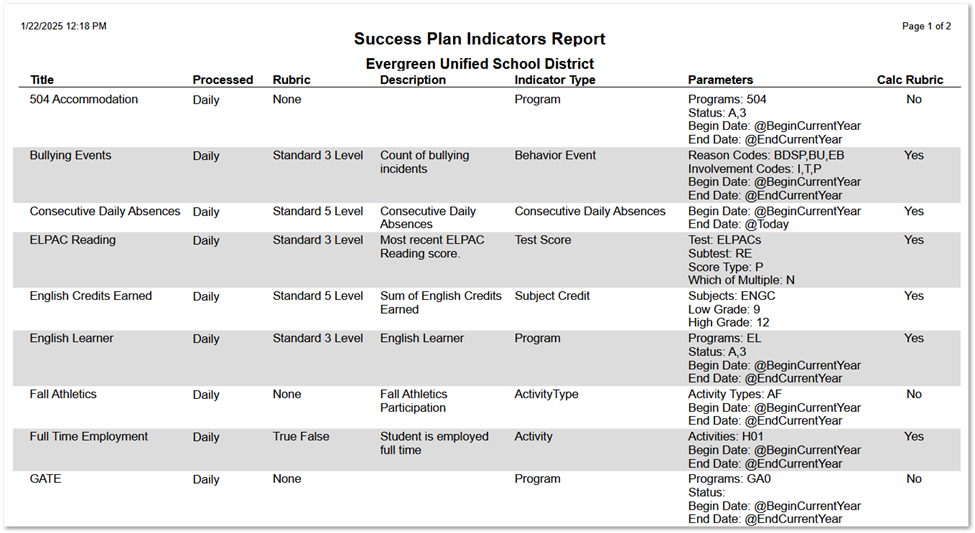
For more information about Indicators and their configuration details, see the Indicators section in the Success Plan Manager documentation.
Export Report
Clicking the Export Report button downloads an Excel version of the report which includes several columns that are not included in the PDF version produced by clicking Create Report.
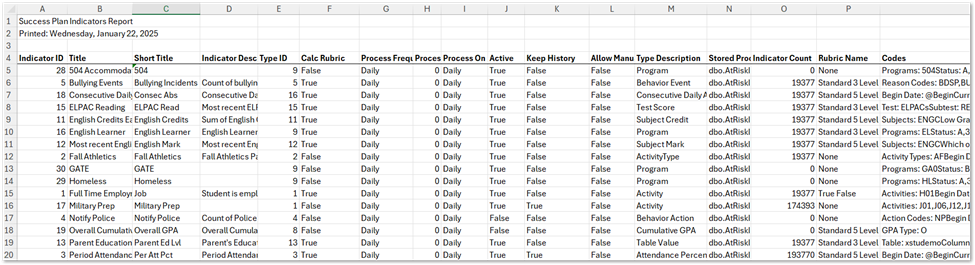
For more information about Indicators and their configuration details, see the Indicators section in the Success Plan Manager documentation.