
Some Q applications have embedded reports that are the same reports found in the Reporting menu. However, unlike running the reports from the Reporting menu, when running the reports within an app, there is no interface to set Report Options prior to running the report. Did you know that you can create a Report Set named “ExtDefault” that the apps will use when running the reports?
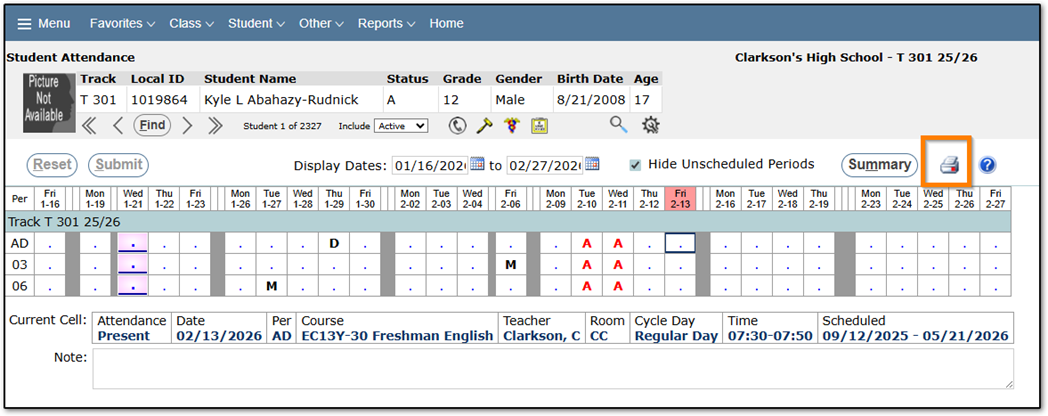
Let’s look at the Student Attendance application as an example. In Student Attendance, clicking the printer icon will run the Student Attendance History report:
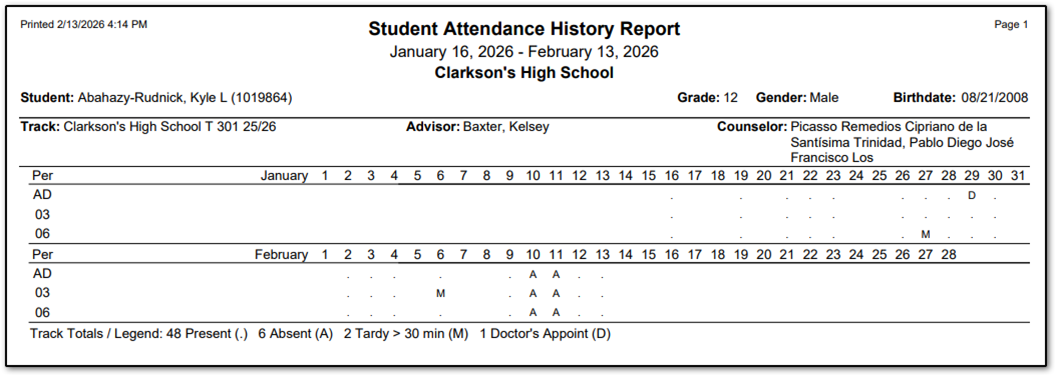
Without an ExtDefault report set, here is what the report looks like:
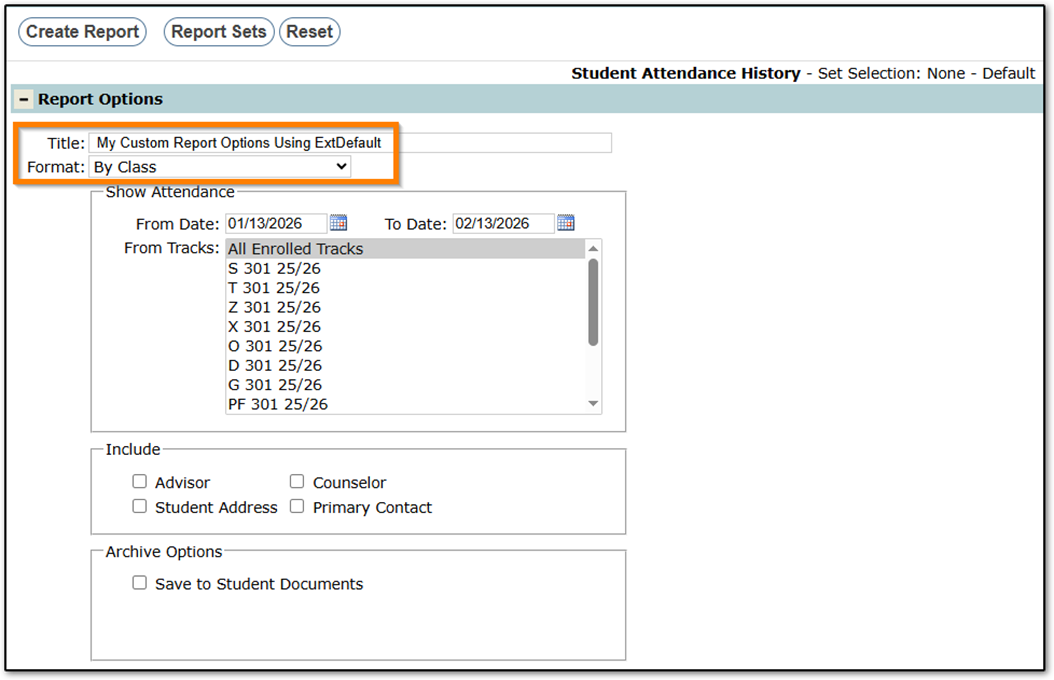
To run the Student Attendance History report with custom report options from the Student Attendance application, navigate to Menu > Attendance > Reports > Student Attendance History. Create a Report Set named ExtDefault and save it.
First, choose your report options. In this example I entered a custom Title for the report and updated the Format to be By Class:
Then, save your report set with the Set Name ExtDefault:
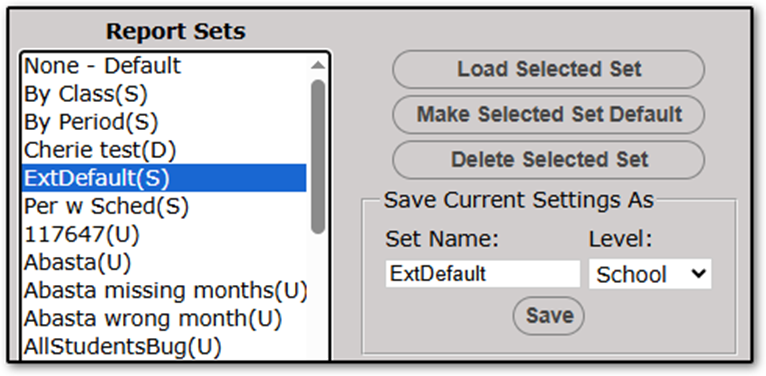
In the screenshot above, the selected Level is School, so this will be the report set used in Student Attendance when users are logged in to this school. An ExtDefault set may be saved for a single user or the entire district by selecting either User or District as the Level (the District option only appears when logged in to the district office).
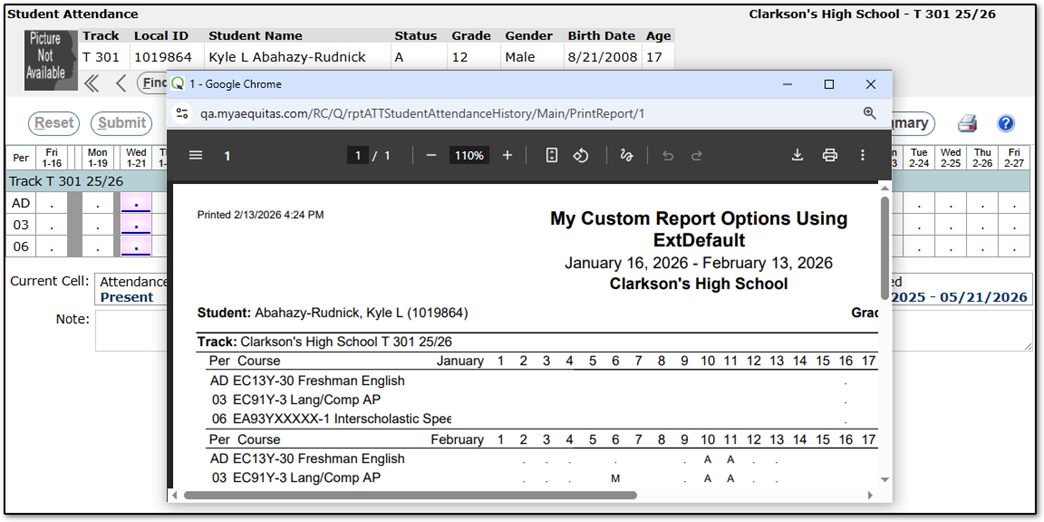
Now, when running the Student Attendance History report from Student Attendance, the report options from the ExtDefault report set are automatically used:
There are other applications with embedded reports that also honor the ExtDefault report set.