The Student Discipline application, located under the Behavior menu in Q, tracks positive or negative behavior. For negative behavior, it can be used to track conduct violations, student involvement in behavior incidents, policies and penalties assigned to individuals, and to assign and process behavior referrals.
Student Discipline is divided into 3 tabs: Student Behavior, Incident Manager, and Referrals. Depending on district settings, one or more of these tabs may be disabled.
When Student Discipline is launched, the default tab that opens is Student Behavior. From this tab, users can perform multiple functions, including adding, editing, and deleting behavior incidents for students selected in the Student Banner. Student Behavior is driven by the Student Banner, so only students a user has banner access to will be available.

- Fields Visible in Incident List: ID, Date, Type, Involvement, Action, Penalty, Alert, Reported By, Others Involved-Involvement, Notes. These fields may be sorted by clicking the Field heading.
Note
Fields are further described in the Student Behavior Tab – Add Incident section below
- Delete Icon
 : Deletes the incident.
 - View Icon
 : Displays the full details of the incident. Users can Print the incident the Print button at the bottom.
 - Edit Icon
 : Allows users to edit the submitted referral.
- Delete Icon
- Add Incident Button: Allows the user to create a new incident. See Student Behavior Tab – Add Incident section below.
- Add Referral Button: Allows the user to create a new referral. See Referrals Tab – Add Referral section below.
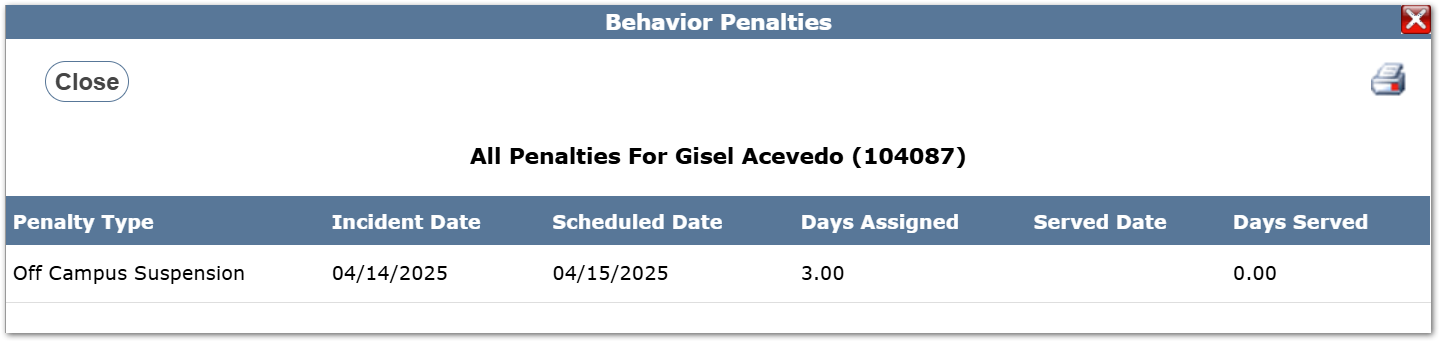
- Penalty Listing Button: Shows the student’s assigned penalties. The print button in the top right corner allows users to print the list.
- Print Report and Print Letters Buttons: Allows access to the Detail Behavior and Behavior Letters Reports directly within the Student Discipline application.
- Clicking on either of these buttons opens a popup window where you may select report options.
- There are two differences between these and their versions in the reporting menu:
- With these options within Student Discipline, users can select a single incident to run the report. Otherwise, both reports will print the same data as their respective versions in the reporting menu.
- These buttons will create reports or letters only for the selected student, whereas in the reporting menu, these options would create reports or letters for all or selected students
- For more detailed information on the Detail Behavior and Behavior Letters Reports, please refer to their specific documentation.
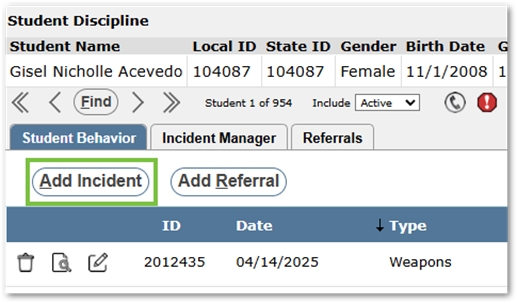
To add an incident, first locate the student in the Student Banner, and then click the Add Incident button at the top of the Student Behavior tab. This will bring up the Add/Edit Incident window.
Incident Information Section:
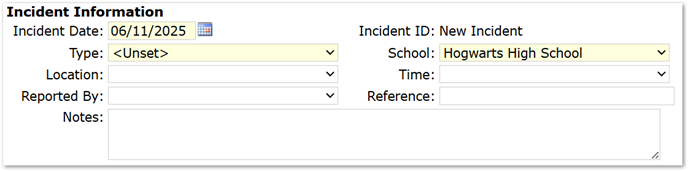
Incident Date: (Required Field) The date when the Incident occurred. The date defaults to today’s date but may be changed, however the date selected cannot be “Greater Than Today.”
- Type: (Required Field) A drop-down list of the possible Incident Types. Types are set within the Lookup Codes application.
- School: (Required Field) A drop-down list of schools within the district. Users may choose the school in which the incident occurred. If entering from a school track, users may only have one option. If entering from a district track, a school must be selected before Location, Time, Reported By, and Referred To can be entered.
- Location: A drop-down list of the locations. Locations are set in Classroom Editor
- Time: The time an incident occurred. Times are set in Classroom Editor.
- Reported By: A drop-down list of faculty members. Users can select the faculty member who reported the incident.
- Reference: Reference for external numbers, such as a police report number. This field can be used as needed and is limited to 20 characters.
- Notes: A note section where incident details may be entered.
Warning
This field is public and will be printed on behavior reports and behavior letters to the student’s parent/guardian.
Involvement Information Section:
Incident information can be entered for each involved student.
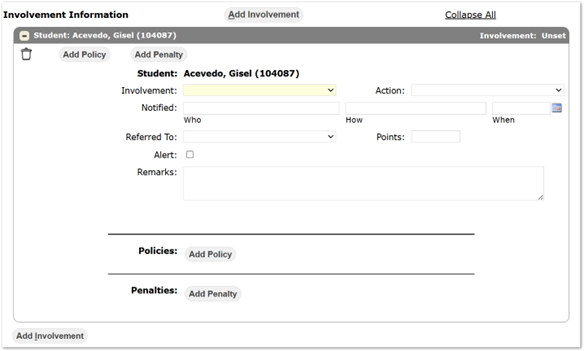
- Student: When first adding an incident, one student will be listed in the Involvement Information section. This will default to the student selected within the Student Banner.
- Involvement: (Required Field) A drop-down list of options to describe the student’s involvement. Involvement types are set within the Lookup Codes application.
Note
Selecting an Involvement may add a Federal Reporting section to the Involvement Information section. This is extension data, and the fields and formatting will vary from district to district.
- Action: A drop-down list of actions taken for the student involved. This field is typically used to note the initial actions taken when an incident occurs. Some behavior reports will display this information.
- Notified: 3 Fields- Who, How, and When a person has been informed of the incident. Typically, the person logged is a parent/guardian.
- Referred To: The staff member this incident is referred to.
- Points: A Point value assigned to the behavior according to district policy. This may or may not apply to all schools. Points may be used to denote the seriousness of an incident.
- Alert: A checkbox that forces the incident to show as an alert in the Student Banner.
Warning
This alert will include the Note record.
- Remarks: Additional details about the student’s involvement. This field is public and will appear in reports and behavior letters.
Policies:
If a Policy needs to be applied to the incident, click the Add Policy. There are two locations where this can be done for each involved student.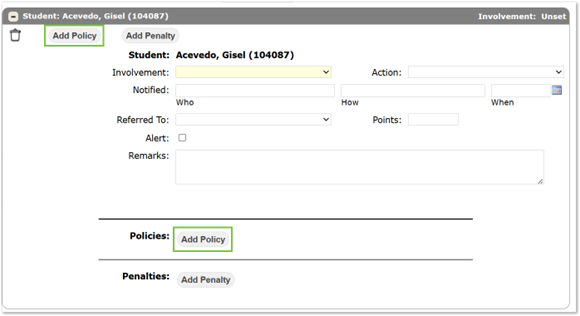
- A required drop-down list will appear with policies. Behavior Policies are set within the Lookup Codes application. Some policies may be set up to have penalties automatically associated with them, which will auto-fill the Penalty Type and Days Assigned. Further details on Penalties may be referenced below.

- The Trash Can Icon can be clicked to delete that policy field.
- Add policy may be clicked again to assign additional policies.
Penalties:
If a Penalty needs to be applied to the incident, click the Add Penalty. There are two locations where this can be done for each involved student.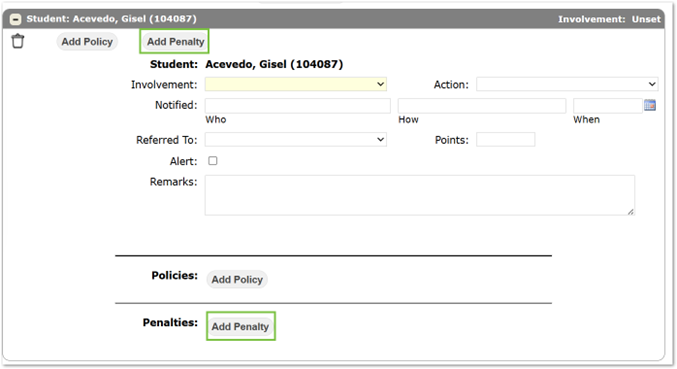
Clicking Add Penalty will add multiple Penalty Options.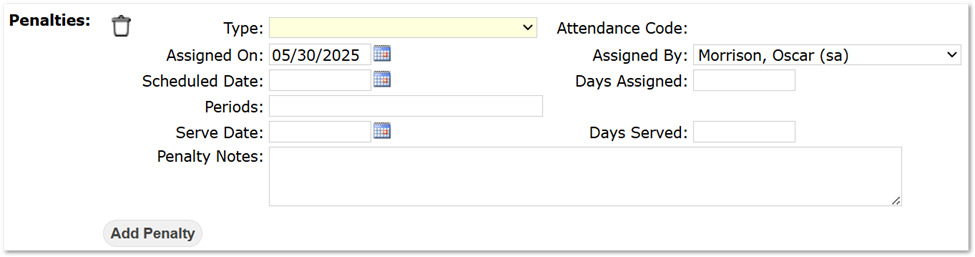
Note
As referenced in the Policies section above, some policies may be set up to have penalties automatically associated with them, which will auto-fill the Penalty Type and Days Assigned.
- Type: (Required Field) Type of penalty assigned to student. Behavior Penalties are set within the Lookup Codes application.
- Assigned On: Date the penalty was assigned. The date defaults to the system date but may be changed.
- Assigned By: The staff who assigned the penalty to the involved student. Defaults to the current user. Other staff may be selected using the drop-down list.
- Scheduled Date: Enter when the penalty is set to begin. Once a date is entered, the Set Attendance box will appear next to the Days Assigned field.
- Days Assigned: The number of days the penalty is assigned.
- Set Attendance Button: Depending on the Behavior Penalty Type setup, a Set Attendance button may appear if the Type, Scheduled Date, and Days Assigned fields are completed. This button will display a Set Attendance popup, allowing users to apply attendance codes to individual periods or to all periods in the specified date range.
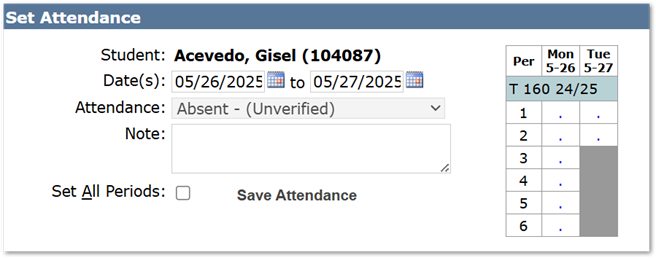
- Set Attendance Button: Depending on the Behavior Penalty Type setup, a Set Attendance button may appear if the Type, Scheduled Date, and Days Assigned fields are completed. This button will display a Set Attendance popup, allowing users to apply attendance codes to individual periods or to all periods in the specified date range.
- Periods: If applicable, the periods in which the penalty was served.
- Serve Date: The date the student began to serve the penalty. Ideally this coincides with the Assigned On date but could be different due to mitigating circumstances.
- Days Served: The number of days the penalty was served. Fractions of days may be entered.
- Penalty Notes: Additional notes about the penalty here.
Note
Notes will display in reports.
- Add Penalty: Additional Penalties may be assigned to the student using the Add Penalty button.
Additional Student/Faculty Involvement:
To add another student or faculty member’s involvement in an incident, click the Add Involvement button. An Add involvement button is also located at the top of the Involvement information section.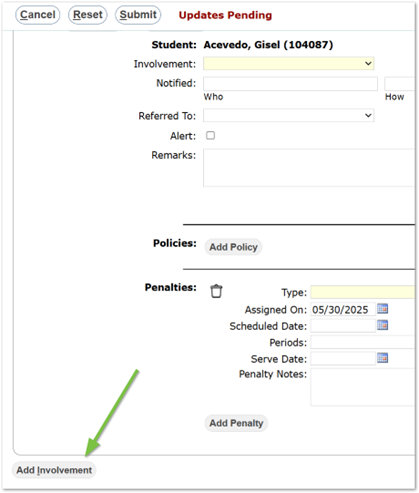
From here you may search for any student, in the logged-in track, by using the search filters and clicking Find. Once a student is found, clicking the student’s name will add them to the Incident.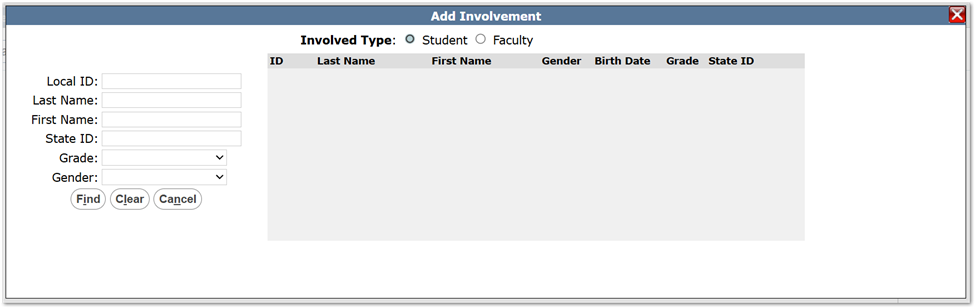
Changing the Involved Type to Faculty allows users to search for Faculty members to include in the Incident.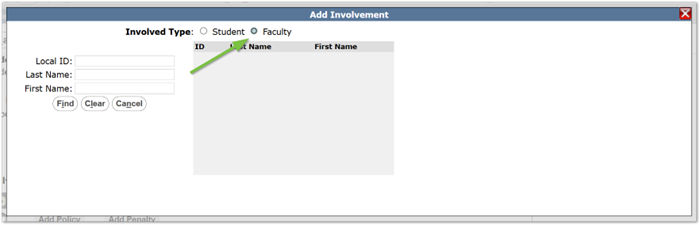
Additional Navigation
- Collapse Involved Party: Users can click the
 button on the student involvement ribbon, or the ribbon itself, to minimize an involved party. The button will change to a
  which can be used to maximize the involved party.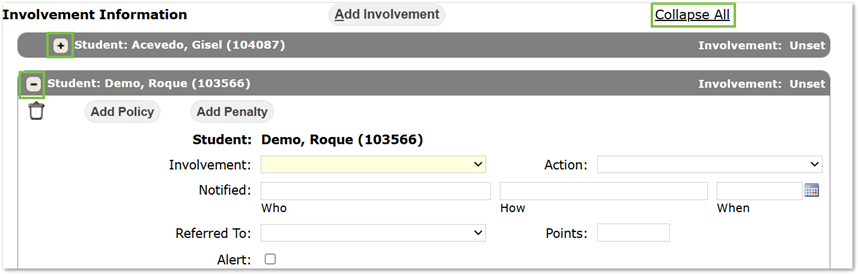
- Collapse All: Users can also click Collapse All to minimize all involved parties.
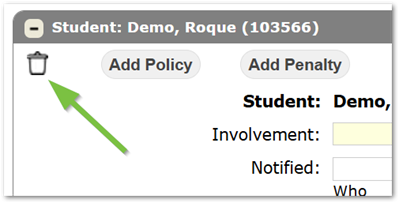
- Delete Involved Party: Clicking the Trash Can Icon will delete the associated Involved Party.
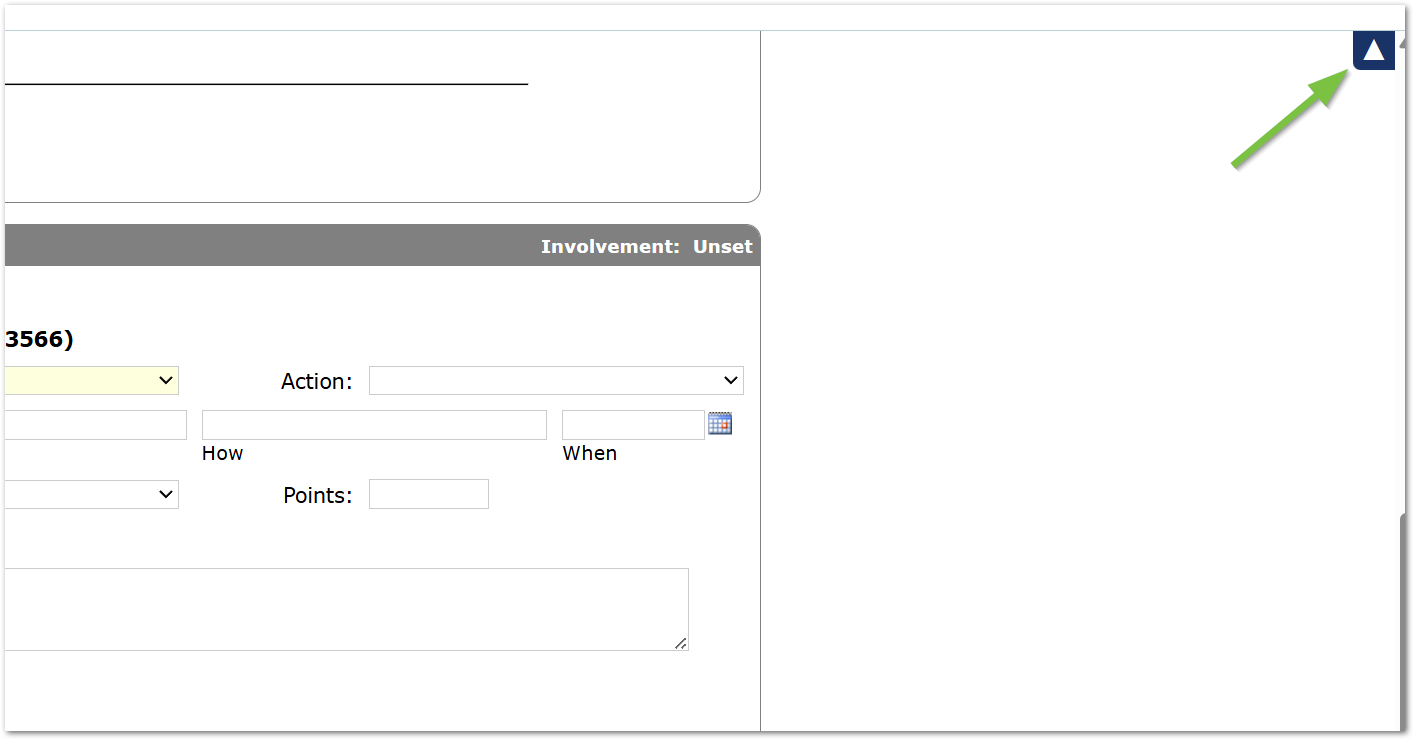
- Scroll to Top: Adding multiple involved parties, policies, and penalties can make the screen large, especially in complex situations. To quickly navigate back to the top of the screen, users can click the Scroll to top button. This button appears once a user begins scrolling down the page.
The Incident Manager is a master list of all Behavior Incidents.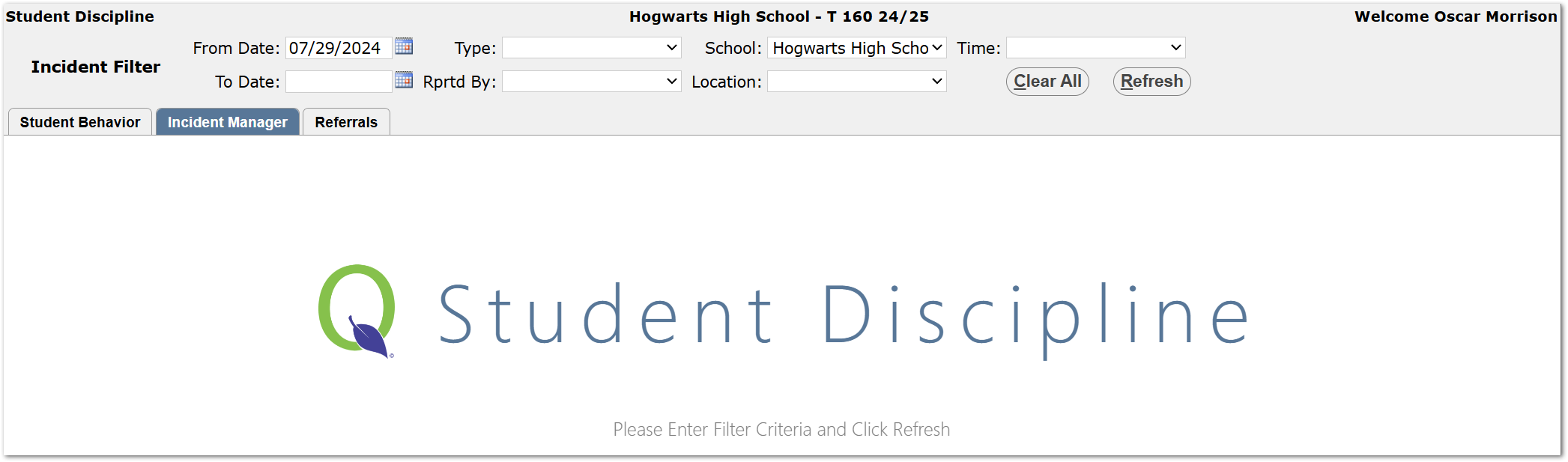
Incident Filters Section:
- There are 7 filter fields users can use to narrow down their search:
- From and To Dates: The beginning and end dates of the filtered search.
- Incident Type: Type of incident. If no selection is made, all incident types will display.
- Rprtd By: The staff who reported the incident.
- School: The incident took place, defaults to logged-in track.
- Location: The location of the incident.
- Time: The time the incident took place.
- Clear All button: Clears the selected Incident Filters.
- Refresh: Refreshes the Incident Manager list based on the current Incident Filters.
Incident Manager List:
If any match the assigned filters, incidents will populate within the Incident Manager once the Refresh button is pressed.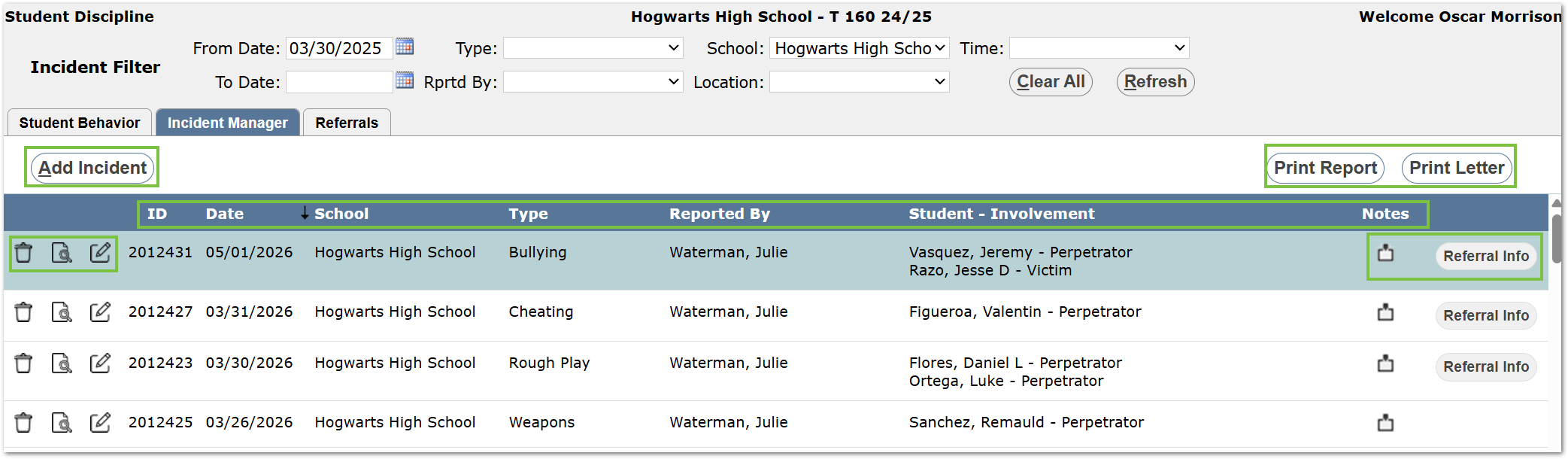
- Fields Visible in the Incident Manager: ID, Date, School, Type, Reported By, and Student-Involvement. These fields may be sorted by clicking the Field heading.
Note
Fields are further described in the Student Behavior Tab – Add Incident section above.
- Notes Field: If there are notes within the Incident, the Notes icon
 will display.
 - Referral Info Button: If the incident originated from a referral, the Referral Info button will display. Users may click this button to view the Referral. Users can print the referral from the box using the Print button at the bottom of the popup.
- Delete Icon
 : Deletes the incident. A confirmation box will display to allow users a chance to confirm this action.
 - View Icon
 : Displays the full details of the referral. Users can print the referral using the Print button at the bottom.
 - Edit Icon
 : Allows users to edit the incident. See Student Behavior – Add Incident section for details on how to add/edit an incident.
- Notes Field: If there are notes within the Incident, the Notes icon
- Add Incident Button: Allows the user to create a new incident. See Student Behavior Tab – Add Incident section.
- Print Report and Print Letters Buttons: Allows access to the Detail Behavior and Behavior Letters reports directly within the Student Discipline application.
- Clicking on either of these buttons opens a popup window where users may select report options.
- The only difference between these reports and their versions in the reporting menu is that users can select a single incident to run the report on. Otherwise, both reports will print the same data as their respective versions within the reporting menu.
- For more detailed information on the Detail Behavior and Behavior Letters reports, please refer to their specific documentation.
The Referrals tab is used to create, process, or dismiss behavior referrals.
- Referral Filters: The Referral Filter section offers users tools to restrict what referrals will be displayed.
- From and To Dates: Restricts the search to user-defined dates. Defaults are the system date and 2 weeks prior.
- Status: A dropdown list that allows users to filter Referrals
- All: Displays all referrals assigned to the user
- New Referrals: Displays all new referrals assigned to the user.
- Dismissed Referrals: Displays all dismissed referrals that were assigned to the user.
- Show All: If Show All is checked, all incident referrals, including ones not assigned to the user, will be displayed.
- Refresh List: Refreshes the search using the chosen filter settings.
- Referral List: A list of incident referrals, based on the Referral Filter settings.

- Fields Visible in Referral list: Date, Type, Reported, Student, Status, Updated, and Notes. These fields may be sorted by clicking the Field heading.
Note
Fields are further described in the Student Behavior Tab – Add Referral section below.
- Delete Icon
 : Deletes the referral.
 - View Icon
 : Displays the full details of the referral. Users can print the referral using the Print button at the bottom.
 - Edit Icon
 : Allows users to edit the submitted referral.
- Delete Icon
- Actions:Different options may be available depending on what status is displayed in the Status field.
- New Referrals:
- Delete Icon
 : Deletes the referral.
 - Edit Icon
 : Allows users to edit the submitted referral.
 - View icon : Displays the full details of the referral. Users can print the referral using the Print button.
- Process: Takes users to the Incident Creation screen.
- See the Student Behavior – Add Incident section for further details on how to process and create incidents.
- Dismiss: Dismisses referral. This can still be accessed by filtering for Dismissed or All referrals in the Referral Filter. Dismissed referrals can still be processed at a later time.
- Dismissing Referrals will display a dialogue popup for users to note their reasoning for dismissing the referral.
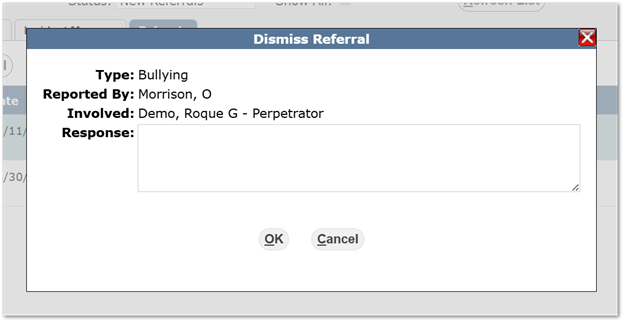
- Dismissing Referrals will display a dialogue popup for users to note their reasoning for dismissing the referral.
- Delete Icon
- Dismissed Referrals:
- View icon : Displays the full details of the referral. Users can print the referral using the Print button.
- Process: Takes users to the Incident Creation screen.
- See the Student Behavior – Add Incident section for further details on how to process and create incidents.
- Processed Referrals:
- Incident Info button and the View icon
 : Displays the full details of the referral. Users can print the referral using the Print button.
- Incident Info button and the View icon
- New Referrals:
To add an incident, click the Add Referral button.
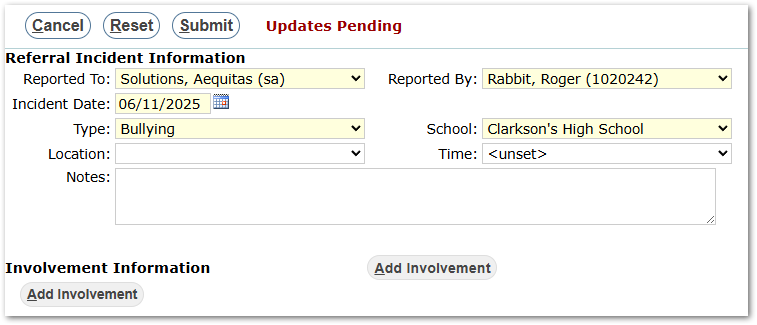
Referral Incident Information
- Reported To: (Required Field) A drop-down menu allowing users to select the staff member who the referral will be sent to. This field may be customized in Behavior Setup
- Reported By: The user reporting the incident. This information defaults to the logged in user.
- Incident Date: (Required Field) The date when the Incident occurred. The date defaults to today’s date but may be changed, however the date selected cannot be “Greater Than Today.”
- Type: (Required Field) A drop-down list of the possible Incident Types. Types are set within the Lookup Codes application.
- School: (Required Field) A drop-down list of schools within the district. Users may choose the school in which the incident occurred. If entering from a school track, users may only have one option. If entering from a district track, a school must be selected before Location, Time, Reported By, and Referred To can be entered.
- Location: A drop-down list of the locations. Locations are set in Classroom Editor
- Notes: A note section where incident details may be entered.
Warning
This field is public and will be printed on behavior reports and behavior letters to the student’s parent/guardian.
Involvement Information Section:
Incident information can be entered for each involved student within the incident.
Note
Best practice is for users to submit ALL involved users within a single referral.
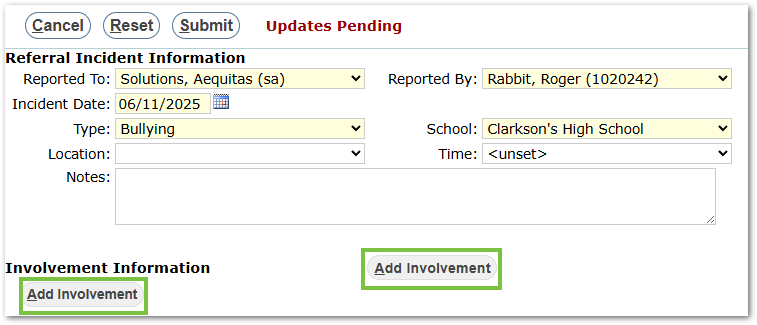
Click the Add Involvement button to display the Add Involvement popup.
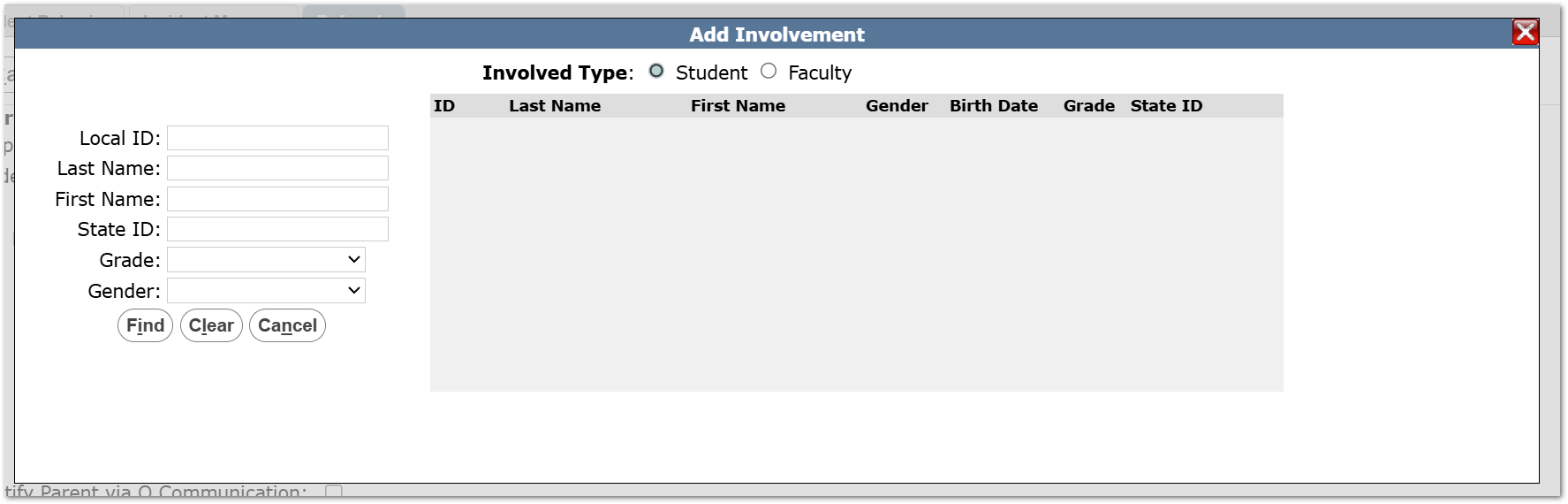
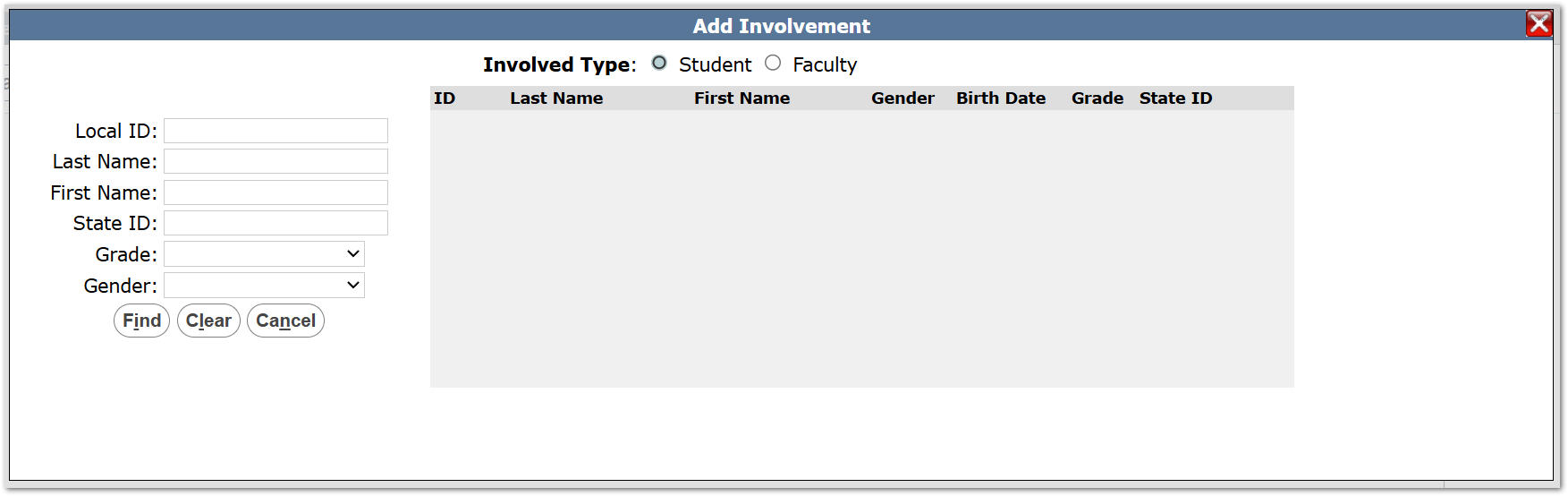
From here, users may search for any student in the logged-in track by using the search filters and clicking Find. Once a student is found, clicking the student’s name will add them to the Referral.
Changing the Involved Type to Faculty allows users to search for Faculty members to be included in the Referral.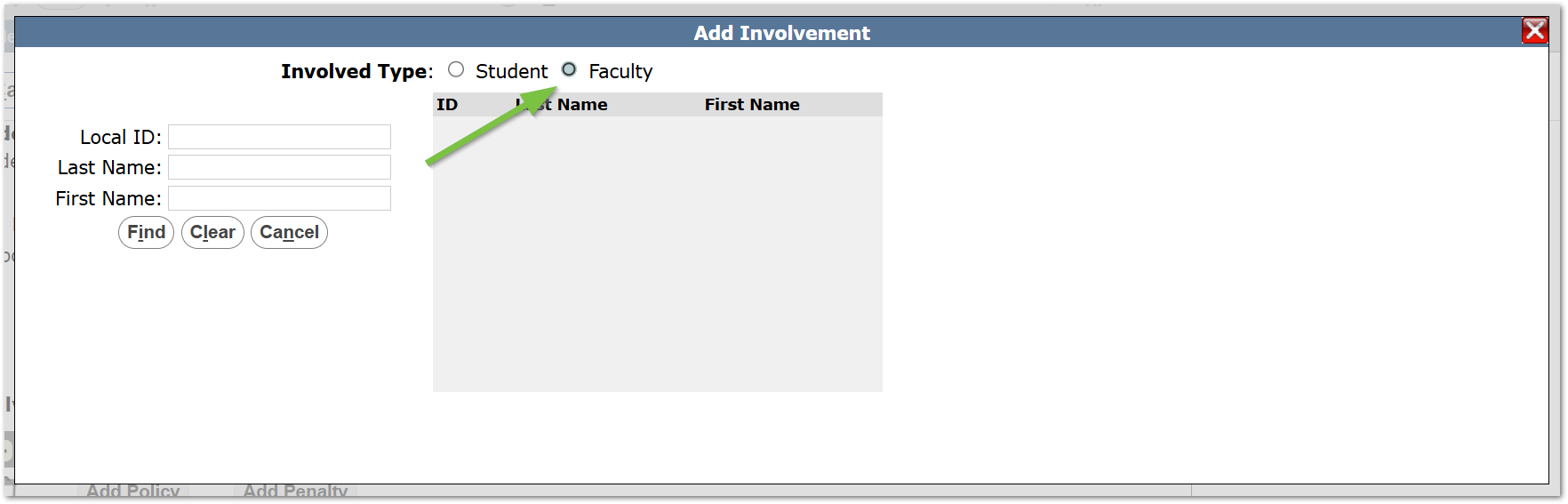
Once a student/faculty has been added the Referral, additional may be added by clicking the Add Involvement Button.
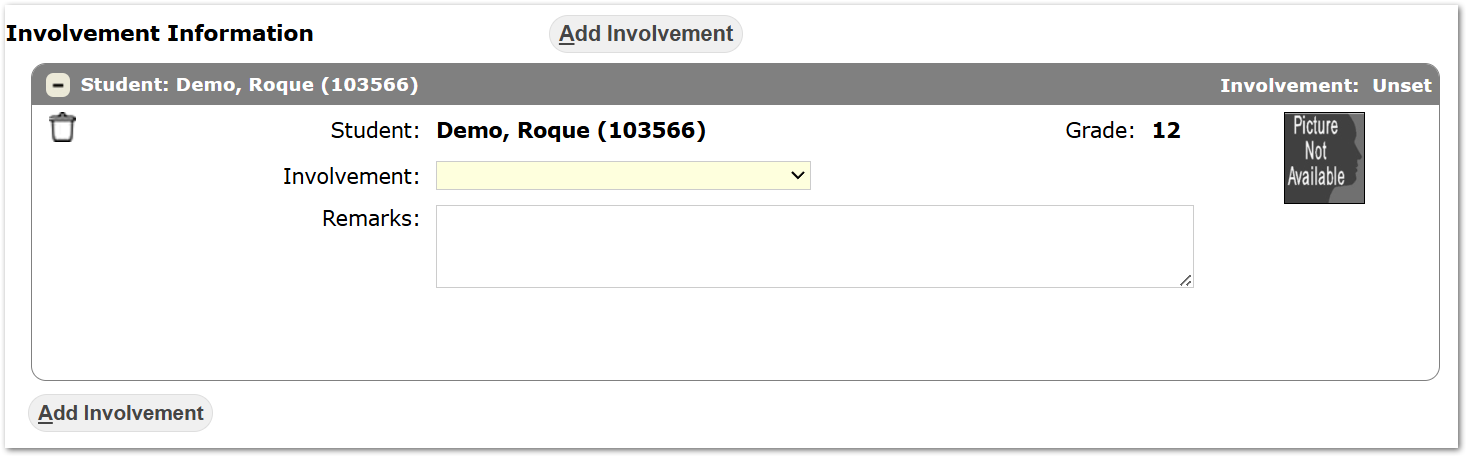
- Involvement: (Required Field) A drop-down list of options to describe the student’s involvement. Involvement types are set within the Lookup Codes application.
- Remarks: Additional details about the student’s involvement. This field is public and will appear in reports and behavior letters.
Additional Navigation
- Collapse Involved Party: Users can click the
 button on the student involvement ribbon, or the ribbon itself, to minimize an involved party. The button will change to a
  which can be used to maximize the involved party.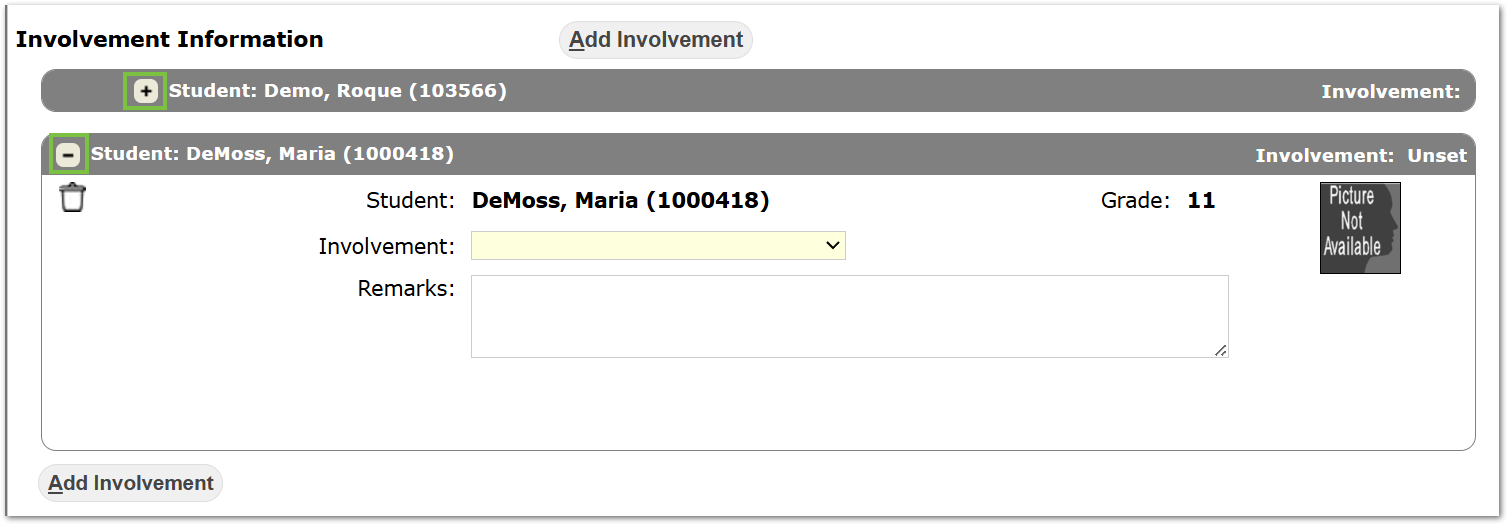
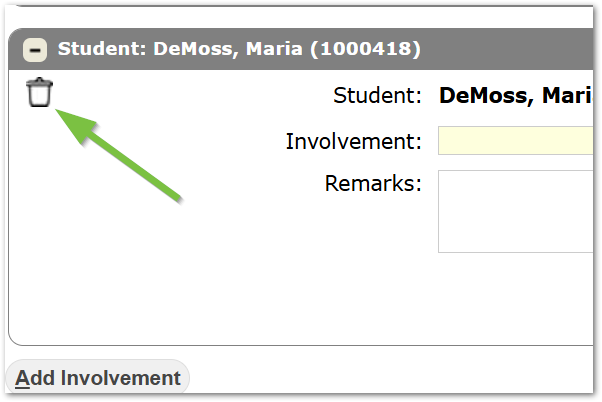
- Delete Involved Party: Clicking the Trash Can Icon will delete to associated Involved Party.
Users can click Submit, Reset, or Cancel at the top of the screen.