
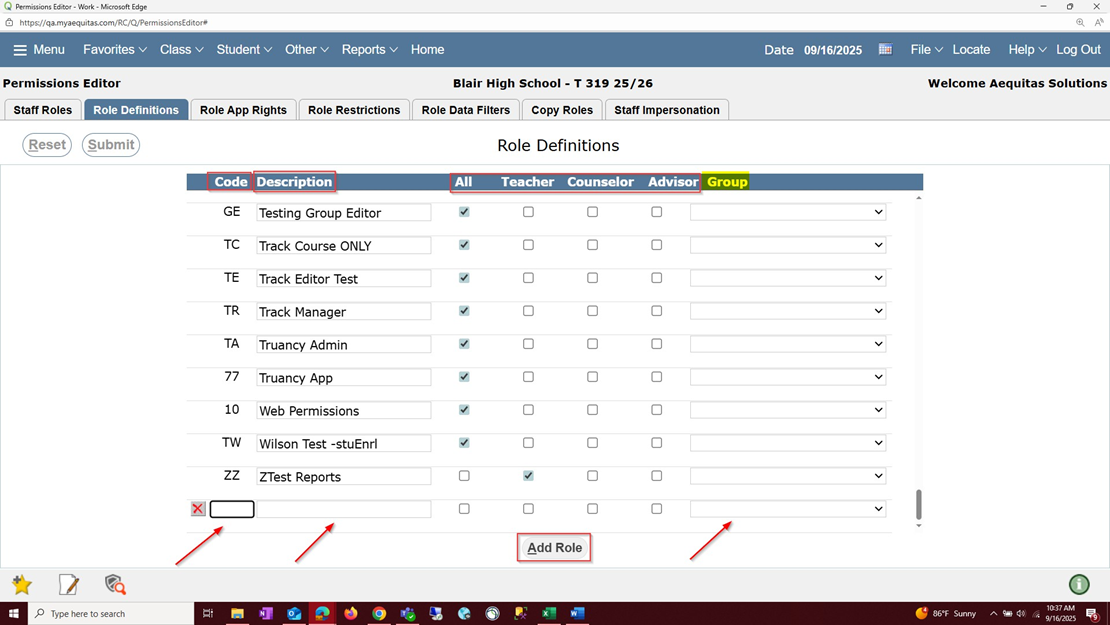
In the Permissions Editor Application, the Role Definitions Tab is where the user can add new Roles, define what data that role has access to, and have Groups be associated with a specific role.
- Add Role: Used to create a New Role
- Code: Can now be up to 5 characters long
- Description: Description/Name of the Role
Types of Data to Access:
- All: This checkbox will give a role information for ALL STUDENTS at the track they are assigned to
- Teacher: This checkbox will give a role access to information for only students enrolled in their class
- Counselor: This checkbox will give a role access to information for only students that they are marked the Counselor for
- Advisor: This checkbox will give a role access to information for only students that they are marked an Advisor for
- Group: Using the Group Editor Application, you can associate a Role to have access to only Students in a certain Group
Using a Group with a Role:
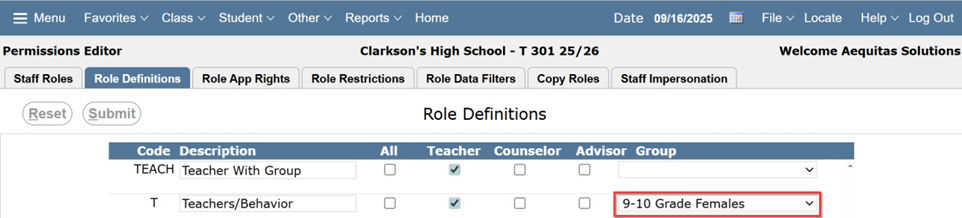
As an example, Here is a user that is in a Teacher role. The Site has decided to expand this role to give access to view information in the Student Profile to areas of Behavior. This user’s access has been opened up to a sub group of 9th-10th Grade Females using the Group Dropdown in Role Definitions Tab.
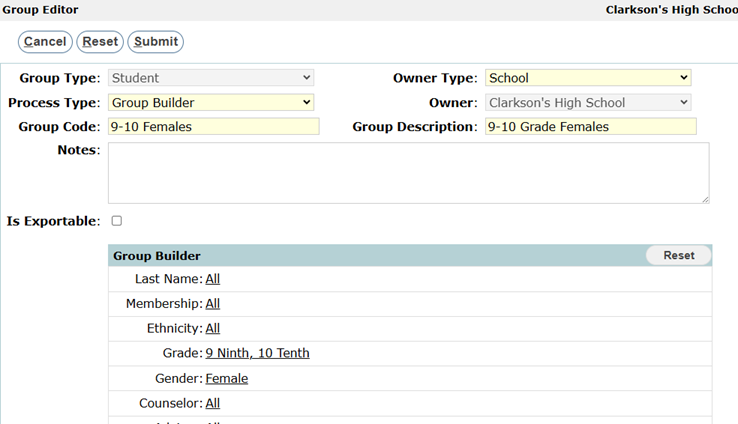 Using the Group Editor, the Group for 9th-10th Grade Females is created. (Above)
Using the Role Definition tab the Group is selected using the Group Dropdown (Below)
 Before the change is made the Teacher only had access to students in their classes (191 total)
 After the change the Teacher now has access to the group of students created in the Group Editor (726 total)
