SBA Accounts is used to record new transactions, refunds, voids, reconciliations, and payments for Students and Faculty. Payments can be applied to specific items including partial payments. Fees for the selected student can also be assigned. A balance due is maintained for each item. The current account balance is displayed.
The successful use of Student Body Accounting applications depends on the complete setup of Accounts, Items, Cash Drawers, POS Sites and Fees in the Student Body Accounting Setup application. Please refer to the documentation for assistance.
SBA Accounts is located under the SBA menu in Q.
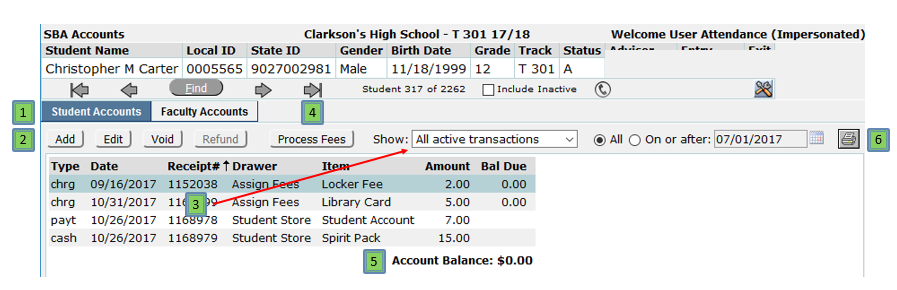
- Student or Faculty Accounts – Click the desired tab and use Find to select the individual customer.
- Add/Edit/Void/Refund – these buttons allow the user to add a new transaction, or edit, void or refund an existing one from list of transactions.
- Transaction List – the items that show in this list are managed by the Show: Dropdown menu that includes:
• All Transactions
• All active transactions
• Cash activity only
• Account activity only
• Voided transactions
And the date settings.
- Process Fees will process all the fees for which this student qualifies.
- Account Balance is the sum of the Bal Due column from the individual items.
- Print icon prints the student’s current Account Statement
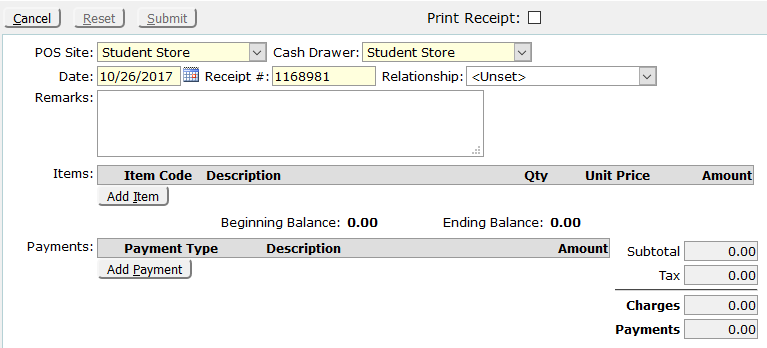
1. Select POS Site and Cash Drawer.
The date defaults to the system date and Receipt# to the next available receipt number. The Relationship and Remarks fields are optional.
2. Check Print Receipt to automatically print a receipt upon submission.
3. Click Add Item.

4. Enter the Item Code or select the item for the Description drop-down menu. These two fields will automatically lookup each other.
When an item is selected, the default quantity of 1 will appear as well as the Unit Price and the default Payment Type. The default payment type and whether the unit price can be changed by the user are both preferences set in the Q Preference Editor | SBA Accounts. See the QWiki Student Body Accounting Setup for details.
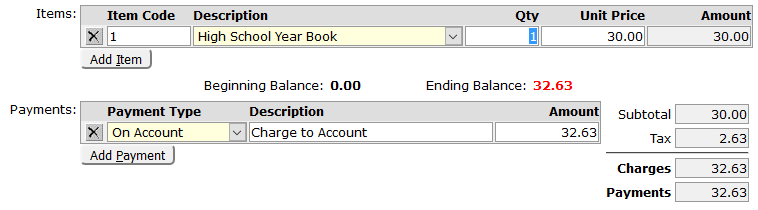
Repeat for additional item(s)
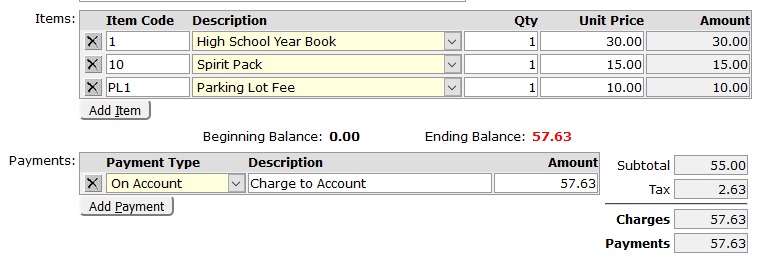
It is possible to split the payments into different types. For example, if the customer wanted to pay cash for a portion of the purchase, click Add Payment, choose Cash and enter the amount. The amount set in Charge to Account will automatically adjust to the correct amount.

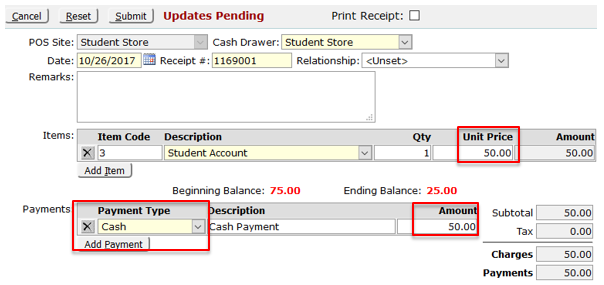
- Click Add Item enter the Item Code or select the Description for the Student Account and enter the Unit Price as the payment amount.
The Payment Type will default to Cash and will auto fill from the Unit Price.
- Click Submit.
The Apply Payment popup window allows the user to apply payments to the items that have a balance due (Bal Due). The application amounts can be changed, for example, all $50 could be applied to the Football Uniform. Click Submit to approve the Payment, Reset to return to the default disbursements or Cancel to return to the Add Payment window.

Highlight the item to be edited and click Edit.
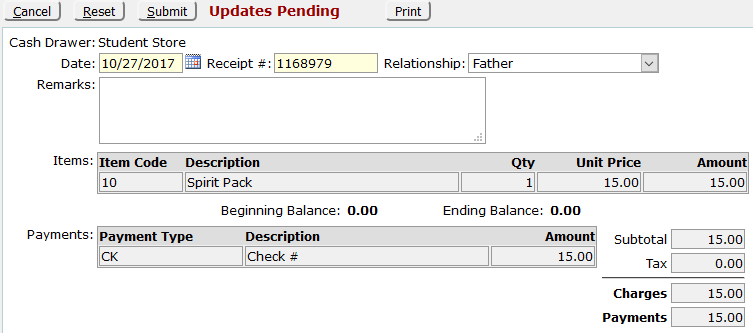
The only editable fields are the Date, Receipt#, Relationship, and Remarks.
If there are errors in the transaction, use the Void button.
Click Print to print a receipt.
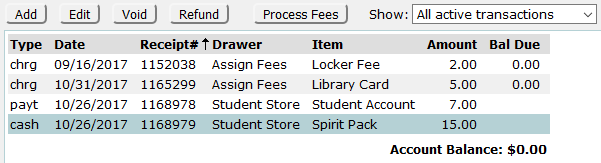
Highlight the item to be voided and click Void.
A popup will appear with the receipt number on it with an opportunity to enter Remarks.
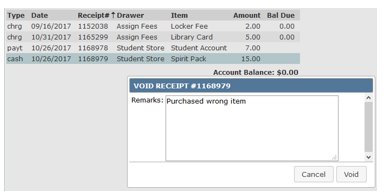
Click Void
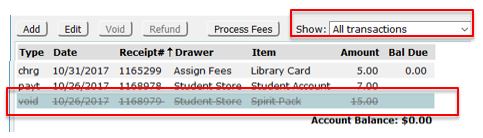
The item is removed from the active transactions list

but can be viewed by changing the Show filter to show All transactions or Voided transactions.
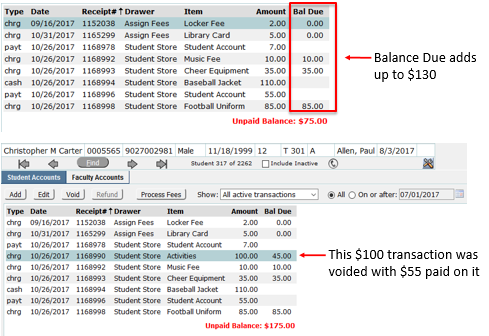
When a voided purchase causes an Account Balance to differ from the sum of the Balance Due, it will trigger an Account Payment Disbursement popup that allows the user to reconcile the account.
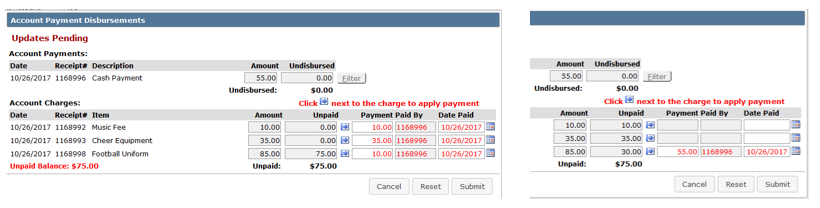
In the example below, the UnPaid Balance is $75 but the sum of the Balance Due column is $130 leaving a $55 difference. In this case, an item was voided that cost $100 but the customer had paid $55 on it.
In the Account Payment Disbursement popup, the user can allocate the $55 to the unpaid balances on the account by clicking the blue arrows. The arrows can be clicked in any order until the Undispersed amount is zero or the unpaid balances are all paid.
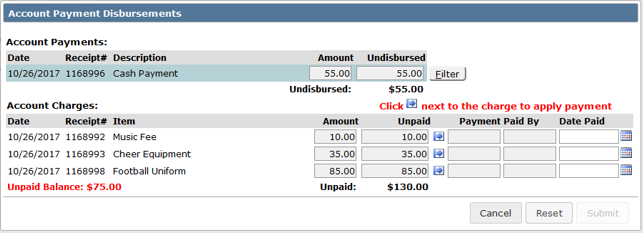
Below are two examples of payment disbursement. When disbursements are completed, click Submit. Reset reloads the original popup with no values and Cancel returns the user to the SBA Accounts screen.
If Cancel is used or an account balance ever differs from the sum of the balance due for a customer, a Reconcile button will be present in the menu.
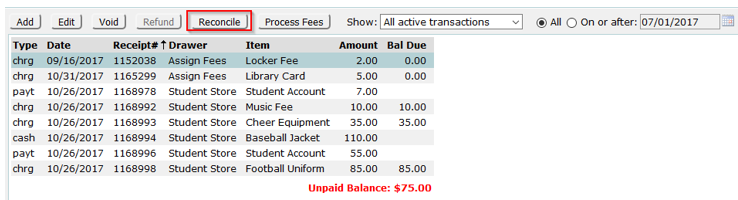
Click on the Reconcile button to show the Account Payment Disbursement popup.
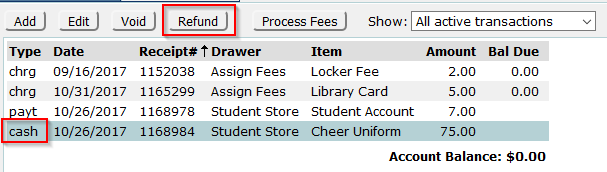
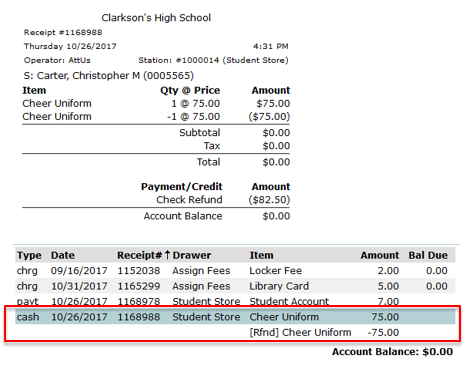
Highlight the item to be Refunded and click Refund.
The Refund button will only be activated for cash purchases (any purchase not On Account).
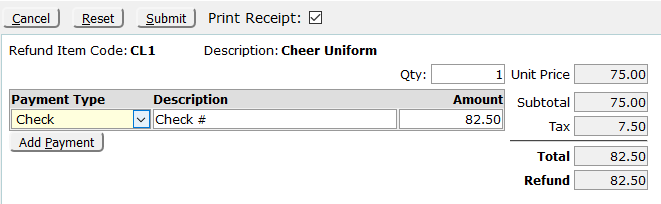
Select the Payment Type(s) for the refund, check or uncheck the Print Receipt box and click Submit.
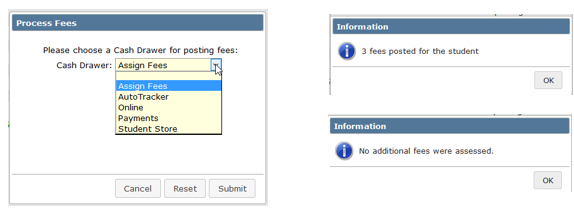
In SBA Transactions and SBA Accounts the Process Fees button will process all fees for which the student qualifies.

• Click Process Fees
• Select the Cash Drawer
• Click Submit
A message will pop up with information about whether fees have been processed. Once fees have been applied, they will not be applied again unless voided.