
In Q version 4.1.1 we added a new feature that we feel many users of the Master Schedule Manager will love. This new feature will only work when no attendance exists for a section, which will mostly happen before the school year starts.
Login to next year’s school/track and launch the Master Schedule Manager. If you have run the loader and you have sections that have students enrolled and you need to move the section to a different period (meeting) or Term, just click on the “view” icon. 
Once you click on the view icon, the display will look like it had before with the roster of students enrolled in the section, however we have added a new link located in the top left of the screen.
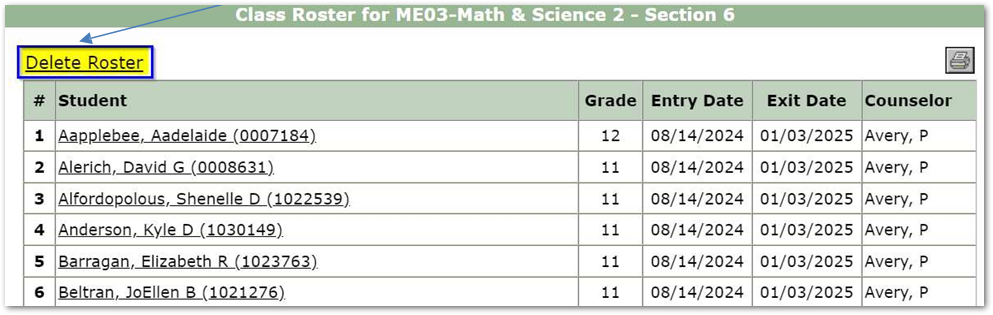
If you feel that the roster of students should be “deleted” from the section, we suggest that you click on the Print icon in the top right corner first. This can give the user a printout of students removed so they know who to reschedule later.
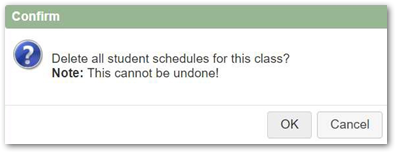
After printing the roster of students, all you need to do is click the Delete Roster which will produce a confirmation message which will also include a NOTE: This cannot be undone! For this reason, it is suggested to print the roster of students first.
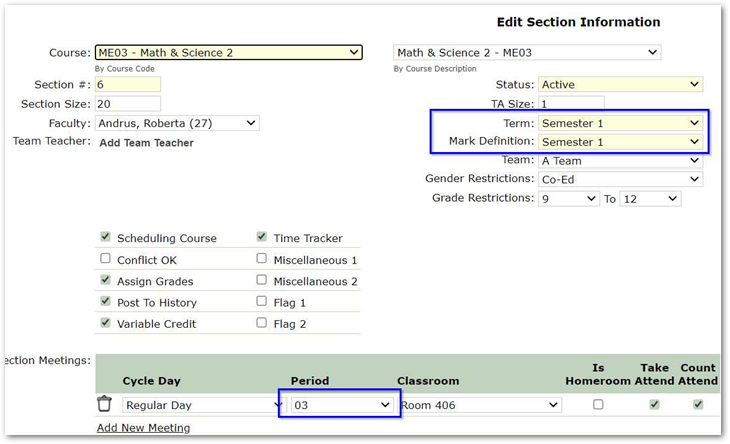
After all the students have been deleted from the section, the section can freely have the term and/or period edited which was not allowed in previous versions of Q.
This Q-Tip should be shared with those in your district who work with the Master Schedule Manager or if you have other questions, please reach out to our help desk.