
The Q Locker Listing Report provides a listing of student lockers with information such as Locker ID, Location, Type, indicators as to whether Out of Service, Level, Maximum number of occupants, current number of occupants, lock ID, etc. In addition, you may choose to show current or all lock combinations, and / or show students assigned to the lockers. If you choose to report on students assigned, you may also choose to include student information such as ethnicity, birthdate, home phone, counselor, advisor, and membership.
Locker selection fields enable you to filter the set of lockers reported by extent assigned, such as ‘Not Assigned’, ‘Partially Assigned’ or ‘Fully Assigned’. In addition, you may filter by locker location, type, locker ID, max occupants or if the locker is out of service. Using the filters and report sets, you could create a report of ‘Available Lockers’, etc.
While details specific to this report will follow, users can find general information about reports within the Reports documentation.
Locker Listing Report is located within Reports in the School menu in Q.
The report offers the following options: 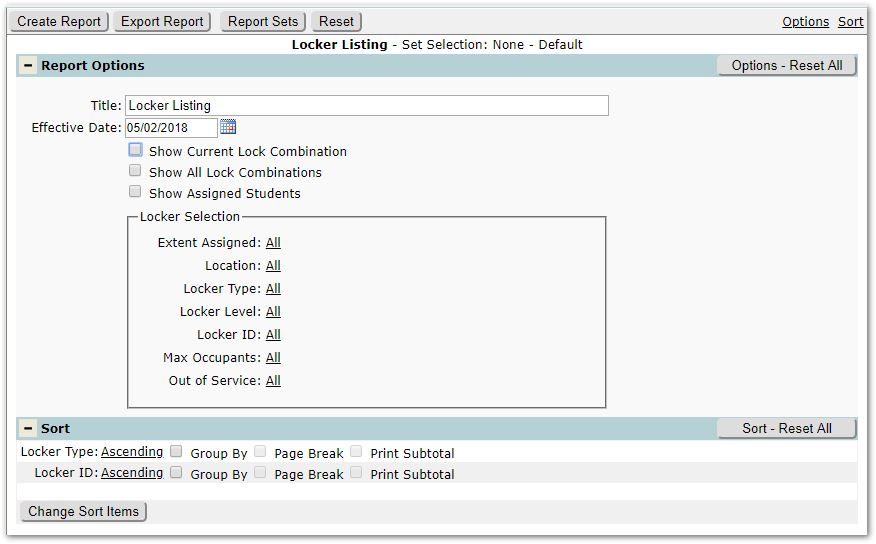
Report Title – The report title will default to ‘Locker Listing’ but may be changed to reflect the data being reported, i.e. ‘Available Lockers’, etc.
Effective Date – The effective date will default to Today. To run the report for a different date, set that date here.
Show Current Lock Combination – Check to include the current locker combinations on the report.
Show All Lock Combinations – Check to include all combinations on the report.
Show Assigned Students – Check to include students assigned on the effective date. Then check any of the student data elements you would like to see from the list that appears, shown below.
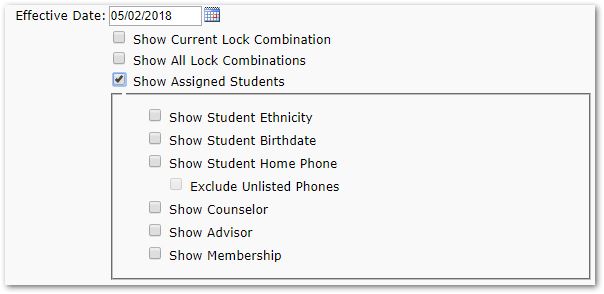
Locker Selection filters:
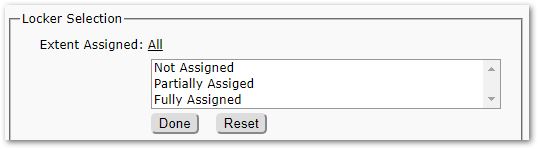
Extent Assigned – If you would like to filter the lockers listed based on the extent to which the locker is assigned, click ‘All’ and select from among the options, as shown below. To see all available lockers, you would select Not Assigned and Partially Assigned as example.
Location – This will default to All locations. If you want the report to list only specific locker types, such as Gym Lockers, click the link and select the desired type(s).
Locker Level – This will default to All Levels. Select from among the available levels to filter the set of lockers.
Locker ID – To report on specific locker ID’s, click ‘All’ and select the desired ID’s from the list.
Max Occupants – To filter the lockers reported by their Max Occupants value, click ‘All’ and select the value.
Out of Service – To filter the set of lockers based on whether they are out of service or not, click ‘All’ and select either True (Out of Service) or False (Not Out of Service).
The report is sorted by Locker Type and ID. You may change the sort by clicking the Change Sort button and dragging the available items to reflect the desired sort order. Click Save to save your changes.
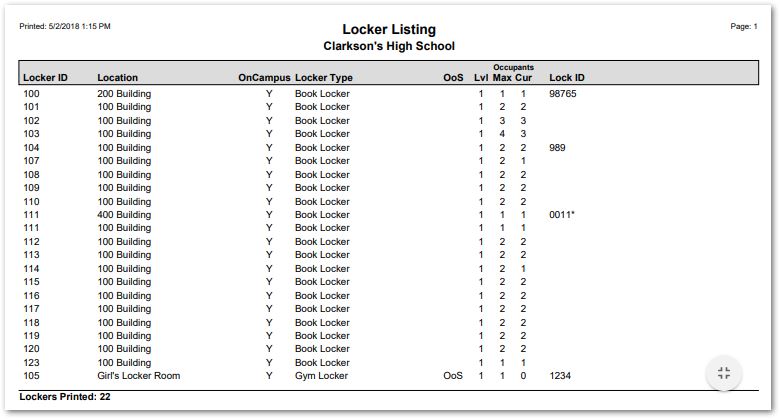
Sample Locker Listing
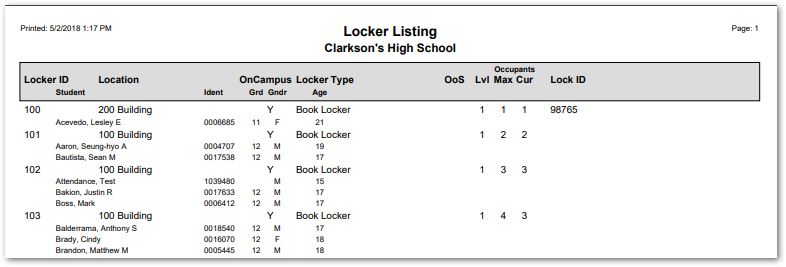
Sample Locker Listing include Assigned Students with minimal student data

Sample report including Current Combinations
