
The Testing Analysis Report produces a pivot table with student test results. The pivot table generated will display student counts of scores for the selected test type, score type and taken from/to date range.
The Testing Analysis Report can be run from the school or district level. When logged into a school, only data for that school will be returned. When logged into the district, data for the entire district will be returned.
Testing Analysis Report is located within Reports in the Testing menu in Q.
When initially launched the Report Options default to a blank test and score type with a date range covering the current school year. The default pivot layout is as follows: Page; track and school, Row; subtest and score, Column; grade taken.
Users select the test, score type and date range. Data returned in the report can be based on enrolled school as of test date or current school of enrollment.
Select report options and pivot layout as follows:
- Test: Available test names appear in the drop down list, select one.
- Score Type: Score types associated with the chosen test display in a drop down list, select one.
- Taken from/to date range: The date range defaults to the first day of the current school year and the current date. These dates may be adjusted by typing in the date using the MM/DD/YYYY format or by using the pop up calendar.
- Data based on: Select by clicking the appropriate radio button:
- Enrolled School As Of Test Date
- Current School of Enrollment
- The Pivot Layout may also be adjusted to the user’s specifications by selecting items from the Page, Row and Column drop down lists.
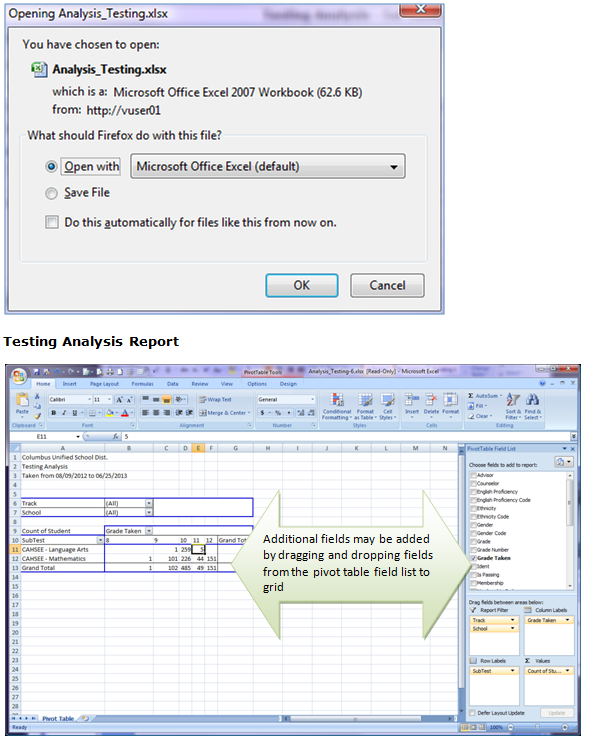
Double clicking on a cell will open a new worksheet displaying a roster with the individual student records represented by the count.
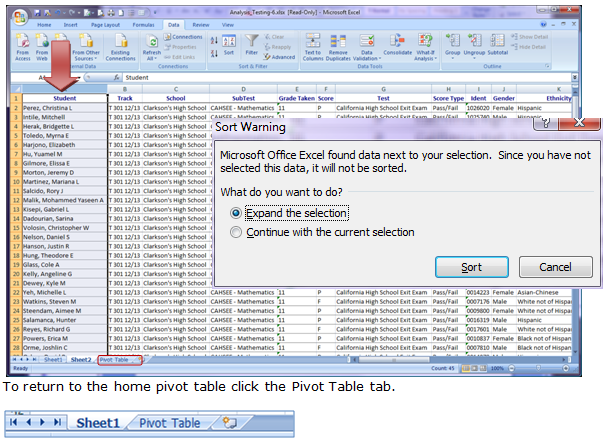
Records initially displayed in the drill-down are not sorted in any particular order. To determine the data sort order:
- Select the data tab in the spreadsheet ribbon.
- Select the column you wish to sort.
- Click the ascending or descending arrow.
- If you highlight only one column, you will receive a message asking if you want to expand your selected sort option.
- Click Expand the Selection.
- Click Sort.
NOTE: Reports may look different depending on option and selection choices.
