
Student Engagement is a student banner application that allows staff members to record engagements for any students they have access to. An example of this might be a principal or secretary contacting families to complete a needs assessment. Teachers will, by default, be limited to the set of students they have been given access to in the banner.
Student Engagement is located under the Enrollment menu in Q.
Click Add to create an Engagement record for the selected student.
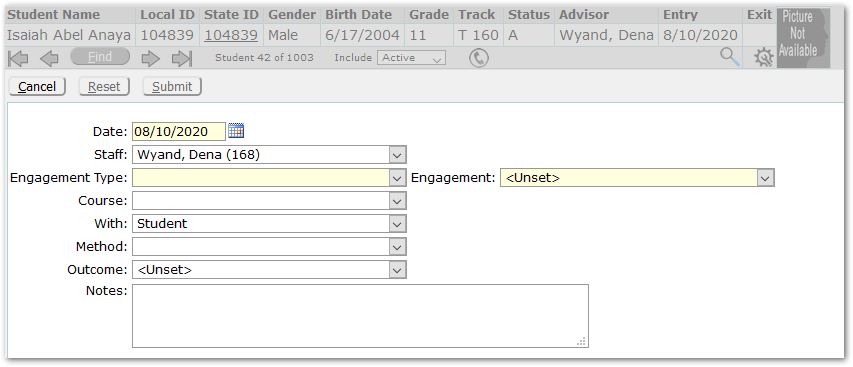
Date - The date will default to today’s date but may be adjusted.
Staff – The Staff field is present for users with administrative or ‘All Staff’ permissions. In our example, the user is not the teacher, but a counselor with permission to enter engagement records for any staff member. When the Staff field is present, it will default to the logged in user, but the user may select another staff person. For users with application level permission only, i.e. Teachers, the Staff field will not appear.
Engagement Type – Select an Engagement Type, i.e. ‘Wellness check’, ‘Academic’.

Engagement – Engagements are associated with each Engagement Type; different ones will appear depending on the Type selected. Select the appropriate Engagement.


Course – If appropriate, select the applicable course from the list of the student’s scheduled classes.
With – With will default to ‘Student’, but this may be changed to another value, i.e. ‘Contact’ or ‘Other’, etc. When Contact is selected, select the contact with whom the communication occurred from the list of the student’s primary contacts.

When ‘Other’ is selected, a text box will appear at right to enter information.

Method – Select the method of the engagement, i.e. ‘Email’, ‘In person’, ‘Telephone’, ‘Video Conference’.
Outcome – Select the appropriate Outcome for the Engagement.
Notes – Add any notes, as desired.
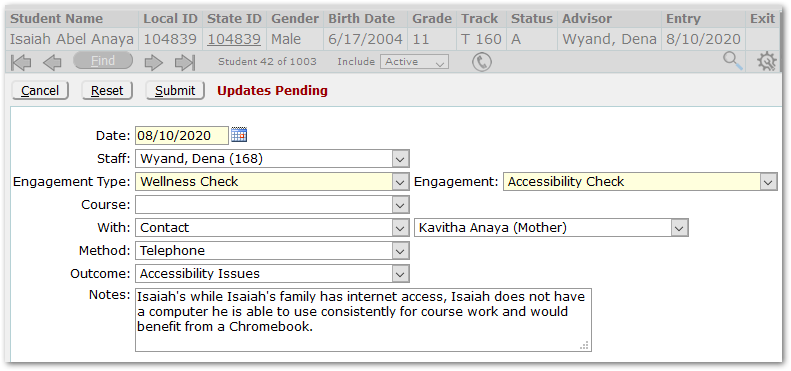
Districts may add additional, custom fields, which would appear following Notes. Complete as appropriate.
Click Submit to save the record or Cancel to return to the prior screen without saving.
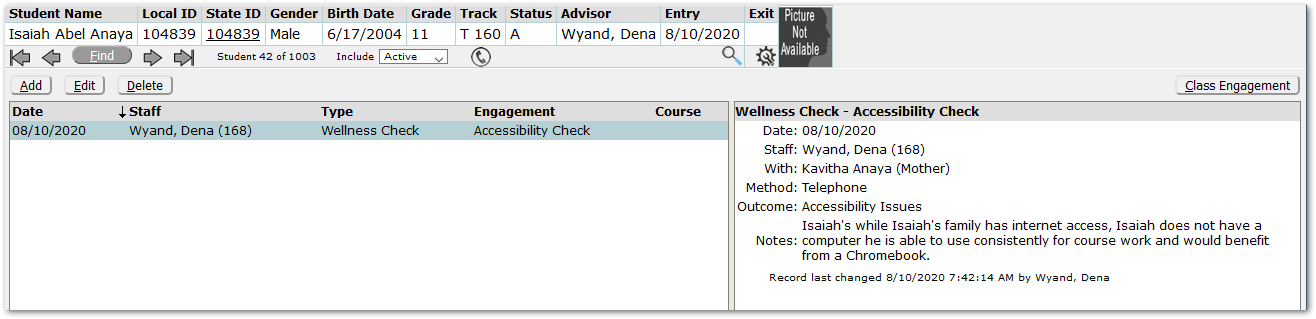
The Engagement record will appear in the grid at left, with details for the selected record appearing in the pane at right. Engagement records may be sorted by clicking on any of the column headers. Each column may be sorted ascending or descending by clicking on the header again.
To edit an Engagement record, select the record and click Edit. Make any adjustments needed, and click Submit to save the changes, or Reset to exit the record without saving the changes.
Users with Administrative access may add, edit, and delete records for all students. Teachers will only be able edit or delete records that they have entered. If a record is associated with a course, both the teacher who entered the record and any alternate faculty for that class will be able to edit or delete records entered by either one. Office staff need Administrative access to edit engagement records entered by teachers in Class Engagement.
From within Student Engagement, click the Class Engagement button to move to that application. The button will only appear for users with permission to the Class Engagement application.
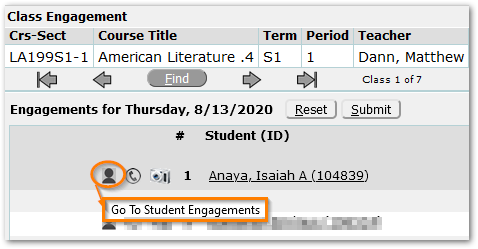
From within Class Engagement, click the Student Engagement icon to the left of the student’s name, to access the application. The Student Engagement icon will appear only for users with permission to the application.
A Student Engagement Report is available under Enrollment Reports. It may be used to report on selected engagements by Type and by Engagement for a date range. Notes may optionally be printed.
