The Q Calculate Attendance Report runs a procedure that calculates and prepares attendance data for various state reports (such as the California J18/19 Report) and internal reports for auditing (such as the Student Attendance Summary Report). The report may be run to calculate the data and without the calculation to provide the report only.
While details specific to this report will follow, users can find general information about reports within the Reports documentation.
Calculate Attendance Report is located within Reports in the Attendance menu in Q.
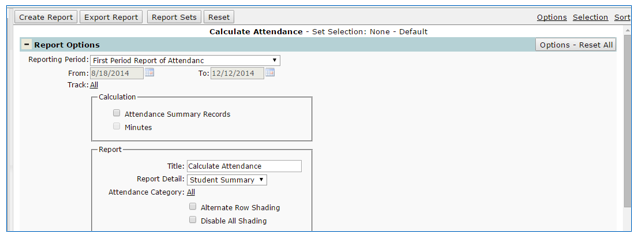
There are two separate aspects to this report: calculating (processing) and reporting. Each function can be run independently of each other or they can be run simultaneously. The options listed below detail the selections required to run the calculation and the report.
The Calculate Attendance report options are:
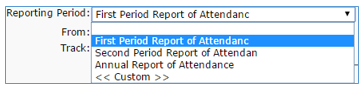
- Reporting Period – Select a reporting period from drop down list. The reporting periods are pre-defined by the district in the srrpt table. A custom option is also available, which allows the user to enter a date range of their choice.
- From & To Dates – these dates auto populate corresponding to the reporting period selected.
- If Custom is selected as the reporting period, the user may enter dates of their choice.
- Track – when logged in to the district track all tracks will display when Allis clicked. Multiple tracks may be selected by clicking on a track, holding the Ctrl key and continuing to select desired tracks. Click Done when all desired tracks have been selected.
- When logged in to a school, only those tracks associated with the school will display in the track list.
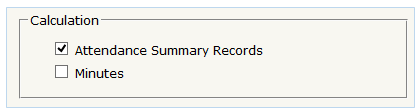
- Calculation – To run the calculation one or both of the following options must be checked:
- Attendance Summary Reports: when checked, the report will update all attendance totals since the last calculation and write the results to the attsum table, overwriting any previous data.
- Minutes: when checked, the report will calculate all the attendance minutes since the last calculation and write the results to the attsumhr table, overwriting any previous data.
- Report Title – the default title of this report is Calculate Attendance. This field may be edited by the user.
- Report Detail – Select an option from the dropdown
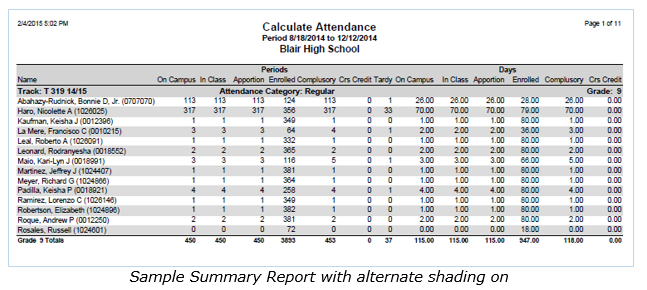
- Student Summary – this option will print totals per student and any sort option selected with Print Subtotal checked.
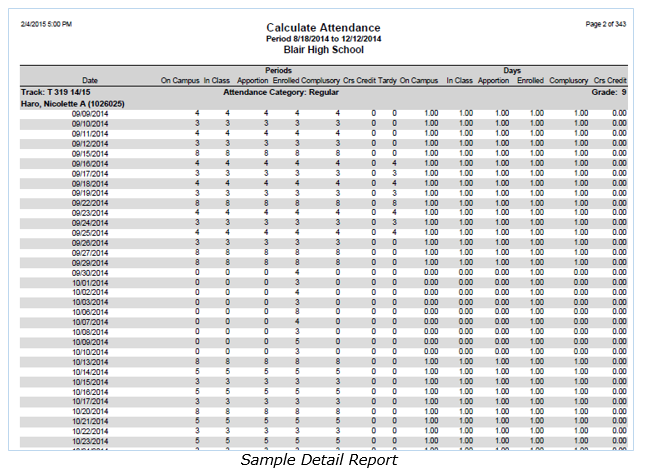
- Student Details – this option will print all details for each student for every day in the reporting period.
- No Report – this option may be selected when running the calculation when no report is desired.
- Attendance Category – clicking on All displays the list of all defined attendance categories. Attendance categories relate to funding. Attendance categories are assigned to special programs offered by the district in the Programs Editor. Select an attendance category to report by clicking on an entry. Multiple attendance categories may be selected by holding the Ctrl key down while clicking the selected attendance categories. Click on the Done command button to save the selection. Only attendance codes for students enrolled in special programs with the selected attendance categories will be reported. If none are selected then all categories will be reported.
- Alternate Row Shading – when checked, alternate rows are shaded.
- Disable All Shading – when checked, no shading is used in the report.