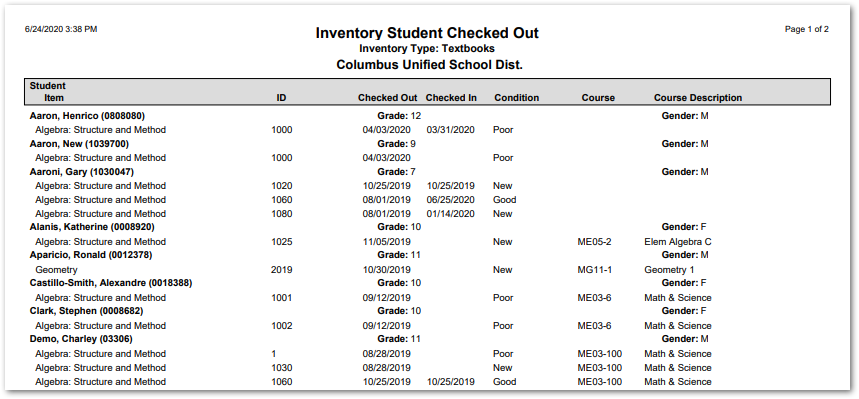
This report generates a report of inventory items checked out by students. Details include student name, gender, and ID, item description, item ID, date checked out, condition, course, and course description.
While details specific to this report will follow, users can find general information about reports within the Reports documentation.
Inventory Student Checked Out Report is located within Reports in the School menu in Q.
Report Options
The following options may be applied to the report: 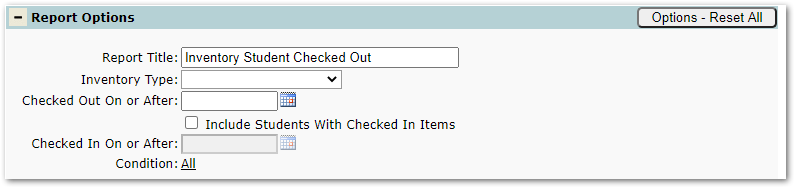
- Report Title – The default title of the report is “Inventory Student Checked Out” but may be edited by the user.
- Inventory Type – The list populates with the types created using the Inventory Setup App.
- Checked Out On or After – Restricts the report to students with items checked out as of a specified date.
- Include Students With Checked In Items – Check to include students who have already checked in inventory items.
- Checking In On or After – If the above options is checked, restricts the report to items checked in as of a specified date.
- Condition – Populates with options created in Inventory Setup (e.g. new or refurbished).
Example Reports
Sample Inventory Student Checked Out Report