
Q Class Marks is a banner application that allows teachers to enter marks for all students enrolled in classes assigned to them in the master schedule. The Class Banner contains pertinent course information and is displayed anytime you are working in a course driven application. Users only have access to data for their assigned courses in the Master Schedule for the logged in track
Class Marks utilizes the Class Banner. See the Class Banner documentation for detailed information regarding configuration and searching using the Class Banner,
Class Marks is located under the Marks menu in Q.
Student marks may be entered individually or you can use the Fill feature to give every student the same mark. Individual student grades may be edited after using the fill feature.
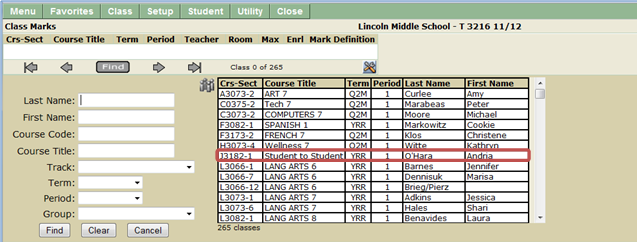
1. Select the desired class.
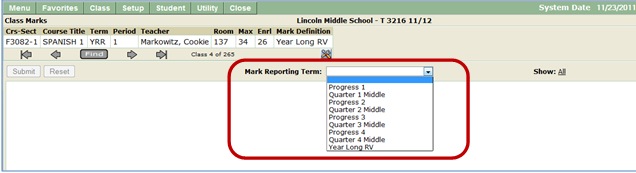
2. Select the Mark Reporting Term from the drop down list.
3. When the Mark Reporting Term is selected, the class roster displays.
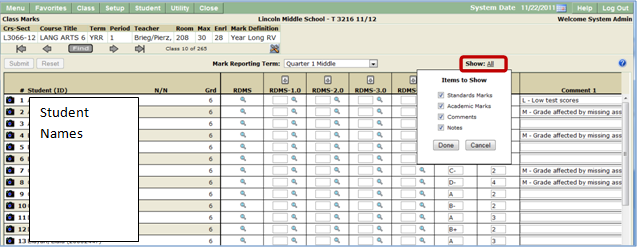
4. The user can control the columns and content displayed by clicking the Show All link.
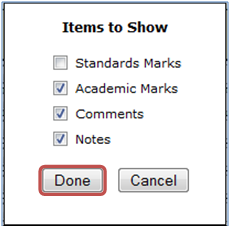
5. Select desired items to show
6. Click Done.
Entering Marks Manually
1. Marks may be entered manually by typing mark value and tabbing to next field.
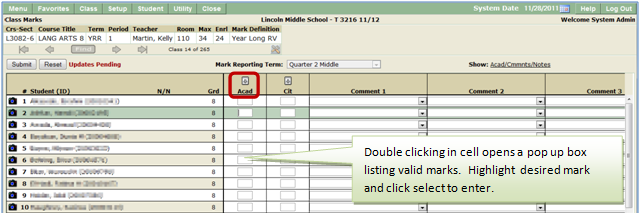
2. All available mark values can be displayed by double clicking in the cell.
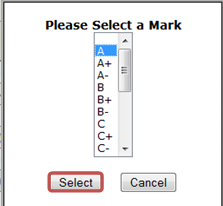
3. Choose desired mark and click Select to enter mark.

4. To clear entered marks before submitting, click Reset.
5. Submit to save marks.
Entering Marks Using Fill Option
1. Click the + sign at the top of the Mark Type column to access the fill option.
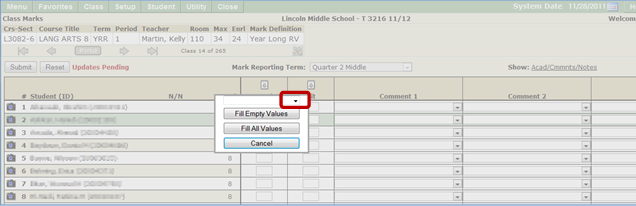
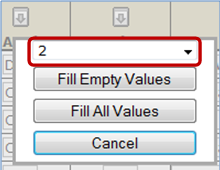
2. Clicking the arrow above Fill Empty Values opens a drop down box of available mark selections. The mark value may also be entered manually.
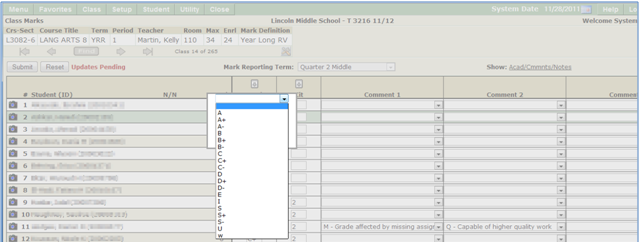
3. Enter the desired mark value in the white box then select one of the three options:
a. Fill Empty Values
b. Fill All Values
c. Cancel
4. To clear entered marks before submitting, Click Reset.
5. Submit to save marks.

1. Up to 4 comments may be entered per student.
2. Click arrow to display drop down list of district defined comments.
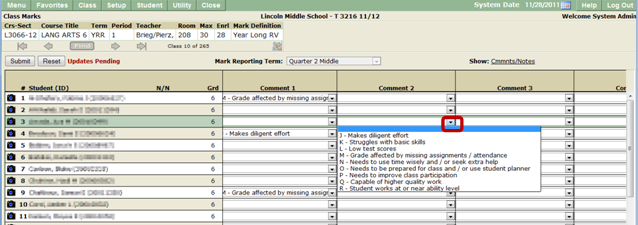
3. Select desired comment from list.
4. Tab to next column to add additional comments for the student, if desired.
5. To clear entered comments before submitting, click Reset.
6. Submit to save comments.
1. Free form notes may be added for students by clicking the pen and paper icon.
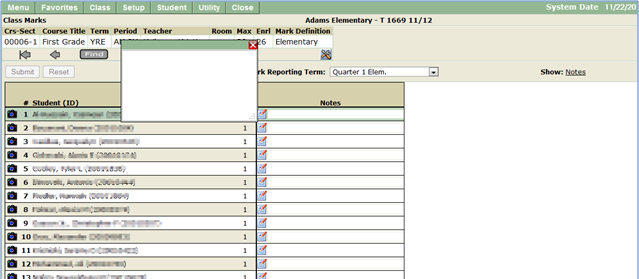
2. Enter note in text box.
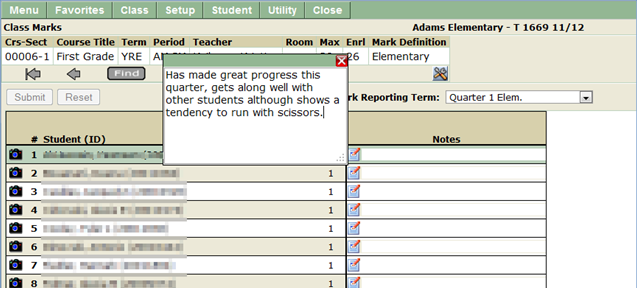
4. Click Submit to save. To reset any changes made since the last submit, click Reset.

