
This tip discusses two changes we made that went out in the 4.3.0 release for Class and Student Marks in hopes to help teachers who have a large number of standards to work with.
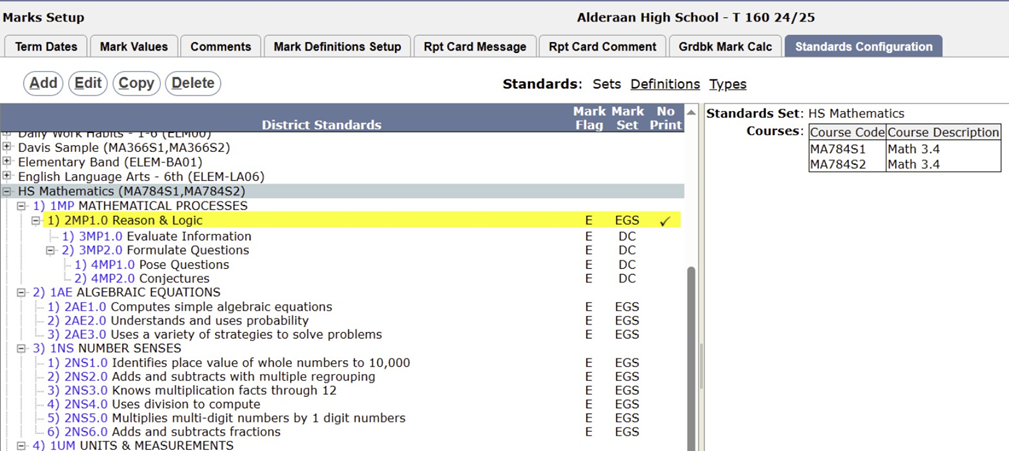
The first deals with standards being configured as “No Print”. Within Marks Setup > Standards Configuration, a standards set can be configured with items flagged as “No Print” to eliminate them from printing on report cards:
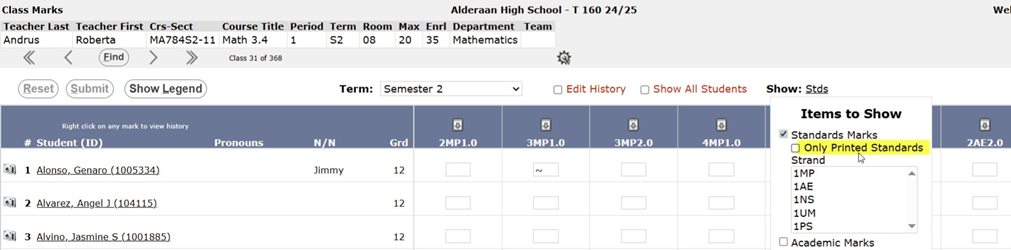
When a standard set is configured with an item flagged as “No Print”, there is a new option in Class Marks to show “Only Printed Standards”:
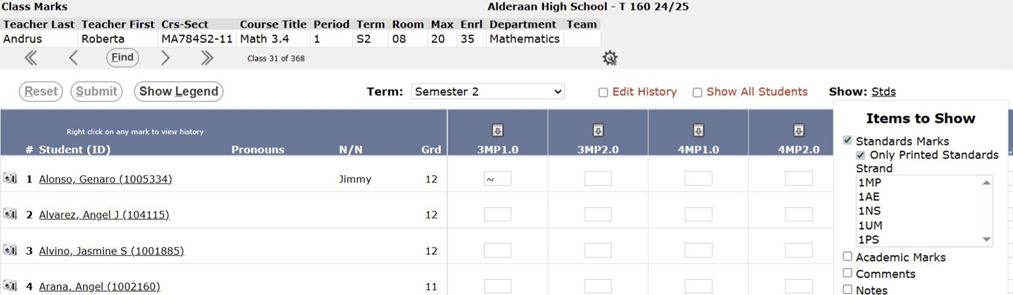
 When this option is turned on, any item flagged as “No Print” will no longer appear on the screen (for example, item 2MP1.0 is no longer appearing in the screenshot below):
 The ability to hide “No Print” standard items was also added to Student Marks, and it appears in the band for each class, where applicable:
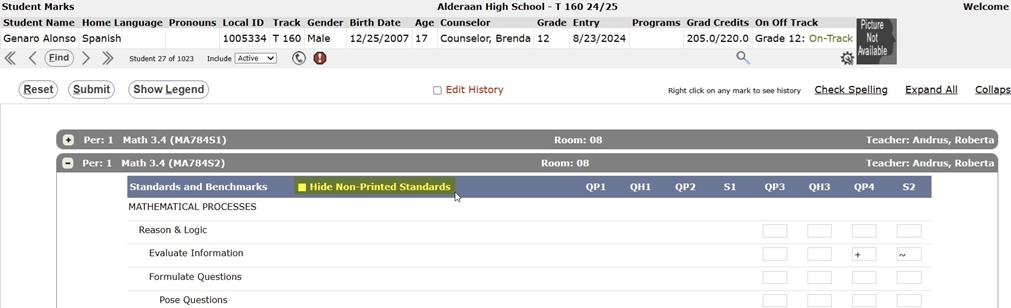
When this option is turned on, the same item 2MP1.0, “Reason and Logic”, will no longer show in the list of standards:
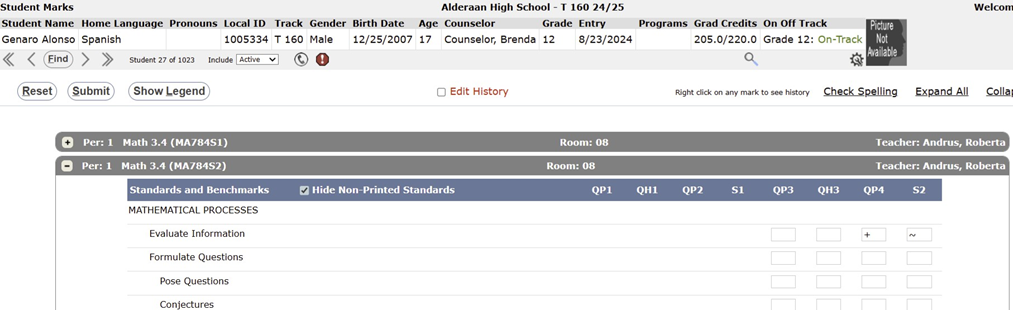
The second change that was made is regarding a new preference we added for Class Marks and Student Marks to determine whether a user is able to overwrite a Calculated standards mark (if a standard mark is set to be calculated rather than entered manually within Standards Configuration).
When this preference is set to No, these items will not be editable within Class and Student Marks. When set to Yes, these items will appear editable:
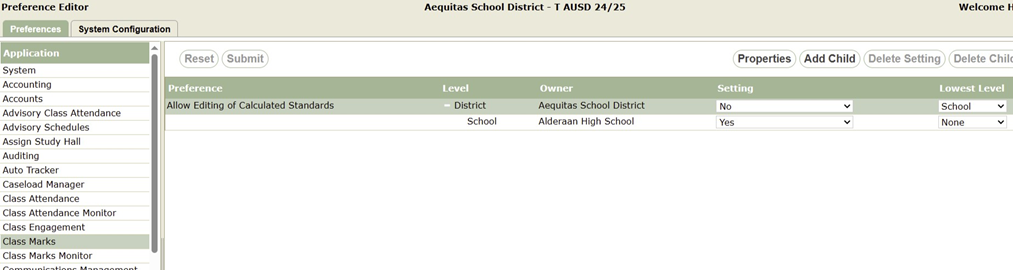
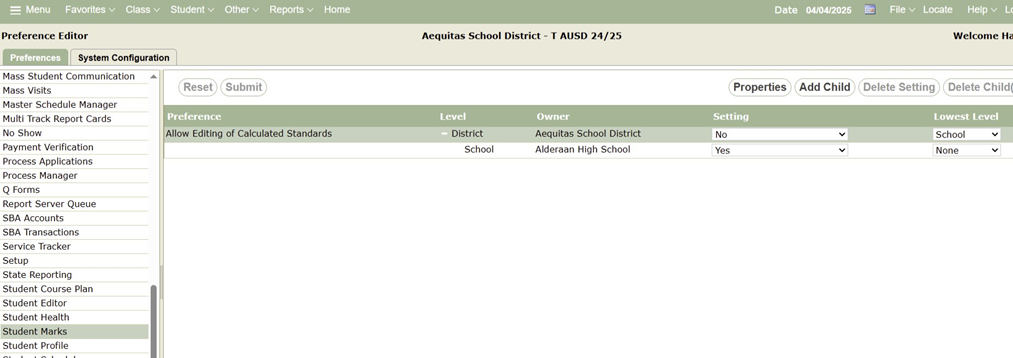
It is important to note, if this preference is turned on to allow a user to edit a calculated standard score, and if a change is made within the gradebook to trigger the calculation to fire, the user’s score that was entered manually may be overwritten with the calculated score.