The Q Program Editor is an application that enables districts and school sites to add and define programs. The addition of programs in the Program Editor allows users to create unique student programs which may be used throughout the district. These district defined programs can be added to student program history records, used to receive and track funding and / or special needs student groups, etc. The Q Program Editor also allows teachers and staff to add program records and create viewing limitations which would allow only faculty with a teacher role or similar roles to view the newly created program.
Program Editor is located under the Programs menu in Q.
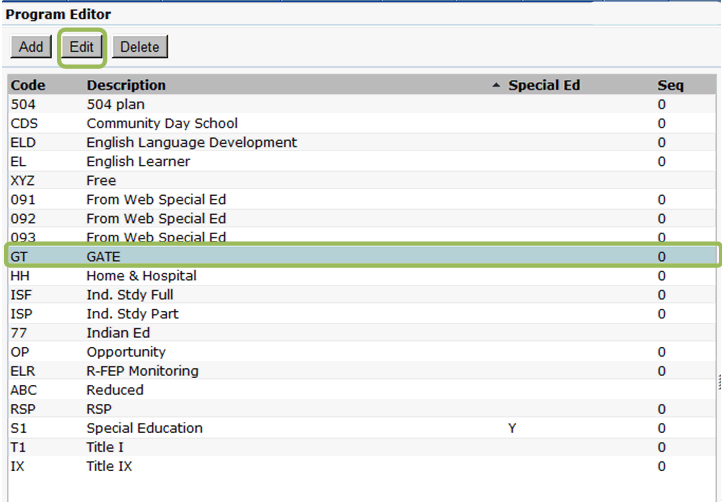
The Program Editor application will default to show you a list of currently existing programs. The Program Code, Description, Special Ed identifier, Seq and all program details will be shown in the launch screen.
To add a new program to the Program Editor application:
- Click the Add button located near the top of the Program Editor application.
- Entering the following program information:
- Code: Enter a unique program code
- Description: Enter a description of the program you are entering.
- Use the checkboxes to indicate the following when applicable:
- The program is a Special Education program
- An IEP is required for the student to be entered in the program
- The student should be exited from the program on withdrawal from school
- A program should transfer with the student
- The program should be hidden from others
- Attendance Category: Attendance categories assist in tracking funding associated with specific programs.
- Funding Source: If the new program receives funding enter the source.
- Display Symbol:Enter a unique symbol for each program. The symbol will be visible in the student banner to users who have the appropriate permission sets.
Note:
Depending on District preferences a program code may display instead of a display symbol.
g. Sequence: The sequence will determine the location of the new program in the program display list.
h. Conflict Id: Identifies programs that conflict with one another and does not allow more than one of these programs to be added to a student's program history within the same time frame. For example; if a student is in a Free Lunch program and you tried to add a Reduced Lunch program for the same student, the system would prohibit it if both programs have the same conflict identifier.
i. Service Tracker Program Type: If students in the program need to be available in Service Tracker as a result of their enrollment in the current program, select the desired Service Tracker Program Type. See Service Tracker Configuration Guide for more information.
j. Custom Fields: Custom checkbox labels, custom date labels and custom textbox labels are optional and can be created to identify and label extension fields.
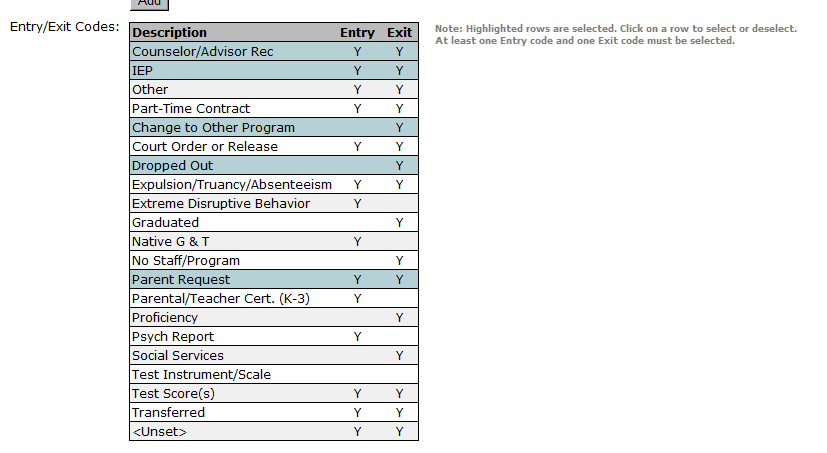
k. Entry/Exit Codes: Select a code from the Entry/Exit codes list by single clicking on the desired code. You may select multiple entry/exit codes, but at least one entry and exit code must be defined for each program. If you fail to select one you will receive an error when you click Submit. To correct the issue, highlight the desired codes and re-submit.
k. Access Exceptions: Exceptions may be added to limit the visibility of the new program to specific faculty roles.
Note:
Programs may be created by multiple faculty roles. Any of these users may restrict access to a program they create by using Access Exceptions, thus making it visible only to those for whom the program would be pertinent and useful.
To add Access Exceptions:
- Click the Add button near Access Exceptions.
- A new definition box will open; select the faculty role for which you are adding access exceptions from the Role drop down list.

3. Hidden: If you would like the newly created program to be hidden from specific faculty roles, click the Hidden field. Once the program has been hidden from a faculty role it will no longer be visible in the student profile, student program history and other applications where the program symbol may be displayed.
4. Disabled: To prevent other staff members from editing the program for students, click the Disabled checkbox. This will make the program visible but not editable to other faculty roles.
Saving a Newly Created Program
Once all program information has been entered you are ready to save the record.
Note: Before saving it is always recommended that you review all data entered to ensure that it is accurate and complete.
- Click Submit to save the data you have entered.
- If you would like to clear the data, click Reset.
- To cancel and clear all data entered since the last submission, click Cancel.
Once a new program has been created, you must edit the program in order to change any data which has been saved.
To edit a Program:
- Search for the program you would like to edit in the Program Editor application.
- Highlight the program for which you would like to make changes.
- Click Edit, you will be redirected to the entry screen where all current program information will be visible.
Note:
The program code will not be editable.
Make sure that the program you would like to edit is highlighted in the list of current programs.
4. Once all necessary changes have been made and reviewed, click Submit to save. To clear all changes click Reset, to exit without saving changes click Cancel.
5. If changes need to be made to more than one program, repeat steps 1-4 listed above.
In certain instances programs may need to be deleted. The program may have been entered in error, or is no longer being offered by your district.
Note:
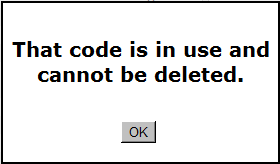
Program codes which are in use and have been assigned to students may not be deleted.
To delete a program which is not in use:
- Search for the program you would like to delete in the program list.
- Highlight the program you would like to delete from the current programs list.
- Once the desired record has been highlighted, click the Delete button located at the top of the program editor application.
- You will receive the following confirmation message before the selected row is deleted.
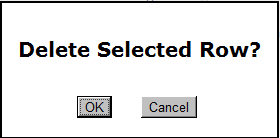
To continue with the deletion process, click OK. To cancel and return to the current program list, click Cancel.
5. If you are attempting to delete a program code which is currently in use, the system has preventitive measures put in place which will prohibit you from doing so. To be returned to the current program list, click OK.