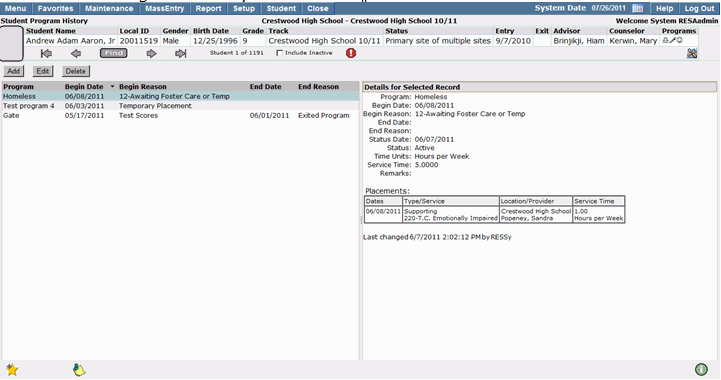
The Student Program History application records and stores program records for students. It allows users to record and view when students entered a program, the reason they entered, their current program status, and how often they participate in services related to their programs. Programs are defined by your district.
Student Program History is located under the Programs menu in Q.
Student Program History is a Student Banner application. For more detailed information regarding how to search for students using the Student Banner, please refer to the Student Banner documentation.
Once you have located the student for which you would like to add a program history record, begin entering detail information.
1. Program Code: The Program Code drop down list will be pre-populated by your district with the student programs used within your district. Select the program code you would like to enter for a student. Once a program code has been selected, new program information fields will be displayed allowing you to enter detailed program information for a student. 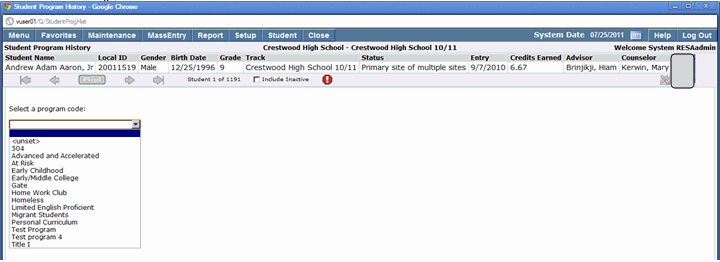
2. Program Begin Date: Enter the date on which the student will be enrolled in the program. The date can be entered in an MM/DD/YYYY format or click on the calendar icon to select the desired date.
3. Begin Reason: Select the reason the student will be entering the program from the drop down list. The program can later be used to sort student program history records in the Student Program History application.
4. Optional / End Date and End Reason: If you are entering a Program History record from which the student has already been exited, enter the last date the student was enrolled in the program and the reason they were exited. You should also enter an end date and end reason for existing records once a student has completed a program.
5. Optional / Status Date and Program Status: Enter the date and status of the student for which you are entering a program history record. This information should correspond with the program entry and/or exit information.
6. Optional / Service Time: If the student is completing service time while being enrolled in a program enter the time units in the Service Time field. This will help you track how much time a student will spend out of class participating in specific programs.
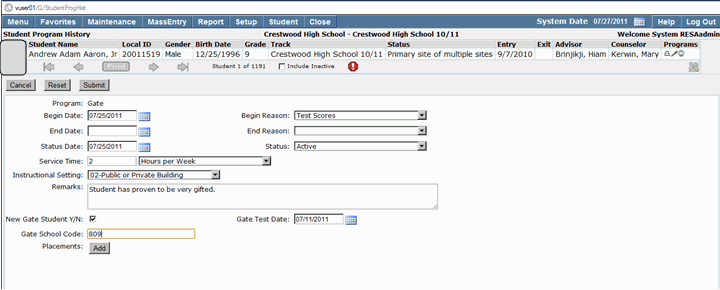
7. Optional / Instructional Setting: Enter the information that indicates where the student will be participating in the program.
8. Optional / Remarks: Enter any details that might be helpful when reviewing the program history record later.
9. Optional / Extension fields: Extension fields may have been configured for data entry by your district. These fields will change depending on the program you are currently working in. Entering information in these fields will assist you in reviewing Program History records in the future.
10. Placements: Placements should be added for students that will be receiving treatment by a service provider at any particular location. Since placements are defined by type, the type of placement selected will filter the services available and only the providers qualified to provide the selected service will be displayed in the list of available providers.
If the student will be receiving a service, document the service location, the service being received, the service provider, the amount of time the student will be receiving the service, and the dates of the services. If the student is going to be receiving multiple services, click the Add button and repeat the steps listed above.
Once all the desired Student Program History information has been entered you are ready to save the record.
- Click Submit to save the data you have entered.
- If you would like to clear the data, click Reset.
- To cancel and clear all data entered since the last Submit, click Cancel.
Once a Student Program History record has been entered for a student, you must edit the record in order to change any data which has been saved.
To edit a Program History record:
- Search for the student whose program history record needs to be modified.
- If the student has more than one program history record listed, find the record you would like to edit and click to highlight.
- Once the desired record has been highlighted, clicking the Edit button located above the program list will open the selected record.
Make sure that the record you would like to edit is highlighted in the Program History records list.
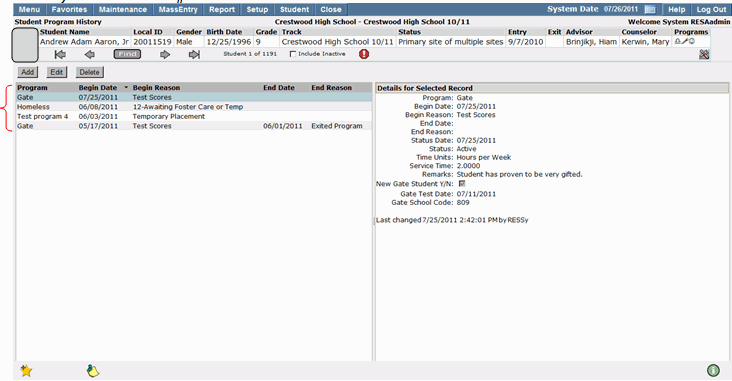
4. Make the appropriate changes and click Submit to save your changes.
Note:
There are some data fields which are not editable once they have been submitted. If you need to correct data which is not editable, you will need to delete the record and re-enter it in the appropriate fields.
Program History records for students are stored in a list format viewable by student.
To view details of a specific Program History record:
- Highlight the record for which you would like to view details.
- The details for the selected record will appear on the right hand side of the screen. All data for the selected program history record will be displayed in a view only format.
In certain instances student program records may need to be deleted. If a record has been entered incorrectly, or for the wrong student it should be deleted and entered for the correct student.
To delete a Program History record:
1. Search for the student whose program record you would like to delete.
2. If the student has more than one program history record listed, find the record you would like to delete and click to highlight it.
3. Once the desired record has been highlighted, click the Delete button located above the program list.
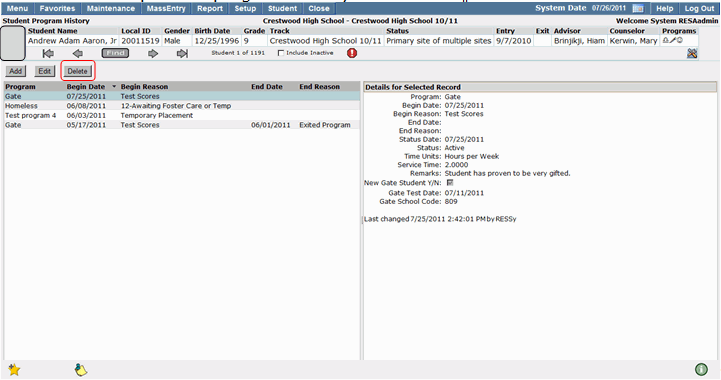
4. You will receive the following confirmation message before the selected row is deleted.
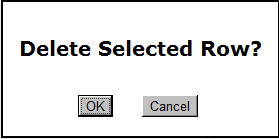
5. Click OK to continue deleting the record, or Cancel to exit and return to the record.
6. Once the record has been successfully deleted, it will no longer appear in the student's Program History record list.