
Q Student Career Plan application enables users to create or refine an individual student’s career plan on a student-by-student basis.
A student’s ‘Individual Plan’ may be created with:
- A Base plan
- Additional Plan courses
- Selected individual courses
- One or more CTE Student Pathways.
‘Base plans’ often consist of core courses required over the years in school, i.e. Grades 9 – 12 of General High School curriculum. ‘Additional Plans’ may be used to add common sets of curriculum electives over the same period, i.e. Music, STEM, etc. ‘Pathways’ are used to track student participation, enrollment and progress in CTE Pathways.
When a student’s ‘Individual Plan’ is defined, it may be viewed through Student Profile in the ‘Course Plan’ area. Additionally, Student Pathways application enables editing of Student Pathway records. And finally, the Student Career Plan report may be used to print a record of all aspects of the student’s Individual Plan.
Student Career Plan is located under the Schedule menu in Q.
The Student Career Plan is a student banner application. Information on configuring and using the student banner may be found in Help under Q - Student Banner. Use the Find feature to select your student. The student’s Base Plan (if one has been assigned) will display along with the courses in the plan. 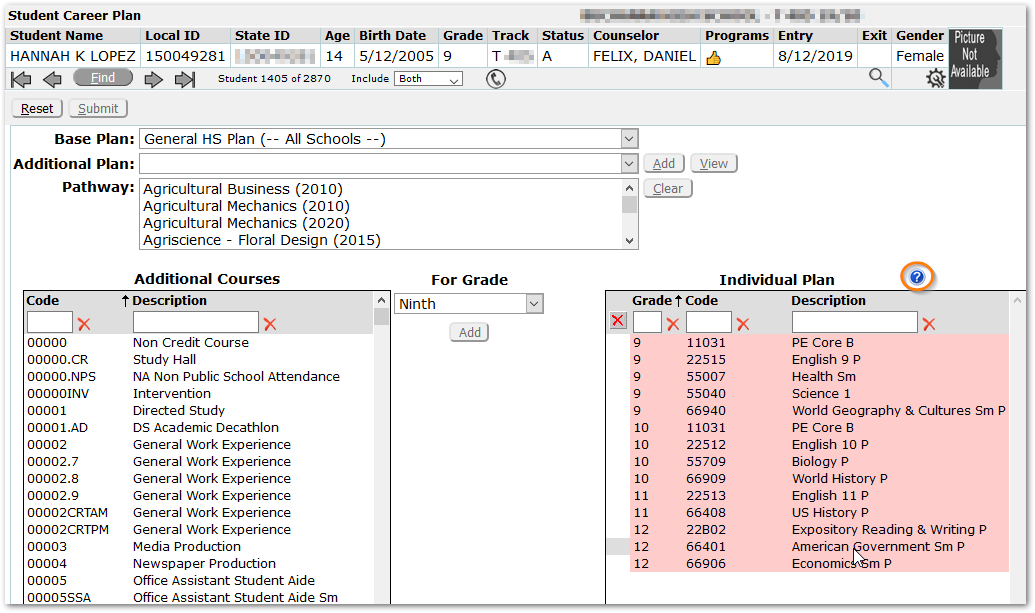
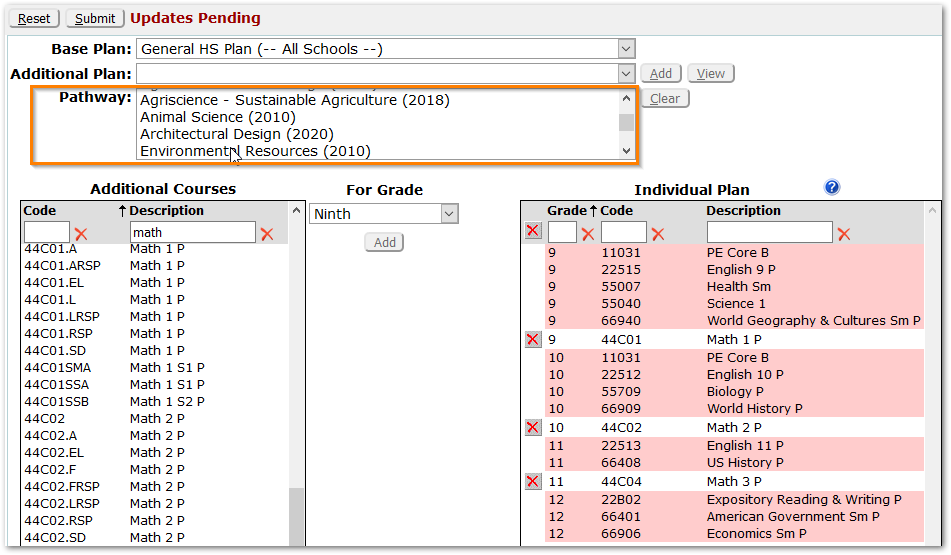
In our example, the student’s Base Plan is the ‘General HS Plan’. The courses in the Base plan display on the right-hand side of the screen in pink for the student’s current grade and above.
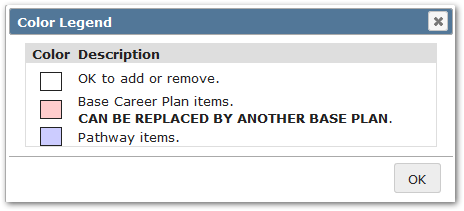
 Click the question mark symbol to open a Legend explaining the meaning of the color coding.
The left-hand side of the screen displays all courses defined in District Courses available to add to the student’s Individual Plan. Search boxes may be used to find a specific course.
To create an individual plan for a student, use the Find feature to find the desired student.
Base Plan will show the current Career Plan, if assigned. If the student has no Base Plan, one may be selected from the drop-down list.
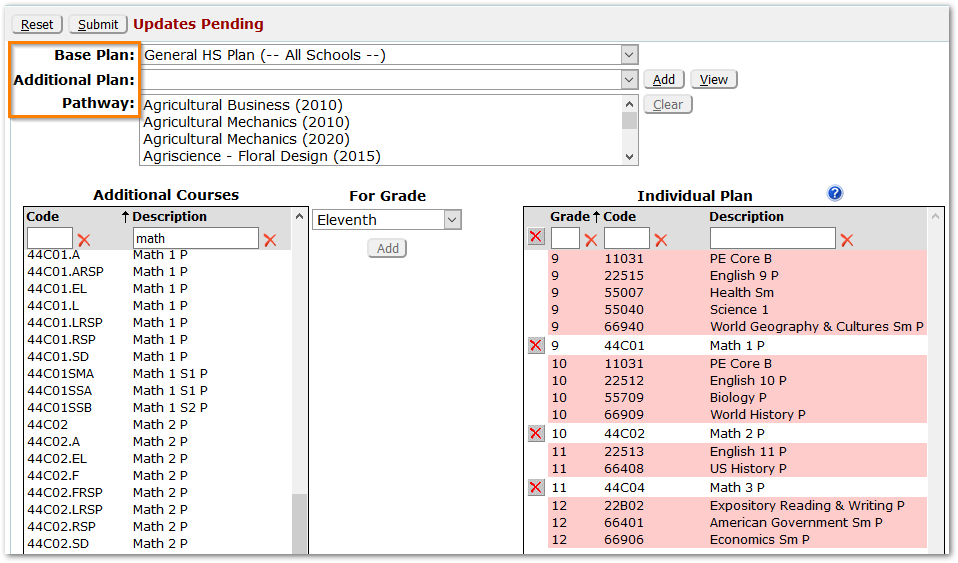
Additional Plans may also be selected and added for the student. If you’d like to view courses in an Additional Plan, select the plan and click the View button.

When View clicked:
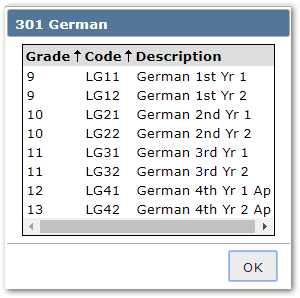
The courses for the selected Additional Plan may be added to the student’s Individual Plan by clicking the Add button. Courses for the Additional Plan will appear in the student’s Individual Plan at right.
Individual courses may be added to the student’s Plan by:
- Selecting the grade level for the course request from the For Grade drop down
- Selecting a course from the Additional Courses list on the left
- Click Add
- After all selections have been made click Submit.
Items added to the student’s Individual Plan may be deleted by clicking the red X.
Requests that are part of the student’s Base Career Plan can only be deleted from the Student Schedules application or by changing the student’s Base Plan.
To remove a Base Plan and associated courses, select <No Base Plan> as the replacement plan.

Pathways may be selected from the Pathway drop-list. Scroll through the list and select the desired pathway. In our example, we’ll select ‘Environmental Resources’.
As soon as the Pathway is selected, ‘Select Pathway Courses’ dialog appears. Set the grade in which the student plans to take at least one course from each Pathway Level.
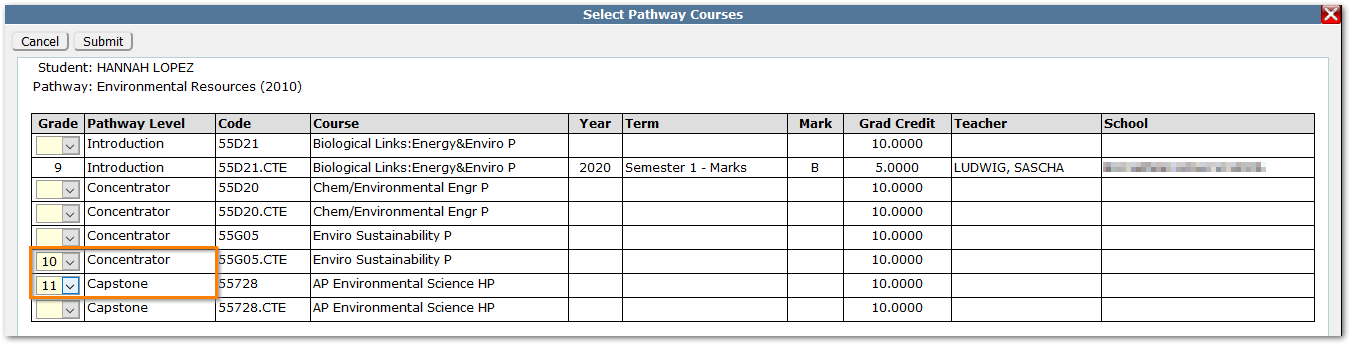
Courses the student has transcript marks for will appear with their grades already set. Additional transcript information will display, as shown in the example of the Grade 9 ‘Biological Links’ class.
Pathways may have multiple possible classes per level depending on the district Pathway definition, etc. Only one class per level is required to be selected and set.
If adjustments need to be made at a later time to courses in the student’s Pathway, use the Student Pathways application to edit the student’s Pathway.
- Select the student’s pathway courses by setting the Grade level the student plans to take the class and click Submit.
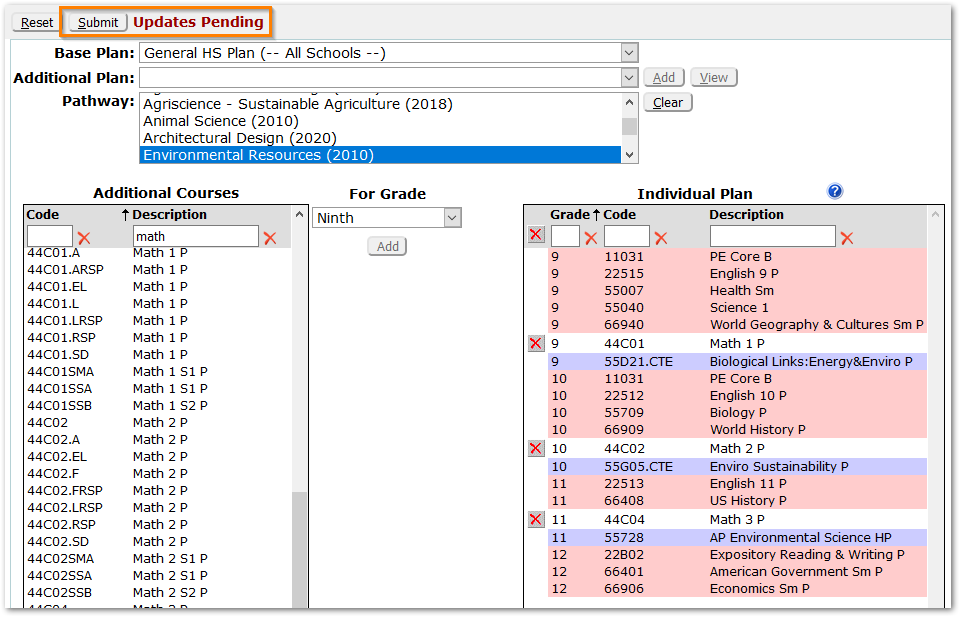
The pathway courses will appear in the student’s Individual Plan now, in purple, as shown.
- Click Submit again to save the student’s Individual Plan with their Pathway.
Additional pathways may be added following the same steps.
To remove a pathway from the student’s Individual Plan, with the pathway highlighted, click the Clear button. The purple pathway courses will be removed from the student’s plan. Click Submit to complete, saving the change. This will remove the Student Pathway record for the student completely.
When all additions have been made to the student’s Individual Plan, you may view requests for previous grades, if there are any, by clicking the ‘Show All Grades’ box, when present, at the bottom of the Individual Plan.
Clicking the Print icon in the upper right-hand corner will print the student’s Career Plan. 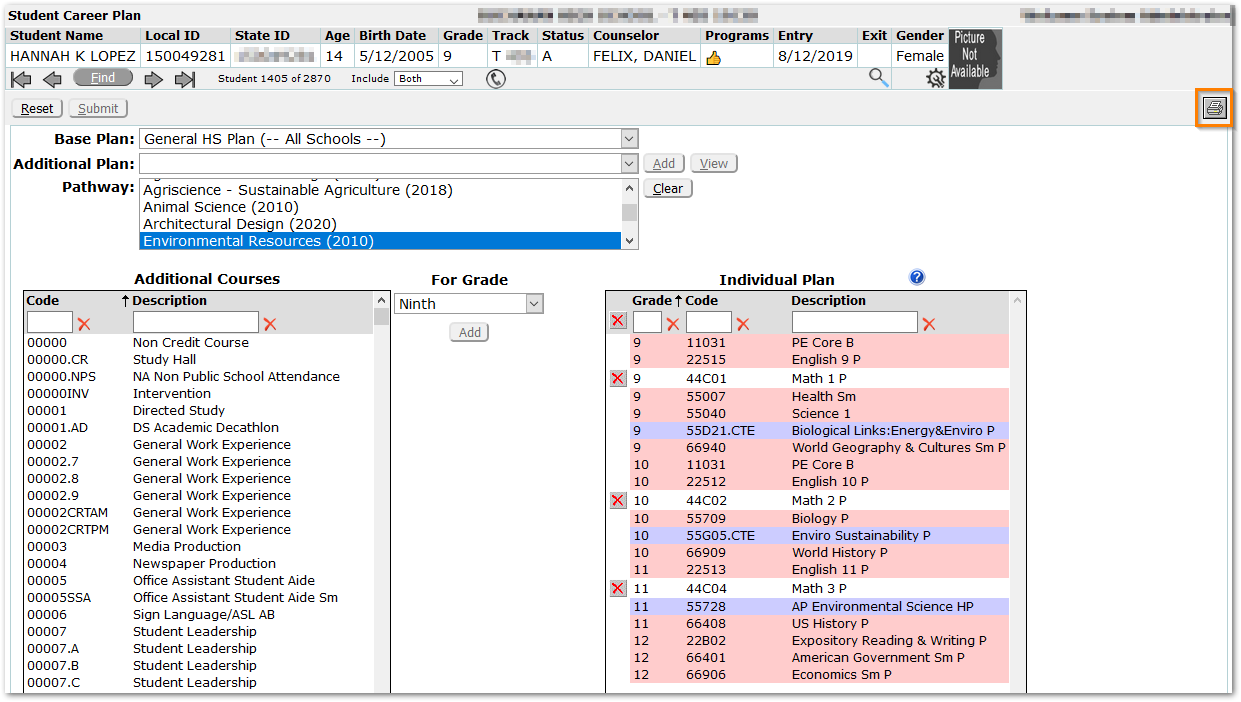
Print view: 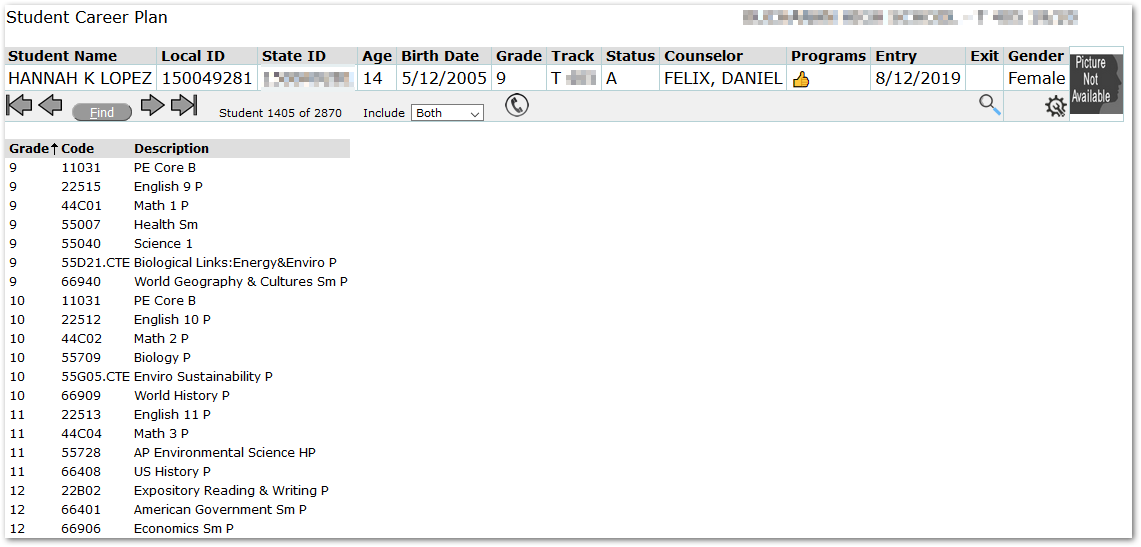
The Student Career Plan Report may also be run from the Reports menu under Schedule.
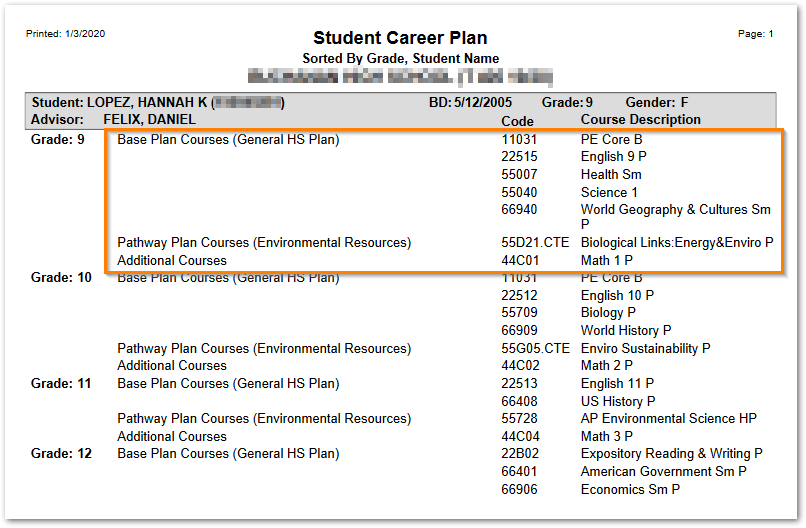
Notice that in the Student Career Plan Report, the Base Plan Courses are identified with plan specified in parenthesis, Pathway Plan Courses with the Pathway in parenthesis, and Additional Courses are also identified.
