
The District Courses application is used to define a standard set of district-wide courses. The default settings and definitions for the courses that will be offered at a school and edited in the school’s Master Schedule are initially created in the District Courses application. The District Courses database can be viewed from any school site login or from the District Office login. Editing capability depends on the Permission Roles to which the user is linked to, per track, at login time.
District Courses is located under the Schedule menu in Q.
The list of district courses will appear at left, with the details of the selected course shown in the pane at right.
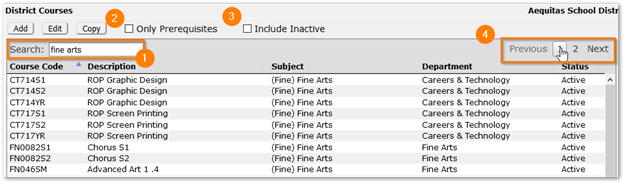
- Courses may be found using the Search field at the top of the list. Enter information such as course code, description, subject or department. Results will be refined as information is entered, narrowing the list of courses.
- To see only courses with prerequisites, click the ‘Only Prerequisites’ checkbox.
- Results default to include active courses but inactive courses may be included in the results by clicking the ‘Include Inactive’ checkbox. The Status column indicates Active vs. Inactive status.
- To move through results, click either a page number, Next, or Previous buttons.
The default settings and definitions for the courses that will be offered at a school and edited in the school’s Master Schedule are initially created in the District Courses application. Some of the default settings made in District Courses can only be edited in District Courses. Others can be edited, or fine-tuned, in the Master Schedule Manager, Master Schedule Builder and Track Course Setup applications to meet the needs of a particular school, or a particular section of the course.
To add a new course:
- Click on the Add button to open an entry form for a new course.
- Enter a Course Code and Description
- Enter a unique Course Code for the new course. Course codes are user-defined and may be up to 10 characters long. Codes may include numbers, letters, or both.
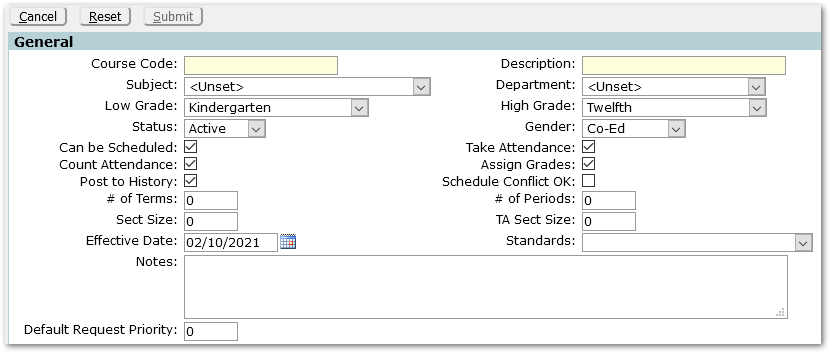
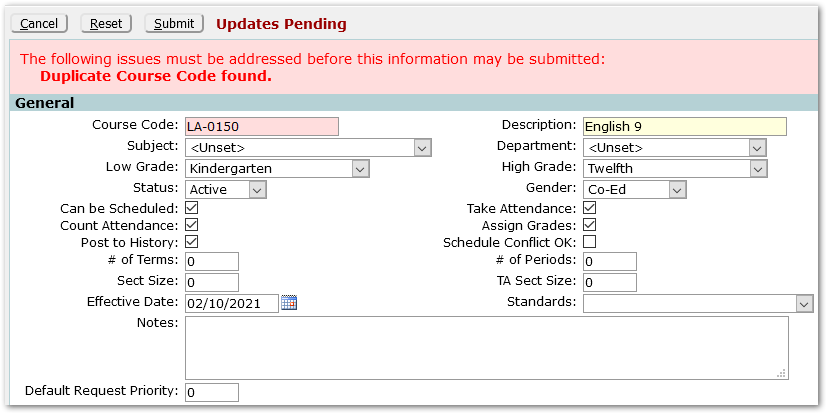
After entering the course code and description it is a good idea to save the new record before continuing. All course codes must be unique; the Submit command will check for duplicate codes. If no error message occurs, click on the Edit command button to reactivate the edit mode and continue entering course information. If the Course Code you entered is already in use, a Course Editor Validation Error message will appear on the execution of the Submit command, reading ‘Duplicate Course Code found’. Enter a different Course Code and Submit again.
Once you have successfully entered and saved the new record with a unique Course Code and a Course Description, you can now move on to the other sections and enter other course attributes. Enable the edit mode using the Edit command button.
General Section
Use this section to enter the general attributes of a course.
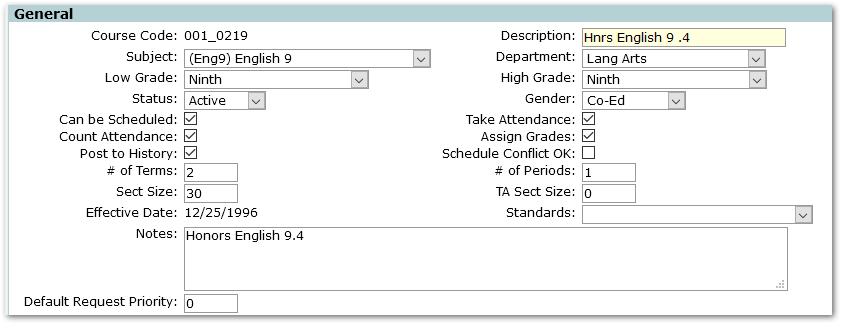
- Subject—select from the drop-down box. The subject defined here describes the general category of the Course used in conjunction with Graduation Requirements. The Graduation Requirements module uses this field to determine how many units of a Subject have been completed towards the defined Graduation Requirements. Courses with the same Subject selected will be grouped together in the tally towards meeting Graduation Requirements.
- Department—select from drop down box.
- Low Grade—Select from the drop-down box the lowest Grade Level of student allowed into the Course. This may be left Unset if there is no lower limit for the Course (or the lower limit is the lowest Grade Level of the school). This value becomes the default for every section of a course placed in a master schedule; however, this parameter can be modified on a section-by-section basis as the master schedule is created.
- High Grade—Select from the drop-down box the highest Grade Level of students allowed to take the course. This may be left Unset if there is no upper limit (or the upper limit is the same as the highest grade level of the school).
- Status—Use the drop-down box to choose a status for the course.
- Gender—Use the drop-down box to Indicate if the Course is offered for Males only, Females only, or if it is Co-Ed.
- Can be Scheduled—Check to indicate if this course can be scheduled automatically by the Loader during the Scheduling Process.
- Take Attendance—Check to indicate if attendance is to be taken for this Course. If this is not checked, attendance cannot be taken, and the Course will not show in the Attendance applications.
- Count Attendance—Check to indicate that the attendance taken will be counted for reporting purposes.
- Assign Grades—Check to indicate that marks will be assigned in this course.
- Post to History—Check to indicate that this Course will be recorded in the student’s Academic History (Transcripts).
- Schedule Conflict OK—Check to indicate that this Course can be scheduled without conflict restrictions in the same time period as another course. For example, with this checked, a student can be scheduled for ‘Science’ and ‘Health’ at the same time, during the same period, on the same day. If this is not checked, you will receive a conflict message when attempting to schedule this Course concurrently with another Course.
- # Of Terms—Fill in the term duration of a course. If your track has two terms (Semesters), and the course is an ‘all-year’ course, the Number of Terms would be ‘2’. The course would be in session for both Semesters. If it were a half-year class, the Number of Terms would be ‘1’, meaning that the course would only last for one Semester.
- # Of Periods—Fill in the duration of the course in contiguous class periods. For example, if you had a Course that met for two periods in a row, and the same students were in both periods and they did not move when other students would normally switch classes, this would be set to ‘2’. This might be the case when you combine a traditional schedule with some elements of block scheduling.
- Sect Size—Fill in the maximum number of students allowed to be enrolled in a section of the Course. This number becomes the default size for sections of the course but may be changed when building individual sections in the master schedule.
- TA Sect Size—Fill in the maximum number of teaching assistants allowed to be scheduled into the course.
- Effective Date—Defaults to system date. The date displayed indicates when the new course will be considered active in the database. When adding a new course make sure the effective date is set before the track begin date. The effective date of the new course may be changed by clicking on the Show History button on the right-hand side (the ability to change dates is controlled by a separate permission).
- Standards—If Standards & Benchmarks are to be recorded for students taking this course, select an appropriate Standards Set to use. When a Set is selected, Grade Book will automatically provide the appropriate Standards to associate with assignments for any section of this course. If no selection is available for this field, it means no Standards Sets have been defined.
- Notes—Notes may be added to the course. These notes will appear in the District Courses report as well as in Student Connect when a student is entering course requests.
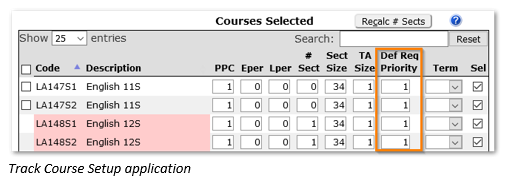
- Default Request Priority – The priority set in this field will be carried over when courses are assigned to tracks and form the default request priority in those tracks. Schools may adjust this default priority for their track in the Track Course Setup application.
Credits/Codes Section
Use this area to enter the Credits and Units earned for successful completion of the Course. It is also used to define the codes associated with the Course, such as Work Level, CIP Code.

- Grad Credits—Enter the number of credits that are earned towards Graduation Requirements for the successful completion of the Course. These values will be standard within a district for all schools offering the same Course. (Typically, this will be the same value that appears in the GPA Credits field.)
- GPA Credits—Enter the credits/units that will be used in calculating the GPA for the successful completion of the Course. This value is used to ‘weight’ courses against each other within a GPA calculation. (Typically, this will be the same value that appears in the Grad Credits)
- Credit Type—Use the drop-down box to select the type of credit awarded for this course.
- Variable Credit—check this box to allow the teacher to edit the credit attempted and credit awarded values for this course on a student-by-student basis using Class Marks.
- GPA Level—Enter a level indicator for determining the proper GPA scale to be used in the calculation of the GPA. For unweighted Courses, the Value in this field will typically be ‘0’. For weighted Courses, this Value may be 1, 2, etc. (Up to ten GPA Levels can be defined for a school.) Mark Values and GPA Levels are defined during the Mark Reporting Setup process.
- Mark Set—Select the Mark Set from which the GPA Level will be pulled for GPA calculations from the drop-down list.
- Alternate—An alternate Course code. For example, this could be an ID number from the state or some other organization that corresponds to the course.
- Flags—Four flags are available for configuration by the district. If your district has configured flag names, they will appear here next to the checkbox.
- Speede Express Code—This is the Code that will be stored with the Course records in the Transcript table and printed on the Transcript Report as the Course Code (in most cases this will be the same as the actual Course Code used by your school or district).
- Work Level—If applicable, select a code from the drop-down list.
- CIP Code—If applicable, select a code from the drop-down list.
- User Code—This is an open edit field that allows you to define the Course for some school specific purpose.
GPA / Categories Section
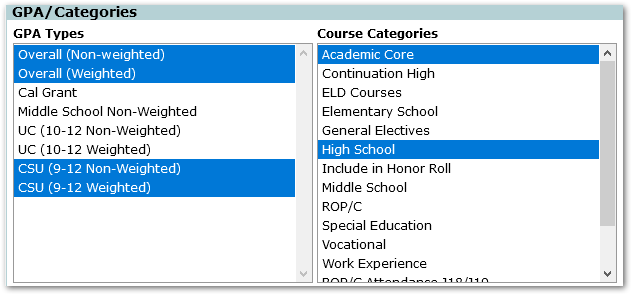
- GPA Types—Select the Types of GPA calculations in which this course will be included. You may select more than one by pressing the CTRL key while clicking the descriptions in the list. This selection does NOT define which Mark Values or GPA Levels are used in calculating GPAs for this course.
- Course Categories—Select the type(s) of school(s) in which this course will be taught. To select or deselect more than one, hold Ctrl key down while clicking in the list. (Also use this field to designate other options such as ‘Include in Honor Roll’, ‘Core’, ‘Required’, etc.).
Languages Section
The Languages section is a place to define and store the Course Description translated into languages other than English. This data will be used in multi-language report cards.
To add a translation record, click on the Add button. In the ‘Languages’ dialog box that appears, select a language from the drop-down list in the first field and enter the Course Description translation in the second field. Click Submit to save the record.

- Repeat this procedure until all required translations are recorded.
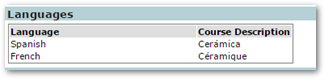
- Translation records can be edited by entering the edited information and submitting or deleted by clicking the X.
Prerequisites Section
Use this section to enter any prerequisite courses associated with this course. This data will be used in the Course Request Validation process that is run from the Student Schedules application and/or the Course Request List report.
The default view shows a summary of all existing prerequisite courses (if any) for the current course. 
Add a prerequisite course:
- In edit mode, click the Add button at the bottom of the Prerequisites. In the entry form that appears, enter the attributes of the prerequisite course.
- Click the Submit button at the top of the screen to save the record. Repeat this process for each prerequisite course.

- Code—Enter course code of the prerequisite course. The Description field will auto fill with the course description.
- Description—Enter the course description. The Code field will auto fill with the course identification code.
- Credits—If applicable, enter the minimum number of credits that need to be awarded (on the transcript) in order for the prerequisite to be met.
- Mark Set—Select a mark set to determine the marks available in the Minimum Mark selection field.
- Minimum Mark—This field is enabled only if there is a selection on the Mark Set field above. If applicable, select the minimum mark the student must earn in the course in order for the prerequisite to be met. The selections will depend on the Mark Set selected in the previous field.
- Match—This option applies to the Minimum Mark selected, if applicable select one from the dropdown list:
- Any – Minimum Mark must be fulfilled in the transcript in any term of the course.
- All – Minimum Mark must be fulfilled in the transcript in all terms of the course.
- Most Recent - Minimum mark must be fulfilled in the transcript in the most recent term of the course.
Additional Information
If your district has configured any fields using the Extension Editor, the information will be entered here. 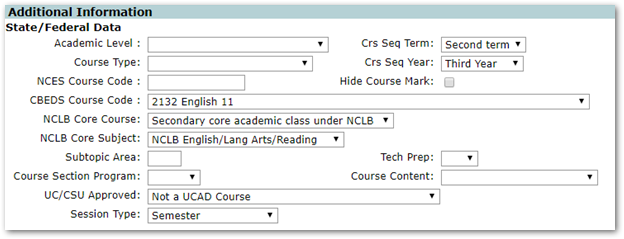
- When you have finished entering course attributes, click on the Submit button to save the record.
It is likely that some new courses being added to the database will have almost identical attributes as existing courses. The Copy function allows the user to save time when creating new courses by copying the attributes of an existing course to a new course record and then saving the new course under a different name.
To use the Copy function:

- Select an existing course to copy.
- Click the Copy button to copy the current course settings into the new course. All the fields of the new course, except the Course Code and Description, will be auto-populated with the attributes of the course being copied.
- Modify attributes of the new course as needed.
- Enter a new, unique Course Code (required) and Description
- Submit.
- Find the course you would like to work with and then click Edit.
Modify Course Attributes
- Scroll to the appropriate section and modify data as needed. Make changes and then click Submit to save changes.
Course History
Some course attributes can be changed without affecting other areas of Q. In this case the Submit command will return the view to the read-only mode. However, when certain attributes of a Course are changed the District Courses program must track the history of those changes.
The fields that are tracked in Course History are as follows:
- General Section:
- Description
- Subject
- Status
- Standards
- Credits/Codes Section
- Grad Credits
- GPA Credits
- Credit Type
- GPA Level
- Mark Set
- Course User Flags 1-4
- Speede Express Code
- Work Level
- CIP Code
- User Code
- GPA/Categories
- GPA Types
If changes are made to any of the fields listed above, a dialog screen will appear after Submit is clicked.
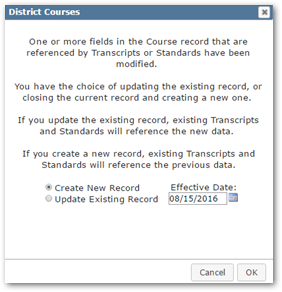
- Choose ‘Create A New Record’ to make changes for a future Transcript record, in which case existing Transcripts and Standards will reference the previous data, and new Transcripts and Standards will reference the new records for this Course. The effective date for creating a new record defaults to today's date but may be changed.
- Choose ‘Update Existing Record’ if errors are being corrected in the existing record, in which case existing Transcripts and Standards will reference the new data.
- Click on the OK to confirm Course History selections (or Cancel to abort).
From the Course detail pane at right, click Show History to view the changes that were just made.


The first History record will show the original attributes when the course was first created. Subsequent records will show modifications made. The effective date range of each history record is shown in the From and To fields. The To field of the latest record will be blank, i.e., there will be no closing date, indicating the changes made in that History record are still in effect. Scroll to the right to see all the fields that are tracked in the grid.
When finished viewing History, click on the X or the Cancel button to return to the General section normal view.
