
Q StudentConnect Manager is used by system administrators to configure Q's StudentConnection application. Page content, user agreement, web links, managing student passwords, and labels are all configured in StudentConnect Manager.
StudentConnect Manager is located under the System menu in Q.
Modules
Administrators configure which modules to be displayed was well as the preferences in StudentConnection from the Modules tab. The following sections are displayed: 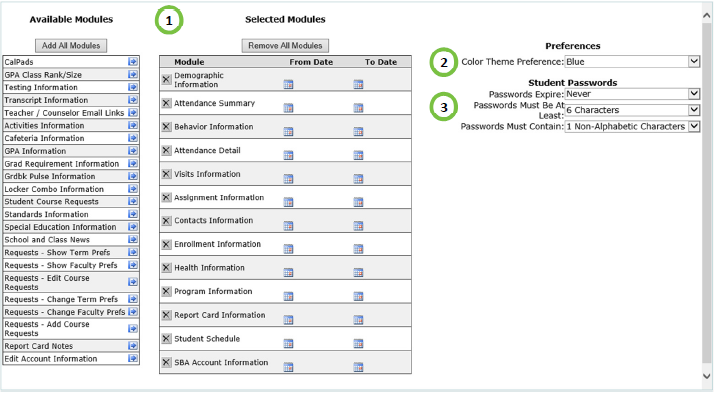
1. Available & Selected Modules: define which modules will be displayed in the StudentConnect webstie and date range when the module will be available.
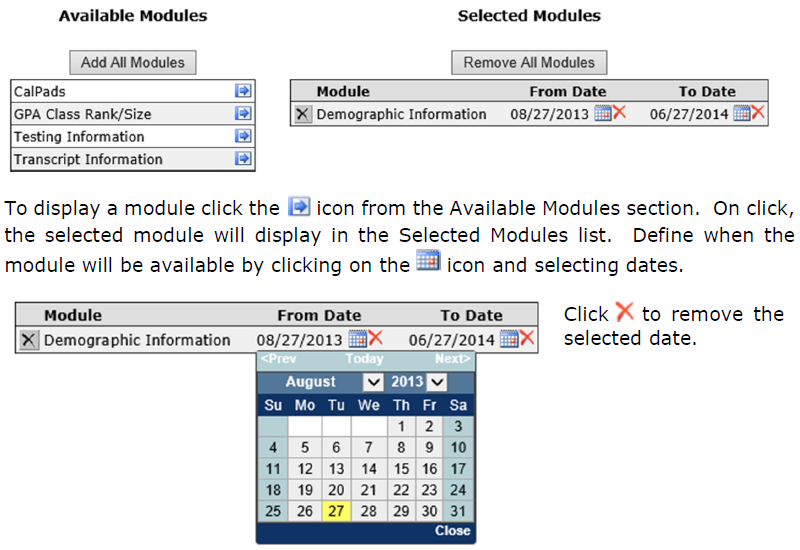
Click Add All Modules to add all available modules or Remove All Modules to remove current modules that have been selected.
2. Preferences
a. Color Theme Preference: designates the default colors to be used for StudentConnection.
3. Student Passwords
a. Password Expires: set, in 5 day increments, when the password will expire.
b. Passwords Must Be At Least: define the minimum length a password can be.
c. Passwords Must Contain: define the number of Non-Alphabetic Characters (1, special characters) that must be
included in password.
Page Content
Information and pictures displayed on the StudentConnection Home Page is entered and managed from the Page Content tab. Custom messages may be added with the desired font styles and layout. Photos may also be uploaded.
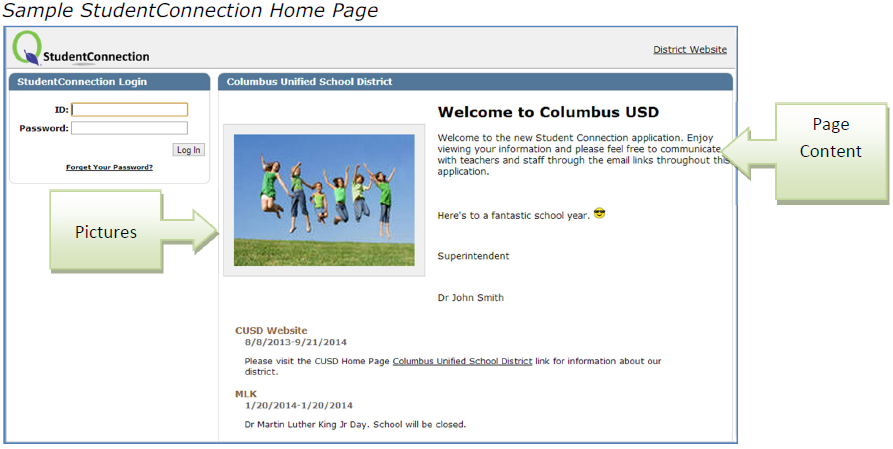
From the Page Content Tab, the following are available:
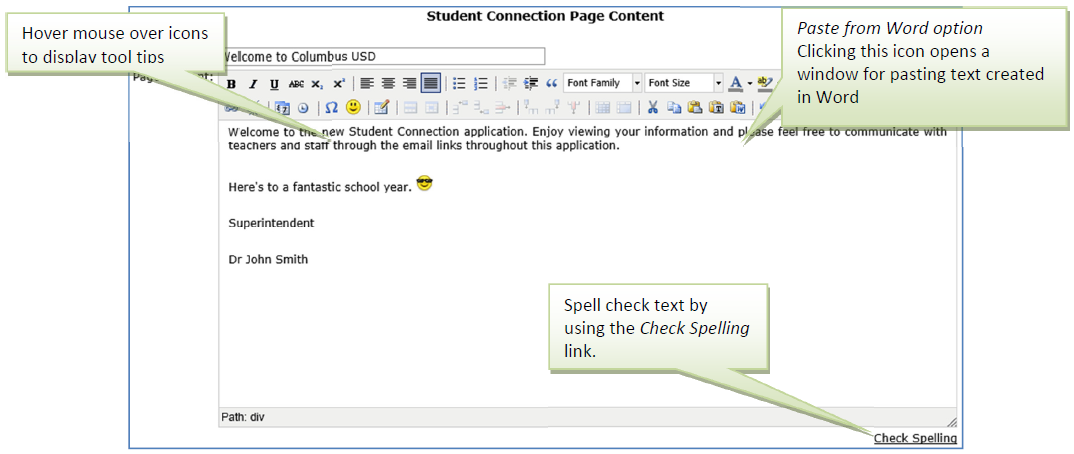
Page photos: upliad photos by browsing or the photo location and uploading.
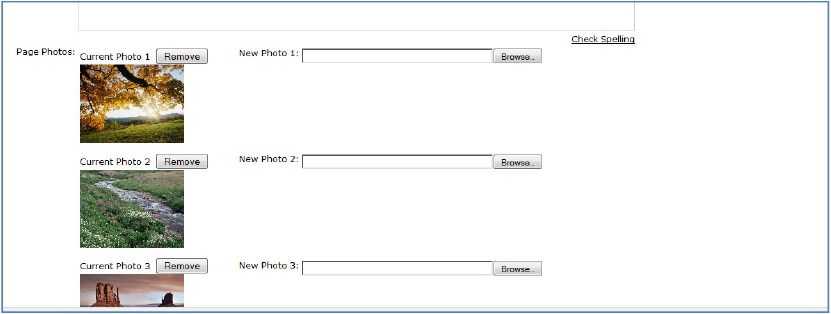
You may upload up to 10 different photos.
User Agreement
In the event a special user agreement (e.g. Terms of Use) must be provided to users of the website, the information can be entered via the User Agreement Tab.
Similar to the Page Content, a text editor is provided for users to enter terms of use.
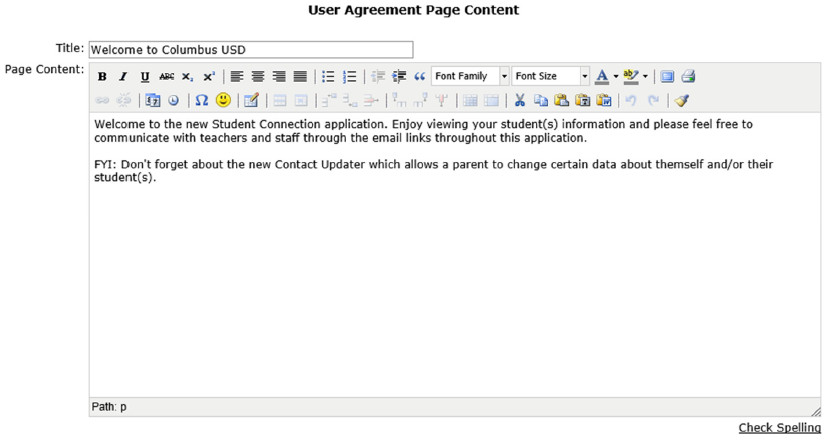
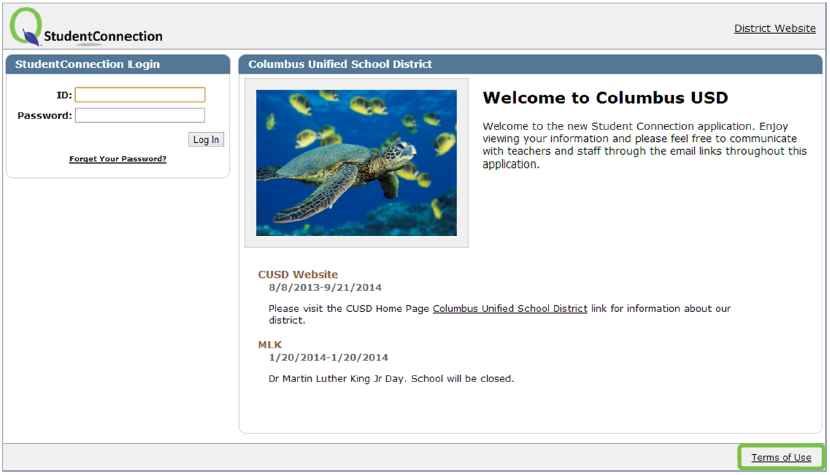
Upon submission, a Terms of Use link will be provided at the bottom of the StudentConnection Page.
Links
Web links may be added to the StudentConnection Home page using the Links tab.

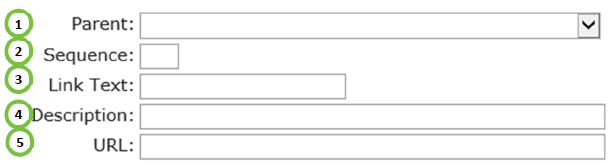
Links may be configured as a header or associated link. To begin, click Add New Link to render the following Link Entry:
Configuring Headers
1. Parent: Leave blank
2. Sequence: Enter 1
3. Link Test: Type desired text for the header
4. Description: Type general description
5. URL: Leave blank
6. Click Submit to save header
Configuring Links
1. Select and highlight the desired header.
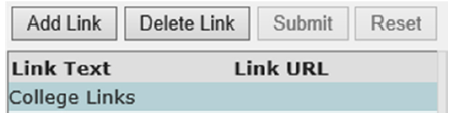
2. Click Add Link.
3. Parent: Select desired header to associate link to

4. Sequence: Enter desired number to determine the ordering of links
5. Link Test: Type desired text for the link
6. Description: Type general description
7. URL: Enter corresponding URL.
8. Click Submit to save link.

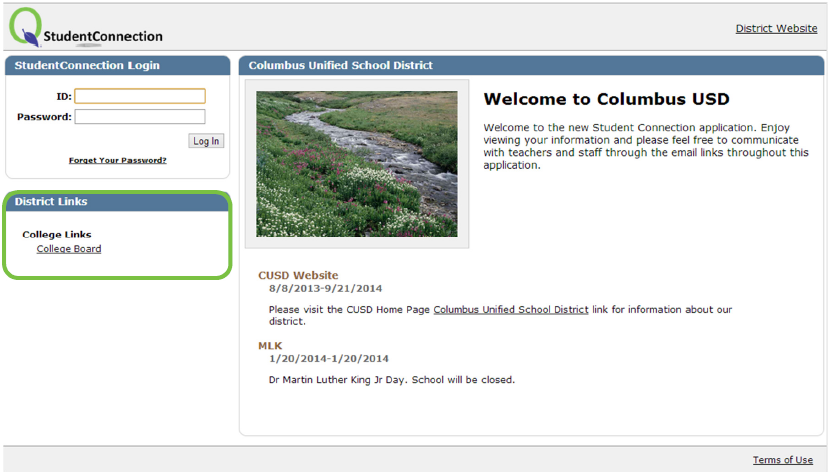
Links will be displayed below the StudentConnection Login section:
Delete Link
To delete an existing link, highlight the link to be deleted and click Delete Link.
Student Passwords
Student passwords can be managed using the Student Passwords tab.
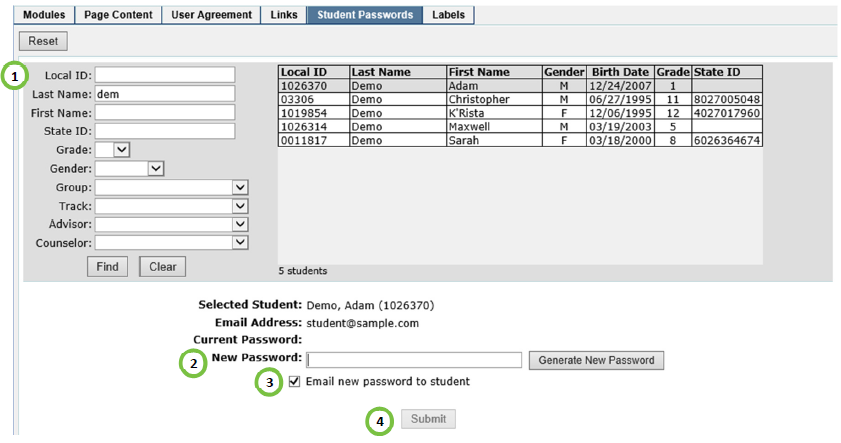
1. Use the Find area to identify the student you would like to change the password for.
2. Enter a New Password or if a stored procedure has been defined to create a temporary password click Generate New
Password.
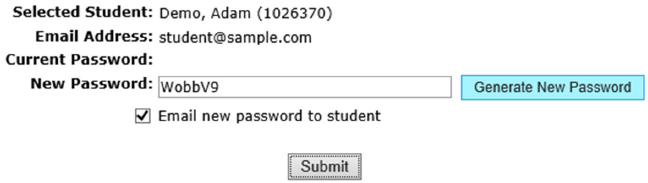
Note: The new password entered must meet the requirements defined in the Modules Tab > Student Password section. If
not, and error message will be displayed above the Find component indicating the password requirements.

3. If a valid email address has been provided check Email new password to student option to send an email with the new
password.
4. Click Submit to save new password.
Labels
Replacing the default labels in the Student Connection site is done via the Labels Tab.
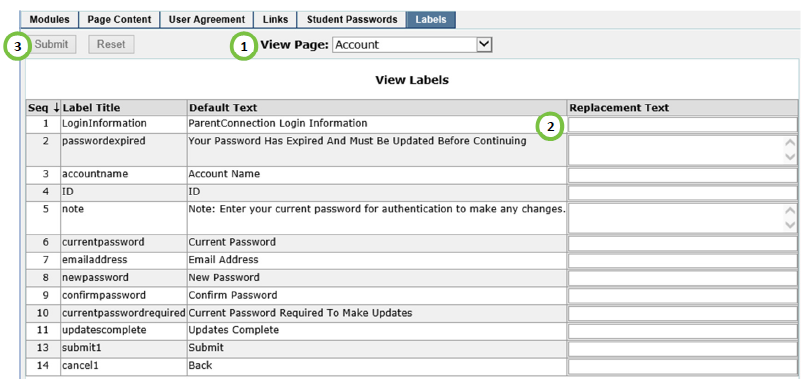
1. View Page: Select the desired page.
2. Replacement Text: Enter the desired text to replace the default label.
3. Click Submit to confirm all labels.
Once you have completely defined Student Connection, there are two available copy options.

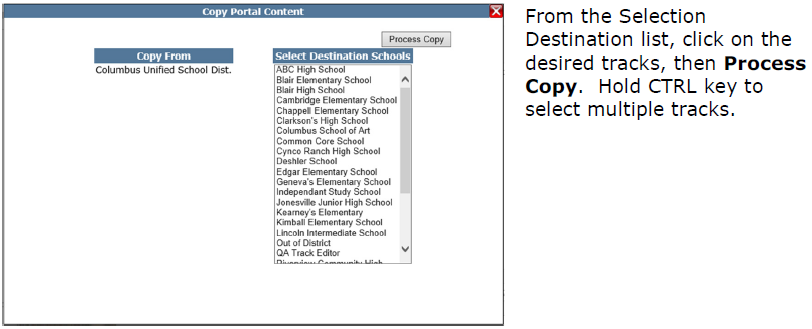
Copy to Other Schools
Once you have completely defined Student Connection you may copy your design to other schools by clicking Copy To Other Schools.
Copy From Parent Portal
If you'd like the same messages and photos used from your ParentConnection, click Copy From Parent Portal.
Note: Some caution should be used as as any messages and photos that have been previously defined in the Student Connection Manager will be over written.
