
In the 4.2 Q release a new Student Dashboard widget area was introduced. This Qtip will cover assigning Widgets to a track and to both Student and Parent Portals.
Dashboard widgets are “Tiles” of information which can be displayed in the “Dashboard” area of Student Profile, Student Connect, and Parent Connect Applications. Dashboard widgets primarily display student-based information, but custom widgets could be configured to return information about, or directed to a contact when logged into Parent Connect.
Choosing Dashboard Widgets
Dashboard Widgets are assigned to Tracks in 3 places.
- Student Profile Manager – Picks Dashboard Widgets that will show to staff in the Student Profile.
- Student Connect Manager – Dashboard Widgets to show to student in Student Connect
- Parent Connect Manager – Dashboard Widgets to show contacts in Parent Connect.
Each manager application includes a Widget Track Assignment tab. For the purpose of this document, we will look at the Student Profile manager.
Student Profile Manager includes 2 tabs related to Dashboard Widgets.
1. Widget Definitions- Configure individual Dashboard Widgets and add new ones.
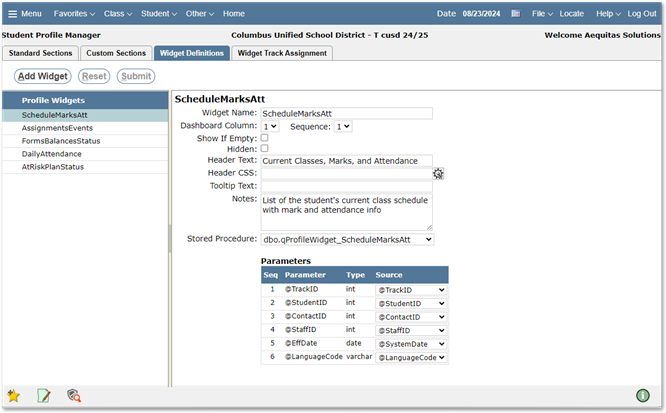
NOTE: See the Q Version 4.2.0 Technical Release Notes for more information and samples for adding new Dashboard Widgets.
2. Widget Track Assignment
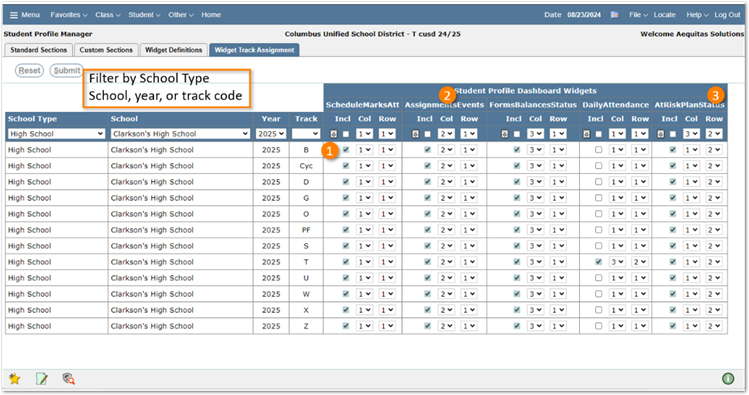
 INCL checkbox - Check this to include this Dashboard widget in chosen track.

Col - Selects the column in this Dashboard widget will show in. The Dashboard Widget is split into 3 columns.

Row - What row is the Dashboard Widget showing in top to bottom The Dashboard Widget is split
Once Dashboard Widgets have been chosen and columns and rows have been set up for the order to display. They can be viewed in the Dashboard section of the Student Profile.
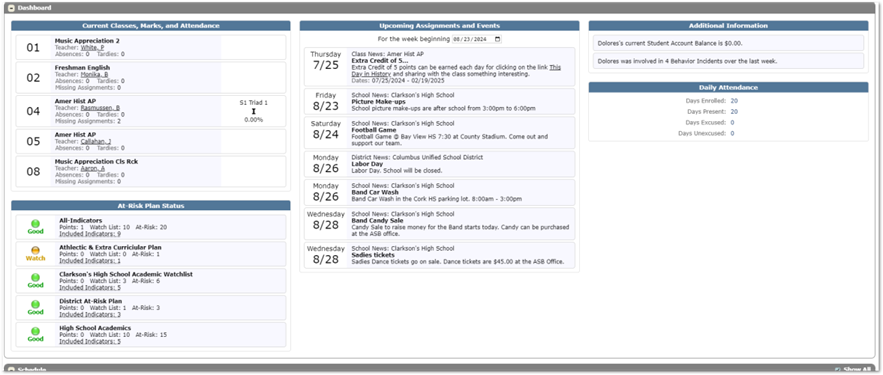
The included Current Classes, Marks, and Attendance Widget includes links to take you to Missing Assignments, and class attendance sections of the Profile, Daily Attendance also has a likr that takes you right to the attendance section of the Profile. While additional Information will take you to Behavior, Student Accounts and Forms (if you student has assigned Q Forms).