The New Year Initialization Process creates the next school year's environment in preparation for the scheduling process and promotion of students from one school year to the next. The process is run as a two-step process.
Step 1 creates new tracks for selected schools for the new year.
- This process will copy Track cycle days, Track periods, and Track terms for the tracks that are copied.
- Track courses, Faculty Status records, Permissions, Master Schedule information, including Section Linking setup, and Student Scheduler Options and Rules may be copied depending on the options selected.
Step 2 creates student status records for next year’s tracks for all currently active students.
- Optionally, part-time status records will also be created, if possible.
- By default, students will be enrolled into the corresponding track for next year unless you have configured the current year’s track to promote to another track.
The New Year process may optionally use Configuration Sets to streamline the process for different scenarios such as different settings for elementary versus secondary schools, etc.
In addition, specific Extension fields may be used to manage such items as:
- Promote students from one track to another within a school,
- Exclude specific tracks from being copied forward to the new year,
- Exclude specific schools from having new status records for next year,
- Exclude Advisor from being copied forward for students,
- Exclude Counselor from being copied forward for students.
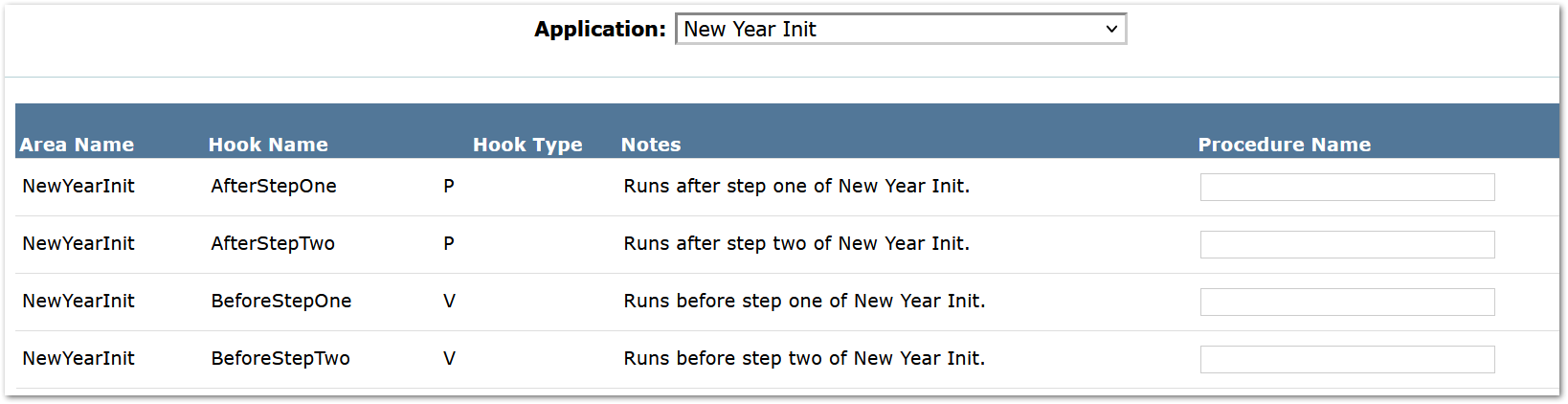
QLIPS are available to enable districts to apply district-specific logic before and/or after Step 1 and/or Step 2.
New Year Init is located under the System menu in Q.
Extension Fields
Specific extension fields in the Track and School Editors are used by the New Year Init process if configured.
If these fields do not appear in the specific applications shown below, they may be added through the Extension Editor. See Technical Configuration - Extension Editor at the end of this article.
Track-Related Fields
The following extension fields are used by the New Year Init process if they are set:
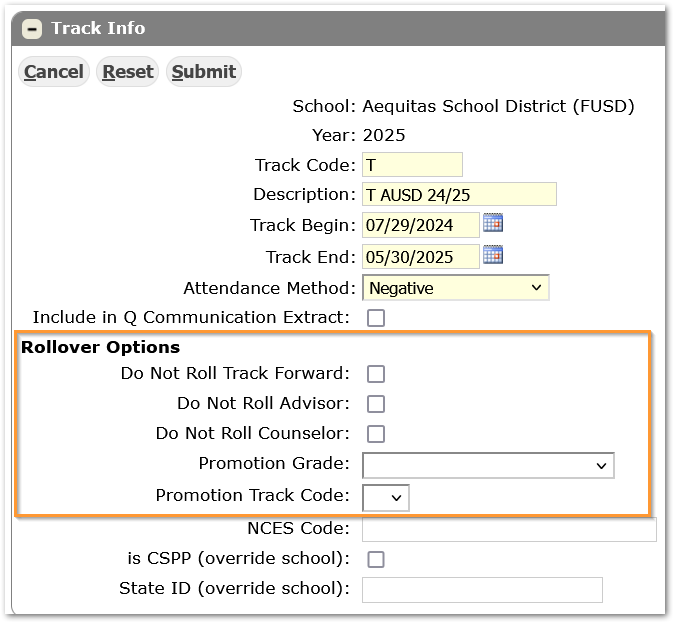
- Do Not Roll Track Forward - excludes a track from being copied to next year's database.
- Do Not Roll Advisor –if checked on, current Advisor will not be copied forward to the next year enrollment record for students in this track.
- Do Not Roll Counselor - if checked on, the current Counselor will not be copied forward to next year’s enrollment record for students in this track.
- Track Promotion within a School- allows students to be promoted to a different track at the same school. This is extremely helpful for schools like K-8 where the school has two The Elementary Track students will be promoted to the Middle School Track within the same school. Specify:
- Promotion Grade
- Promotion Track Code
School-Related Fields
The following extension fields are used by the New Year Init process if they are set:
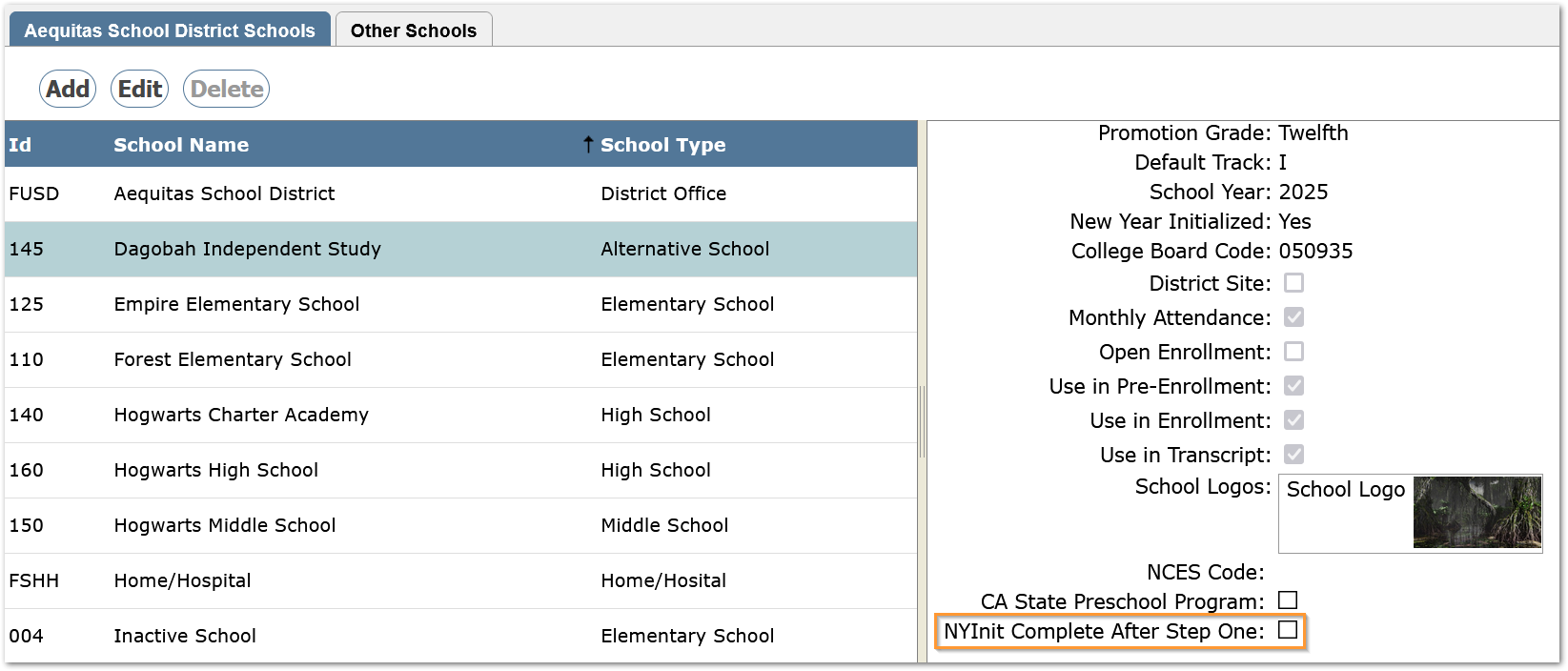
- New Year Init Complete after Step One - excludes a school from Step 2 of the New Year Init
If the field does not appear in the School Editor, it may be added through the Extension Editor.
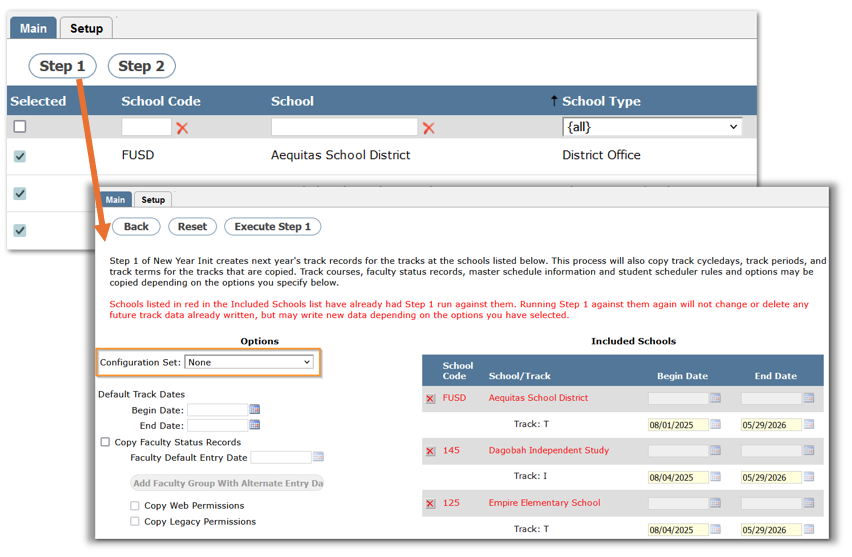
For Step 1 of the New Year Init process, there are a number of settings that need to be selected. To make it easier, reduce repetitive steps, and reduce the chance of configuration errors, we recommend creating a Configuration Set of the desired settings on the Setup tab and then selecting the desired set(s) when running Step 1 from the Main tab.
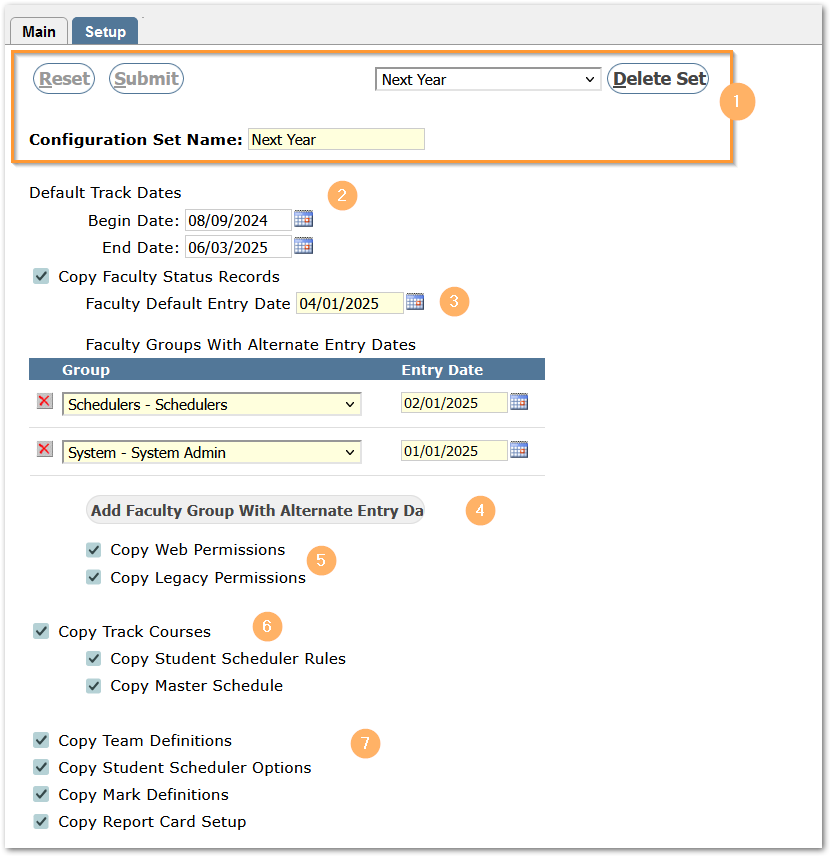
Use this tab to create Configuration Sets for Step 1. This is optional but recommended.
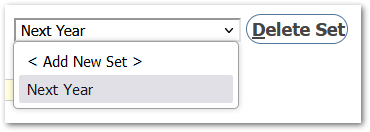
- The dropdown box at the top center of the page defaults to "<Add New Set>". If you have saved sets, use this menu to select one of your sets to edit or delete.
 Configuration Set Name - Give your set a name.
 - Enter the "Begin" and "End" Dates for next year’s tracks.
NOTE: If the Dates for the next school year have not been finalized by the time the New Year process needs to be run, use placeholder dates. The dates may be changed later in the Track Editor – Definitions Tab - Track Info area for the district track. Then copy ‘Year Begin’ and ‘Year End’ items from the District Calendar to the school tracks. If the Begin Year date changes after the New Year Init process is complete, the system will update the student’s entry date to the new Begin Year date.
- Copy Faculty Status records and set the ‘Default Entry Date’ to the latest date staff, such as teachers, will need. If the date is left blank, the entry date for faculty will default to the date when Step 1 of the New Year Init Process is run.
- Use Faculty Groups to set staggered access prior to that date. For example, counselors typically need an early start date to access next year’s tracks for activities like scheduling and enrolling students.
If a faculty member belongs to multiple groups listed in the set, their entry date will be set to the last one in the list. Therefore, it's best to order your groups by the entry date with the earliest entry date at the bottom.
To adjust faculty status entry dates after the process has run, use one of the Process Manager - Q Toolbox, ‘Faculty’ processes: ‘Slide Entry Dates’ or ‘Open Tracks’. - Checking these boxes on will copy the Web Permissions & Front Office Permissions granted to faculty at the time when Step 1 of the New Year Init process is run.
- If the Track Course used for the current year should be copied to next year, check this box.
If the Track Courses box is checked, then the option to copy the Student Schedule Rules (Loader Rules) and Master Schedule are available to be checked as well.
If the option to copy the Master Schedule is selected and any school/track had Section Linking set up, this will be copied as part of the Master Schedule copy process. - Additional items that can be copied from the current year to next year include:
- Team Definitions
- Student Scheduler Options
- Mark Definitions (Track Marks)
- Report Card Setup (Q Report Card).
We recommend copying all aspects of the current track forward, including the master schedule. Once copied, the information can be removed for selective schools if needed. [For assistance with this, please contact Support.]
Submit to save the Set. If additional sets are needed, use the drop-down menu to select ‘’ and repeat the steps above.
On this tab, select the schools to run through the two steps of the New Year Init process as well as when to run those steps. The icons in the last two columns indicate your progress. A green circle indicates a school is ready for that step of the process. The red circle indicates the process cannot yet be run. The circles are replaced by a check mark as each step is complete. The filters at the top of the columns allows you to easily process schools in batches. For example, set the School Type filter to "High Schools", then use the check box in the header row to quickly select all high schools for the next step in the process.
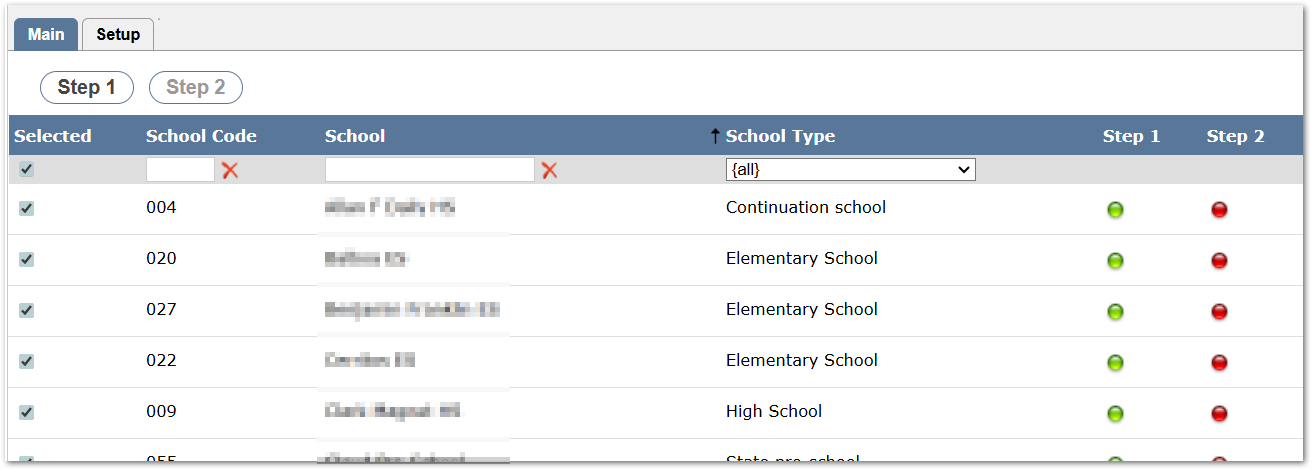
Step 1
Step 1 of New Year Init creates next year's track records for the tracks at the selected schools in your list. This process will also copy track cycle days, track periods, and track terms. Track courses, faculty status records, master schedule information, and student scheduler rules and options may also be copied depending on the options you specify below. Once the checkbox for one or more schools is checked, the Step 1 button will be enabled.
Clicking the Step 1 button will bring up a window of options. If you had previously created any sets using the Setup tab (instructions above), you may now select one of those sets using the "Configuration Set" dropdown menu. All the settings from your selected configuration set are now applied, however, you may override settings as needed. Additionally, on the right side of the screen, you may also edit the "Begin" and/or "End" dates for any individual school and track.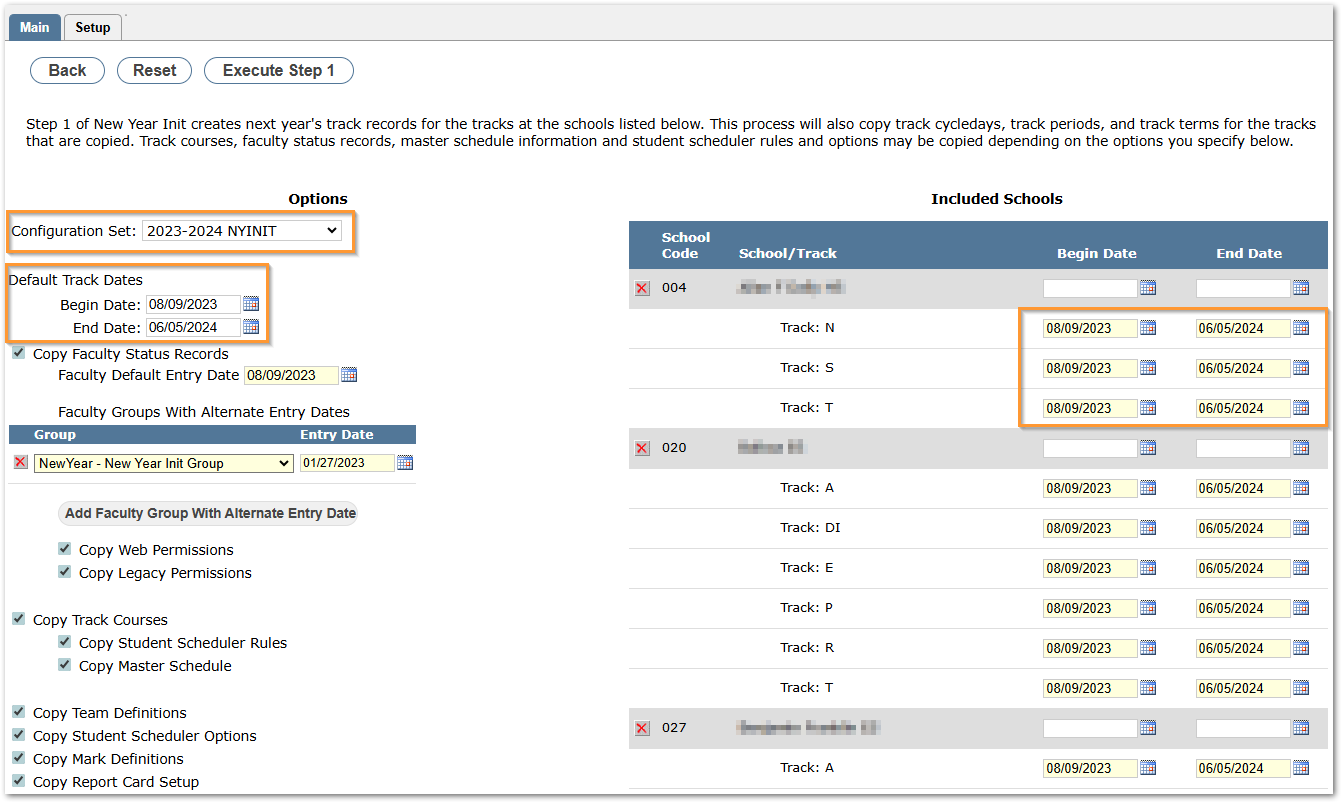
NOTE: If the Master Schedule was not copied during the initial process of Step 1, you may go back and turn this option on as long as no entry of Master Schedule data has begun.
Step 2
Step 2 of New Year Init creates student status records in next year's tracks for all currently active students. Optionally, part-time status records will also be created (if possible). By default, students will be enrolled into the corresponding track for next year unless you have configured the current year's track to promote students to another track. Please verify that geocode mappings are accurate for students being promoted.
To run schools through Step 2, return to the Main Tab of the New Year Init application. As with Step 1, you may use the header filters to quickly narrow the list of schools before checking the boxes in the left column.
When you click the Step 2 button, the option to create future part-time student status records that correspond to current open part-time status records will appear.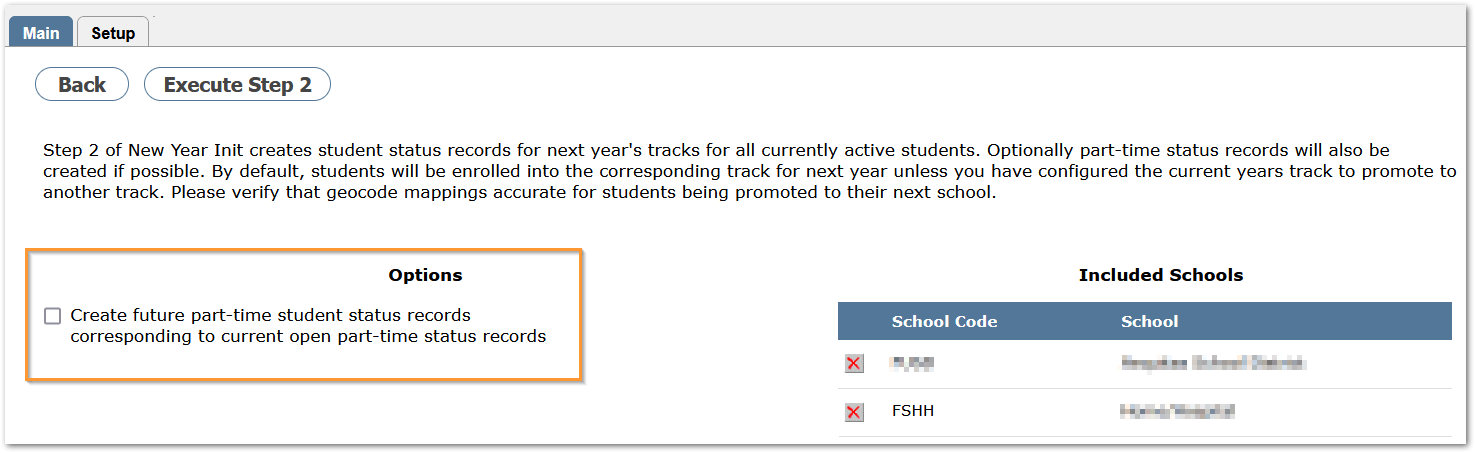
If a school is selected to run Step 2, but already has future status records associated, you receive a warning. Despite the warning, running step 2 for those schools will not affect those records.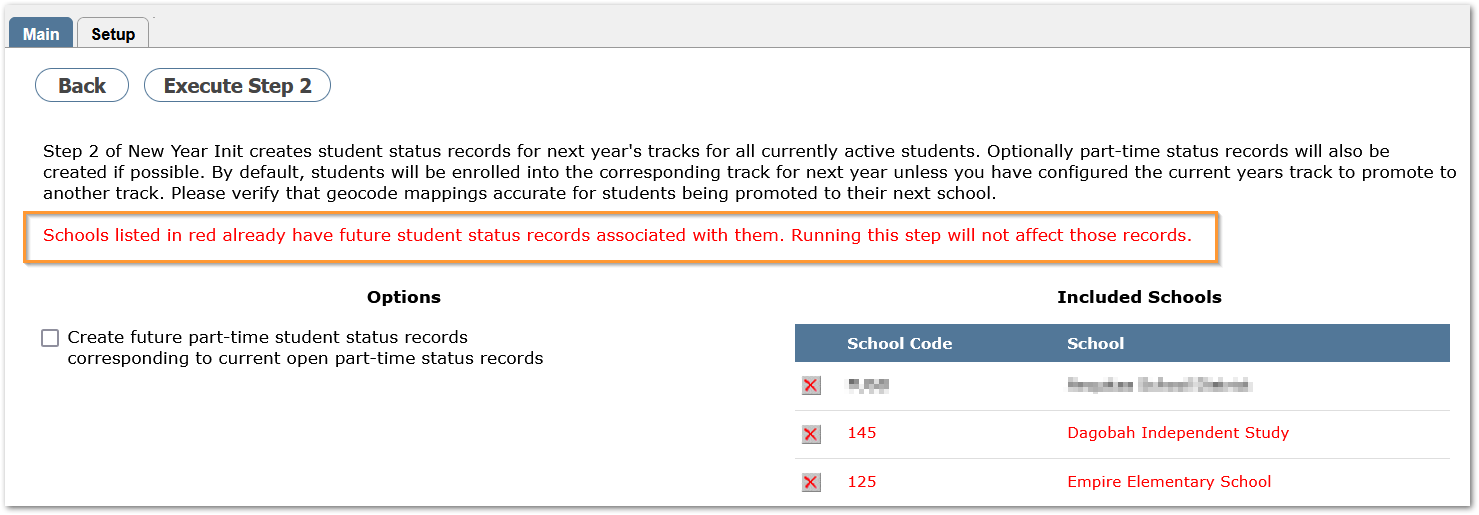
The Promotions Exceptions tab will appear after all schools have completed both Steps 1 and 2 of the New Year process.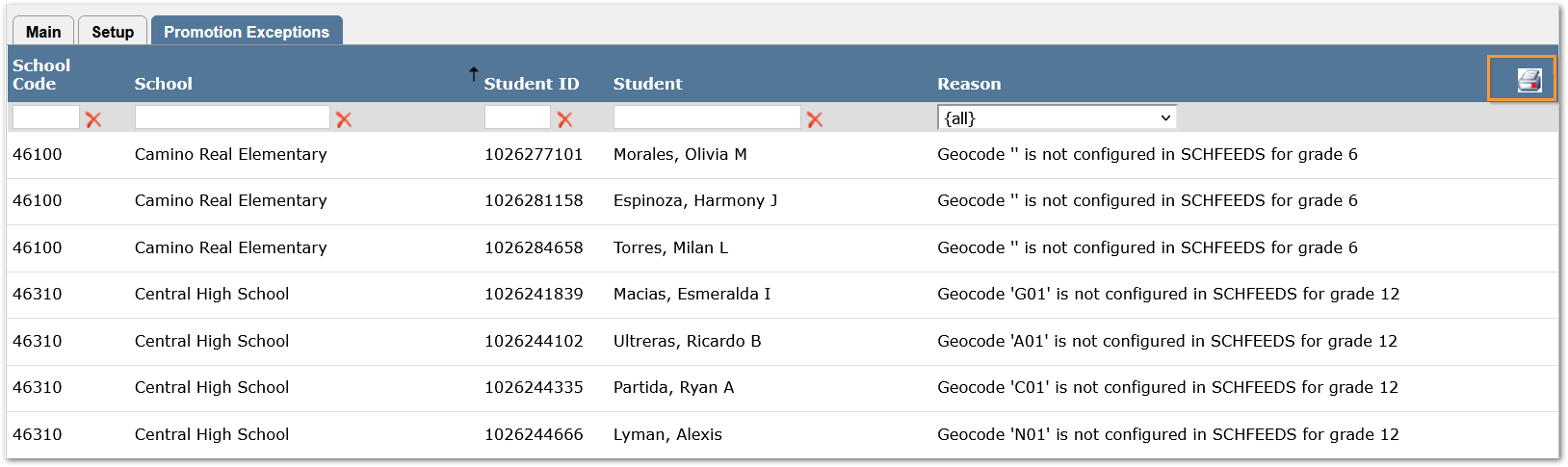
This tab displays a list of students that were not promoted into a future track. These students will include:
- 12th graders who are not retained will always appear in this list of unprocessed students because there should be no future track available for them in the district.
- Students that have blank or invalid geocode,
- Students who come from another district with a geocode that does not apply to the new district, etc.
These exceptions will be cleaned up when the Year End process is run.
A filter header allows the user to type in a School Code or a portion of a School Code, School name or portion of name, or School Type in order to narrow the list, which is quite useful when reviewing a long list of students. If desired, the list may be printed using the printer icon at the top right of the page
If you find students who should have been promoted to a future track, those students must be manually enrolled into the correct track. In these cases, we recommend that you inspect the reason listed for the promotion exception and correct the bad or missing data that caused the problem (e.g. an invalid geocode).
Extension Editor
Track-Related Views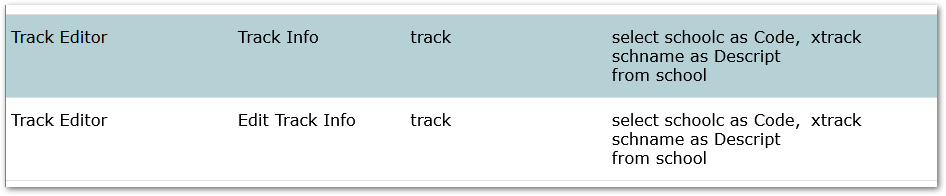
For both Track Info and Edit Track Info views in Extension Editor, the Table will be xtrack and the columns need to be defined as shown below. Row and Column numbers may be set as needed for the district configuration, but the Field Name, Label Text, Control Type and Value Source should match the screen below. These are likely already configured in district databases, and this is provided for reference in the event the fields are not present. Contact Support for assistance, if needed.
Xtrack Columns:
| Column Name | Data Type |
| DoNotRollForward | Bit |
| PromotionTrackCode | Varchar (length = 3) |
| PromotionGrade | Integer |
| DoNotRollAdvisor | Bit |
| DoNotRollCounselor | Bit |
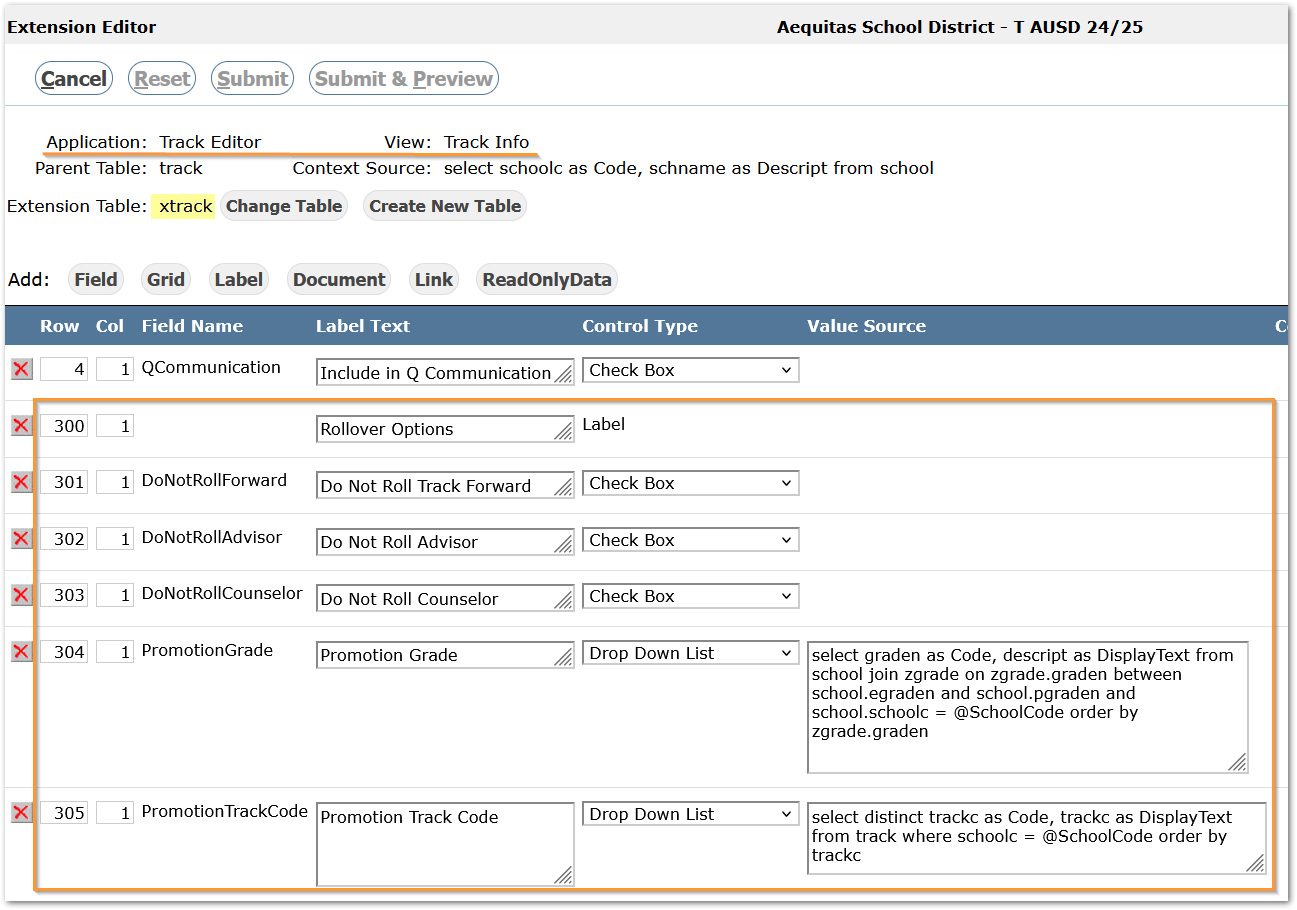
If any of these columns should ONLY apply to specific schools, a Context Filter at the far right of the row (not shown) may be added by clicking the Add button. Select multiple schools by holding down the Control key and highlighting all the schools to include. Be sure to click Save when done. By default, all schools will display the new column options, so the filter is really a way to exclude schools that do not use any of the new extension fields.
Once one view has been defined, i.e. ‘Track Info’, it may easily be copied to the other view. For information on using the Extension Editor, please see the documentation.
School-Related Views
For both SchoolEdit and My Schools Detail views in Extension Editor, the Table will be xschool.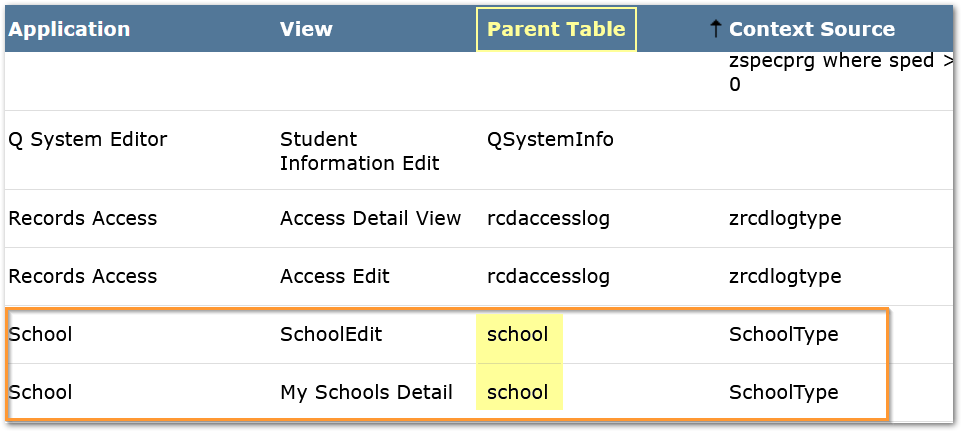
The columns need to be defined as shown below. Row and Column numbers may be set as needed for the district configuration, but the Field Name, Label Text, Control Type and Value Source should match the screen below. These are likely already configured in district databases, and this is provided for reference in the event the fields are not present. Contact Support for assistance, if needed.
XSchool Columns:
| Column Name | Data Type |
| NYInitCompleteAfterStepOne | Bit |
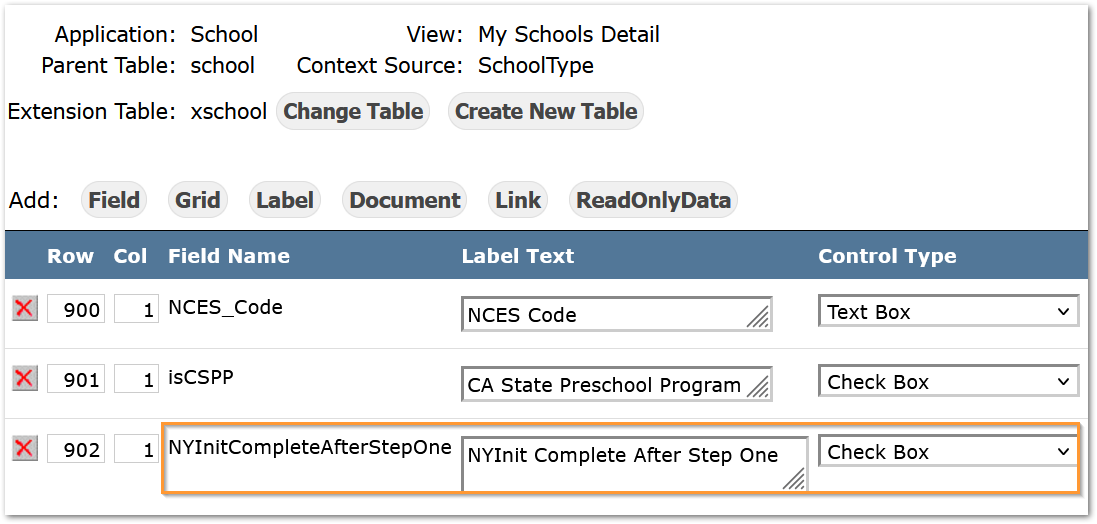
Once one view has been defined, i.e. ‘SchoolEdit’, it may easily be copied to the other view. For information on using the Extension Editor, please see the documentation.
QLIPs
Additionally, QLIPS options are available and may be configured to run before and/or after each of Step 1 and Step 2 of the process.