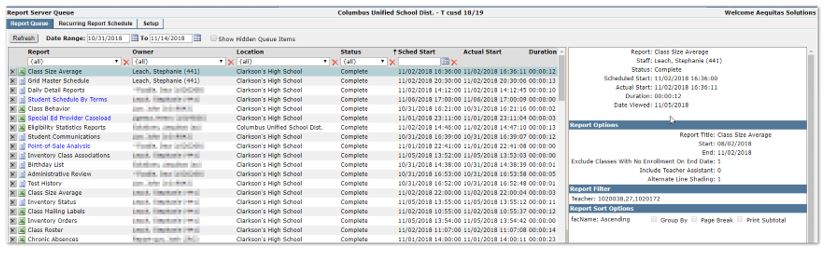
The Report Server Queue application is used to setup the Q Report Server and provide the ability to track all scheduled reports and create recurring schedules for reports.
The Report Server Queue application has three tabs: Report Queue, Recurring Report Schedule, and Setup. The tabs themselves are permission-driven. The Report Server Queue Setup tab needs to be configured, including indicating the reports that will use the Q Report Server.
Please see Q 3.6.1 Technical Release Notes for technical information about implementing the Q Report Server.
Report Server Queue is located under the System menu in Q.
The purpose of providing the option for users to schedule reports, or creating recurring schedules for them, is to enable users to function in Q without having to wait for reports to complete. Q canned reports may be run using the Report Server, but it does not currently support running Mail merge reports, Report Writer reports, or Decision Support Tool reports. It is intended to be used for scheduling long-running reports like Transcripts, etc.
When reports are configured to use the Report Server, a Schedule button will appear for the user to select options when running the report.

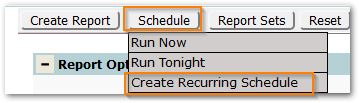
When Schedule is clicked users will see options Run Now or Run Tonight to produce a PDF version of the report. If the report has an Export option, then Export Now and Export Tonight options will also be available. If the user has permission to the Report Server Queue [Recurring Schedules] permission item, they will have an additional option to Create Recurring Schedule under the Schedule button as well as permission to the Recurring Report Schedule tab within the Report Server Queue application. Individuals responsible for creating recurring schedules need to be aware of and be able to manage all recurring report schedules for users.
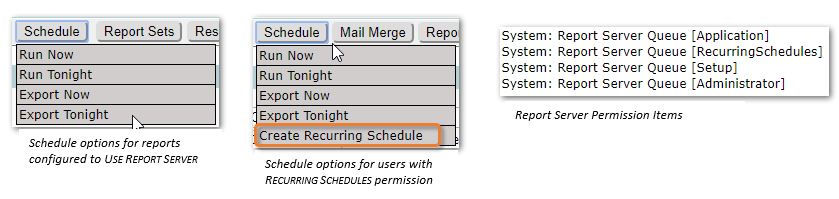
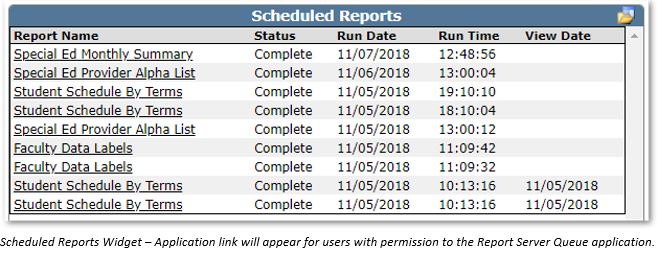
When one of the Schedule options is selected, a message will appear indicating the report has been scheduled and letting the user know that when it is complete, it may be found on their Scheduled Reports Widget on the Home page. The user is then free to move on to other applications within Q without waiting for the report to complete.

A sample of the Scheduled Reports Widget is shown with links to the report, which when clicked cause the report to download. Information is displayed about the report including when it was viewed.
The Report Server Queue will open to the Report Queue tab by default. To configure the Report Server Queue, click the Setup Tab.
District Report Server Settings
District Report Server Settings may be viewed or configured on the right-hand side of the screen.
- Report Server URL - The URL of the Report Server needs to be configured when the Report Server is implemented with its full path including the Server name. The example shown is for reference. Each district will configure their own Report Server URL reflecting their own server name, domain, and http or https.
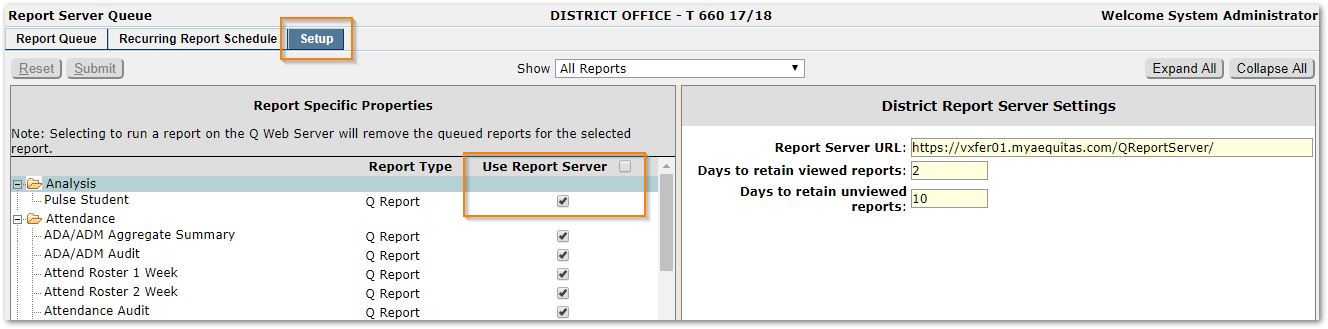
- Days to retain viewed reports – Set the number of days you wish reports that users have viewed to remain accessible and available for users through their widget.
- Days to retain unviewed reports – Set the number of days you wish reports that users have not yet viewed to remain accessible and available for users through their widget.
Report Specific Settings
Select Reports to Use the Report Server:
- Check the ‘Use Report Server’ setting for any report you wish to be able to schedule.
You may either set individual selected reports, such as Academic Transcript, Calculate Attendance, etc. Or, you may set the checkbox at the top of the column to select all reports, and then deselect any individual reports you wish.
Note: If reports use the Q Report Server and are later de-selected and return to using the Q Web Server, any queued reports will be removed.
Users with permission to schedule recurring reports may do so either from within the Report itself, or in the Report Server Queue – Recurring Report Schedule Tab.
To Schedule a Recurring Report from within the Report Server Application
From the Recurring Report Schedule tab:
- Click Add and select from the available drop-downs:
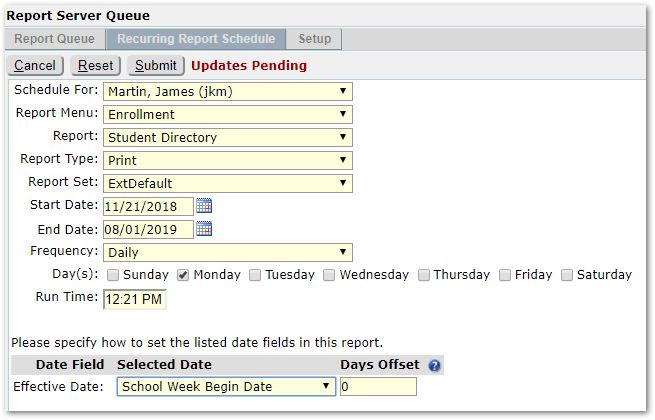
- Schedule For – This will default to the logged in user. If scheduling a report for another, select the user from the list of available Faculty. Note: When a report is scheduled for another user, the report will appear in that user’s Scheduled Reports
- Report Menu – The Report Menus listed will be those the selected user in ‘Schedule For’ has permission to access. Select the desired Report Menu from the list.
- Report – The reports in the drop list will be those the selected user as permission to access. Select the desired report to run.
- Report Type – The report types available will be those available to the report. Select from ‘Print’ or ‘Export’ as applicable.
- Report Set – A report set will need to be defined to pre-set the desired report options. Select the report set you wish the report to run.
- Start Date – Set the first date you wish the report to be run.
- End Date – Set the last date you wish the report to be run.
- Frequency– Set the frequency you want the report to be run: ‘Daily’ or ‘Monthly’.
- Note: To run a report Weekly, select ‘Daily’ and then select only one day under the ‘Days’ area.
- Day(s) – Select the days on which you want the report run.
- Run Time – Set the run time for the report.
Some reports may require additional date fields to be set, such as the ‘Effective Date’. When additional date fields appear, select the desired option from the drop-list.
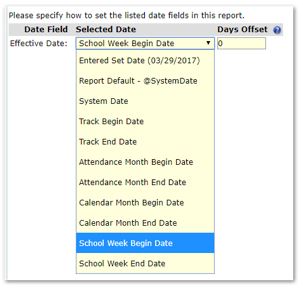
Set the corresponding ‘Days Offset’ as well. This allows you to specify the number of days from the selected date either later (a positive number) or earlier (a negative number). As example, if you want to schedule an attendance-related report to run from beginning of the track through the day prior to the report being run, you could set the days offset values as shown below:
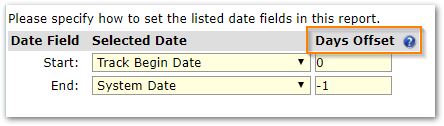
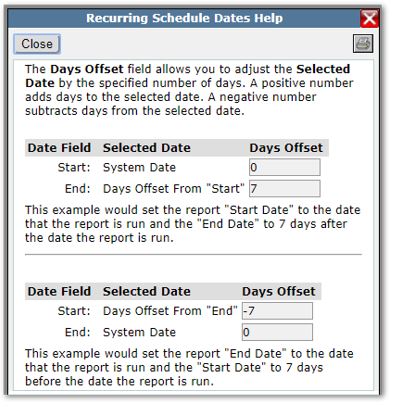
To see additional help for Days Offset, click the small blue help symbol and the following information will appear:
- Click Submit to schedule the report when complete.
To Schedule a Recurring Report from within a Report
When scheduling a recurring report from within the report itself:
- Set all report options as desired for running the report.
- Click the Schedule button.
- Select ‘Create Recurring Schedule.’
- Complete setting the options as described in the section above for scheduling in the Report Server Application.
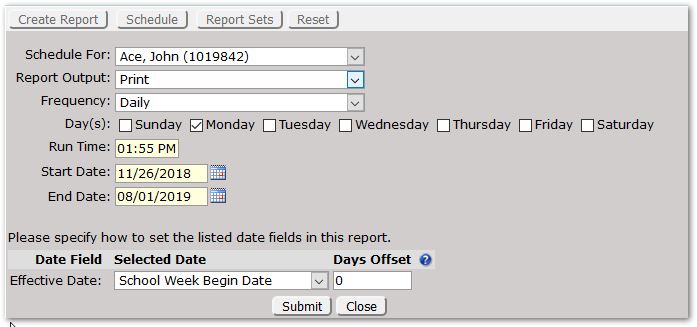
- Click Submit to schedule.
From the Report Queue Tab, the set of queued reports is displayed with information about their status including:
- Report name where blue font indicates the report has not yet been viewed
- Owner or the individual for whom the report was run or scheduled
- Location
- Status (Pending, Complete, Failed)
- Scheduled Start
- Actual Start
- Duration
Further details are shown in the right pane for the selected report.
The list of reports may be sorted and filtered using the standard column header mechanism.
Reports deleted with the X at left, will be hidden. To include them in the list, click ‘Show Hidden Queue Items.’
Remember, reports will be retained based on the settings in the Setup Tab.