Q Report Card Setup allows users to define several different versions of the Standards Based Report Card. After the report card definitions have been set up, they may be copied to additional tracks.
Some enhanced functionality of the Report Card Setup includes a Landscape Orientation option, 1-3 Column Layouts with the ability to add up to 16 columns with term details, and the option to print GPA (summary and detail).
Report Card Setup is located under the Marks menu in Q.
When the Report Card Setup application opens select the Definition Setup tab. 
Each Report Card Definition needs to be named before parameters can be set.
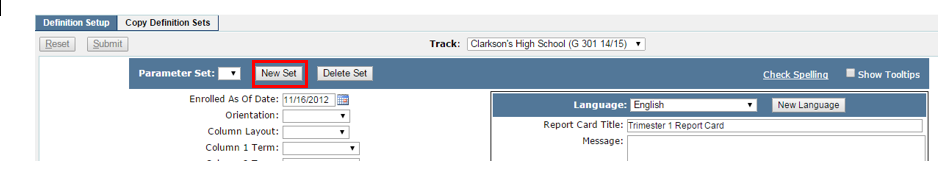
- Click the New Set button.
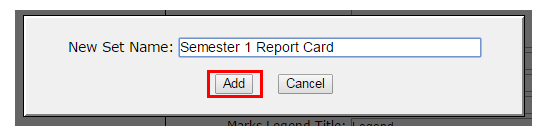
- Type a name for the report card, and click Add.
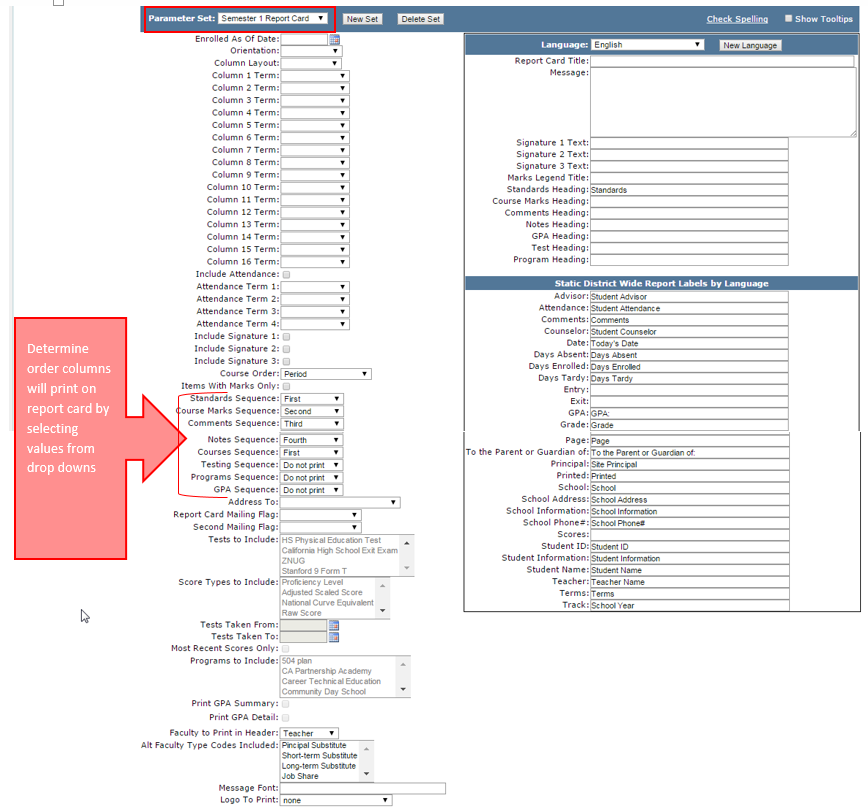
- The Report Card Name now appears in the Parameter Set drop down list
- All subsequent Report Card Names will appear in the list allowing the user the ability to define several different report cards
Choosing Parameter Settings
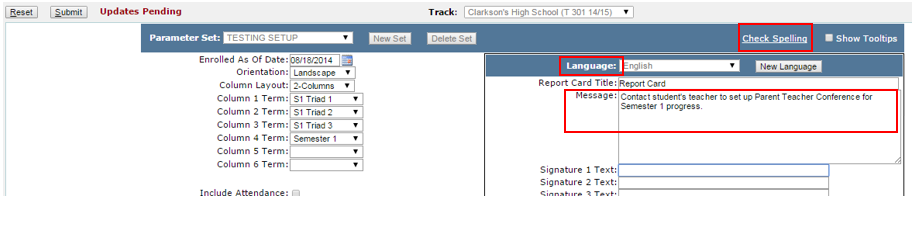
After the definition has been added the report card is ready to be configured. Select the desired Parameter Set from the drop down list and continue with choices for the report card.
- Enrolled As Of Date: The Enrolled As Of Date will determine which students will have a report card produced for them. If the student has marks for courses and was enrolled as of the date entered, a report card will be printed. If the student has marks for courses, but was not enrolled as of the date entered, a report card will not be produced for that student. For example, if a term were to begin on June 1st and a student had to be enrolled in this course for 12 days in order to receive a mark, the Enrolled As Of Date should be set to June 13th or later. If the student has marks, but was not enrolled on or before the Enrolled As Of Date, a report card will not be produced for that student.
- Orientation: Users can select to have report cards printed either in Portrait or Landscape Layout.
- Column Layout: If Portrait is selected, users can select to print 1 or 2 columns. If Landscape is selected, users can select to print 1, 2, or 3 columns.
- Term Columns: Up to 16 different terms may be printed on a report card, depending on selected orientation and column layout.
For Landscape:
- 1 column will allow users to print up to 16 term columns
- 2 columns will allow users to print up to 6 term columns
- 3 columns will allow users to print up to 4 term columns
For Portrait:
- 1 column will allow users to print up to 12 term columns
- 2 columns will allow users to print up to 4 term columns
The term definitions that are able to be selected are those defined as terms in the school’s master schedule.
- Include Signature: Up to 3 different signatures may be printed on the report card. Place a check mark in the box to include a signature.
- Course Order: Users can select order for courses to print on report card: display courses by course code, course description, period, or teacher name.
- Sequence: Select the column order the following items should appear on the report card. A Do Not Print option is also available.
- Standards sequence
- Course Marks Sequence
- Comments Sequence
- Notes Sequence
- Courses Sequence
- Testing Sequence
- Programs Sequence
- GPA Sequence
- Address to: Make a selection from the drop down box.
- Report Card Mailing Flag: Select from list if you want an additional report card printed.
- Second Mailing Flag: Select any additional report card mailings.
- Tests to be included: Select any tests from the drop down list you want printed on report card.
- Score Types to be included: Select score type to be printed.
- Tests Taken From: Enter the beginning date for tests that you would like included on the report card.
- Tests Taken To: Enter the last day for tests that you would like to be included on the report card.
- Most Recent Scores Only: check on if only most recent test scores are wanted to print
- Programs to Include: Select programs to be printed on report card.
- Print GPA Summary: Check on if user would like to include GPA Summary (eligibility rules).
- Print GPA Detail: Check on if user would like to include GPA Term and Type on report card.
- Faculty to print in header: Select Faculty type to print: Teacher, Counselor, or Advisor.
- Alt Faculty type codes included: If Alt faculty will be printed on report card, make selection of alt faculty type from drop down list. The primary teacher’s name will be listed first followed by the alt faculty names.
- Message font: Enter font information, i.e. font-family: Times New Roman; font-size: 16pt
- Logo filepath: Enter DOS path to logo: i.e. D:\logo.jpg or C:\folder\folder2\mylogo.jpg
Fill in all additional information as required by parameter settings.
Report Card Messages
To add a message that prints on all report cards:
- Type Message in Message text box
- Messages may also be created in additional languages by clicking the New Language button and selecting the language
- Click Check Spelling to engage the spell check feature
Deleting Report Card Definitions
To delete a report Card Definition:

- Select definition from Parameter Set drop down list
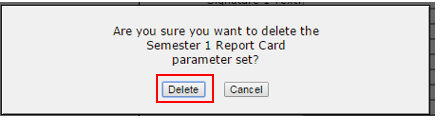
- Click Delete Set
- Click Delete on message
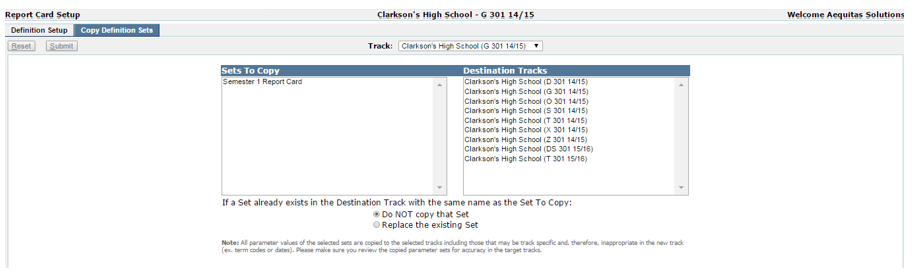
Once report Cards have been defined they may be copied to additional tracks. If you are logged in from the District you will be able to copy a report card definition to any track in the district.
When logged in to a school track you can copy the Report Card Definition to Additional tracks and years defined for that particular school
- Select Set to Copy
- Select Destination Track
- Select: Do NOT copy that Set if you don’t want to override an existing set
- Select Replace the Existing Set to replace an existing set with the same name
Note:
All parameter values of the selected sets are copied to the selected tracks including those that may be track specific and, therefore, inappropriate in the new track (ex. term codes or dates). Please make sure you review the copied parameter sets for accuracy in the target tracks.