The Marks Processing Application calculates Attendance, Grade Point Average (GPA), Rank, Eligibility/Honor Roll, and can recalculate credits for classes. After the steps in this process are completed, Academic History can be used to view posted Marks, calculate students' Grade Point Averages, and print transcripts in preparation for Report Cards. Q Marks Processing can be run for multiple Terms and Tracks.
Marks Processing is located under the Marks menu in Q.
Different browsers may open the Marks Processing window differently exposing different amounts of the screen upon loading. To see all the features and selections, the user may have to use the built-in browser tool to change the way the window is divided.
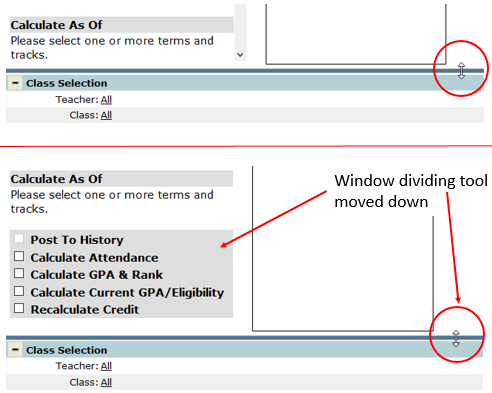
Check that the following items have been completed before running Marks Processing:
- Marks Setup is complete
- All Teachers have posted marks from their Gradebooks
- Run reports such as Class Marks Listing to insure that Marks have been completely and correctly posted, ready for processing
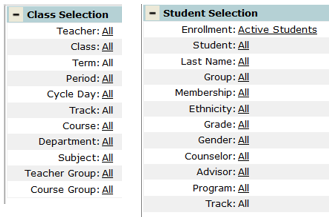
Marks Processing can be run using either Class or Student Selection Filters.
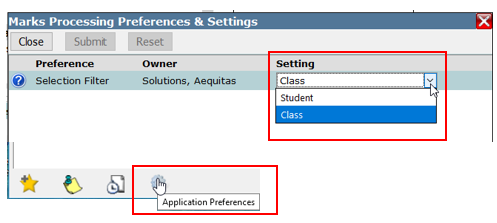
Click on the Application Preferences “gear” at the bottom of the page to bring up the selection window. Most often the Class setting is used. This is a User Preference so users who would normally run Marks Processing for just an individual student would set it to Student and it would be in effect only for that user.
Note
It is important to make this choice first because if it is changed after setting up Terms and Tracks, the screen will be refreshed and all settings will be reset.
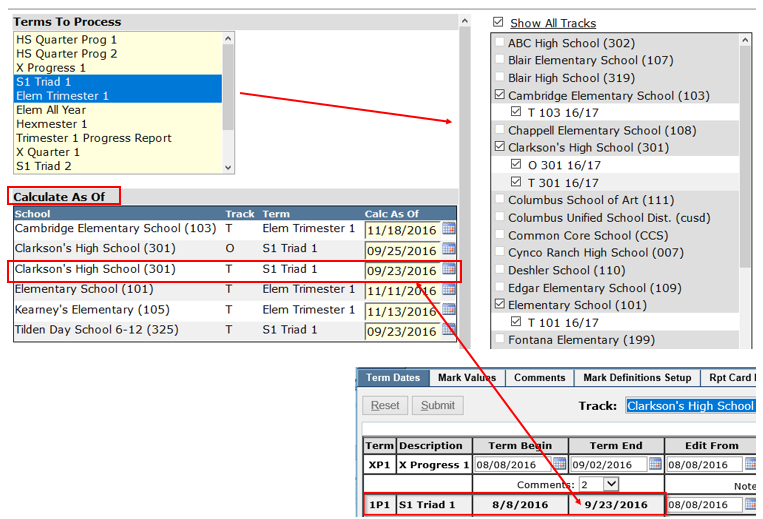
Which terms show in the Terms to Process window is determined by the Track Term Dates in Marks Setup. When a term is clicked, the track(s) that have that term setup will show on the right.
Note:
If you do not see the desired track to process, this most likely means the term end date is after the current system date. If you change your system date to be on/after the term end date, that term will appear to be processed.
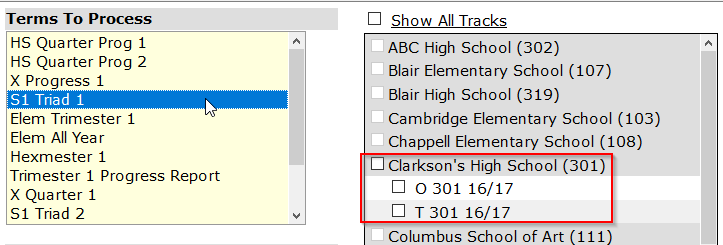
Multiple terms can be selected by using the SHIFT or CTRL keys, revealing multiple schools and tracks.
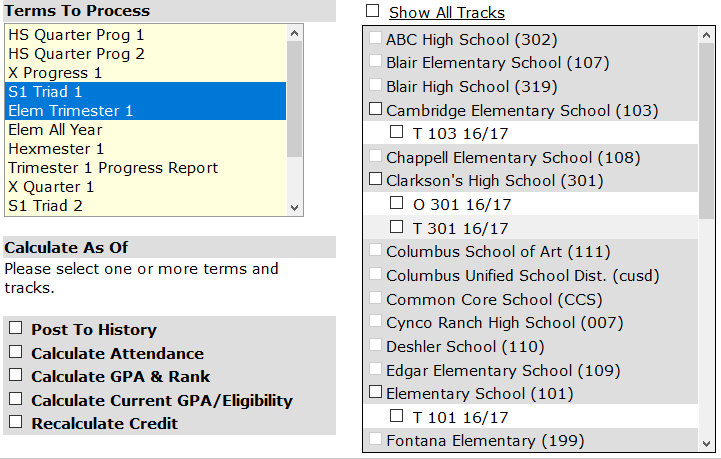
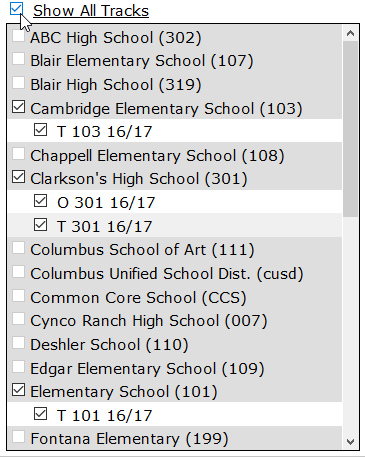
The Checkbox next to Show All Tracks allows the user to select all the tracks that match the Terms to Process.
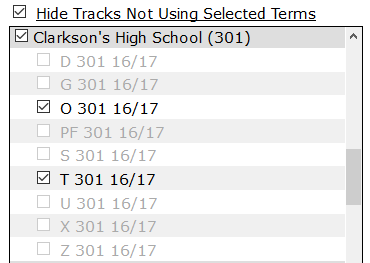
When the Show All Tracks link is clicked all tracks for the schools are shown whether they have Terms to Process or not and the link changes to Hide Tracks Not Using Selected Terms.
Note:
If a track does not become active to select once a term has been selected, this is most likely due to the fact that there are no marks to be processed for that track for the selected term.
As tracks are selected the Calculate As Of region automatically populates the settings from the Marks | Term Dates Setup. These dates can be changed as needed.
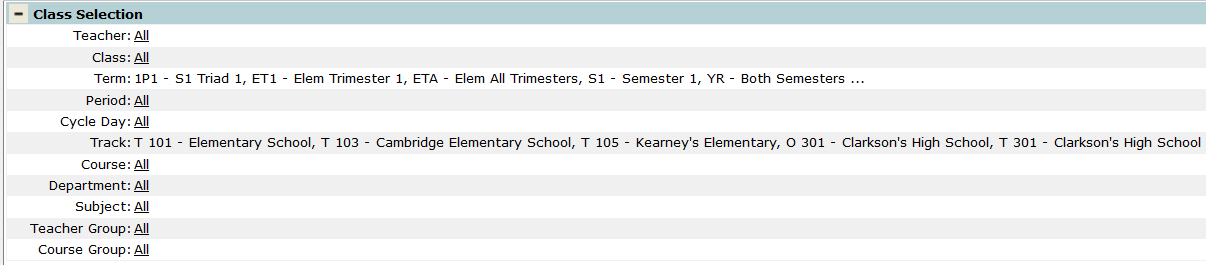
As the choices are being made, the Class or Student Selection fills with the filter criteria.
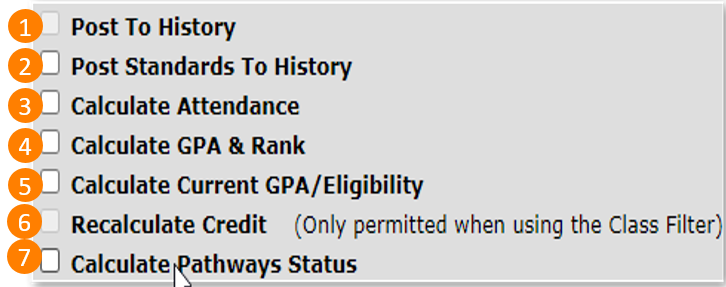
1.Post to History
Post to History should be checked if the marks received in the selected section should be included in the process that posts marks to students’ transcript records. Courses without this checked on will be excluded when the Post to History process is run.
2. Post Standards to History
Post Standards to History should be checked if the marks received include standards and should be included in the process that posts standard marks to Standards History records.
3. Calculate Attendance
When selected, the Calculate Attendance option is used to calculate the total number of absences for each course for a selected Start and End Date range and Mark Definition, which Q populates automatically. Before processing is run, it is wise to verify that the Attendance data and codes are correct. Attendance data can be viewed through the Q Attendance | Reports | Student Attendance History.

Note:
Attendance codes that will be counted as absences are those that have a 0 (zero) in the inclass column in the Attendance code table (zattend) and the istardy flag as ‘1’ determines the codes that will be counted as tardies.

4. Calculate GPA & Rank
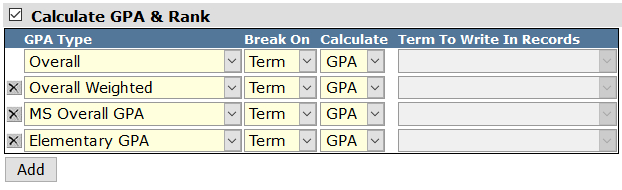
If Calculate GPA & Rank is chosen, Marks Processing will calculate GPA's for the current year track(s) only but can do multiple GPA Types depending on the terms and tracks selected. Additional GPA Types can be added using the Add button.
Selecting the Options
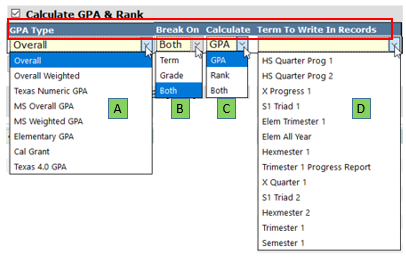
A. GPA Type
Add/Select the GPA(s) that will be calculated at this time.
B. Break On
Tells the application what to "break" its calculations on, either Term, Grade, or Both.
- If Term is selected, a separate GPA will be calculated for each term that marks were posted for the current school year.
- If Grade is selected, then one overall GPA will be calculated across all Terms for the current school year. If Both is selected, GPA's will be calculated for both the Terms and the Grade. Selecting Grade or Both will activate Option D - Term to Write in Records noted below.
C. Calculate
Tells the application which calculation(s) to perform. Select GPA, Rank, or Both.
D. Term to Write in Records
When calculating across a Grade, the system must still write the calculated records to a Term, so that they may be stored in the database. Select the Term you want to store the records in. This is often set to the last Term in a Track (such as 'Semester 2').
Also note that any of these GPA/Rank Calculations may be run or re-run at any time through Calculate GPA application under Student Academic History menu instead of through this application if desired.
The Honor Roll Calculation is also used for calculating Current-Term (non-historical) GPA's. These are GPA's potentially unrelated to the Historical GPA's calculated through the GPA/Rank process. When running this process through this application, some options from the Honor Roll are defaulted to the appropriate Current-Term GPA settings.
Note:
The GPA & Rank Calculation in Mark Processing does not go back and update previous year GPA's, it "builds" on the data that is already there from previous years. If someone has been editing Previous Year Marks, you will want to make sure they have re-run the GPA Calculation process under Academic History to bring the students' Historical GPA and Credit values up to date.
Note:
If your school needs to calculate GPA's & Ranks for more than one GPA Type, you may perform those additional calculations in either Mark Processing or in the Calculate GPA application under Academic History. If you choose to run those calculations in Mark Processing, be sure to turn any other processes that you may have originally used OFF, so that they are not re-run each time you want to calculate GPA's & Ranks.
5. Calculate Current GPA/Eligibility
When this option is selected, GPA/Eligibility Rules (Honor Rolls) are calculated for Current-Term (non-historical) GPA's. Q can calculate multiple eligibility rules during processing. Click the Add button for additional rules.
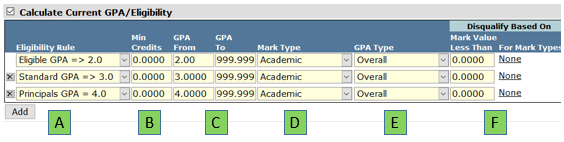
A. Eligibility Rule
Add/Select the Eligibility Rule(s) to be calculated for qualifying the students for Honor Roll eligibility.
B. Minimum Credits
Set this value to the cut-off the school may have as the minimum number of credits a student must have attempted to be included on the Honor Roll.
C. GPA Range
Set the GPA Range for which students will be qualified for inclusion on the Honor Roll. Students whose GPA calculation falls outside of this range will be disqualified from the Honor Roll, but will still be included in the calculation and report.
D. Mark Type
Select the Mark Type that is the basis for the calculation. This is generally an 'Academic' (or equivalent) Mark Type, the mark that the student earned for work in the class.
E. GPA Type
This tells the system which courses to include in this calculation. The calculation will look in the list of District Courses for courses that have the matching GPA Type selected and will include and weight them appropriately them in the resulting GPA. Courses that do not match the GPA Type selected will not be included.
F. Disqualify Based On
Set a Mark Value Less Than as needed and the Mark Types to check. Students who have a mark that has a corresponding GPA value that falls below the value entered here as the cut-off will be disqualified from the Honor Roll, but will still be calculated and printed.
6. Recalculate Credit
The Recalculate Credit selection is used to fix classes where wrong credits were assigned. First, fix the credits issue and then run Recalculate Credit. This option is only available to be run only with the Class Selection Filter and when checked, disables the other option check boxes.
7. Calculate Pathway Status
The Calculate Pathway Status selection is used to Calculate CTE Pathway status. Marks Processing is the only way to mass calculate Pathway Status.
Click Process to run the settings that have been configured. This may take quite a while, based on the size and number of schools chosen and the options and processes selected. As the process runs, status bars display detailed progress.
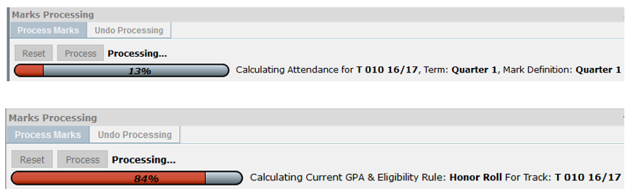
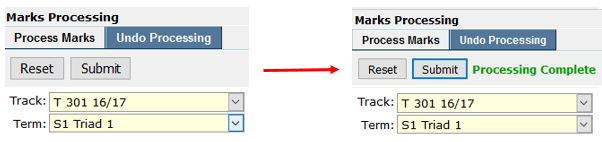
Undo Processing
If for any reason Marks Processing needs to be undone, click the Undo Processing tab, select the Track and Term and click Submit.