
Preferences may be used to customize the user experience in Q. Many applications in Q have specific preferences enabling districts, schools, and users to customize the way users interact with and experience the application. Some preferences are managed by the district and set for all users, and others may be set by individual users, including teachers.
Preferences are accessed at the bottom of the screen using the cog icon which appears when an application has preferences.
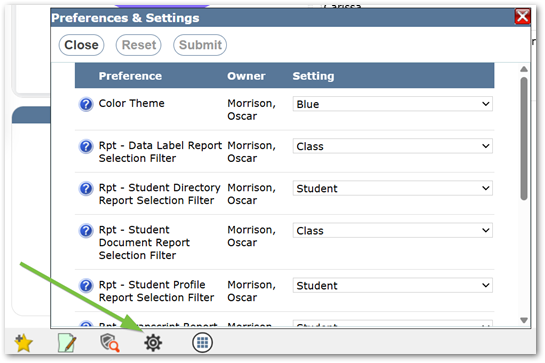
The Home page has a number of preferences, shown above. Hover over the Help button for details about the preference.
To change a preference:
- Click the desired Setting drop-list to see the choices.
- Select the desired choice.
- When finished, click Submit.
Note
This documentation includes Home Page Preferences. Preferences associated with other applications will be located in their applicable documentation.
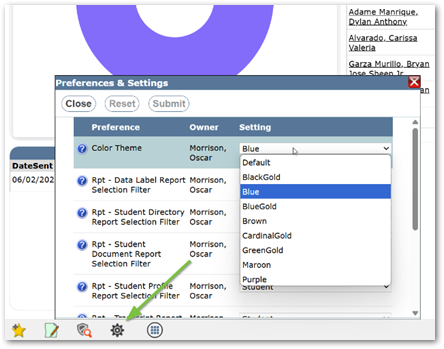
Q offers the ability to choose one of nine different color theme preferences. Once a theme is chosen, these colors will display on each subsequent login until changed. Theme preferences may be changed at the district level or by users.
Theme Preference – District Level
- Navigate to the Preference Editor by clicking Menu>System>Preference Editor.
- Click the Preference Tab
- An Application menu will display on the left side of the screen. Click System to pull up System Preferences.

- On the Color Theme Preference Row, users can “drill down” to the school and owner level using the + in the Level column
- Users can then choose the color Preference for the District, School, or Owners in the Setting column.
Theme Preference – User Level
- Users may set their theme preferences by clicking the Application Preferences icon on the Home Page. Then, the user can change their Theme by using the drop-down menu on the Color Theme Preference. After selecting, users can click Submit to save and apply.
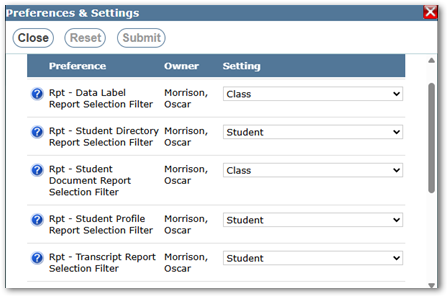
With Report Preferences, we can choose what kind of filter we prefer, Class or Student, for the reports listed.
Student selection filters are used to create reports on a student-by-student basis, so the filter choices are centered on the student. Meanwhile, Class selection filters create reports based on students in classes that have been assigned to faculty members in the Master Schedule.
Example 1: Student Profile Reports filters with Student chosen as the preference
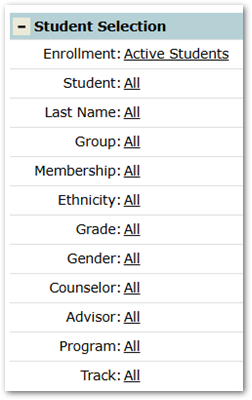
Example 2: Student Profile Reports filters with Class chosen as the preference
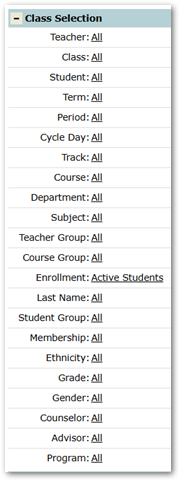
Types of Report (Rpt) Preferences:
- Rpt - Data Label Report Selection Filter
- Class is the default
- Rpt - Student Directory Report Selection Filter
- Student is the default
- Rpt - Student Document Report Selection Filter
- Class is the default
- Rpt - Student Profile Report Selection Filter
- Class is the default
- Rpt - Transcript Report Selection Filter
- Student is the default
Controls where the cursor appears by default when using 'Find' in Student Banner applications. Users typically wish for the cursor to appear on the Last Name field.
Controls the number of days an alert is considered new. When an alert is new, the red asterisk appears at the bottom right of the alert symbol. The default setting is 14 days
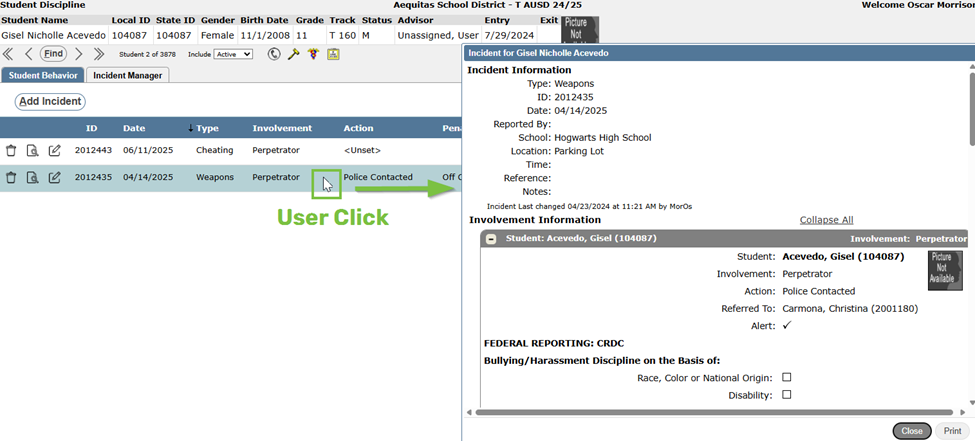
Displays the record’s Detail View when a row is clicked. If enabled, each application that uses record details will implement this preference.
Example: In the Student Behavior tab, within Student Discipline, clicking the row automatically displays the Incident Information Details for the selected student, instead of needing to click the magnifying glass icon to open the Detail View.
Determines whether to separate the different types of alert icons or to have a single alert icon in Student Banner applications.
Yes: Separate Alert Icons

No: Combine Alert Icons

Determines if the current application is reopened when switching tracks, or if the new track starts with no applications opened.
